
Does Windows 11 have a Taskbar? Where to Find It?
The Taskbar remains an essential part of Windows 11, even though its appearance has been modernized. It is now centered by default, giving a fresh and clean look while maintaining its core functionality.
In this guide, we will walk you through everything you need to know about the Windows 11 Taskbar, including whether it exists, where to find it, and how to use it effectively.
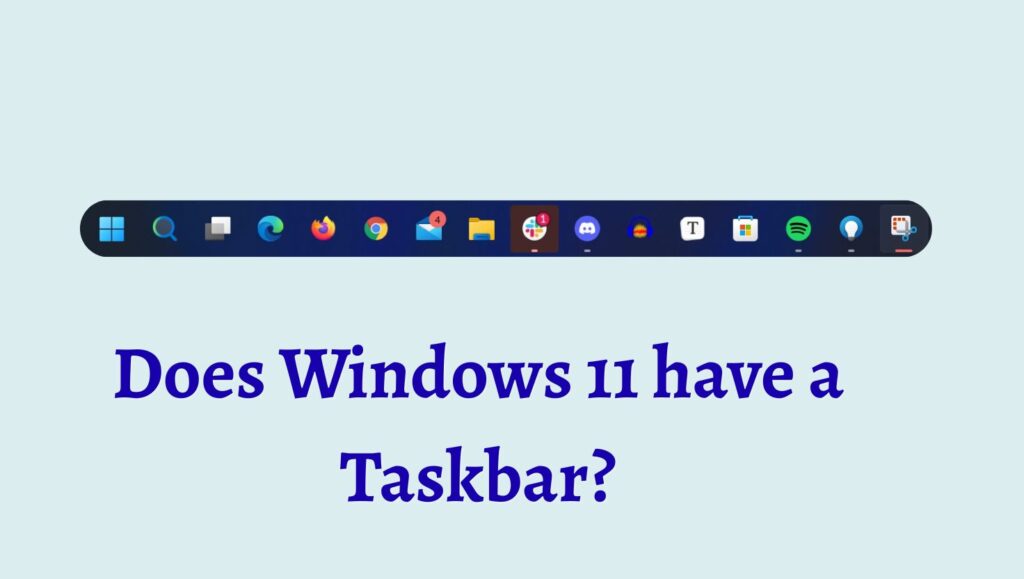
Does Windows 11 have a Taskbar?
Yes, Windows 11 absolutely has a Taskbar. In fact, it remains one of the core components of the operating system. However, Microsoft has redesigned it to give a more modern and centered look.
In previous versions like Windows 10, the Taskbar icons were aligned to the left by default. In Windows 11, the icons are centered on the screen, giving it a cleaner and more macOS-like appearance. Despite the visual change, the functionality remains largely the same.
The Taskbar in Windows 11 allows you to perform essential tasks such as:
- Opening and switching between apps
- Accessing the Start menu
- Viewing system notifications
- Managing background apps
- Checking time, date, and system status
Although some customization options have been simplified, the Taskbar is still highly functional and easy to use once you get familiar with its layout.
Where to Find the Taskbar in Windows 11?
When you boot into Windows 11, the Taskbar is immediately visible along the bottom edge of your screen. What makes it different from earlier versions is the alignment of icons. Instead of appearing on the left side, the icons are centered by default.
The Taskbar includes several key sections:
- The Start button, which opens the main menu
- Pinned applications like File Explorer or browsers
- Running applications that are currently open
- The System Tray, which shows background apps, network status, sound, and battery
- The Clock and Date display
If you do not see the Taskbar, it might be hidden due to settings like auto-hide mode or system glitches. In such cases, you can easily bring it back using a few simple steps.
Step 1: Look at the Bottom of Your Screen
The first and simplest way to find the Taskbar is by checking the bottom of your screen.
When your system is running normally, the Taskbar is always visible unless you have changed its settings. Look for a horizontal bar that spans across the bottom of your display. In Windows 11, you will notice that the icons, such as Start, Search, and pinned apps, are placed in the center.
This design change is one of the biggest visual differences compared to older versions. Even though the icons are centered, the Taskbar itself still stretches across the full width of the screen.
If you see icons like the Windows logo or small app icons in the middle, you have successfully located the Taskbar.
Step 2: Move Your Mouse to Reveal the Taskbar
If you cannot see the Taskbar immediately, it might be hidden due to the auto-hide feature.
In this case, move your mouse cursor to the bottom edge of the screen. The Taskbar should automatically slide into view. This feature is useful for maximizing screen space, especially when watching videos or working on full-screen applications.
If the Taskbar appears when you hover your mouse, it confirms that auto-hide is enabled. You can choose to keep this feature on or disable it later through settings.
Step 3: Use the Windows Key to Locate It
Another effective way to confirm the presence of the Taskbar is by pressing the Windows key on your keyboard.
When you press this key, the Start menu will pop up from the center of the screen. Since the Start menu is directly connected to the Taskbar, this action helps you identify its location.
Even if the Taskbar is hidden, pressing the Windows key forces it to appear temporarily. This is a quick and reliable method to access it without using your mouse.
Step 4: Check Taskbar Settings
If you are still unable to find the Taskbar, you should check the system settings.
Right-click anywhere on your desktop and select Personalize, then navigate to the Taskbar section. Here, you can review all Taskbar-related settings.
Within this section, you can:
- Enable or disable auto-hide
- Change icon alignment from center to left
- Manage system tray icons
- Customize Taskbar behavior
If the Taskbar is not visible due to misconfiguration, adjusting these settings will restore it.
Step 5: Restart Windows Explorer
Sometimes the Taskbar may disappear due to a temporary system glitch. In such cases, restarting Windows Explorer can fix the issue.
Open Task Manager by pressing Ctrl + Shift + Esc. Locate Windows Explorer in the list of processes. Right-click on it and select Restart.
This action refreshes the entire user interface, including the Taskbar. Within a few seconds, the Taskbar should reappear at the bottom of your screen.
Step 6: Ensure You Are Not in Full-Screen Mode
Certain applications, especially games and video players, run in full-screen mode, which hides the Taskbar.
To check if this is the case, press the Escape key or move your cursor to the bottom of the screen. You can also press Alt+Tab to switch between open applications.
Once you exit full-screen mode, the Taskbar should become visible again.
Step 7: Adjust Taskbar Alignment and Behavior
Windows 11 allows limited customization of the Taskbar, but you can still adjust its alignment and behavior.
Go to Settings, then Personalization, and open Taskbar settings. Look for the Taskbar behaviors section.
Here, you can change the alignment from center to left if you prefer a more traditional layout. This makes the Taskbar look similar to Windows 10.
You can also disable auto-hide to keep the Taskbar visible at all times.
FAQs
Is the Taskbar removed in Windows 11?
No, the Taskbar is not removed. It is still a core part of the operating system but has been redesigned with a centered layout.
Why is my Taskbar not showing in Windows 11?
This can happen due to auto-hide settings, full-screen mode, or a system glitch. Restarting Windows Explorer or adjusting Taskbar settings usually fixes the issue.
Can I move the Taskbar to the top or sides?
Windows 11 does not officially support moving the Taskbar to the top or sides. It is fixed at the bottom, although you can align icons to the left.
How do I customize the Taskbar in Windows 11?
You can customize it through Settings under Personalization and Taskbar. Options include changing alignment, enabling auto-hide, and managing icons.
What is the purpose of the Taskbar?
The Taskbar helps you quickly access apps, switch between programs, view system status, and open the Start menu.