
Fix “An Error Has Occurred in the Script on This Page” in Windows 11/10
If you frequently encounter the message “An error has occurred in the script on this page” while browsing or using certain applications in Windows 11 or Windows 10, you are not alone. This error usually occurs when a web page fails to execute scripts properly. Scripts are small programs, often written in JavaScript, that allow web pages to function dynamically. When something interrupts this process, Windows shows this error.
Common causes include corrupted browser cache, disabled scripting settings, outdated software, or conflicts with Internet Explorer settings, which still influence many apps and browsers in Windows.
In this guide, I will explain the easy solutions to resolve the issue on both Windows 11 and Windows 10.
Fix “An Error Has Occurred in the Script on This Page” Issue in Windows 11/10
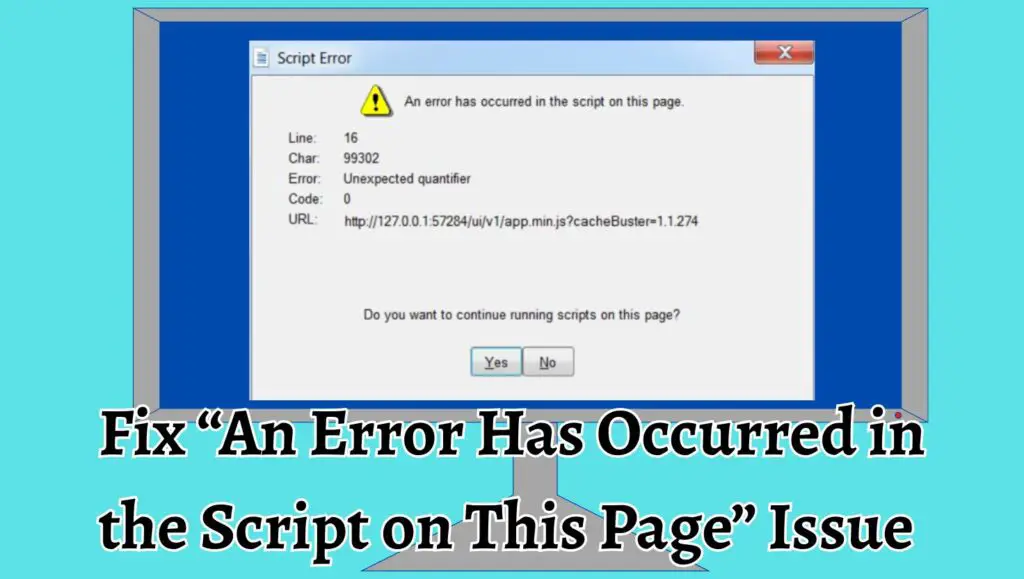
To fix the “An error has occurred in the script on this page” issue in Windows 11 or Windows 10, disable script debugging, clear browser cache, reset Internet Explorer settings, update Java and browsers, and ensure JavaScript is enabled. These steps help resolve conflicts that cause script errors and restore smooth browsing.
The detailed steps will help you eliminate the issue.
Step 1: Disable Script Debugging in Internet Options
The first and most effective fix is to disable script debugging. Many times, Windows shows script errors because debugging is enabled, even when it is not needed.
To begin, open the Control Panel by typing it into the Windows search bar and pressing Enter. Once inside, select Network and Internet, then click on Internet Options. A new window will appear.
Now switch to the Advanced tab. Scroll down until you find the Browsing section. Here, you will see options labeled “Disable script debugging (Internet Explorer)” and “Disable script debugging (Other).” Make sure both of these options are checked.
Also, find the option labeled “Display a notification about every script error” and uncheck it. This prevents unnecessary popups.
Click Apply and then OK to save your changes. Restart your computer and check if the issue is resolved.
Step 2: Clear Browser Cache and Cookies
Corrupted or outdated cache files are a common reason behind script errors. Clearing them ensures your browser loads fresh data.
Open your browser, such as Google Chrome or Microsoft Edge. Go to the settings menu and look for Privacy and Security options. From there, select Clear browsing data.
Choose to delete cached images and files along with cookies. Make sure to select an appropriate time range, preferably “All time,” for a complete cleanup.
After clearing the data, restart your browser and revisit the page that was showing the error. This simple step often resolves the issue instantly.
Step 3: Reset Internet Explorer Settings
Even though many users no longer actively use Internet Explorer, its settings still affect system behavior and certain applications.
Open the Internet Options window again through the Control Panel. This time, navigate to the Advanced tab and click on the Reset button located at the bottom.
A confirmation box will appear. Select the option to delete personal settings if you want a full reset. Then click Reset again.
Once the process completes, restart your computer. This step restores default configurations and removes problematic settings causing script errors.
Step 4: Enable Active Scripting
Script errors may occur if JavaScript or Active Scripting is disabled.
Open Internet Options and go to the Security tab. Select the Internet zone, then click on Custom level.
Scroll down until you find Scripting. Under Active Scripting, ensure that the option is set to Enable.
Click OK and confirm any prompts. Restart your browser and check if the error persists.
Step 5: Update Your Web Browser
Using an outdated browser can lead to compatibility issues with modern websites.
Open your browser settings and navigate to the About section. Here, the browser will automatically check for updates.
If an update is available, install it and restart the browser. Updated browsers include the latest security patches and improved script handling, which can fix this error.
Step 6: Update Java and Related Components
Some websites and applications rely on Java to run scripts. If Java is outdated, it may trigger script errors.
Visit the official Java website and download the latest version. Install it by following the on-screen instructions.
After installation, restart your computer. Keeping Java updated ensures compatibility with newer scripts and prevents errors.
Step 7: Disable Add-ons and Extensions
Browser extensions can sometimes interfere with scripts, especially ad blockers or security plugins.
Open your browser’s extension settings and temporarily disable all add-ons. Restart the browser and check if the error disappears.
If the issue is resolved, enable extensions one by one to identify the problematic one. Once found, remove or replace it.
Step 8: Run System File Checker
Corrupted system files can also cause script-related issues.
Open Command Prompt as an administrator by searching for it and selecting Run as administrator.
Type the command sfc /scannow and press Enter. The system will begin scanning and repairing corrupted files.
Wait for the process to complete and then restart your computer. This helps restore system stability.
Step 9: Adjust Security Settings
Overly strict security settings may block scripts from running.
Open Internet Options and go to the Security tab. Select the Internet zone and click Default level.
This resets the security settings to a balanced level that allows scripts while maintaining protection.
Apply the changes and restart your system.
Step 10: Check for Windows Updates
Sometimes the issue is caused by outdated system components.
Open Settings, go to Windows Update, and click Check for updates. Install any available updates and restart your computer.
Regular updates fix bugs and improve system compatibility, reducing script errors.
FAQs
What causes the “script error” message in Windows?
This error is usually caused by browser misconfiguration, disabled scripting features, corrupted cache, or outdated system components.
Is this error harmful to my computer?
No, it is generally not harmful. However, it can disrupt your workflow and indicate underlying issues that should be fixed.
Why does the error appear even if I do not use Internet Explorer?
Many Windows applications still rely on Internet Explorer’s scripting engine, which is why the error appears even if you use another browser.
Can clearing cache fix the issue?
Yes, clearing cache often resolves the problem by removing outdated or corrupted script files.
Should I disable script debugging permanently?
Yes, for most users, disabling script debugging is safe and prevents unnecessary error messages.