
Fix Error Code 0x80070103 on Windows 11 [10 Ways]
If you regularly update your system, you may have come across Error Code 0x80070103 while installing updates on Windows 11. This issue often appears during driver updates and can be confusing, especially when the update repeatedly fails even though your system seems to be working fine.
In this guide, you will learn what causes this error and how to fix it using simple and effective methods.
What is Error Code 0x80070103 on Windows 11?
Error Code 0x80070103 typically occurs when Windows Update tries to install a device driver that is either already installed or is not compatible with your system.
In most cases, this error appears when:
- Windows attempts to install a driver version that is older than the one already installed
- The driver update is not suitable for your hardware
- The same update keeps retrying even after failing once
Unlike other update errors, this one does not always indicate a serious problem. It simply means that the update process is trying to install something unnecessary or incompatible.
However, if the error keeps appearing, it can clutter your update history and prevent other updates from installing properly. That is why it is best to fix it.
How to Fix Error Code 0x80070103 on Windows 11?
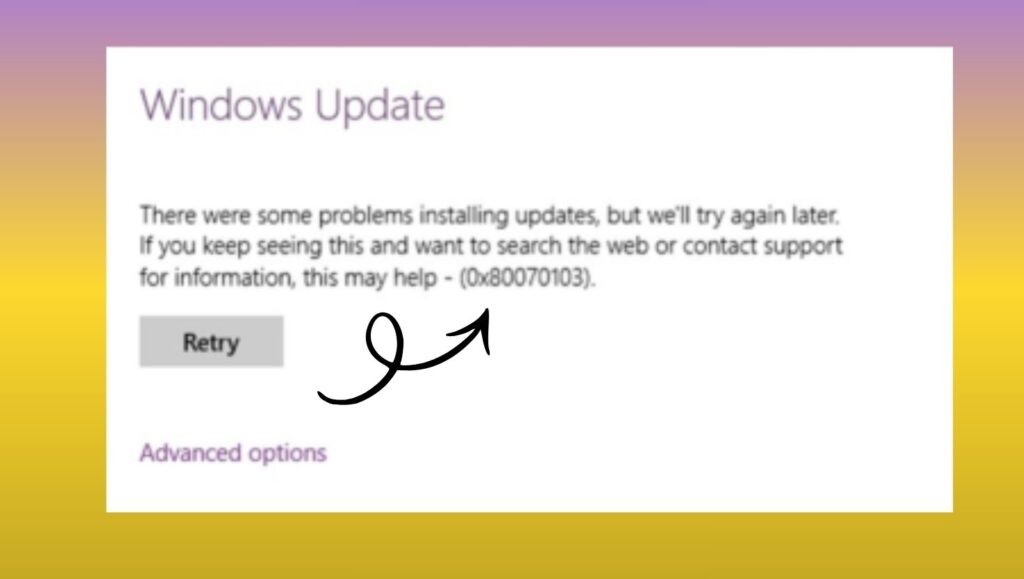
To fix Error Code 0x80070103 on Windows 11, update or reinstall the affected driver manually using Device Manager, run the Windows Update Troubleshooter, clear the update cache, or hide the problematic update. These methods stop Windows from retrying incompatible driver installations and restore normal update functionality.
Step 1: Identify the Problematic Update
Before applying any fix, it is important to know which update is causing the error.
Open Settings and go to Windows Update, then click on Update history. Look for entries marked as failed and note the name of the driver or update associated with Error Code 0x80070103.
Once you identify the update, you will have a clearer idea of whether it is related to graphics drivers, network adapters, or other hardware components. This helps you apply the correct fix instead of trying random solutions.
Step 2: Update the Driver Manually
In many cases, the error occurs because Windows is trying to install an outdated driver. Updating the driver manually can resolve the issue.
Open Device Manager by searching for it in the Start menu. Locate the device related to the failed update, then right-click on it and select Update driver.
Choose the option to search automatically for drivers. If Windows finds a newer version, it will install it. If not, you can visit the manufacturer’s website and download the latest driver manually.
Once the correct driver is installed, Windows Update will stop attempting to install the incompatible version, which resolves the error.
Step 3: Reinstall the Device Driver
If updating does not work, reinstalling the driver can fix hidden conflicts.
Open Device Manager again and find the affected device. Right-click on it and select Uninstall device. After uninstalling, restart your computer.
When your system restarts, Windows will automatically reinstall the correct driver. This fresh installation often removes mismatched configurations that trigger Error Code 0x80070103.
Step 4: Run Windows Update Troubleshooter
Windows 11 includes a built-in troubleshooter that can automatically detect and fix update-related issues.
Go to Settings, then open System, and select Troubleshoot. Click on Other troubleshooters and run the Windows Update Troubleshooter.
The tool will scan for problems and apply fixes automatically. This includes resolving update conflicts, repairing services, and resetting components related to updates.
After running the troubleshooter, try updating your system again to see if the error is gone.
Step 5: Clear Windows Update Cache
Sometimes, corrupted update files can cause repeated failures. Clearing the update cache can help.
Open Command Prompt as an administrator and stop the update services by typing the following commands one by one:
net stop wuauserv
net stop bits
Next, navigate to the SoftwareDistribution folder located in the Windows directory and delete its contents. This folder stores temporary update files.
After that, restart the services using these commands:
net start wuauserv
net start bits
This process forces Windows to download fresh update files, which can eliminate the error.
Step 6: Hide the Problematic Update
If the update is not necessary, you can simply hide it so Windows does not try to install it again.
Download the Show or Hide Updates Troubleshooter tool from Microsoft. Run the tool and select the option to hide updates.
Choose the update that is causing Error Code 0x80070103 and confirm your selection. This prevents Windows from attempting to install it in the future.
This method is especially useful when the update is not critical and does not affect system performance.
Step 7: Check Optional Updates
Sometimes the problematic driver appears under optional updates instead of regular updates.
Go to Settings, open Windows Update, and click on Advanced options. Then select Optional updates.
Review the list of available driver updates. If you see the same driver that failed earlier, avoid installing it unless necessary.
Selecting only relevant updates helps prevent compatibility issues and keeps your system stable.
Step 8: Use System File Checker
Although this error is usually driver-related, corrupted system files can sometimes contribute to update issues.
Open Command Prompt as an administrator and run the following command:
sfc /scannow
This scan checks for corrupted system files and repairs them automatically. Once the process is complete, restart your computer and try updating again.
Step 9: Perform a Clean Boot
A clean boot starts Windows with minimal services and can help identify conflicts caused by third-party applications.
Press Windows key and R, type msconfig, and open the System Configuration window. Disable all non-Microsoft services and restart your computer.
After the restart, try running Windows Update again. If the error disappears, it means a background program was interfering with the update process.
You can then re-enable services one by one to identify the cause.
Step 10: Reset Windows Update Components
If none of the above methods work, resetting Windows Update components can resolve persistent issues.
Open Command Prompt as an administrator and run commands to stop update services, rename update folders, and restart services.
This process completely refreshes the update system and removes any corrupted configurations that might be causing the error.
FAQs
Is Error Code 0x80070103 dangerous?
No, this error is not dangerous. It usually indicates a driver compatibility issue rather than a system failure.
Why does the error keep coming back?
The error repeats because Windows keeps trying to install the same incompatible driver. Hiding the update or installing the correct driver manually can stop it.
Can I ignore this error?
Yes, in many cases, you can ignore it if your system is working fine. However, fixing it ensures a cleaner update process.
Does this error affect system performance?
No, it does not directly affect performance. It only impacts the update process.
How do I know which driver is causing the issue?
You can check the update history in Windows Update to identify the failed driver associated with the error.