
Fix “Unarc.dll returned an error code” in Windows 11/10
The “Unarc.dll returned an error code” issue is one of the most frustrating problems Windows users face while installing or extracting large compressed files, especially games or software. This error typically appears during installation and interrupts the process, leaving users confused about what went wrong. It can occur in both Windows 11 and Windows 10, often due to system misconfigurations, corrupted files, or insufficient resources.
Below, I have explained everything in detail about the Unarc.dll, like what it is, why it returns an error, common error messages that it returns, and the main part, how to fix ‘Unarc.dll returned an error code’.
So let’s start!
What is Unarc.dll?
Unarc.dll is a dynamic link library file used by Windows programs to handle file decompression tasks. It is commonly associated with installers that unpack compressed archives, such as setup files for games or software.
When you install a program that uses compressed data, Unarc.dll works alongside another file called ISDone.dll to extract the contents and place them correctly on your system. If Unarc.dll fails, the extraction process stops, leading to the error message.
Why does Unarc.dll return an error?
The Unarc.dll error usually occurs when something interferes with the extraction process. This could be related to hardware limitations, system settings, or corrupted files.
One of the most common causes is insufficient RAM or virtual memory, which prevents large files from being unpacked properly. Another major reason is corrupted or incomplete installation files, often due to interrupted downloads.
Sometimes, the issue is linked to disk errors or bad sectors, especially if you are installing files on an older or damaged drive. Antivirus software can also block certain files during extraction, mistakenly identifying them as threats.
Incorrect system configurations, such as disabled paging files or incompatible system settings, can also trigger this error.
What are the Common Error Messages Related to Unarc.dll?
You may encounter different variations of the Unarc.dll error. Some of the most common messages include:
“Unarc.dll returned an error code: -1,” which usually indicates corrupted files or archive issues.
“Unarc.dll returned an error code: -6” often points to insufficient RAM or virtual memory.
“Unarc.dll returned an error code: -7” typically relates to decompression failures due to system resource limits.
“ISDone.dll error” often appears alongside Unarc.dll errors, as both files work together.
“ERROR: archive data corrupted (decompression fails)” indicates damaged or incomplete installation files.
Understanding the specific error code helps identify the root cause and apply the correct fix.
Fix “Unarc.dll returned an error code” in Windows 11/10
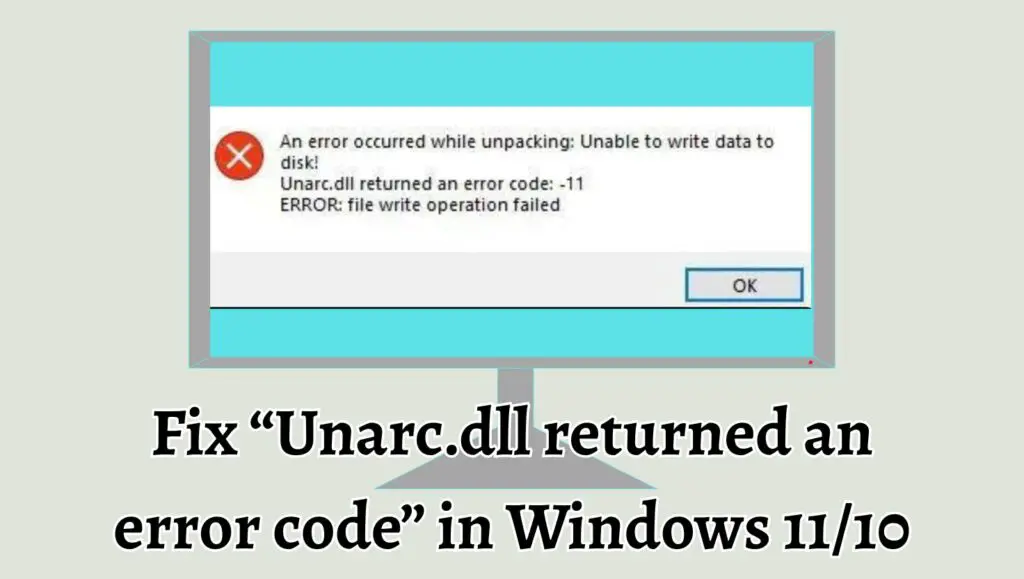
To fix the “Unarc.dll returned an error code” in Windows 11 or 10, ensure your system has enough virtual memory, check for corrupted installation files, disable antivirus temporarily, run a disk check, and reinstall the program using administrator privileges. These steps resolve most causes related to memory, file corruption, and system restrictions.
Step 1: Check System Requirements and Free Up RAM
Before trying advanced solutions, make sure your system meets the minimum requirements of the software you are installing. Many modern applications require significant memory and storage.
Close all unnecessary applications running in the background to free up RAM. Open Task Manager and end tasks that consume high memory. Restart your system to clear temporary memory usage. This simple step often resolves error codes like -6 or -7, which are linked to insufficient memory.
Step 2: Increase Virtual Memory (Paging File)
Virtual memory acts as an extension of your RAM. If it is disabled or set too low, Unarc.dll may fail during extraction.
Open the Control Panel and go to System settings. Click on Advanced system settings, then under Performance select Settings. Navigate to the Advanced tab and click Change under Virtual Memory.
Disable automatic management and set a custom size. For best results, set the initial size to match your RAM and the maximum size to twice your RAM. Apply the changes and restart your computer.
This fix is highly effective for large installations.
Step 3: Verify Integrity of Installation Files
Corrupted or incomplete files are one of the biggest causes of this error.
If you downloaded the setup file from the internet, delete it and download it again from a reliable source. Avoid using unstable internet connections while downloading large files.
If the files are compressed, try extracting them manually with trusted tools like WinRAR or 7-Zip. If extraction fails, it confirms the archive is corrupted.
Step 4: Disable Antivirus Temporarily
Sometimes antivirus software mistakenly blocks important installation files, causing the extraction to fail.
Temporarily disable your antivirus or Windows Security before running the installation. After installation is complete, re-enable it immediately.
Make sure you only do this if the file source is trustworthy to avoid security risks.
Step 5: Run Disk Check for Errors
Disk issues, such as bad sectors, can interrupt file extraction.
Open Command Prompt as administrator and type chkdsk /f /r, then press Enter. You may be asked to schedule the scan on the next restart. Restart your computer and let the scan complete.
This process identifies and fixes disk-related problems that may be causing the error.
Step 6: Install the Program as Administrator
Lack of proper permissions can also trigger Unarc.dll errors.
Right-click on the setup file and select Run as administrator. This ensures the installer has full access to system resources and directories.
Avoid installing programs in restricted folders. Instead, choose a simple directory, such as a folder on your desktop or another drive.
Step 7: Re-register Unarc.dll File
If the Unarc.dll file itself is missing or corrupted, re-registering it can help.
Open Command Prompt as administrator and type regsvr32 unarc.dll, then press Enter. If the file is missing, you may need to restore it by reinstalling the application or copying it from a trusted source.
Step 8: Check for Windows Updates
Outdated system files can sometimes cause compatibility issues.
Go to Settings and open Windows Update. Check for updates and install any pending ones. Restart your system afterward.
Keeping your system updated ensures compatibility with modern applications and installers.
Step 9: Perform a Clean Boot
A clean boot helps identify if background services are causing the issue.
Open System Configuration by typing msconfig in the Run dialog. Disable all non-Microsoft services and restart your system. Try installing the program again.
If the error disappears, it means a third-party service was interfering with the process.
Step 10: Reinstall ISDone.dll and Unarc.dll Files
Since Unarc.dll works closely with ISDone.dll, reinstalling both files can fix the issue.
Download fresh copies of these DLL files from a trusted source or reinstall the application that originally included them. Place them in the System32 folder for 32-bit systems or SysWOW64 for 64-bit systems.
Restart your computer after replacing the files.
FAQs
What does Unarc.dll error code -6 mean?
It usually indicates insufficient memory or virtual memory issues during extraction.
Is Unarc.dll a virus?
No, Unarc.dll is a legitimate system file. However, malicious programs can disguise themselves using the same name, so always verify the file source.
Can I delete Unarc.dll?
No, deleting it may cause programs to stop working properly. It should only be replaced or repaired if corrupted.
Why does the error occur during game installation?
Games often use highly compressed files, which require more system resources to extract. If your system cannot handle it, the error appears.
Does increasing RAM fix this error?
Yes, adding more RAM can help, but increasing virtual memory is usually sufficient for most users.