
Fix “We are experiencing an issue” on Copilot?
The “We are experiencing an issue, please try submitting a new message” error on Copilot is a common but manageable problem. Copilot works through Microsoft’s cloud servers and relies heavily on real-time data exchange. When something interrupts that communication, Copilot fails to process your prompt and shows the error.
Common causes include temporary Copilot server downtime, weak or unstable internet connectivity, corrupted browser cookies or cache, conflicts caused by browser extensions, outdated browser versions, Microsoft account authentication issues, or high traffic on Copilot servers during peak hours.
In this detailed guide, you will learn exactly how to fix “We are experiencing an issue” on Copilot, step by step, using practical and proven methods.
So let’s start!
Fix “We are experiencing an issue, please try submitting a new message” on Copilot?
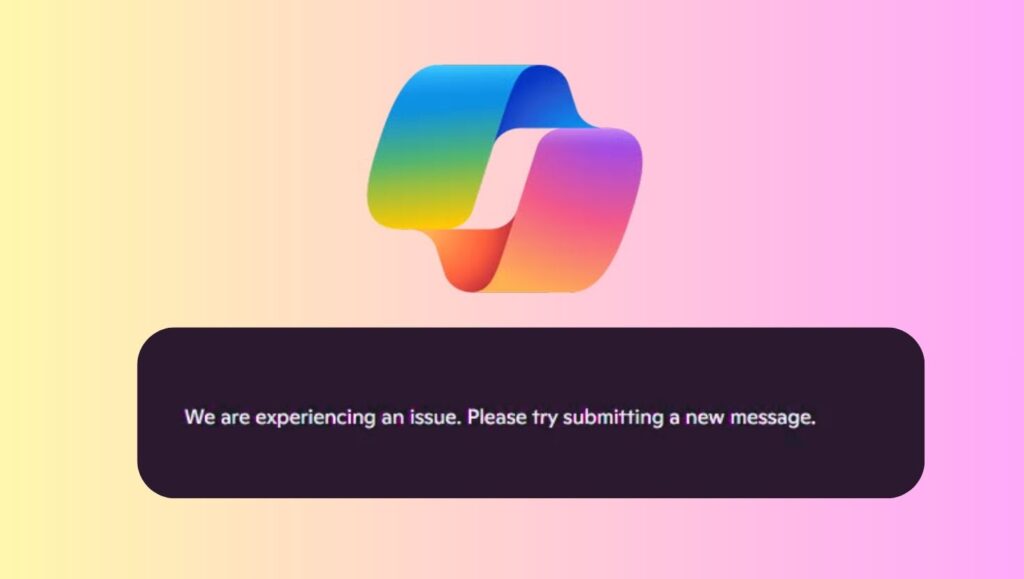
The “We are experiencing an issue” error on Copilot usually occurs due to temporary server outages, unstable internet connections, corrupted browser data, or account-related syncing problems. You can fix it by refreshing Copilot, checking your internet, clearing browser cache, signing out and back into your Microsoft account, disabling extensions, or accessing Copilot from a different browser or device.
In most cases, the issue resolves itself once the underlying connection or session problem is fixed.
Step 1: Refresh Copilot and Resubmit Your Prompt
The first thing you should always try is a simple refresh. Copilot sessions can occasionally freeze or lose synchronization with Microsoft servers.
Reload the Copilot page completely and wait a few seconds for it to load fully. Once refreshed, type your prompt again instead of resending the old one. Make sure the message is not extremely long or complex, especially if the error appeared after submitting a detailed query.
In many cases, this single step resolves the issue instantly because the error was caused by a temporary session glitch.
Step 2: Check Your Internet Connection Stability
A weak or unstable internet connection is one of the most common reasons behind the Copilot experiencing an issue. Even if other websites seem to load, Copilot requires a stable and consistent connection to process requests.
Restart your Wi Fi router or switch to a different network if possible. If you are using mobile data, try switching to a wired or broadband connection. You should also avoid using VPNs at this stage, as they can interfere with Microsoft’s servers and trigger request failures.
Once your connection stabilizes, reload Copilot and submit a new message.
Step 3: Sign Out and Sign Back Into Your Microsoft Account
Copilot is deeply linked to your Microsoft account, and authentication issues can prevent it from responding properly.
Sign out of your Microsoft account completely, close the browser, then reopen it and sign in again. This refreshes your account session and resolves token-related problems that may cause Copilot to fail when generating responses.
After signing back in, open Copilot and try submitting a simple query to check if the issue is fixed.
Step 4: Clear Browser Cache and Cookies
Corrupted browser cache or outdated cookies can interfere with Copilot’s scripts and APIs. This is especially common if you use Copilot frequently.
Open your browser settings and clear cached images, files, and cookies related to Microsoft sites. Be sure to close and reopen the browser afterward so the changes take full effect.
Once done, log back into your Microsoft account and access Copilot again. This step often resolves recurring errors that do not go away with a simple refresh.
Step 5: Disable Browser Extensions Temporarily
Some browser extensions, especially ad blockers, privacy tools, script blockers, and AI related add ons, can conflict with Copilot’s functionality.
Disable all extensions temporarily and reload Copilot. If the error disappears, re-enable extensions one by one to identify which one is causing the conflict.
Extensions that block scripts or modify page behavior are the most common culprits, so pay close attention to those.
Step 6: Try Copilot in an Incognito or Private Window
Opening Copilot in a private or incognito window is a quick way to bypass cached data and extension conflicts.
Private browsing mode runs without most extensions and uses a fresh session. Open a new incognito window, sign in to your Microsoft account, and try Copilot again.
If it works fine in this mode, the issue is almost certainly related to cached data or extensions in your regular browsing session.
Step 7: Switch to a Different Browser or Device
If Copilot continues to show the error, try accessing it from a different browser, such as Edge, Chrome, or Firefox. Microsoft Copilot is optimized for Microsoft Edge, so using Edge often provides the most stable experience.
You can also test Copilot on a different device, such as another computer or a mobile phone. If it works there, the issue is likely limited to your original browser or system configuration.
Step 8: Check Copilot and Microsoft Service Status
Sometimes the problem is not on your end at all. Microsoft occasionally performs maintenance or experiences server-side outages.
If Copilot is down globally or regionally, users may see the “We are experiencing an issue” message regardless of what they do. In such cases, waiting is the only solution.
When servers stabilize, Copilot usually starts working again automatically without requiring any changes from the user.
Step 9: Update Your Browser and Operating System
Running an outdated browser or operating system can cause compatibility issues with modern web apps like Copilot.
Check for browser updates and install the latest version. You should also ensure your operating system is up to date with the latest security patches and performance improvements.
After updating, restart your device and try Copilot again.
Step 10: Reduce Prompt Length and Complexity
Sometimes the error appears when Copilot struggles to process very long or complex prompts, especially during high traffic periods.
Break your query into smaller parts and submit them one at a time. This reduces the processing load and increases the chances of getting a response.
Once Copilot responds normally, you can gradually increase prompt complexity again.
FAQs
What does “We are experiencing an issue” mean on Copilot?
This message indicates that Copilot is temporarily unable to process your request. It usually happens due to server issues, connection problems, or browser-related conflicts rather than a permanent error.
Is the Copilot error caused by my Microsoft account?
In some cases, yes. Account session problems or authentication glitches can trigger this error. Signing out and signing back in often fixes it.
Does using a VPN affect Copilot?
Yes, VPNs can sometimes interfere with Copilot’s connection to Microsoft servers, leading to request failures. Disabling the VPN often resolves the issue.
Why does Copilot work sometimes and fail at other times?
This usually happens during peak usage hours or when Microsoft servers are under heavy load. The issue often resolves itself after some time.
Should I reinstall my browser to fix Copilot?
Reinstalling the browser is rarely necessary. Clearing the cache, disabling extensions, and updating the browser usually fixes the problem without reinstalling.