
Fix “We Can’t Create a Recovery Drive on This PC” Error!
Creating a Recovery Drive in Windows 11 or Windows 10 is one of the smartest preventive steps you can take. It gives you a bootable USB tool that can repair startup problems, restore system images, and even reset your PC when things go wrong. But sometimes, when you try to create one, Windows throws a frustrating message that says, “We can’t create a recovery drive on this PC.”
This error usually appears when system recovery files are missing, corrupted, or disabled. In some cases, it can also be caused by damaged system files or misconfigured services. The good news is that this issue is almost always fixable with the right approach. If you follow the steps carefully, you can restore the recovery environment and successfully create your recovery drive.
Let’s walk through each solution in a clear and practical way so you can resolve the issue with confidence.
Fix “We Can’t Create a Recovery Drive on This PC” Error
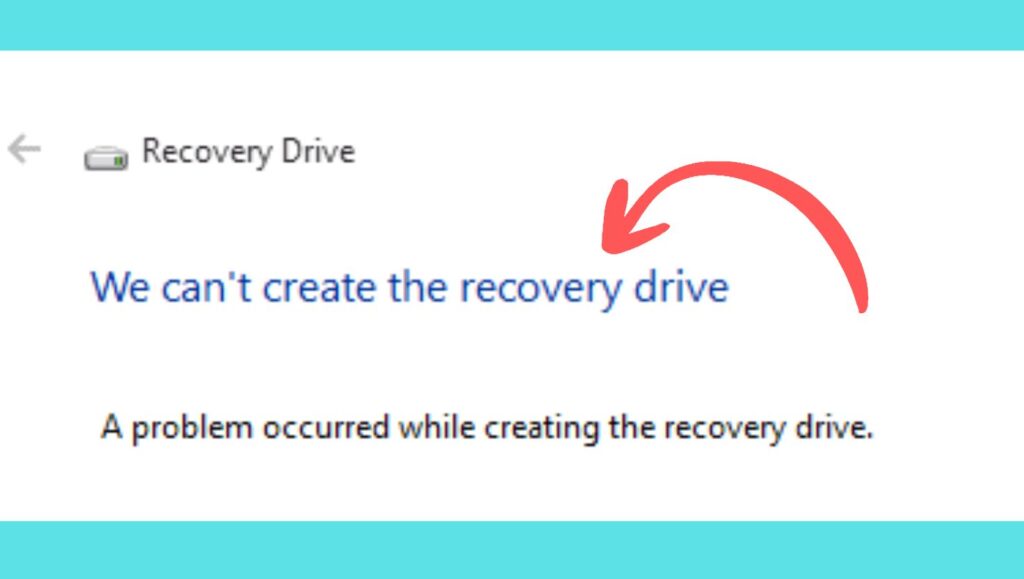
Below are the most effective methods to fix this error. Go through them one by one. In many cases, the issue is resolved within the first few steps.
Step 1: Check If Windows Recovery Environment Is Enabled
One of the most common reasons behind this error is that the Windows Recovery Environment or WinRE is disabled. Without it, Windows cannot generate a recovery drive.
To check this, open Command Prompt as an administrator. Type the following command and press Enter:
reagentc /info
If the result shows that Windows RE status is disabled, that is likely the cause of your problem. To enable it, type:
reagentc /enable
Press Enter and wait for the confirmation message. Once enabled, restart your computer and try creating the recovery drive again.
If enabling WinRE does not solve the issue, it could mean the recovery image itself is missing or damaged. That brings us to the next step.
Step 2: Repair Corrupted System Files Using SFC and DISM
Corrupted system files can interfere with recovery tools. Fortunately, Windows includes built-in repair utilities like System File Checker (SFC) and Deployment Image Servicing and Management (DISM).
Start by opening Command Prompt as administrator again. Type the following command:
sfc /scannow
This process scans your system for corrupted files and automatically replaces them with healthy versions. It may take some time, so be patient.
After the scan completes, restart your PC and try creating the recovery drive again. If the issue persists, run the DISM command:
DISM /Online /Cleanup-Image /RestoreHealth
This tool repairs the Windows system image itself. Once it finishes, restart your system again.
These two commands together often resolve deep system-level problems. If the error continues, there may be an issue with the recovery partition itself.
Step 3: Verify the Recovery Partition
Windows typically stores recovery files in a hidden Recovery Partition. If that partition is missing, damaged, or improperly configured, the recovery drive creation will fail.
Press the Windows key and type Disk Management, then open it. Look for a small partition labeled Recovery. It is usually between 500 MB and 1 GB.
If you do not see a recovery partition, it might have been deleted during a previous clean installation or disk modification. In that case, Windows cannot access recovery files because they no longer exist.
If the partition is present but you still face errors, it could be corrupted. Repairing or recreating it may require advanced steps such as reinstalling Windows using installation media. But before jumping to that, try the next method.
Step 4: Temporarily Disable Antivirus Software
Third-party antivirus software sometimes interferes with system-level operations, including the creation of a recovery drive.
Temporarily disable your antivirus program and try creating the recovery drive again. Make sure you only disable it briefly and re-enable it after testing.
If the recovery drive is successfully created after disabling the antivirus, you have identified the conflict. You can either adjust antivirus settings or consider using a different security solution.
If nothing changes, the problem may be related to the USB drive itself.
Step 5: Use a Different USB Drive
Not all USB drives are compatible with the recovery drive tool. Some older or low-quality USB flash drives can trigger unexpected errors.
Use a USB drive that is at least 16 GB in size. Format it using the NTFS file system before attempting to create the recovery drive again. You can format the drive by right-clicking it in File Explorer and selecting Format.
After formatting, reopen the Create a recovery drive tool and try again.
Sometimes, simply switching to a reliable USB device resolves the issue instantly. But if the problem persists, the issue may lie deeper in the operating system.
Step 6: Reset Windows Recovery Environment Configuration
If WinRE is enabled but still not functioning correctly, resetting its configuration can help.
Open Command Prompt as administrator and type:
reagentc /disable
Press Enter and wait for confirmation. Then type:
reagentc /enable
This process refreshes the recovery configuration. Restart your PC afterward and try creating the recovery drive once more.
If this works, it means the recovery environment configuration was misaligned. If not, you may need to recreate the recovery image manually.
Step 7: Perform an In-Place Windows Repair
When all else fails, an in-place upgrade repair can fix deeply rooted system issues without deleting your personal files.
Download the official Windows installation media using the Media Creation Tool from Microsoft’s website. Run the setup file and choose the option to keep personal files and apps.
This process reinstalls Windows system files while preserving your data. Once completed, try creating the recovery drive again.
In most cases, this final step resolves persistent recovery-related errors. It refreshes system components without requiring a full clean installation.
FAQs
Why does Windows say it cannot create a recovery drive?
This usually happens because the Windows Recovery Environment is disabled, the recovery partition is missing, or system files are corrupted. USB compatibility issues can also trigger the error.
Does creating a recovery drive delete my files?
No, creating a recovery drive does not delete files from your PC. However, the USB drive used for the process will be formatted and all its existing data will be erased.
How large should my USB drive be?
Microsoft recommends using a USB drive with at least 16 GB of storage to ensure all recovery files are included.
Can I download recovery files separately?
Recovery files are built into Windows. If they are missing, the best solution is repairing Windows using DISM or performing an in-place upgrade.
Is the recovery drive the same as a system image?
No. A Recovery Drive provides troubleshooting tools and reset options. A System Image is a complete backup of your entire system state.