
How to Add Headings (H1, H2, H3…) in Google Docs? (With Keyboard Shortcut)
Headings in Google Docs are part of the built-in Styles feature, which allows you to apply consistent formatting throughout your document. Instead of manually changing font size, boldness, or spacing, headings apply predefined styles with a single click.
Using headings correctly ensures that your document follows a logical structure. This is especially useful when working on long documents such as reports or guides.
Another advantage is that headings integrate with the Document Outline feature in Google Docs. This allows you to quickly jump between sections without scrolling through the entire document.
In this guide, you will learn how to add headings in Google Docs using the navigation bar and the keyboard shortcut.
Let’s learn!
How to Add Headings (H1, H2, H3…) in Google Docs?
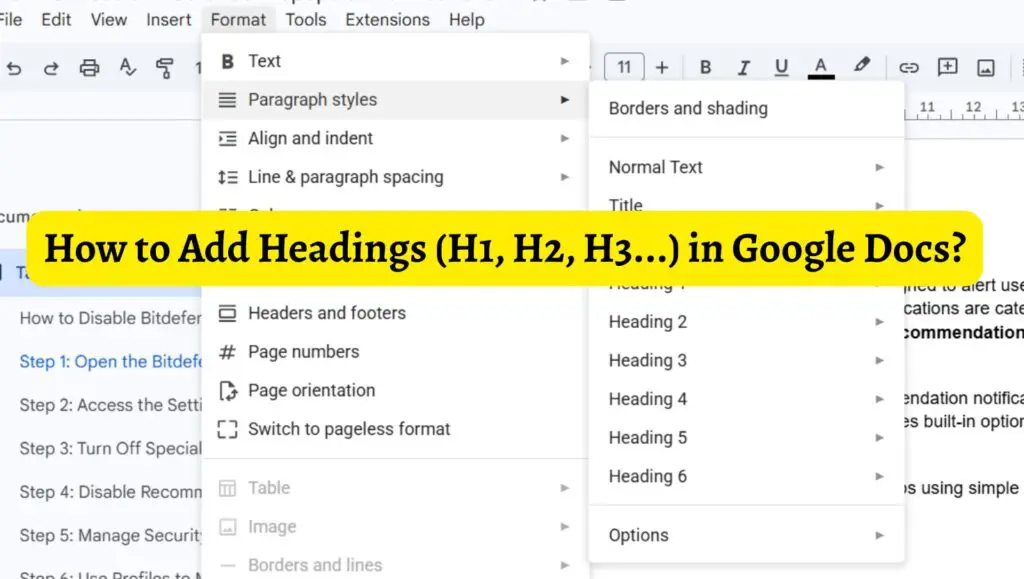
To add headings in Google Docs, select the text you want to format, click on the Styles dropdown in the toolbar, and choose a heading level such as Heading 1, Heading 2, or Heading 3. You can also use keyboard shortcuts like Ctrl + Alt + 1 for Heading 1, Ctrl + Alt + 2 for Heading 2, and so on.
Step 1: Open Your Document in Google Docs
The first step is to open your document in Google Docs. You can either create a new document or open an existing one from your Google Drive.
Once the document is open, make sure your content is already written or at least outlined. Headings work best when you have a clear idea of your sections and subtopics.
If you are starting from scratch, you can type your main title and sections first, then apply headings afterward.
Step 2: Select the Text You Want to Turn into a Heading
After opening your document, locate the text that you want to convert into a heading.
Click and drag your cursor over the text to highlight it. This could be a title, a section name, or a subsection.
Make sure you only select the specific text you want to format, not the entire paragraph unless necessary.
Step 3: Use the Styles Dropdown Menu
At the top of the screen, you will find the Styles dropdown menu, which usually displays “Normal text” by default.
Click on the Format > Paragraph Style dropdown to view different heading options such as Heading 1, Heading 2, Heading 3, and more.
Choose the appropriate heading level based on your document structure.
For example, use Heading 1 for main sections and Heading 2 for subtopics.
Once you click on a heading style, the selected text will automatically change its format.
Keyboard Shortcuts for Headings in Google Docs
If you prefer a quicker method, you can use keyboard shortcuts to apply headings instantly.
- Press Ctrl + Alt + 1 to apply Heading 1
- Press Ctrl + Alt + 2 to apply Heading 2
- Press Ctrl + Alt + 3 to apply Heading 3
These shortcuts save time, especially when working on long documents.
Keyboard shortcuts are particularly useful for writers who want to maintain workflow without constantly switching between the mouse and keyboard.
Customize Heading Styles
Google Docs allows you to customize how your headings look.
After applying a heading, you can change its font size, color, or style manually. Once you are satisfied with the design, go back to the Styles dropdown.
Click on the arrow next to the heading style and select Update ‘Heading’ to match. This ensures that all headings of the same level will follow the updated style.
Customization helps maintain consistency throughout your document.
Use the Document Outline Feature
Once headings are applied, you can use the Document Outline feature in Google Docs.
To access it, go to the View menu and select Show outline. This will open a sidebar that displays all your headings in a structured format.
You can click on any heading in the outline to jump directly to that section.
This feature is extremely helpful for navigating long documents.
Insert a Table of Contents Using Headings
Headings also allow you to create a Table of Contents automatically.
Place your cursor where you want the table of contents to appear. Go to the Insert menu and choose Table of Contents. Google Docs will generate a list of headings with clickable links.
This is especially useful for reports, ebooks, and academic documents.
FAQs
What is the difference between Heading 1 and Heading 2 in Google Docs?
Heading 1 is used for main sections, while Heading 2 is used for subsections under Heading 1. Each level represents a different level of importance.
Can I create custom heading styles in Google Docs?
Yes, you can customize headings by changing font size, color, and formatting. After making changes, update the style to apply it across your document.
Why are headings important in documents?
Headings improve readability, organize content, and make navigation easier. They also help create a table of contents automatically.
How do I remove a heading in Google Docs?
Select the text and change its style back to Normal text from the Styles dropdown menu.
Can I use headings for SEO purposes?
Yes, headings help structure content, making it easier for search engines to understand your document. This is especially useful when exporting or publishing content online.