
How to Check Canon Printer Display Ink Levels in Windows 11?
If you use a Canon printer with your Windows 11 PC, monitoring ink levels is essential to avoid sudden printing interruptions. Low ink can cause faded prints, missing colors, or incomplete documents. Thankfully, Windows 11 provides built-in tools that let you check the current ink status of your printer without installing additional software.
In this guide, you will learn how to check Canon printer display ink levels in Windows 11 using simple steps.
Note: The instructions apply to most Canon inkjet models connected via USB or WiFi.
How to Check Canon Printer Display Ink Levels in Windows 11?
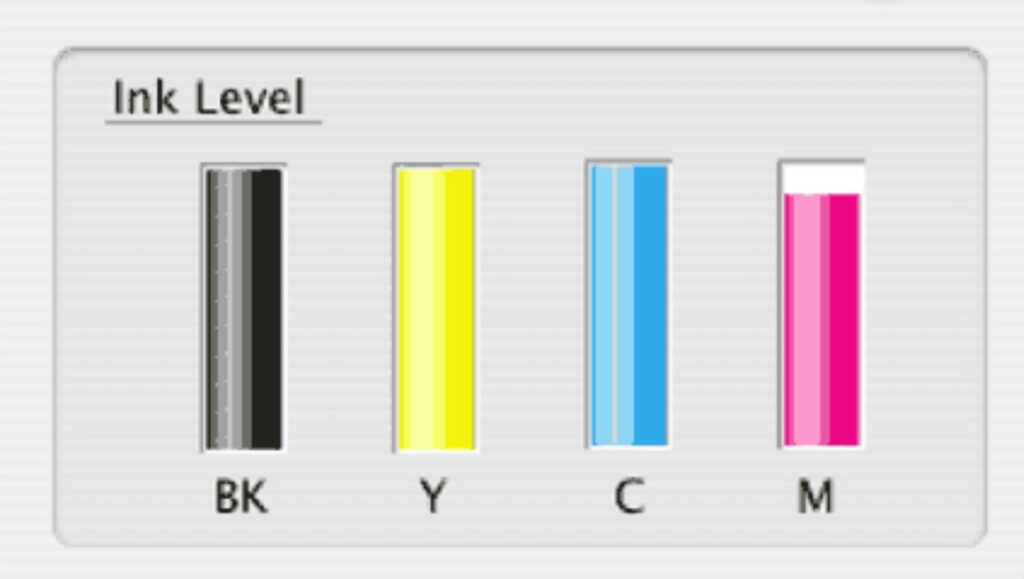
Windows 11 allows users to manage connected printers through the system settings panel. When your Canon printer driver is properly installed, you can access the Canon Status Monitor, which displays real-time ink levels for each cartridge.
Depending on your printer model, ink information may appear under the Maintenance tab, Device settings, or a dedicated Status Monitor button.
Make sure your printer is powered on and connected to your computer before following the steps below.
Step 1: Open Windows 11 Settings
Press the Windows key on your keyboard and click on Settings. You can also press Windows + I to open it quickly.
Once the Settings window opens, click on Bluetooth & devices from the left side panel. Then select Printers & scanners from the right side options. This section displays all printers connected to your computer.
Step 2: Select Your Canon Printer
Under the Printers & scanners section, locate and click on your Canon printer name. This will open the printer management page.
Here, you will see options such as Open print queue, Printer properties, and Troubleshoot. Click on Printer properties to access advanced settings related to your Canon device.
Step 3: Open Printer Properties or Preferences
In the Printer Properties window, look for a tab labeled Maintenance, Device settings, or Services, depending on your Canon model.
Click on the tab and then select View Printer Status or Canon Status Monitor if available. This tool shows the current ink levels for black and color cartridges in graphical format.
If you do not see ink level information here, click on Printing Preferences and check the Maintenance section inside that window.
Step 4: Check Ink Level Status
After opening the Canon Status Monitor, you will see a visual display of each ink cartridge installed in your printer. The ink levels are typically shown as bars or percentage indicators.
If any cartridge is low or empty, it will be clearly marked. This allows you to replace only the required cartridge instead of all cartridges.
Alternative Method: Using Canon Software
If the ink levels do not appear in Windows Settings, install the official Canon printer driver from the Canon website. Once installed, open the Canon printer utility from the Start menu.
The Canon IJ Status Monitor will display accurate ink information, maintenance options, and alerts.
FAQs
Why can I not see ink levels in Windows 11?
Ink levels may not appear if the correct Canon driver is not installed. Installing the official driver usually resolves this issue.
Does Windows 11 show ink levels without Canon software?
Sometimes yes, but in most cases, detailed ink level information is available through the Canon Status Monitor included with the driver.
Can I check ink levels without turning on the printer?
No. The printer must be powered on and connected to your PC to display accurate ink status.
Does this method work for WiFi-connected Canon printers?
Yes. As long as the printer is properly connected to your Windows 11 PC through WiFi or USB, the ink levels can be checked.
Ending Lines
Keeping track of your Canon printer ink levels in Windows 11 helps prevent printing issues and improves workflow efficiency. By following the steps above, you can quickly access the Canon Status Monitor and check cartridge status anytime. Regular monitoring ensures better print quality and avoids unexpected interruptions during important tasks.