
How to Enable On-Screen Keyboard in Windows 11 or 10? [Easy Steps]
The On-Screen Keyboard (OSK) is a virtual keyboard that appears on the display included with Microsoft Windows, allowing users to input text without using a physical keyboard. It displays a full keyboard layout on the screen, including letters, numbers, symbols, and special keys such as Ctrl, Alt, Shift, and Function keys.
Once enabled, the virtual keyboard floats on the screen and can be resized or moved anywhere on the desktop. Users simply click on the keys with their mouse or tap them on a touchscreen device to type.
This tool is particularly useful in several situations. For example, if your laptop keyboard suddenly stops working, you can still log in and continue using your computer by enabling the On-Screen Keyboard. It is also commonly used on touchscreen devices, tablets, and hybrid laptops, where a physical keyboard may not always be attached.
Windows also includes accessibility features that work alongside the On-Screen Keyboard. Users can enable options such as Click Sound, Hover Typing, and Scan Mode, which allow typing without directly clicking the keys.
Another advantage is that the On-Screen Keyboard supports multiple languages and keyboard layouts. This makes it useful for users who type in different languages or use specialized keyboard configurations.
In this guide, you will learn how to enable the On-Screen Keyboard in Windows 11 or Windows 10 using easy steps!
How to Enable On-Screen Keyboard in Windows 11 or 10?
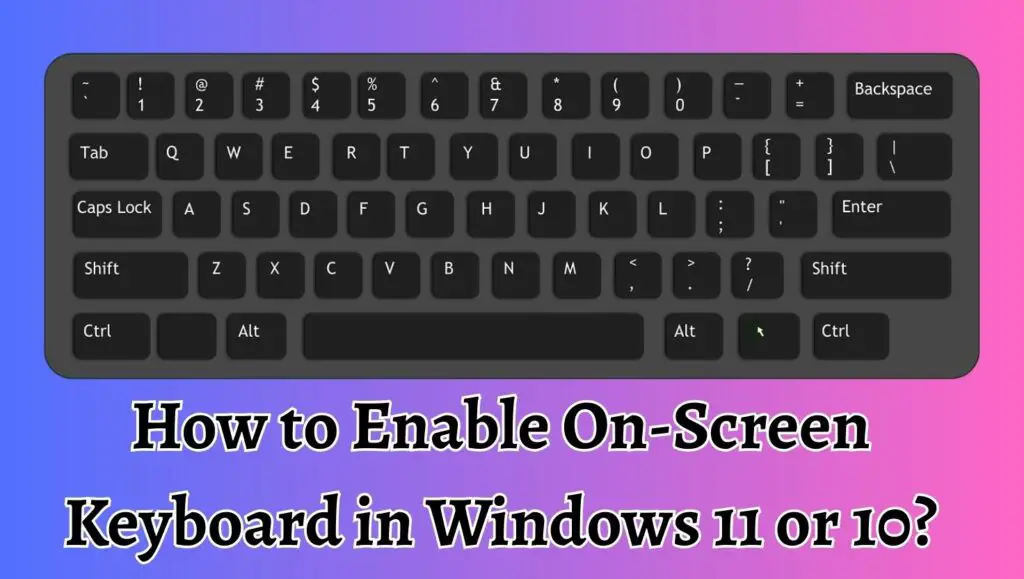
To enable the On-Screen Keyboard in Windows 11 or Windows 10, open the Start Menu, type On-Screen Keyboard, and select the app from the results. The virtual keyboard will instantly appear on your screen, allowing you to type using your mouse, touchpad, or touchscreen. You can also enable it through Settings > Accessibility > Keyboard and turn on the On-Screen Keyboard toggle.
The following section explains the easiest method to enable the On-Screen Keyboard in Windows 11 or Windows 10.
Step 1: Open the Start Menu
The first step to enable the virtual keyboard is to open the Start Menu on your Windows computer.
To do this, click the Start button located in the bottom left corner of the screen. This button usually displays the Windows logo. If you are using a keyboard, you can also press the Windows key to open the Start Menu.
Once the Start Menu opens, you will see a search bar that allows you to quickly find applications and settings on your computer.
The search feature is the fastest way to locate the On-Screen Keyboard because it directly searches through installed system tools and applications.
Step 2: Search for the On-Screen Keyboard
After opening the Start Menu, move your cursor to the search box and type On-Screen Keyboard.
As you type, Windows will automatically display search results. Among these results, you will see an application named On-Screen Keyboard.
This application is part of the built-in Windows accessibility tools. Because it is included with the operating system, you do not need to download or install anything.
Selecting this option will launch the virtual keyboard immediately.
Step 3: Open the On-Screen Keyboard Application
Click on the On-Screen Keyboard application from the search results.
As soon as you click the option, a virtual keyboard will appear on your screen. The keyboard layout will look very similar to a standard physical keyboard.
You can now begin typing by clicking the keys with your mouse, touchpad, or touchscreen.
The keyboard includes all common keys such as letters, numbers, the spacebar, enter, shift, backspace, and function keys. This allows you to perform almost all typing tasks without using a physical keyboard.
Step 4: Move or Resize the Virtual Keyboard
Once the On-Screen Keyboard appears, you can adjust its position on the screen.
Click and hold the title bar of the keyboard window and drag it to any location on the screen. This helps you place the keyboard where it does not block important parts of your workspace.
You can also resize the keyboard by dragging its edges or corners. Resizing can make typing easier, especially on devices with smaller screens.
This flexibility allows users to customize the keyboard according to their needs.
Step 5: Use the Keyboard to Type Text
After enabling the On-Screen Keyboard, you can begin typing just like you would with a physical keyboard.
Move your cursor to any text field, such as a document, search box, browser, or login screen. Then click the keys on the virtual keyboard to input text.
Each click will register as a keystroke. You can also use modifier keys such as Shift, Ctrl, and Alt to perform shortcuts and special commands.
For example, you can press Ctrl + C on the virtual keyboard to copy text and Ctrl + V to paste it.
Step 6: Enable On-Screen Keyboard Through Settings
Another way to enable the virtual keyboard is through the Windows Accessibility Settings.
First, open the Settings app by clicking the Start Menu and selecting Settings. You can also press Windows + I to open it quickly.
Inside Settings, navigate to Accessibility. Then select the Keyboard section.
You will see a toggle switch labeled On-Screen Keyboard. Turn this toggle on, and the virtual keyboard will immediately appear on the screen.
This method is useful for users who frequently rely on accessibility tools.
Step 7: Pin the On-Screen Keyboard for Quick Access
If you plan to use the On-Screen Keyboard regularly, you can pin it for faster access.
Open the Start Menu, search for On-Screen Keyboard, then right-click the application. After that, choose the option Pin to Taskbar.
Once pinned, the keyboard icon will appear on your taskbar. Clicking this icon will instantly launch the virtual keyboard whenever you need it.
This saves time and eliminates the need to search for the tool repeatedly.
FAQs
What is the On-Screen Keyboard in Windows?
The On-Screen Keyboard is a built-in accessibility feature in Windows that displays a virtual keyboard on the screen. Users can type using a mouse, touchpad, or touchscreen instead of a physical keyboard.
Is the On-Screen Keyboard available in both Windows 10 and Windows 11?
Yes, the On-Screen Keyboard is included in both Windows 10 and Windows 11. The feature works in almost the same way in both versions of Windows.
Can I open the On-Screen Keyboard using a shortcut?
Yes. You can quickly open the On-Screen Keyboard by pressing Windows + Ctrl + O on your keyboard. This shortcut immediately launches the virtual keyboard.
Is the On-Screen Keyboard different from the Touch Keyboard?
Yes, they are slightly different. The Touch Keyboard is designed mainly for touchscreen devices and tablets, while the On-Screen Keyboard is a full accessibility tool that includes more advanced options.
Can I use the On-Screen Keyboard to log into Windows?
Yes, you can use the On-Screen Keyboard on the Windows login screen. This is useful if your physical keyboard stops working or if you are using a touchscreen device.
Does the On-Screen Keyboard support keyboard shortcuts?
Yes, the virtual keyboard supports many keyboard shortcuts such as Ctrl + C, Ctrl + V, Ctrl + Z, and Alt + Tab. This allows you to perform common commands easily.