
Way to Exit Recovery Mode on iPhone? Fix “iPhone is Stuck in Recovery Mode.”
If your iPhone suddenly shows a cable pointing toward a computer or the iTunes or Finder logo, it means the device has entered recovery mode. Many users encounter this situation while updating iOS, restoring their device, or fixing system errors. While recovery mode is designed to help you repair software issues, sometimes your iPhone gets stuck there and refuses to restart normally.
Understanding how to exit recovery mode on an iPhone can save you from unnecessary stress and data loss. Whether you entered recovery mode intentionally or your device got stuck after an update, there are simple ways to exit it safely.
In this post, we will learn those steps!
How to exit recovery mode on iPhone?
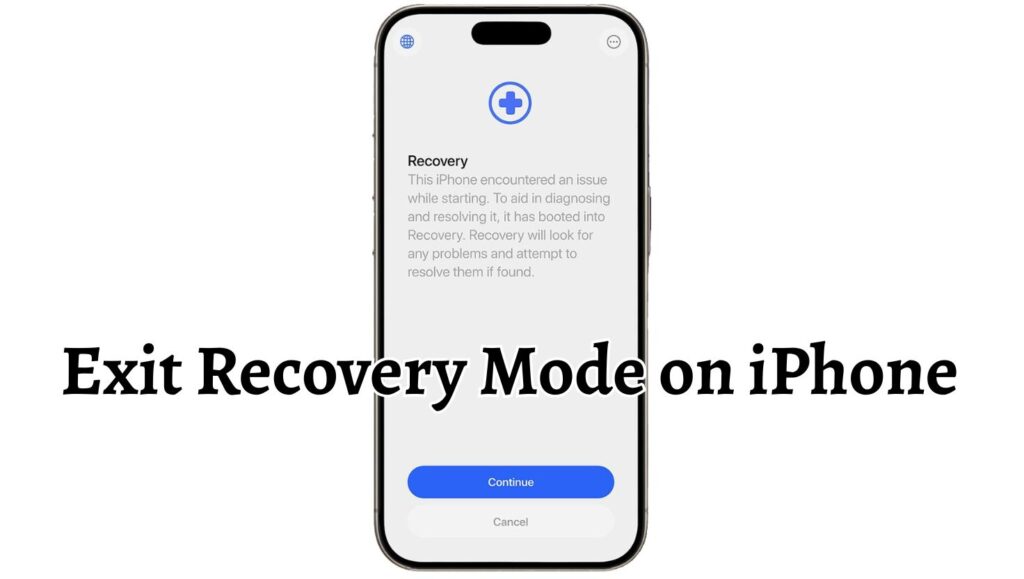
To exit recovery mode on an iPhone, disconnect the device from your computer and force restart it using the correct button combination for your iPhone model. If that does not work, use Finder or iTunes to update or restore the device, which will remove it from recovery mode and return it to normal operation.
The process of exiting recovery mode does not always require data loss. Updating through recovery mode usually keeps your data intact, while restoring erases everything and installs a fresh iOS version. Knowing which method to use depends on your device’s condition and whether you want to preserve your data.
1: Restart Your iPhone Correctly
The first and simplest way to exit recovery mode is to force-restart your iPhone. This method works in many cases where the device entered recovery mode due to a temporary glitch.
If you are using an iPhone 8 or later, quickly press and release the volume up button, then quickly press and release the volume down button. After that, press and hold the side button until the Apple logo appears on the screen. Once you see the Apple logo, release the button and allow the device to restart normally.
For iPhone 7 and iPhone 7 Plus, press and hold the volume down button and the power button together. Keep holding both buttons until the Apple logo appears, then release them.
For older models like iPhone 6s or earlier, press and hold the home button and the power button together. Continue holding until the Apple logo shows up, then release both buttons.
After the restart, your iPhone should exit recovery mode and boot into the home screen. If the recovery mode screen appears again, proceed to the next step.
2: Disconnect and Reconnect Your Device
Sometimes your iPhone remains in recovery mode because it is still connected to a computer or cable that triggered the mode. Disconnecting and reconnecting can help reset the connection.
Unplug your iPhone from the computer or charger. Wait for a few seconds and then perform a force restart again using the correct button combination for your model. This ensures the device attempts a fresh boot sequence without any external commands from a computer.
If your iPhone exits recovery mode after restarting, reconnect it only after it fully boots. This prevents the device from automatically reentering recovery mode due to previous commands.
If it still shows the recovery screen, you may need to use a computer to update or restore the system.
3: Use Finder or iTunes to Exit Recovery Mode
If restarting does not work, the next method is to use Finder on Mac or iTunes on Windows to remove your iPhone from recovery mode.
Connect your iPhone to a computer using a reliable USB cable. Open Finder if you are using macOS Catalina or later. If you are using Windows or an older macOS version, open iTunes.
Once connected, the computer will detect that your iPhone is in recovery mode and display a message saying there is a problem with the device that requires updating or restoring.
Choose the Update option first. This will reinstall iOS without deleting your data. The system will download the latest software and attempt to install it on your device. During this process, keep your iPhone connected and do not interrupt the installation.
After the update is complete, your iPhone should automatically restart and exit recovery mode. If the update fails or the device remains stuck, you may need to choose the restore option.
4: Restore Your iPhone If Update Fails
Restoring your iPhone is the final step if all other methods fail. This process removes recovery mode but also erases all data and settings on the device.
Connect your iPhone to the computer and open Finder or iTunes. When the recovery mode message appears, select the Restore option instead of Update. Confirm your choice and wait for the restore process to complete.
The computer will download the latest iOS version and install it on your device. After installation, your iPhone will restart and exit recovery mode. You can then set it up as a new device or restore from a backup.
Before choosing this option, make sure you have a backup of your important data if possible.
My iPhone is Stuck In Recovery Mode. How to Fix It?
If your iPhone remains stuck in recovery mode even after trying standard methods, there may be deeper software issues causing the problem. In such cases, advanced troubleshooting can help.
One common reason for being stuck in recovery mode is a failed iOS update. When an update is interrupted due to low battery, unstable internet, or storage issues, the device may enter recovery mode to prevent system damage. Updating again through Finder or iTunes usually resolves this.
Another reason could be corrupted firmware. In this situation, restoring the device completely is often the only solution. Although restoring removes data, it fixes most software-related problems and returns the device to normal.
Sometimes, a faulty USB cable or port can also prevent the device from exiting recovery mode. Always use an original or certified cable and try a different USB port if the computer fails to detect your device properly.
If none of the methods work, you may need to put your device into DFU mode and restore it using a computer. DFU mode is deeper than recovery mode and allows complete firmware reinstallation. This method should be used carefully, as it erases everything on the device.
In rare cases, hardware problems such as a damaged logic board or battery can also cause recovery mode issues. If you suspect hardware damage, contacting Apple support or visiting an authorized service center is recommended.
Faqs
Why did my iPhone enter recovery mode automatically?
Your iPhone may enter recovery mode automatically due to a failed update, software crash, or system error. It can also happen if you manually attempt to restore or update the device using a computer.
Will I lose my data when exiting recovery mode?
If you exit recovery mode by restarting or updating your device, your data will usually remain safe. However, restoring the device will erase all data and settings. Always try the update option first to avoid data loss.
Can I exit recovery mode without a computer?
Yes, you can exit recovery mode without a computer by performing a force restart. If this does not work, you will need a computer with Finder or iTunes to update or restore the device.
How long does recovery mode last?
Recovery mode remains active until you manually exit it by restarting, updating, or restoring your device. It does not turn off automatically unless the system successfully boots into normal mode.
Is recovery mode the same as DFU mode?
No, recovery mode and DFU mode are different. Recovery mode allows you to update or restore iOS, while DFU mode performs a deeper firmware restore. DFU mode is usually used when recovery mode does not fix the issue.