
How to Fix Lines on a Printer When Printing a Page? (Horizontal & Vertical)
Whether you are using an HP, Canon, Epson, Brother, or other brands’ printer, seeing unwanted lines on printed pages can be frustrating, especially when you need clean documents for work, study, or official use. These lines may appear as black streaks, white gaps, faded horizontal bands, or vertical marks running from top to bottom of the page.
The problem can affect inkjet printers, laser printers, and even multifunction devices, and it often worsens over time if ignored. Understanding why lines appear during printing is the first step toward fixing the issue permanently. In most cases, the solution does not require replacing the printer. Simple cleaning, correct settings, and basic maintenance can restore print quality.
This guide explains in detail how to fix lines on a printer when you print a page, covering practical steps that work for both home and office users.
How to Fix Lines on a Printer When I Print a Page?
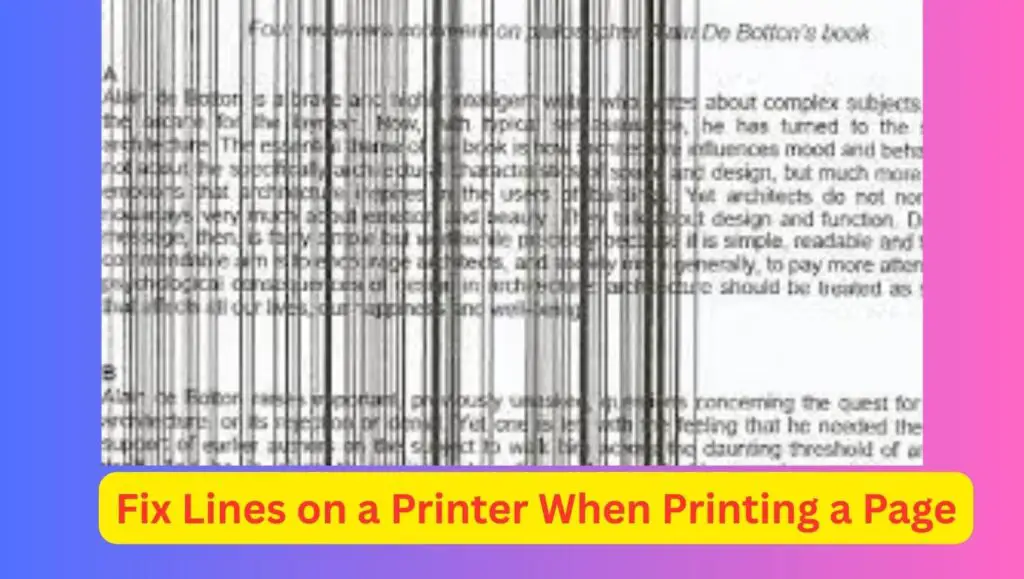
Lines on printed pages usually occur due to clogged printheads, dirty rollers, low or damaged cartridges, or incorrect printer settings. To fix this issue, clean the printhead, check ink or toner levels, align the cartridges, clean internal components, and adjust print quality settings. Regular maintenance and using high-quality paper also help prevent lines from appearing again.
Note: Before jumping into solutions, it is important to identify the type of lines you see. Horizontal lines that repeat at regular intervals often point to printhead or drum issues. Vertical lines usually indicate dirty rollers, scratched drums, or debris inside the printer. Faded lines can be caused by low ink or toner, while thick dark streaks may be due to leaking cartridges.
The steps below are arranged from the simplest fixes to more advanced solutions so you can resolve the problem efficiently.
Step 1: Identify the Type and Direction of Lines
Start by closely examining a freshly printed page. Check whether the lines are horizontal or vertical and whether they are light, dark, broken, or continuous. Print a test page or a nozzle check page from your printer settings. If the lines appear in the same position on every page, the issue is likely mechanical, such as a dirty roller or damaged drum.
If the lines appear randomly, it could be related to ink flow or software settings. Identifying the pattern saves time and helps you apply the correct fix.
Step 2: Check Ink or Toner Levels
Low ink or toner is one of the most common causes of lines on printed pages. Inkjet printers may produce white lines or faded streaks when one color runs low. Laser printers may create light vertical bands when the toner is nearly empty. Open your printer software on the computer and check the ink or toner status.
If any cartridge is low or empty, replace it with a genuine or high-quality compatible cartridge. After replacement, print a test page to see if the lines disappear.
Step 3: Run Printhead Cleaning or Drum Cleaning
Most modern printers include a built-in cleaning function. For inkjet printers, run the printhead cleaning or nozzle cleaning option from the printer maintenance menu. This process forces ink through the nozzles and clears clogs caused by dried ink. For laser printers, look for drum cleaning or cleaning page options.
You may need to run the cleaning cycle more than once, but avoid excessive cleaning as it can waste ink. After cleaning, print a test page and compare the results.
Step 4: Align the Printhead or Cartridges
Misaligned cartridges can cause uneven printing and visible lines. Printer alignment ensures that ink droplets or toner placement are accurate. Access the alignment option from the printer settings or control panel. Follow the on-screen instructions carefully. The printer will print alignment pages and adjust automatically.
Once alignment is complete, print a document with text and images to check for improvement.
Step 5: Clean the Printhead Manually if Needed
If automatic cleaning does not fix the issue, manual cleaning may be necessary for inkjet printers. Turn off the printer and unplug it. Remove the ink cartridges and gently take out the printhead if your model allows it. Use a lint-free cloth lightly dampened with distilled water or isopropyl alcohol to clean the nozzles and contacts. Do not touch electrical parts or use excessive liquid. Let the printhead dry completely before reinstalling it.
This step can significantly improve print quality if dried ink is causing the lines.
Step 6: Inspect and Clean the Paper Rollers
Dirty or worn paper rollers can drag debris across the page, causing vertical lines or smudges. Open the printer cover and locate the rollers along the paper path. Use a clean, slightly damp cloth to wipe dust, ink residue, or toner powder from the rollers. Rotate the rollers gently to clean all sides. Allow them to dry before closing the printer. Clean rollers ensure smooth paper movement and consistent print quality.
Step 7: Check the Drum Unit in Laser Printers
Laser printers rely on a drum unit to transfer toner onto paper. A scratched or dirty drum can create repeating lines or marks. Remove the toner cartridge and inspect the drum surface. If you see visible scratches or marks, the drum may need replacement. If the drum is only dusty, gently clean it using a soft cloth as recommended by the manufacturer.
Avoid touching the drum surface directly with your fingers, as oils can damage it.
Step 8: Use the Correct Paper Type and Quality
Low-quality or damp paper can cause uneven ink absorption, leading to lines and streaks. Always use paper that meets your printer’s specifications. Store paper in a dry place and avoid using wrinkled or damaged sheets. In printer settings, select the correct paper type, such as plain paper, photo paper, or glossy paper.
Using the right paper improves ink distribution and reduces printing defects.
Step 9: Update or Reinstall Printer Drivers
Outdated or corrupted printer drivers can cause print quality issues, including lines. To update or reinstall printer drivers, start by opening the Control Panel on your computer and going to Devices and Printers. Find your printer, right-click on it, and select Remove device to uninstall the existing driver. Next, restart your computer to clear any leftover driver files. Visit the official website of your printer manufacturer and download the latest driver that matches your printer model and operating system. Run the installer and follow the on-screen instructions to complete the setup.
Once installation is finished, reconnect your printer if required and print a test page to confirm that the updated driver is working correctly.
Step 10: Adjust Print Quality Settings
Sometimes lines appear because the printer is set to draft or low-quality mode. Open the print preferences menu and select standard or high-quality printing. Disable toner saving or ink saving options temporarily to check if they are causing the issue.
Increasing print quality may use more ink or toner, but it often eliminates faint lines and banding.
Step 11: Perform a Full Printer Reset
If none of the above steps work, a full reset can help. Turn off the printer, unplug it from the power source, and wait for at least five minutes. Plug it back in and turn it on. This resets internal settings and clears minor firmware glitches. After resetting, run a test print to check if the lines are gone.
How to Do Smooth Printing?
Choosing the right printer settings plays a major role in preventing lines on printed pages. Always select the correct paper size and paper type in the print dialog. Use normal or high-quality print mode instead of draft mode for important documents. Enable automatic printhead maintenance if your printer supports it. For color printing, avoid excessive color correction unless required.
Keeping resolution settings balanced ensures smooth output without unnecessary strain on cartridges and hardware.
Faqs
Why does my printer print horizontal lines only?
Horizontal lines are usually caused by clogged printhead nozzles, low ink levels, or issues with the drum in laser printers. Running printhead cleaning and checking cartridges often fixes the problem.
Can low ink cause lines on printed pages?
Yes, low ink can cause faded lines or white gaps in prints. Replacing or refilling cartridges usually resolves this issue.
Do vertical lines mean my printer is damaged?
Not always. Vertical lines often result from dirty rollers, debris inside the printer, or toner distribution issues. Cleaning internal components can solve the problem.
How often should I clean my printer to avoid lines?
For regular home use, cleaning once every one to two months is sufficient. If you print frequently, consider cleaning monthly.
Should I replace my printer if lines keep appearing?
Replacement is usually unnecessary unless internal components like the drum or printhead are severely damaged and replacement costs are high.
Ending Up……
Lines on printed pages can make documents look unprofessional, but the problem is often easier to fix than it seems. By identifying the type of lines, maintaining proper ink or toner levels, cleaning internal parts, and using correct settings, you can restore clear and smooth printing. Regular maintenance and quality supplies go a long way in preventing future issues.
With the step-by-step approach explained above, you can confidently fix lines on your printer and enjoy consistent, high-quality print results.