
How to Get 3D Icons in Windows 11? Best Free Packs in 2026?
Windows 11 allows users to manually change icons for folders, shortcuts, and some system elements. However, it does not provide a built-in option to apply an entire 3D icon pack automatically. You can either change icons individually or use safe third-party customization tools for advanced modifications.
There are two primary methods to get 3D icons in Windows 11.
The first method involves manually replacing icons through the Properties menu. This is the safest and simplest way, and it does not require additional software.
The second method uses customization tools that allow deeper icon replacement across the system. This method provides better consistency but requires extra caution.
Regardless of the method, you must first download a compatible 3D icon pack and ensure the files are in ICO format. If they are in PNG format, you may need to convert them using an online converter.
In this detailed guide, you will learn about the best free 3D icon packs, how to safely download them, and how to apply them step by step in Windows 11.
So, let’s learn the steps and customize icons for a better look!
Best Free 3D Icon Packs
Here are some of the most popular and reliable free 3D icon packs that work well with Windows 11.
3D Fluent Icons
3D Fluent Icons are inspired by Microsoft’s Fluent Design system. These icons feature soft shadows, realistic depth, and smooth gradients. They are perfect if you want to maintain a native Windows look while adding a 3D effect.
These icons work well for folders, system apps, and shortcuts. Many designers share Fluent-style 3D packs on platforms like DeviantArt.
3D Colorful Folder Icons
If you want something more vibrant, 3D colorful folder packs offer high-resolution folder icons with glossy effects and depth. These are ideal for organizing different types of files like movies, music, games, and documents.
You can usually download these packs from design communities or free icon repositories.
3D App Icon Packs
Some creators design 3D versions of popular application icons. For example, you can find redesigned 3D icons for browsers, media players, and productivity tools. These packs often include ICO files that are directly compatible with Windows.
3D Minimal Icon Packs
Minimal 3D icons combine subtle depth with clean design. They are perfect for users who want elegance without too much color or shine.
Before downloading any pack, ensure the files are in ICO format, as this is the format supported by Windows for icon customization.
How to Get 3D Icons in Windows 11?
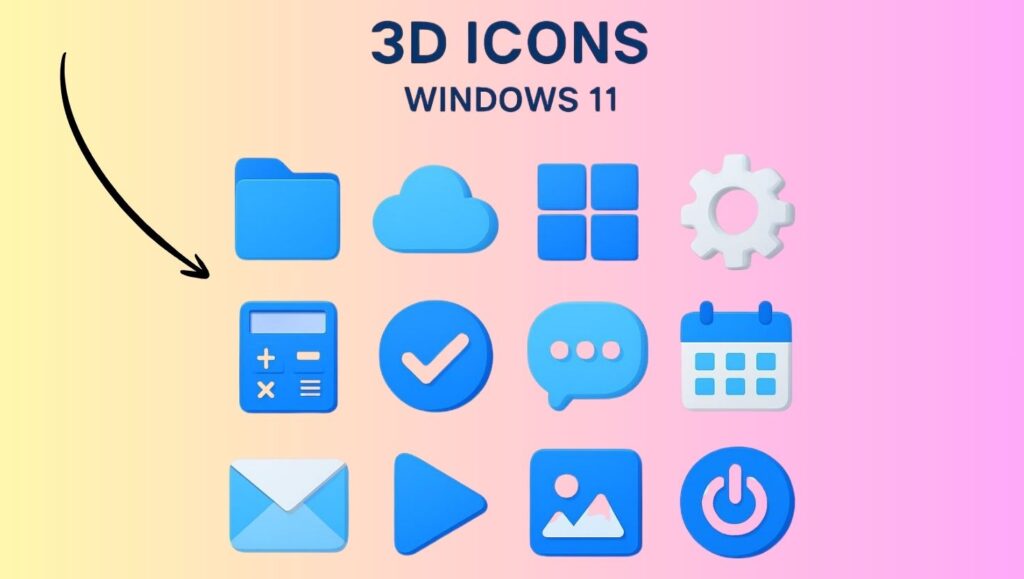
To get 3D icons in Windows 11, download a free 3D icon pack in ICO format, extract the files, and manually change folder or shortcut icons using the Properties menu. For system-wide icon changes, use third-party customization tools. Always create a restore point before modifying system icons.
Now, let us go step by step in detail!
Step 1: Download a Free 3D Icon Pack
The first step is to find and download a reliable 3D icon pack, as I have already explained above.
Visit trusted platforms like DeviantArt and search for terms like 3D Windows 11 icons or Fluent 3D icon pack. Always read the description and user reviews before downloading.
After downloading the ZIP file, right-click it and select Extract All. Choose a location that is easy to remember, such as the Desktop or Documents folder.
Make sure the extracted files include ICO files. If they are in PNG format, convert them to ICO format before proceeding.
Step 2: Create a System Restore Point
Before changing multiple icons, it is strongly recommended to create a System Restore Point.
Press Windows + S and type Create a restore point. Open the System Properties window and click Create under the Protection Settings section. Give your restore point a name and confirm.
This step ensures that you can revert your system if anything goes wrong during customization.
Step 3: Change Folder Icons Manually
To change a folder icon in Windows 11, follow these steps.
- Right-click the folder you want to customize.
- Click Properties.
- Go to the Customize tab.
- Click the Change Icon button.
- Select Browse and navigate to the folder where you extracted the 3D icon pack.
- Choose the desired ICO file and click Open.
- Click OK and then Apply.
Your folder will now display a 3D icon. You can repeat this process for other folders.
Step 4: Change Shortcut Icons
You can also apply 3D icons to desktop shortcuts.
- Right-click the shortcut.
- Click Properties.
- Under the Shortcut tab, select Change Icon.
- Click Browse and choose your 3D ICO file.
- Click OK, then Apply.
The shortcut will now appear with a 3D icon.
Step 5: Change System Icons
To change system icons like This PC or Recycle Bin in Windows 11, follow these steps.
Open Settings > Go to Personalization > Click Themes.
Then, select Desktop icon settings and choose the system icon you want to change. Click Change Icon. Browse and select your 3D ICO file. Click OK and Apply.
This method allows limited system icon customization.
Step 6: Use Third-Party Customization Tools
If you want a complete transformation, you can use trusted customization tools. For example, tools like 7tsp GUI allow users to apply full icon packs across the system.
Another popular Windows customization utility is IconPackager, which helps apply icon themes more efficiently.
When using such tools, always download from official sources and scan files for security.
Step 7: Refresh Icon Cache
Sometimes, icons may not update immediately. In such cases, you may need to refresh the Icon Cache.
Restart your computer to see if the icons update.
If not, you can manually rebuild the icon cache by deleting the IconCache.db file from your user AppData folder and restarting your PC.
This ensures that Windows reloads the new icon designs.
Step 8: Organize Your 3D Icons Properly
To maintain consistency, store all your 3D icons in a dedicated folder. Avoid moving or deleting ICO files after applying them, as Windows links to their original location.
Keeping your icon pack organized ensures your desktop remains stable and visually consistent.
Faqs
Are 3D icons safe to use in Windows 11?
Yes, 3D icons are safe if downloaded from trusted sources. Always scan files with antivirus software before extracting them.
Do I need special software to use 3D icons?
No, you can manually change folder and shortcut icons without additional software. However, system-wide changes may require customization tools.
Can I revert to default icons?
Yes, open Properties, go to Change Icon, and select Restore Defaults. If needed, use the System Restore Point you created earlier.
Do 3D icons affect system performance?
No, icons are small image files and do not significantly impact performance.
Can I use 3D icons in Windows 10?
Yes, the same process works in Windows 10, though the interface may look slightly different.