
How to Navigate in CMD in Windows 11? Step-By-Step
Navigating in CMD means moving between directories, accessing different drives, listing folder contents, and understanding your current working location. Whether you are troubleshooting, managing files, or running scripts, knowing how to properly use navigation commands such as cd, dir, and drive letters is essential.
Navigation inside CMD is based on understanding directories and file paths. A directory is another word for a folder. Every file and folder in Windows exists within a structured hierarchy starting from a drive such as C or D.
When you open Command Prompt, it usually starts in your user directory, which looks something like this:
C:\Users\YourName>
This is called your current working directory. Every command you run applies to this location unless you specify another path.
To move between folders, you use the cd command, which stands for change directory. To see what files and folders exist in your current location, you use the dir command. To move back one level, you use cd... To switch to another drive, you simply type the drive letter and a colon.
Let’s understand the complete process step by step in an easy way so you can confidently move around your system using Command Prompt (CMD).
How to Navigate in CMD in Windows 11? Step-By-Step
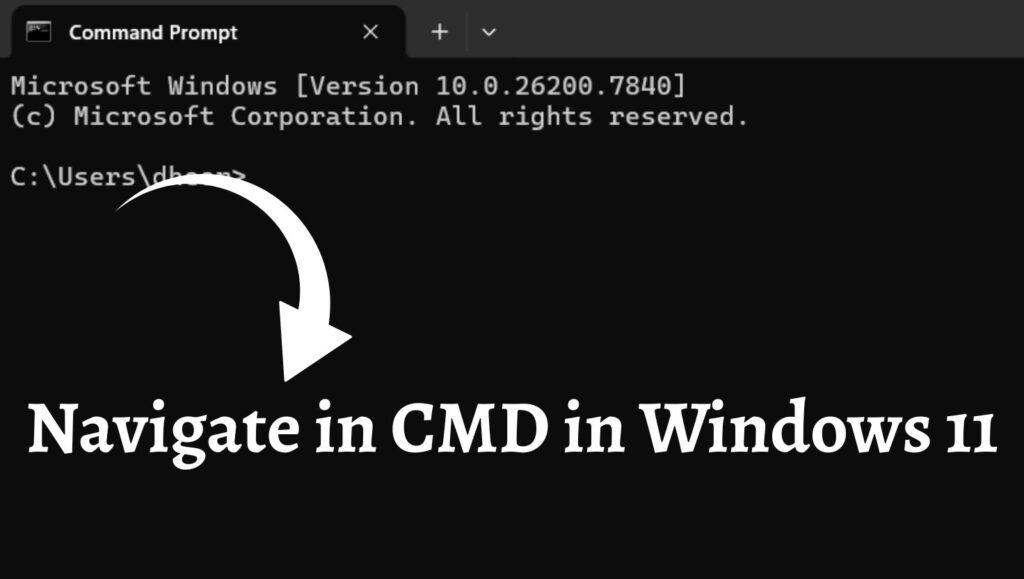
To navigate in CMD in Windows 11, open Command Prompt, use the cd command to change directories, type dir to view folder contents, and switch drives by typing the drive letter followed by a colon. Use cd.. to move back to the previous folder and cls to clear the screen.
Let’s learn in detail!
Step 1: Open Command Prompt in Windows 11
The first step is to launch Command Prompt.
Click on the Start button and type Command Prompt in the search bar. Select the Command Prompt app from the search results. You can also press Windows plus R, type cmd, and press Enter.
Once opened, you will see a black window with white text. The blinking cursor indicates that CMD is ready to accept commands. The path displayed before the cursor shows your current working directory.
For example:
C:\Users\Gadgetsnurture>
This means you are currently inside the Appluents user folder.
Understanding where you are is important before navigating elsewhere.
Step 2: Check Your Current Directory
Before moving to another location, confirm your current directory.
By default, the path is shown before the greater-than symbol in the Command Prompt window. This path tells you exactly where you are in the system hierarchy.
If you ever feel lost while navigating, you can type:
cd
and press Enter.
CMD will display your current directory again. This ensures you always know your working location before performing operations.
Step 3: View Folder Contents Using the DIR Command
To see what files and folders are inside your current directory, type:
dir
and press Enter.
The dir command lists all files and subfolders in the current directory. You will see folder names marked with DIR and file names along with their sizes and modification dates.
This step is crucial before navigating because it tells you what destinations are available from your current location.
For example, if you see a folder named Documents, you can navigate into it using the next step.
Step 4: Change Directory Using the CD Command
The cd command allows you to move into a folder.
If you want to enter the Documents folder, type:
cd Documents
and press Enter.
Your command prompt will now display:
C:\Users\Gadgetsnurture\Documents>
This means you have successfully navigated to the Documents folder.
If a folder name contains spaces, you must enclose it in quotation marks.
For example:
cd “Program Files”
This ensures CMD correctly interprets the folder name.
Step 5: Move Back to the Previous Directory
To move back one level in the folder hierarchy, use:
cd..
and press Enter.
If you are inside:
C:\Users\Gadgetsnurture\Documents>
Typing cd.. will take you back to:
C:\Users\Gadgetsnurture>
You can repeat cd.. multiple times to keep moving up levels in the directory tree.
This command is extremely useful when you want to quickly return to a parent directory.
Step 6: Switch Between Drives
Windows systems often have multiple drives, such as C, D, or E.
To switch drives in CMD, simply type the drive letter followed by a colon.
For example:
D:
and press Enter.
Your prompt will now change to something like:
D:>
This means you are now working inside the D drive.
You can use the dir and cd commands inside this drive just like you did in the C drive.
Switching drives does not require the cd command. Just typing the drive letter is enough.
Step 7: Navigate Using Full Path
You can jump directly to a specific folder using its full path.
For example:
cd C:\Users\Gadgetsnurture\Downloads
After pressing Enter, CMD will take you directly to the Downloads folder without moving step by step.
This method saves time when you already know the directory’s exact location.
Using the full path is especially helpful for system folders or deeply nested directories.
Step 8: Clear the Screen for Better Visibility
While navigating, the screen can become cluttered with previous commands and outputs.
To clear the Command Prompt window, type:
cls
and press Enter.
The cls command clears all text from the screen but does not change your directory.
This helps maintain a clean workspace when performing multiple operations.
Tips for Navigating in CMD
Always check your current directory before running commands that modify files. This prevents accidental changes in the wrong folder.
Use the Tab key for auto completion. When typing a folder name, press Tab to complete it automatically. This reduces typing errors and speeds up navigation.
Use quotation marks for folder names with spaces, such as Program Files or My Documents.
Avoid deleting or modifying system folders unless you are sure about the command. Incorrect navigation combined with destructive commands can affect system stability.
Practice using dir frequently to understand folder structures and confirm available directories.
Remember that CMD is case insensitive for commands and paths, but accurate spelling is still important.
Faqs
What is the difference between cd and dir in CMD?
The cd command changes your current directory, while the dir command displays the contents of the current directory. They serve different purposes but are often used together during navigation.
How do I return directly to the root directory?
To go to the root directory of your current drive, type:
cd\
and press Enter.
This will take you to something like C:>
Can I navigate to another user’s folder?
Yes, if you have permission. You can use the full path, such as:
cd C:\Users\OtherUserName
However, administrative access may be required in some cases.
Why does CMD say The system cannot find the path specified
This error appears when the folder name is incorrect, misspelled, or does not exist in the current directory. Use dir to verify the correct name before navigating.
Is Command Prompt different from Windows Terminal?
Yes. Command Prompt is a traditional command-line tool, while Windows Terminal is a modern interface that can run Command Prompt, PowerShell, and other shells in one window.
Summary
Learning how to navigate in CMD in Windows 11 gives you greater control over your system. By mastering essential commands such as cd, dir, cd.., drive switching, and cls, you can move efficiently between folders and drives without relying on the graphical interface.
The process starts with opening the Command Prompt and understanding your current working directory. From there, you use dir to inspect contents, cd to enter folders, cd.. to move back, and drive letters to switch between storage locations. Using full paths can speed up navigation, and clearing the screen helps maintain clarity.