
How to Open Control Panel in Windows 11? Step-By-Step Guide
The easiest and most reliable way to open the Control Panel in Windows 11 is through the Start menu search feature. Windows 11 includes a powerful built-in search tool that allows you to quickly find applications, files, system tools, and settings.
When you type Control Panel into the search bar, Windows automatically scans your system and displays the relevant result at the top. This method works on all editions of Windows 11 and does not require administrator privileges unless you attempt to modify protected system settings.
Using search is recommended because it is fast, beginner-friendly, and does not require navigating through multiple menus. It also works regardless of whether you are using a mouse, touchpad, or touchscreen device.
In this detailed guide, you will learn how to open the Control Panel in Windows 11 step by step.
How to Open Control Panel in Windows 11?
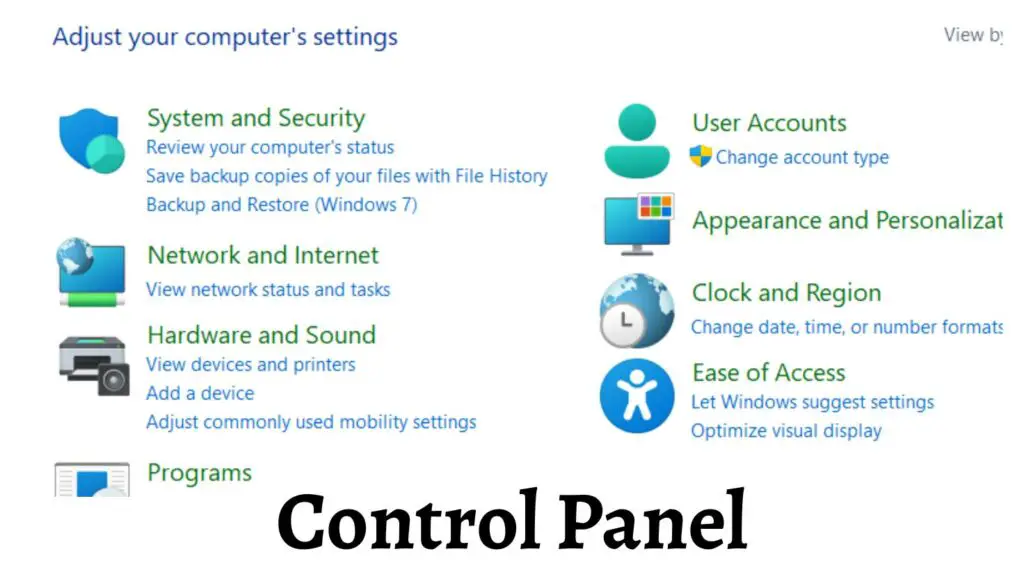
Now, let us go through the process step by step.
Step 1: Click on the Start Menu
The first step is to access the Start menu. Look at the bottom center of your screen where the Start button is located. It displays the Windows logo.
Click on the Start button using your mouse. If you prefer keyboard shortcuts, press the Windows key on your keyboard to open the Start menu instantly.
Once opened, you will see pinned apps, recent files, and a search bar at the top.
Step 2: Type Control Panel in the Search Bar
After opening the Start menu, move your cursor to the search field at the top. Begin typing Control Panel.
As you type, Windows 11 will automatically display matching results. You do not need to press Enter immediately because the result will appear in real time.
In most cases, Control Panel App will appear as the best match at the top of the results list.
Step 3: Select the Control Panel App
When you see Control Panel in the search results, click on it with your mouse.
If you are using a keyboard, press the Arrow keys to highlight Control Panel and then press Enter.
The Control Panel window will open on your screen.
Step 4: Choose Your Preferred View
Once the Control Panel opens, you will notice that it can display items in different viewing modes. By default, it may show Category view, which groups settings into sections like System and Security, Network and Internet, Hardware and Sound, Programs, and User Accounts.
If you prefer a more detailed layout, you can change the view option located at the top right corner. Select Large icons or Small icons to see all tools individually.
This step is optional but useful if you frequently use advanced configuration tools.
Step 5: Access the Required Settings
Now that the Control Panel is open, you can navigate to the section you need. For example, you can open Programs and Features to uninstall software, adjust Power Options, manage Devices and Printers, or configure Windows Defender Firewall.
You can click on any category or tool to make changes according to your requirements.
Other Ways to Open the Control Panel in Windows 11
Although the Start menu search method is the simplest, there are several other ways to open the Control Panel in Windows 11. These alternative methods can be helpful if the search is not working or if you prefer using keyboard shortcuts.
- One method is using the Run dialog box. Press Windows key plus R on your keyboard to open the Run window. Type control and press Enter. The Control Panel will open immediately.
- Another method involves using File Explorer. Open File Explorer, click on the address bar, type Control Panel, and press Enter.
- You can also access the Control Panel through Windows Terminal or Command Prompt. Open Command Prompt, type control, and press Enter.
- Advanced users may open the Control Panel using Task Manager. Open Task Manager, click on File, select Run new task, type control, and click OK.
These alternative methods provide flexibility and ensure that you can always access the Control Panel regardless of system configuration.
Tips for Opening the Control Panel in Windows 11
To make accessing Control Panel easier in the future, consider pinning it to your Start menu or taskbar. After searching for Control Panel, right-click on it and select Pin to Start or Pin to taskbar.
If you frequently use a specific Control Panel tool, you can create a desktop shortcut for quicker access.
Keep your system updated regularly to ensure compatibility between the Control Panel and newer Windows 11 features.
If the Control Panel does not appear in search results, make sure the Windows Search Service is running properly.
Remember that while Microsoft is gradually shifting settings to the modern Settings app, Control Panel remains functional and essential for many advanced system configurations.
FAQs
Is the Control Panel removed in Windows 11?
No, Control Panel is not removed from Windows 11. It is still available but less prominently displayed compared to older versions of Windows.
Why can I not find the Control Panel in Windows 11?
If you cannot find the Control Panel, ensure you are typing the correct term in the search bar. You can also use the Run command and type control to access it.
What is the difference between Control Panel and Settings?
The Settings app provides a modern interface for common system configurations. The Control Panel contains many advanced and legacy tools that are not fully migrated to Settings.
Can I create a shortcut for Control Panel?
Yes, you can create a shortcut by right-clicking on your desktop, selecting New, choosing Shortcut, typing control, and finishing the setup process.
Is Control Panel safe to use?
Yes, Control Panel is a core component of Windows 11 and is safe to use. However, be cautious when changing advanced system settings.
Summary
Opening the Control Panel in Windows 11 is simple once you know where to look. The easiest method is using the Start menu search feature, where you type Control Panel and select the app from the results.
You can also use the Run dialog box, File Explorer, Command Prompt, or Task Manager to access it. Despite the growing focus on the modern Settings interface, Control Panel remains an important tool for managing advanced system configurations.
By following the step-by-step guide above, you can quickly open and use the Control Panel whenever you need it. Whether you are uninstalling programs, adjusting power settings, or managing devices, Control Panel continues to be a powerful and reliable feature in Windows 11.