
How to Open Task Scheduler in Windows 10 & 11 in 2026?
Task Scheduler, a useful tool in Windows operating systems, allows users to automate tasks, run programs at specific times, and manage background operations without manual effort. Whether you want to schedule a system cleanup, launch an app automatically, or run a script daily, Task Scheduler makes it possible with just a few clicks.
Many users know about Task Scheduler but are unsure how to open it on Windows 10 or Windows 11. Since Microsoft offers multiple ways to access system tools, there is not just one method to open Task Scheduler. Depending on your preference, you can open it using search, Run command, Control Panel, Command Prompt, or other built-in tools.
Let’s know some simple methods that can open Task Scheduler for you!
How to Open Task Scheduler in Windows 10 and Windows 11?
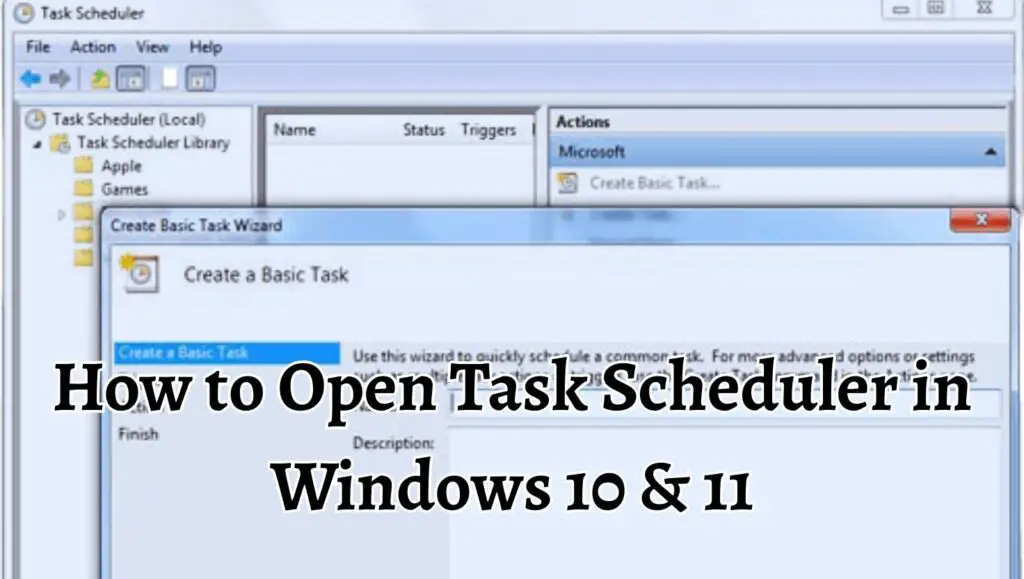
Task Scheduler can be opened in Windows 10 and Windows 11 through various methods such as Windows Search, Run dialog box, Control Panel, Computer Management, Command Prompt, and PowerShell. Each method provides direct access to the Task Scheduler interface, where you can create, manage, and automate scheduled tasks on your computer.
To open Task Scheduler in Windows 10 and Windows 11, press the Windows key and type Task Scheduler in the search bar, then select the Task Scheduler app from the results. You can also open it by pressing Windows and R keys together, typing taskschd.msc, and pressing Enter. Both methods quickly launch the Task Scheduler tool for managing automated tasks on your system.
Step 1: Open Task Scheduler Using Windows Search
One of the simplest ways to open Task Scheduler is through Windows Search. This method works in both Windows 10 and Windows 11 and is ideal for beginners.
Press the Windows key on your keyboard or click the Start menu button on your screen. Once the Start menu opens, locate the search bar. In Windows 11, the search option appears at the top of the Start menu. In Windows 10, it is usually located next to the Start button on the taskbar.
Type Task Scheduler into the search bar. As you type, Windows will begin displaying search results. Look for the app named Task Scheduler in the results. It usually appears under the Best match section.
Click on Task Scheduler from the search results. The Task Scheduler window will open instantly, allowing you to view and manage scheduled tasks.
This method is fast and convenient, especially for users who prefer using the graphical interface.
Step 2: Open Task Scheduler Using the Run Dialog Box
The Run dialog box provides another quick way to access system tools, including Task Scheduler. This method is popular among advanced users because it is fast and direct.
Press the Windows key and the R key together on your keyboard. This will open the Run dialog box on your screen. In the text field of the Run dialog box, type taskschd.msc carefully.
After typing the command, press Enter on your keyboard or click the OK button. The Task Scheduler window will open immediately.
This method works in both Windows 10 and Windows 11 and is one of the fastest ways to launch Task Scheduler without navigating through menus.
Step 3: Open Task Scheduler Using Control Panel
Control Panel still exists in Windows 10 and Windows 11 and provides access to many administrative tools. Task Scheduler can also be opened from here.
Press the Windows key and type Control Panel in the search bar. Click on Control Panel from the search results to open it. Once the Control Panel opens, look for the option labeled System and Security.
Click on System and Security to open additional settings. Inside this section, locate Windows Tools or Administrative Tools, depending on your Windows version. Click on this option to view a list of administrative utilities.
In the list of tools, find Task Scheduler. Double-click on it to open the Task Scheduler window.
This method is useful for users who prefer navigating through traditional system settings.
Step 4: Open Task Scheduler Using Computer Management
Computer Management is another Windows utility that includes access to Task Scheduler. This method is helpful for users who manage multiple system settings.
Right-click on the Start menu button or press Windows and X keys together on your keyboard. A menu will appear with several system options. From this menu, select Computer Management.
The Computer Management window will open. In the left panel, look for the section called System Tools. Click on the small arrow next to it to expand the options.
Under System Tools, you will find Task Scheduler. Click on it once, and the Task Scheduler interface will appear in the main window.
This method allows you to access Task Scheduler along with other system management tools in one place.
Step 5: Open Task Scheduler Using Command Prompt
Command Prompt is a powerful tool that can open almost any Windows utility using simple commands. This method is useful for advanced users and those comfortable with command-line operations.
Press the Windows key and type Command Prompt in the search bar. Click on Command Prompt from the search results to open it. Once the Command Prompt window appears, type the following command carefully:
taskschd.msc
After typing the command, press Enter on your keyboard. The Task Scheduler window will open instantly.
This method works in both Windows 10 and Windows 11 and is especially useful for quick access.
Step 6: Open Task Scheduler Using Windows PowerShell
Windows PowerShell is another command-line tool that can open Task Scheduler easily. It functions similarly to Command Prompt but offers more advanced capabilities.
Press the Windows key and type PowerShell in the search bar. Click on Windows PowerShell from the results to open it. In the PowerShell window, type taskschd.msc and press Enter.
Once you press Enter, the Task Scheduler window will launch immediately.
PowerShell provides a fast and efficient way to access system tools for users familiar with command-line interfaces.
Step 7: Open Task Scheduler Using File Explorer
You can also open Task Scheduler through File Explorer by navigating to its system location. This method is useful if you prefer browsing system folders.
Open File Explorer by pressing Windows and E keys together on your keyboard. In the address bar at the top of the File Explorer window, type the following path:
C:\Windows\System32
Press Enter after typing the path. This will open the System32 folder, where many system files are stored. Scroll down through the list of files until you find taskschd.msc.
Double-click on taskschd.msc to open Task Scheduler.
This method directly accesses the system file responsible for launching Task Scheduler.
Step 8: Create a Desktop Shortcut for Task Scheduler
If you frequently use Task Scheduler, creating a desktop shortcut can save time. This allows you to open it instantly without searching each time.
Right-click on an empty area on your desktop. From the menu that appears, select New and then click Shortcut. A new window will open asking for the location of the item.
In the location field, type taskschd.msc and click Next. On the next screen, type Task Scheduler as the name of the shortcut. Click Finish to create the shortcut.
You will now see a Task Scheduler icon on your desktop. Double-click this shortcut anytime to open Task Scheduler quickly.
This method is ideal for users who need regular access to scheduled tasks.
FAQs
What is Task Scheduler in Windows?
Task Scheduler is a Windows utility that allows users to automate tasks on their computer. It can run programs, scripts, or commands at specific times or under certain conditions. This tool is useful for automating routine activities like backups, updates, and maintenance tasks.
Is Task Scheduler available in both Windows 10 and Windows 11?
Yes, Task Scheduler is available in both Windows 10 and Windows 11. The interface and features are very similar in both versions, and most methods to open it work the same way on both operating systems.
Why should I use Task Scheduler?
Task Scheduler helps automate repetitive tasks and improves productivity. It ensures important tasks run on time without manual effort. For example, you can schedule disk cleanup, run antivirus scans, or open applications automatically.
Can I open Task Scheduler without administrator rights?
Yes, you can open Task Scheduler without administrator rights. However, certain advanced tasks or changes may require administrator permissions. If needed, you can run Task Scheduler as an administrator by right-clicking it and selecting Run as administrator.
What if Task Scheduler is not opening?
If Task Scheduler is not opening, restart your computer and try again. You can also check system files using the System File Checker tool. If the problem continues, ensure your Windows system is updated and not affected by malware or corrupted files.
Can I pin Task Scheduler to the taskbar?
Yes, you can pin Task Scheduler to the taskbar for quick access. Search for Task Scheduler using Windows Search, right-click on it, and select Pin to taskbar. This allows you to open it with a single click.
Is it safe to use Task Scheduler?
Yes, Task Scheduler is safe to use. It is an official Microsoft tool designed to automate tasks securely. However, avoid running unknown scripts or tasks from untrusted sources, as they may affect system performance or security.
Ending Up
Opening Task Scheduler in Windows 10 and Windows 11 is simple once you know the available methods. Whether you prefer using Windows Search, the Run dialog box, Control Panel, Command Prompt, or File Explorer, each method provides quick access to this powerful automation tool.
Task Scheduler plays an important role in managing automated tasks and improving system efficiency.