
How to Update Audeze Maxwell Headset?
The Audeze Maxwell headset is one of the most advanced wireless gaming headsets available today, offering planar magnetic drivers, low-latency wireless connectivity, and premium audio quality. Whether you are using it on PC, PlayStation, or Xbox, keeping your Maxwell headset up to date is essential for long-term reliability.
The update is typically performed using the official software provided by Audeze, known as Audeze HQ.
The firmware update process ensures your headset remains compatible with new devices and fixes any known issues, such as connectivity glitches, audio delays, or microphone inconsistencies.
Before you begin, it is important to understand that firmware updates may take a few minutes and should not be interrupted. A failed update can lead to temporary device malfunction, which may require resetting the headset.
Now, let’s learn how to update the Audeze Maxwell headset, including preparation steps and the update process.
How to Update Audeze Maxwell Headset?
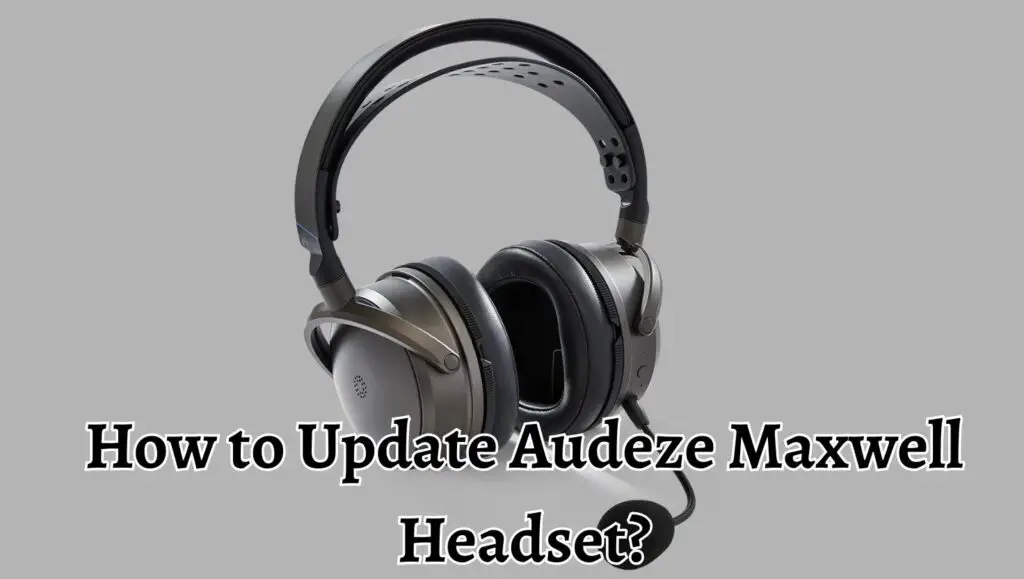
To update the Audeze Maxwell headset, download the Audeze HQ software on your PC or Mac, connect the headset via USB, open the software, and follow the on-screen instructions to install the latest firmware. Ensure the headset is fully charged and do not disconnect it during the update process.
Step 1: Prepare Your Headset and System
The first step is to prepare both your headset and your computer to ensure a smooth update process.
Start by checking the battery level of your Audeze Maxwell headset. It is recommended to have at least 50 percent battery, but ideally, you should fully charge it. This prevents the headset from shutting down during the update, which could corrupt the firmware.
Next, ensure that you have access to a compatible device. Firmware updates are typically performed on a Windows PC or macOS system. Mobile devices generally do not support firmware updates for this headset.
You should also ensure that your internet connection is stable because the update files are downloaded directly from the official servers. A slow or unstable connection can interrupt the process.
Finally, close any unnecessary applications running in the background. This helps avoid software conflicts and ensures the update tool runs smoothly.
Step 2: Download and Install Audeze HQ Software
The next step involves downloading the official Audeze HQ software, which is the primary tool used for updating firmware.
Visit the official website of Audeze and navigate to the support or downloads section. From there, download the latest version of Audeze HQ compatible with your operating system.
Once the download is complete, install the software by following the on-screen instructions. The installation process is straightforward and typically takes just a few minutes.
After installation, launch the software. You may be prompted to allow permissions or install additional drivers. Accept these prompts to ensure the software can properly detect your headset.
It is important to always use the latest version of Audeze HQ, as older versions may not support the newest firmware updates.
Step 3: Connect the Audeze Maxwell Headset via USB
Now that the software is installed, you need to connect your headset to your computer.
Use the USB-C cable provided with the headset to connect it directly to your PC or Mac. Avoid using third-party cables if possible, as they may not provide stable data transfer.
Once connected, power on the headset. The Audeze HQ software should automatically detect the device. If it does not, try reconnecting the cable or switching to a different USB port.
Make sure the connection remains stable throughout the process. Avoid using USB hubs or extensions, as they can sometimes interfere with firmware updates.
When the headset is successfully detected, you will see its current firmware version displayed within the software interface.
Step 4: Check for Available Firmware Updates
After your headset is connected and recognized, the next step is to check for available updates.
Within the Audeze HQ software, navigate to the firmware section. The software will automatically check for the latest available version.
If a new firmware update is available, you will see a notification or prompt indicating that an update is ready to install. This may include details about improvements, bug fixes, or new features included in the update.
Take a moment to read the update notes if available. This helps you understand what changes are being made to your headset.
If no update is available, your device is already running the latest firmware, and no further action is required.
Step 5: Start the Firmware Update Process
Once an update is available, you can begin the installation process.
Click on the update or install button within the Audeze HQ software. The software will begin downloading the firmware package and preparing it for installation.
During this process, you may see a progress bar indicating the download and installation status. The update may take several minutes, depending on the size of the firmware and your internet speed.
It is crucial not to disconnect the headset or close the software during this step. Interrupting the update can result in incomplete installation and may require a reset or recovery process.
Stay patient and allow the process to complete fully.
Step 6: Wait for the Update to Complete
After initiating the update, the software will automatically install the firmware onto your headset.
You may notice the headset restarting or temporarily disconnecting during this process. This is normal behavior and part of the firmware installation procedure.
Once the update is complete, the software will display a confirmation message. Your headset may reboot automatically to apply the new firmware.
At this stage, verify that the firmware version displayed in the software matches the latest version. This confirms that the update was successful.
You can now safely disconnect the headset from your computer.
Step 7: Test the Headset After Updating
After updating the firmware, it is important to test your headset to ensure everything is functioning properly.
Reconnect the headset to your preferred device, whether it is a PC, console, or mobile device. Check the audio quality, microphone performance, and wireless connectivity.
If the update included specific improvements, such as reduced latency or enhanced sound profiles, try to observe these changes during testing.
In case you notice any issues, restarting the headset or reconnecting it often resolves minor problems. If issues persist, consider reinstalling the firmware or contacting support.
FAQs
What is Audeze HQ software?
Audeze HQ is the official application developed by Audeze that allows users to update firmware, customize audio settings, and manage their headset.
How often should I update my Audeze Maxwell headset?
You should check for updates periodically, especially when experiencing issues. Firmware updates are released as needed, so there is no fixed schedule.
Can I update the headset without a computer?
No, firmware updates typically require a Windows or macOS system with the Audeze HQ software installed.
What happens if the update fails?
If the update fails, try reconnecting the headset and restarting the Audeze HQ software. In most cases, the software allows you to retry the update.
Will updating erase my settings?
In most cases, firmware updates do not erase custom settings, but it is always a good idea to note your preferences before updating.
Is it safe to use third-party cables for updating?
It is recommended to use the original USB cable provided with the headset to ensure a stable connection.
Why is my headset not detected?
This could be due to faulty cables, outdated software, or driver issues. Try reconnecting or reinstalling the Audeze HQ software.