
How to Use Fire TV Stick Without Internet? Easy Guide
The Fire TV Stick relies on the internet primarily for streaming and downloading content. However, the device itself is still a powerful media player that can function without continuous connectivity once it is properly set up.
Here are the key ways it works offline:
First, apps that do not require internet access, such as media players or certain games, can still function normally. If you have already installed these apps before losing internet access, they remain available.
Second, you can use screen mirroring to cast content from your smartphone or laptop to the Fire TV Stick. This method does not require an internet connection if both devices are connected through the same local network or hotspot.
Third, offline media files such as videos, music, or photos can be played using apps like VLC or Kodi if the files are stored locally or on an external device.
Lastly, certain settings, menus, and system features continue to work even without an internet connection, allowing you to navigate and control your device.
Now, let’s go through the complete step-by-step process.
How to Use a Fire TV Stick Without Internet?
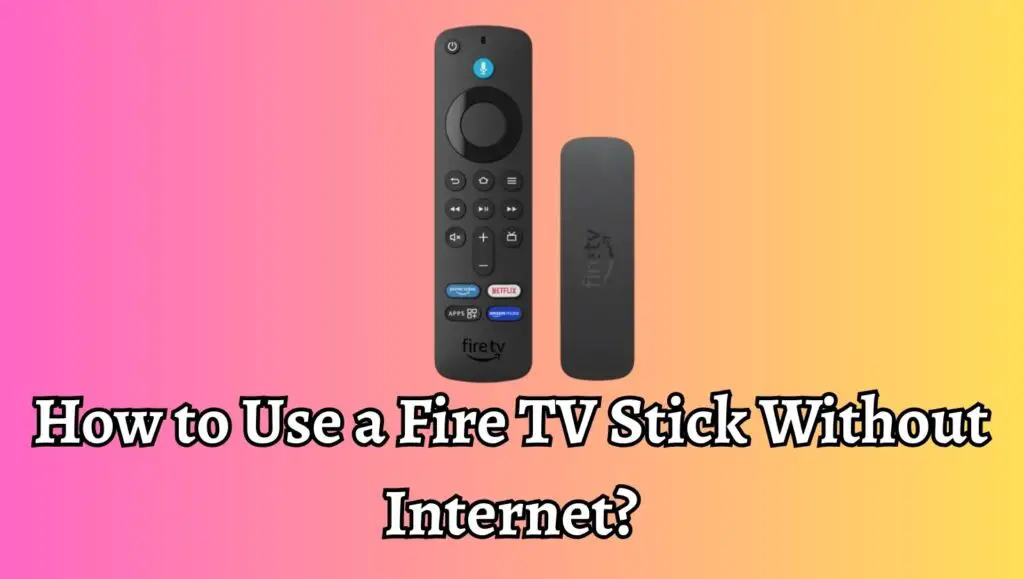
You can use a Fire TV Stick without the internet by accessing pre-downloaded apps, screen mirroring from a smartphone, using Kodi with offline content, or connecting external storage devices via OTG cable. Although online streaming will not work, several offline features remain functional.
Step 1: Set Up Your Fire TV Stick Before Going Offline
Before using your Fire TV Stick without internet, it is essential to complete the initial setup while you still have access to WiFi.
Start by connecting your Fire TV Stick to your TV using the HDMI port and powering it on. Then connect it to a WiFi network and sign in to your Amazon account. This step is necessary because the device needs to register and activate.
Once connected, install all the apps you might need for offline use. Examples include VLC Media Player, Kodi, and offline-compatible games. Also, update the system software to ensure smooth performance.
After completing these steps, your Fire TV Stick will be ready for offline usage.
Step 2: Use Pre-Installed Apps Without Internet
After setup, many apps can still run without internet access.
Open your Fire TV Stick and navigate to the apps section. You will notice that some apps open normally, especially those that do not depend on online servers. These may include media players and basic utility apps.
However, streaming apps like Netflix or Prime Video will not work unless content has been downloaded and supported for offline playback, which is limited on the Fire TV Stick itself.
Focus on apps that allow local file playback. This will give you the best offline experience.
Step 3: Play Offline Media Using VLC or Kodi
One of the most effective ways to use your Fire TV Stick offline is by playing local media files.
Install VLC Media Player or Kodi before going offline. These apps allow you to play videos, music, and images stored on external devices or shared locally.
To use this feature, you need to transfer media files to a USB drive or external storage. Then connect it to your Fire TV Stick using an OTG cable.
Open VLC or Kodi and browse the files from the connected storage. You can now watch movies or listen to music without an internet connection.
Step 4: Connect External Storage Using an OTG Cable
Since the Fire TV Stick does not have a built-in USB port, you will need an OTG cable to connect external storage.
Plug the OTG cable into the Fire TV Stick’s power port. Then connect both the power adapter and a USB drive to the OTG cable.
Once connected, your Fire TV Stick will detect the storage device. You can access the files through compatible apps like VLC or Kodi.
This method is extremely useful for watching downloaded movies or viewing photos without relying on internet streaming.
Step 5: Use Screen Mirroring Without Internet
Another powerful feature is screen mirroring, which allows you to display content from your smartphone or laptop on your TV.
To use this feature, enable screen mirroring on your Fire TV Stick by going to Settings, then Display and Sounds, and selecting Enable Display Mirroring.
Next, turn on screen casting on your smartphone. Both devices should be connected to the same local network or hotspot. You can create a hotspot using your phone if no router is available.
Once connected, your phone screen will appear on the TV. You can now play offline videos, photos, or presentations directly from your device.
Step 6: Use Mobile Hotspot as a Temporary Solution
If you do not have WiFi but still want limited connectivity, you can use a mobile hotspot.
Turn on the hotspot feature on your smartphone and connect your Fire TV Stick to it. This will allow you to access basic online features without a traditional internet connection.
Keep in mind that this method uses mobile data, so it is not completely offline. However, it can be helpful in situations where WiFi is unavailable.
Step 7: Play Offline Games
Some games on the Fire TV Stick do not require an internet connection.
After installing them during the setup phase, you can open and play these games anytime. These are usually simple games that store data locally.
This is a great way to use your Fire TV Stick for entertainment, even when you are offline.
Step 8: Access Basic Settings and Features
Even without the internet, you can still access the Fire TV Stick’s settings and features.
You can adjust display settings, manage apps, control storage, and pair Bluetooth devices such as headphones or speakers.
This ensures that your device remains functional and customizable even when offline.
Faqs
Can I watch Netflix on a Fire TV Stick without internet?
No, Netflix requires an internet connection to stream content. Offline downloads are not supported directly on the Fire TV Stick.
Can I use the Fire TV Stick with mobile data?
Yes, you can connect it to a mobile hotspot. However, this will use your data plan.
Is Kodi useful without the internet?
Yes, Kodi is very useful offline if you have stored media files locally or on external storage.
Do I need an internet connection every time I turn on my Fire TV Stick?
No, once it is set up, you can use many features without an internet connection.
Can I mirror my phone without WiFi?
Yes, you can use a mobile hotspot or local network for screen mirroring.