
How to Use Fire TV Stick on a Laptop [Step By Step]
The Amazon Fire TV Stick, one of the most popular streaming devices, allows users to watch movies, TV shows, live channels, and apps like Netflix, Prime Video, and YouTube directly on a television. However, many users wonder if they can use their Fire TV Stick with a laptop instead of a TV.
Using a Fire TV Stick on a laptop is possible, but it requires the right setup, because most laptops only support HDMI output; you cannot simply plug the device directly into the laptop.
The challenge is that most laptops are designed with HDMI output ports, not HDMI input ports. This means you cannot simply plug the Fire TV Stick into your laptop the way you would connect it to a television.
Still, there are a few reliable methods that allow you to use a Fire TV Stick on a laptop, either by using special hardware or through wireless display features.
In this guide, I will explain that method step by step!
How to use Fire TV Stick on a Laptop?
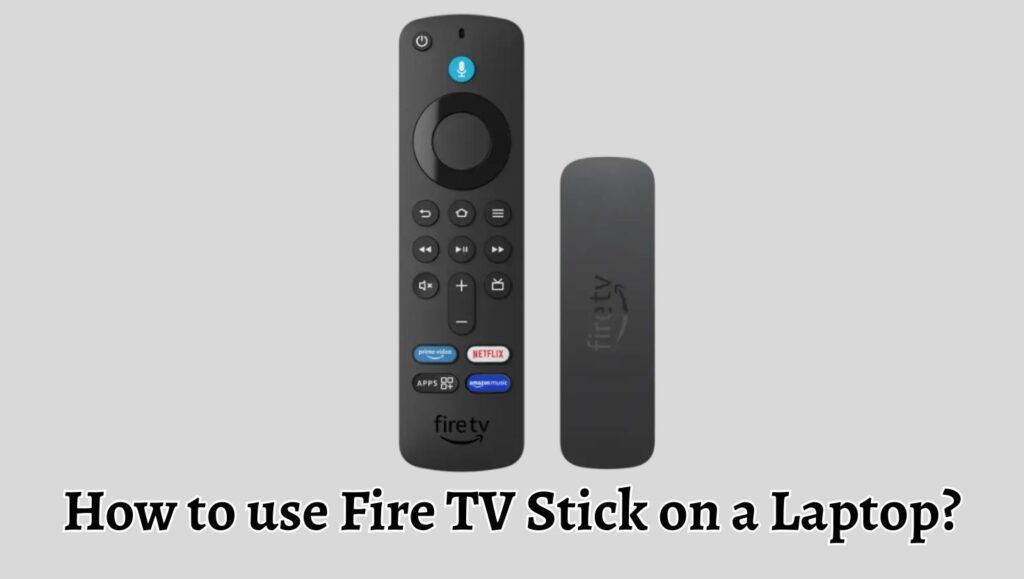
To use a Fire TV Stick on a laptop, you need a laptop that supports HDMI input, or you must use a video capture card. Connect the Fire TV Stick to the capture card, plug the capture card into the laptop via USB, install capture software, and then view the Fire TV display on your laptop screen. Alternatively, you can mirror your laptop display to the Fire TV Stick using wireless display features.
Below is a complete guide explaining the most reliable method to set up and use a Fire TV Stick on a laptop.
Step 1: Check Whether Your Laptop Supports HDMI Input
The first thing you need to do is check whether your laptop supports “HDMI input”. This is extremely rare, but some specialized laptops and gaming machines include it.
Look at the HDMI port on your laptop and check the user manual or manufacturer specifications. If the laptop supports HDMI input, you can connect the Fire TV Stick directly.
If your laptop only supports HDMI output, which is the case for most devices, you will need a video capture card to make the connection work.
This simple check helps you determine the correct method before buying any additional hardware.
Step 2: Get the Required Equipment
If your laptop does not support HDMI input, you will need a few additional items.
The most important device is a “USB video capture card”. This device captures HDMI signals and transfers them to your laptop through a USB connection.
You will also need the following items.
- A Fire TV Stick
- A video capture card
- A USB cable that connects the capture card to the laptop
- A Fire TV power adapter
- A stable WiFi connection
These devices allow the Fire TV Stick to transmit its video signal to your laptop through software that can display the captured video feed.
Step 3: Connect the Fire TV Stick to the Capture Card
Once you have all the required equipment, the next step is to connect the Fire TV Stick to the capture card.
Insert the Fire TV Stick into the HDMI input port of the capture card. This connection works the same way as plugging the device into a television.
After connecting it, make sure the Fire TV Stick is powered properly. Use the included USB power cable and adapter to connect it to a power source.
At this stage, the Fire TV Stick will start booting up just like it does on a normal television.
Step 4: Connect the Capture Card to Your Laptop
After connecting the Fire TV Stick, the next step is linking the capture card to your laptop.
Use the USB cable provided with the capture card and plug it into your laptop’s USB port. Once connected, the laptop will detect the capture card as a video input device, similar to a webcam.
This is what allows the laptop to receive video signals from the Fire TV Stick.
Some laptops may automatically install the necessary drivers. In other cases, you may need to install drivers from the manufacturer’s website.
Once the drivers are installed, your laptop will be ready to display the Fire TV screen.
Step 5: Install Video Capture Software
To view the Fire TV display on your laptop, you need capture software.
One of the most commonly used programs is “OBS Studio”, which is free and widely used for video capture and streaming.
After installing the software, open the program and add a new Video Capture Device.
Select the connected capture card from the list of available devices.
Once selected, the software will begin displaying the Fire TV Stick interface on your laptop screen.
At this point, your laptop is effectively acting like a monitor for the Fire TV Stick.
Step 6: Set Up the Fire TV Stick
Now that the display is visible, you can complete the Fire TV setup process.
Follow the instructions that appear on the screen. This usually includes connecting to a WiFi network, signing in with your Amazon account, and installing streaming apps.
Use the Fire TV remote to navigate the interface.
Once the setup is complete, you can begin watching content directly from the laptop screen through the capture software window.
Step 7: Optimize the Viewing Experience
To get the best experience while using the Fire TV Stick on a laptop, you should adjust a few settings.
First, switch the capture software to full-screen mode so that the Fire TV interface fills your laptop display.
Second, ensure that your WiFi connection is stable, since streaming services require consistent internet speeds.
Finally, adjust the resolution settings in the capture software if the video appears blurry or laggy.
These adjustments can greatly improve the overall streaming experience.
Alternative Method: Mirror Your Laptop to Fire TV Stick
Another way to use a Fire TV Stick with a laptop is through screen mirroring.
Instead of viewing Fire TV content on the laptop, this method allows you to display your laptop screen on the Fire TV Stick connected to a television or monitor.
To do this, enable “Display Mirroring” on the Fire TV Stick.
On a Windows laptop, open Display Settings and choose the “Connect to a Wireless Display” option.
Select the Fire TV device from the list of available displays.
Your laptop screen will then appear on the Fire TV connected television.
This method works well for presentations, videos, and screen sharing.
FAQs
Can you directly connect a Fire TV Stick to a laptop?
No, most laptops only support HDMI output, not HDMI input. Because of this limitation, you cannot directly connect the Fire TV Stick. You must use a video capture card or another compatible device.
Do you need the internet to use a Fire TV Stick on a laptop?
Yes. The Fire TV Stick relies on a WiFi connection to stream content from apps such as Netflix, Prime Video, and YouTube.
Is using a capture card safe for laptops?
Yes. A USB capture card simply acts as a video input device and does not harm your laptop. It is commonly used for streaming, gaming, and recording video content.
Can you use a Fire TV Stick on a laptop without a capture card?
In most cases, no. Without a capture card or HDMI input port, the laptop cannot receive video signals from the Fire TV Stick.
Does using a capture card reduce video quality?
Most modern capture cards support 1080p resolution, which provides excellent video quality. However, extremely cheap devices may introduce slight latency.