
Microsoft Office error 4vt9f [How to Fix]
The Microsoft Office error 4vt9f typically appears during the installation or activation stage of Office. The error indicates that the Office setup process encountered an unexpected problem and could not continue.
There are several common reasons behind this error. Understanding these causes can help you identify the most effective solution.
One major cause is a corrupted Office installation. If the installation files become damaged or incomplete, the setup process may fail and display the 4vt9f error. Another possible reason is a conflict with older Office versions already installed on the computer. When multiple Office installations exist, the installer may not properly overwrite or configure the new version.
Network-related problems can also trigger the error. Microsoft Office activation and installation require a stable internet connection. If the connection drops during installation, the setup process may fail. Sometimes the problem occurs due to outdated Windows components. The Office relies on several Windows services and frameworks. If your system has pending updates, it may not support the latest Office installation requirements.
Security software can also interfere with Office installation. Certain antivirus programs or firewall settings may block the installer from downloading required files or communicating with Microsoft servers. Another factor is temporary system files or corrupted registry entries. These files can interfere with the installer and prevent it from completing successfully.
Now, we know the possible causes for Microsoft Office error 4vt9f. Now, let’s explore the solutions!
Microsoft Office error 4vt9f [How to Fix]
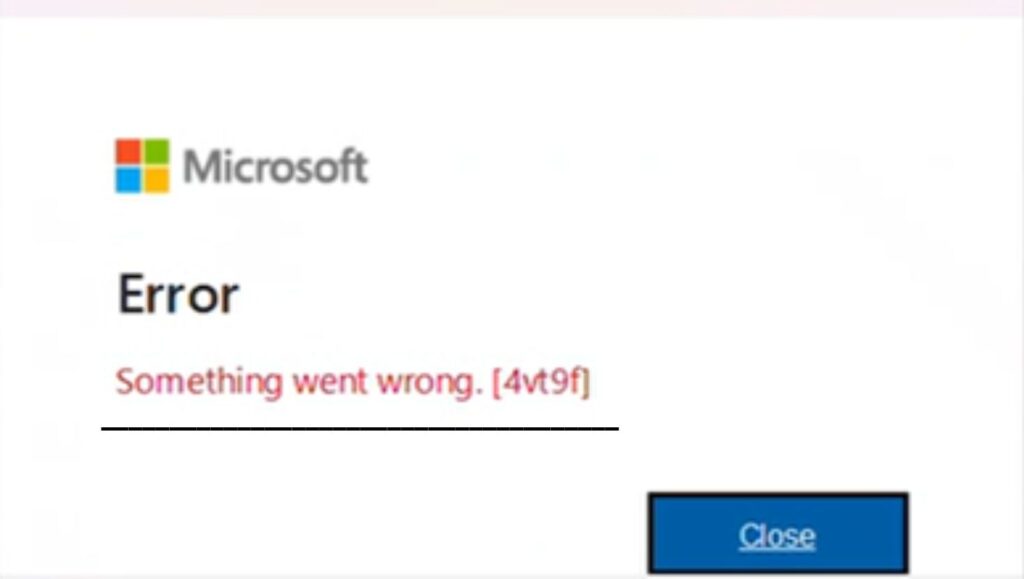
Microsoft Office error 4vt9f usually occurs during installation or activation when Office cannot complete setup. This problem can be resolved by checking your internet connection, repairing the Office installation, removing old Office versions, updating Windows, or reinstalling the Office suite.
Let’s explore the steps in detail!
Step 1: Check Your Internet Connection
A stable internet connection is essential when installing or activating Microsoft Office. The installer often downloads additional files during setup, and interruptions can trigger Microsoft Office error 4vt9f.
Start by checking whether your internet connection is working properly. Open a web browser and visit a few websites to confirm that your network is stable.
If the connection appears slow or unstable, try restarting your router or modem. Disconnect the power cable, wait for about thirty seconds, and plug it back in.
After the router restarts, reconnect your computer to the network and attempt to install Office again.
If you are using a public or restricted network, such as a school or workplace connection, it may block certain Microsoft services. In such cases, switching to a different network can help resolve the issue.
Once you confirm that your connection is stable, run the Office installer again and check whether the 4vt9f error disappears.
Step 2: Restart Your Computer
Sometimes, temporary system glitches can interrupt the Office installation process. A simple system restart can clear temporary files and reset background services that may be causing the error.
Close all open programs and save any ongoing work. Click the Start menu, select the Power option, and choose Restart.
When the computer restarts, Windows reloads essential services and clears temporary processes that might interfere with installations.
After the restart is complete, try launching the Microsoft Office installer again. In many cases, this simple step resolves minor installation issues, including error 4vt9f.
Step 3: Remove Older Versions of Microsoft Office
Conflicts between different Office versions can cause installation errors. If an older version of Microsoft Office is already installed on your computer, it may interfere with the new setup process.
Open the Control Panel on your Windows system. Navigate to Programs and Features to view the list of installed programs.
Look for any previous Office versions, such as Office 2016, Office 2019, or Office 365.
Select the older version and choose the Uninstall option. Follow the instructions provided by the uninstaller until the removal process is complete.
After uninstalling the old version, restart your computer to ensure that all related files and services are cleared.
Once the system restarts, try installing the new version of Office again. Removing previous installations often resolves Microsoft Office error 4vt9f.
Step 4: Update Windows to the Latest Version
Running outdated system components can sometimes cause compatibility problems during Office installation.
To check for updates, open the Settings application on your Windows computer. Navigate to the Windows Update section.
Click the Check for Updates button to see if any updates are available. If updates are found, download and install them.
Windows may need to restart several times during the update process. Allow the updates to finish before proceeding.
Once your system is updated, try installing Microsoft Office again. Updated system components often eliminate errors such as 4vt9f.
Step 5: Repair the Microsoft Office Installation
If Office is already installed but displaying the 4vt9f error, repairing the installation can fix corrupted files.
Open the Control Panel and navigate to Programs and Features.
Locate Microsoft Office in the program list and select it. Click the Change option at the top of the window.
You will see two repair options called Quick Repair and Online Repair.
Start with Quick Repair, which fixes most issues without requiring an internet connection.
If the error persists after the quick repair process, run Online Repair, which downloads fresh installation files from Microsoft servers and replaces damaged components.
After the repair process finishes, restart your computer and open any Office application to confirm that the issue has been resolved.
Step 6: Disable Antivirus Temporarily
Some antivirus programs block installation files that attempt to modify system settings. This can interrupt the Office setup process and lead to Microsoft Office error 4vt9f.
Temporarily disable your antivirus software before running the Office installer.
Open your antivirus application and locate the option to disable real-time protection. Turn it off temporarily while installing Office.
After disabling the antivirus, launch the Office installer again and continue with the setup process.
Once the installation completes successfully, remember to re-enable your antivirus protection to keep your system secure.
Step 7: Reinstall Microsoft Office Completely
If none of the previous solutions work, performing a clean reinstallation of Microsoft Office is often the most effective fix.
Begin by uninstalling Office through Control Panel under Programs and Features.
After uninstalling, restart your computer to remove remaining temporary files.
Next, download the latest version of Office from the official Microsoft website using your Microsoft account.
Run the installer and follow the on-screen instructions to complete the setup.
A fresh installation ensures that all program files are new and properly configured, which usually eliminates error 4vt9f.
FAQs
What is Microsoft Office error 4vt9f?
Microsoft Office error 4vt9f is an installation or activation issue that occurs when Office setup cannot complete successfully. It often results from corrupted installation files, network issues, or conflicts with existing Office versions.
Why does Microsoft Office error 4vt9f appear?
This error may appear due to several reasons, including unstable internet connection, outdated Windows components, corrupted Office files, antivirus interference, or multiple Office installations on the same system.
Can restarting the computer fix the 4vt9f error?
Yes, restarting your computer can sometimes fix the issue. A restart clears temporary system files and resets services that might be interfering with the Office installation.
Does reinstalling Office fix the problem?
In many cases, a clean reinstallation of Microsoft Office resolves the error. Reinstalling replaces damaged files and ensures that the installation is completed properly.
Is Microsoft Office error 4vt9f a serious problem?
No, the error is not usually serious. It is a common installation issue that can be fixed using troubleshooting steps such as repairing Office, updating Windows, or reinstalling the program.