
There is not enough free memory to run this program [How to Fix?]
The error message There is not enough free memory to run this program is one of the most frustrating issues Windows users face, especially when it appears suddenly while opening an application, running old software, or launching a game. This error usually appears when Windows cannot allocate enough memory resources to a specific application. It can happen even on systems that show plenty of free RAM in Task Manager. The reason is that Windows uses multiple types of memory, including virtual memory, system resources, and application-specific limits.
Older applications, especially 16-bit or legacy software, are more likely to trigger this message on modern systems. However, background apps, corrupted system files, or incorrect virtual memory settings can also cause the same error in newer programs.
The issue is not unresolvable; it can be resolved easily if you follow the right steps!
There is not enough free memory to run this program [How to Fix?]
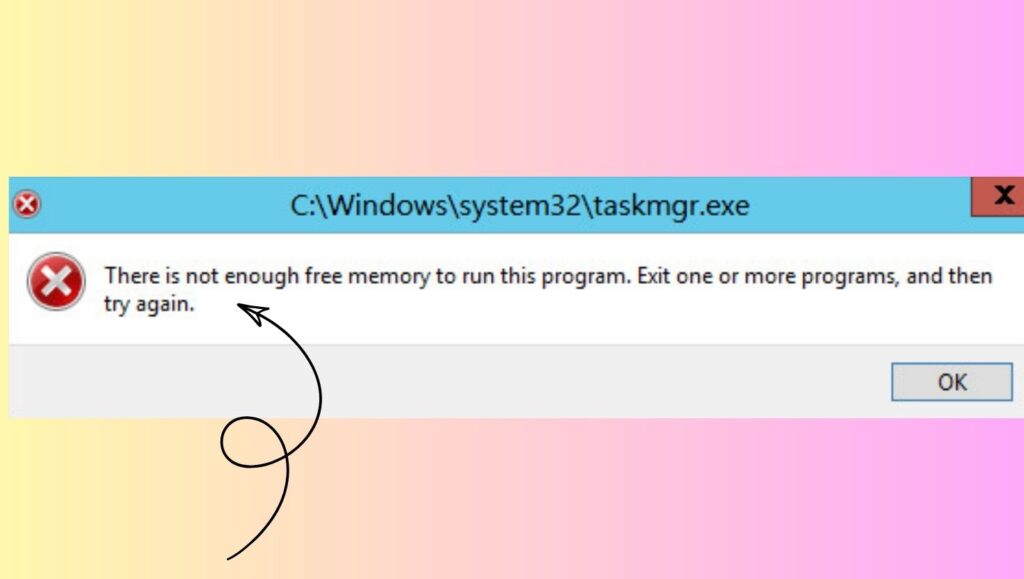
The error “There is not enough free memory to run this program” occurs when Windows cannot allocate sufficient memory resources to an application. You can fix it by closing background programs, increasing virtual memory, running the app in compatibility mode, repairing system files, and checking for software or system limitations that block memory allocation.
To fix this problem permanently, you must approach it step by step. Each solution addresses a different possible cause.
You do not need to apply all steps at once. Start from Step 1 and move forward until the issue is resolved.
Step 1: Restart Your Computer and Free Up Memory
The simplest and most overlooked fix is restarting your system. Over time, background processes, temporary services, and memory leaks consume system resources without releasing them properly.
Restarting your PC clears RAM, resets system processes, and stops unnecessary background tasks. After restarting, avoid opening multiple applications at once. Try running the problematic program immediately to check if the error still appears.
If the program runs successfully after a restart, the issue was likely caused by temporary memory overload.
Step 2: Close Unnecessary Background Programs
Windows often runs many applications in the background, even when you are not actively using them. These programs consume memory and system resources.
Open Task Manager by pressing Ctrl, Shift, and Esc together. Under the Processes tab, check which apps are using a large amount of memory. Close applications that are not essential, such as browsers with many tabs, launchers, or background utilities.
Once you free up memory, try launching the program again. In many cases, this step alone resolves the error.
Step 3: Increase Virtual Memory in Windows
Virtual memory acts as an extension of your physical RAM by using a portion of your hard drive or SSD. If virtual memory is disabled or set too low, Windows may show memory-related errors even when RAM is available.
Open System Properties and go to Advanced System Settings. Under the Performance section, open Settings and navigate to the Advanced tab. Locate Virtual memory and click Change.
Uncheck the option that says automatically manage paging file size for all drives. Select your system drive and choose Custom size. Set the initial size to 1.5 times your installed RAM and the maximum size to 3 times your RAM. Click Set and restart your computer.
Increasing virtual memory significantly reduces memory allocation errors.
Step 4: Run the Program as Administrator
Some programs require elevated system permissions to access memory and system resources properly. Without these permissions, Windows may block the application and show memory-related errors.
Right-click on the program’s executable file or shortcut and select Run as administrator. If the program runs without errors, you can make this setting permanent.
Open the program’s Properties, go to the Compatibility tab, and enable Run this program as an administrator. Apply the changes and restart the application.
Step 5: Use Compatibility Mode for Older Programs
Older software was designed for earlier versions of Windows and may not manage memory correctly on modern systems. Compatibility mode helps Windows simulate an older environment.
Right-click the program file and open Properties. Navigate to the Compatibility tab and enable Run this program in compatibility mode. Choose an older Windows version, such as Windows XP or Windows 7, depending on when the software was released.
Apply the settings and run the program again. This step is especially effective for legacy applications and classic games.
Step 6: Check System Architecture Compatibility
Some programs are designed specifically for 32-bit systems and may not function properly on 64-bit Windows, especially very old applications.
Check whether the program supports your system architecture. You can find your system type by opening System Information. If the software is extremely old, consider running it in a virtual machine or using an updated version if available.
Using the correct version of the software prevents memory conflicts and execution errors.
Step 7: Scan and Repair System Files
Corrupted or missing system files can interfere with memory allocation. Windows includes built-in tools to repair these files.
Open Command Prompt as administrator and run the System File Checker command. This scan checks all protected system files and replaces corrupted ones automatically.
After the scan completes, restart your computer and test the program again. Many users fix memory errors simply by repairing system files.
Step 8: Check for Malware and Unwanted Programs
Malware and unwanted background software often consume large amounts of memory and system resources. This reduces the memory available for legitimate applications.
Run a full system scan using Windows Security or a trusted antivirus tool. Remove any detected threats and restart your PC.
Keeping your system clean ensures that memory resources are available when needed.
Step 9: Update Windows and Device Drivers
Outdated system files and drivers can cause memory handling issues. Windows updates often include fixes for memory management bugs.
Open Windows Update and install all available updates. Also, update your graphics driver and chipset driver from the manufacturer’s website.
After updating, restart your system and check if the error is resolved.
Step 10: Adjust Program Memory Limits
Some applications have internal memory limits defined in their configuration files. This is common in older software.
Check the program’s installation folder or documentation for memory settings. Increasing the allowed memory value can prevent the error from appearing.
If the software supports command-line parameters, look for options that increase memory allocation.
Step 11: Reinstall the Problematic Program
If none of the previous steps work, the program installation itself may be corrupted.
Uninstall the application completely from the Control Panel. Restart your system and reinstall the latest available version of the software.
Make sure to install the program in the default directory and avoid custom paths unless required.
Step 12: Upgrade Physical RAM if Necessary
If your system has very low RAM and you regularly encounter memory errors across multiple applications, a hardware upgrade may be required.
Check your current RAM usage in Task Manager. If memory usage stays above 80 percent during normal tasks, adding more RAM can significantly improve system stability.
This should be considered the last option after applying all software-based fixes.
Faqs
What does the error “There is not enough free memory to run this program” mean?
This error means Windows cannot allocate sufficient memory resources to an application. It does not always mean your RAM is full. It can also be caused by virtual memory limits, compatibility issues, or system restrictions.
Can this error occur even if I have enough RAM?
Yes, it can. Incorrect virtual memory settings, background processes, or software limitations can trigger this error even when free RAM is available.
Is this error common in old software?
Yes, older programs are more likely to show this error on modern Windows versions because they were designed with different memory management systems.
Does increasing virtual memory really help?
Yes, increasing virtual memory is one of the most effective fixes. It allows Windows to use disk space as additional memory when RAM is insufficient.
Will reinstalling Windows fix this issue?
In extreme cases, a clean Windows installation can fix deep system issues. However, most users can resolve this error using the steps in this guide without reinstalling Windows.