
How to Turn Off Autofill in Edge Completely or Partially in 2026?
The Autofill feature in Microsoft Edge is designed to remember information you enter online and fill it automatically when needed. This includes usernames, passwords, contact information, addresses, and payment methods. While convenient, it can sometimes create privacy concerns.
For example, if you share your computer with others, they may gain access to saved data through Autofill. Even on a personal device, you may want to disable Autofill to avoid accidental form submissions or incorrect information being filled.
Microsoft Edge allows you to control Autofill settings individually. You can turn off password saving, address saving, and payment Autofill separately. You can also delete previously saved data if needed.
Before disabling Autofill, make sure you remember important login details. Once disabled, Edge will no longer automatically fill saved information.
Let’s disable it to prevent autofilling your personal information!
How to Turn Off Autofill in Edge?
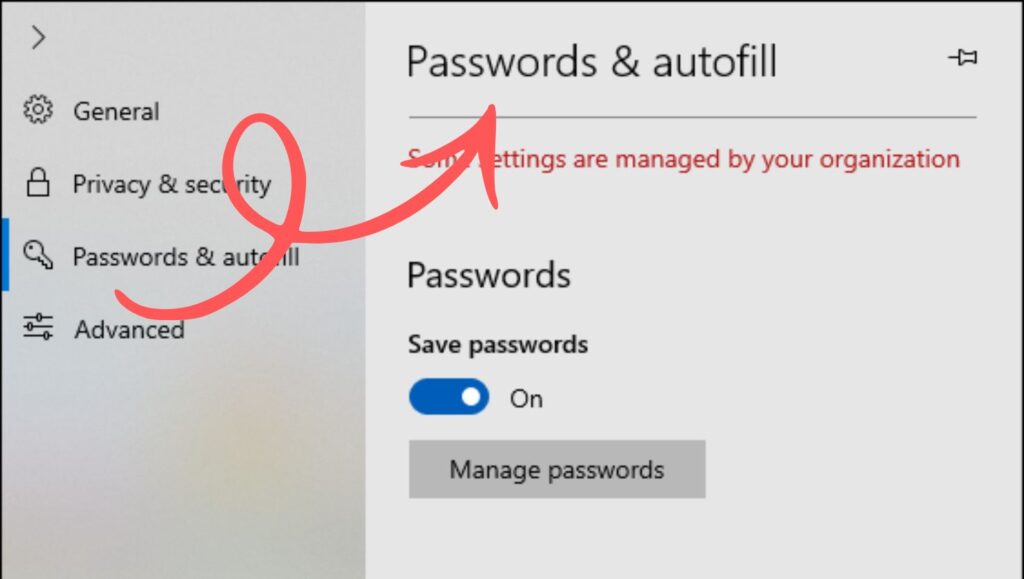
To turn off Autofill in Edge, open Microsoft Edge and click the three-dot menu in the top right corner. Go to Settings and select Profiles. Click on Passwords, Personal info, or Payment info and toggle off the Autofill options. This will stop Edge from automatically filling in saved information on websites.
Follow the steps below to disable Autofill completely or partially in the Microsoft Edge browser.
Step 1. Open Microsoft Edge Settings
The first step is to access the Settings menu in Microsoft Edge. This section contains all browser controls, including Autofill options.
Launch Microsoft Edge on your computer. Once the browser opens, look at the top right corner of the window. You will see three dots arranged vertically. This is the main menu button.
Click on the three-dot menu to open a dropdown list. From this list, select the option labeled Settings. The Settings page will open in a new tab where you can manage all Edge features.
On the left side of the Settings page, you will see different categories such as Profiles, Privacy, Appearance, and more. The Autofill options are located under the Profiles section.
Accessing the Settings panel is necessary because all Autofill controls are managed from here.
Step 2. Navigate to the Profiles Section
After opening Settings, the next step is to locate the Profiles section in Edge. This area contains all information related to saved data, including passwords and personal details.
On the left sidebar of the Settings page, click on Profiles. Once you open it, you will see several options such as Passwords, Payment info, and Personal info.
Each of these categories controls a different type of Autofill data. For example, the Passwords section manages login Autofill, while the Personal info section controls address and contact Autofill.
Selecting the correct section allows you to disable Autofill for specific types of data rather than turning everything off at once.
Step 3. Turn Off Password Autofill in Edge
Many users want to disable password Autofill in Microsoft Edge for security reasons. This prevents the browser from automatically filling saved login credentials on websites.
In the Profiles section, click on Passwords. This will open the password management page, where you can see saved passwords and related settings.
Look for the option labeled Offer to save passwords. Turn this toggle off to stop Edge from asking to save new passwords. Next, find the option called Autofill passwords or Sign in automatically. Turn this toggle off as well.
Once these settings are disabled, Microsoft Edge will no longer fill in usernames and passwords automatically. You will need to enter login details manually each time you visit a website.
Disabling password Autofill helps improve privacy, especially on shared devices.
Step 4. Disable Personal Information Autofill
The next step is to turn off personal information Autofill in Edge. This includes saved names, addresses, phone numbers, and email details that automatically appear in forms.
Go back to the Profiles section in Settings. Click on Personal info. You will now see a toggle labeled Save and fill personal info.
Turn this toggle off to stop Edge from saving and filling personal details automatically. Once disabled, the browser will no longer suggest saved contact information when you fill out online forms.
If you want to remove existing saved information, you can also delete entries from this section. This ensures that no personal data remains stored in the browser.
Disabling personal info Autofill is useful if you want to protect sensitive details or prevent incorrect information from being filled.
Step 5. Turn Off Payment Information Autofill
If you have saved debit or credit card details in Edge, you may want to disable payment Autofill for added security.
In the Profiles section, click on Payment info. Here you will see options related to saved payment methods. Look for the toggle labeled Save and fill payment info.
Turn this toggle off to prevent Edge from storing and automatically filling payment details on websites. This ensures that your card information is not used without your permission.
You can also delete previously saved cards from this section. Removing stored payment details reduces the risk of unauthorized transactions or accidental use.
Turning off payment Autofill is especially important on shared or public computers.
Step 6. Clear Saved Autofill Data
After disabling Autofill, you may want to remove previously saved information from Edge. This ensures that no personal data remains stored in the browser.
Go to the Privacy, search, and services section in Edge Settings. Scroll down until you find Clear browsing data. Click on Choose what to clear.
Select Autofill form data and Passwords if you want to remove saved entries. Choose the time range and click Clear now.
This step permanently deletes stored Autofill information from your browser. Once cleared, Edge will no longer have access to old data.
Clearing saved data is optional but recommended for complete privacy.
Step 7. Restart Microsoft Edge
After making changes to Autofill settings, it is a good idea to restart the browser. This ensures that all updates are applied correctly.
Close Microsoft Edge completely and reopen it. Visit a website with a login or form to check if Autofill has been disabled successfully.
If the browser no longer fills in information automatically, the process is complete.
Restarting Edge helps confirm that the new settings are working properly.
Faqs
Why should I turn off Autofill in Edge?
Turning off Autofill improves privacy and security. It prevents saved passwords, addresses, and payment details from being automatically entered on websites.
Can I disable only password Autofill in Edge?
Yes, Microsoft Edge allows you to disable password Autofill separately from personal and payment information. You can manage each category individually in Settings.
Will turning off Autofill delete saved data?
No, disabling Autofill only stops automatic filling. Saved data remains unless you manually delete it from Settings or clear browsing data.
Is it safe to keep Autofill enabled?
Autofill is generally safe on personal devices with strong security. However, disabling it is recommended on shared or public computers.
Can I enable Autofill again later?
Yes, you can re-enable Autofill anytime by going back to Edge Settings and turning the toggles on again.