
5 Methods to Turn Off Scroll Lock In Excel [Simple Steps]
Scroll Lock is a legacy feature that still exists in modern computers and applications like Excel. When Scroll Lock is turned on, Excel displays a Scroll Lock indicator in the status bar at the bottom of the window. While this feature may be useful in some scenarios, most users enable it by mistake and then cannot navigate their spreadsheets properly.
The problem becomes more confusing when the keyboard does not have a Scroll Lock key. Many modern laptops and compact keyboards remove this key to save space. As a result, users need alternative methods to disable Scroll Lock.
There are several ways to turn off Scroll Lock in Excel. If you are facing an issue, do not worry. We will learn all the easy and best ways in this guide!.
Check If the Scroll Lock Is Enabled in Excel
Before turning off Scroll Lock, it is important to confirm that it is enabled. Excel provides a clear indicator for this feature.
Open Microsoft Excel and look at the status bar at the bottom of the window. If Scroll Lock is enabled, you will see a message that says Scroll Lock or ScrLk in the status bar. If you do not see it, right-click on the status bar and ensure that Scroll Lock is checked in the list of available indicators.
Try pressing the arrow keys on your keyboard. If the worksheet scrolls instead of moving between cells, then Scroll Lock is active and needs to be turned off.
Understanding whether Scroll Lock is active helps you avoid unnecessary troubleshooting and confirms that the issue is related to this keyboard function.
How to Turn Off Scroll Lock In Excel?
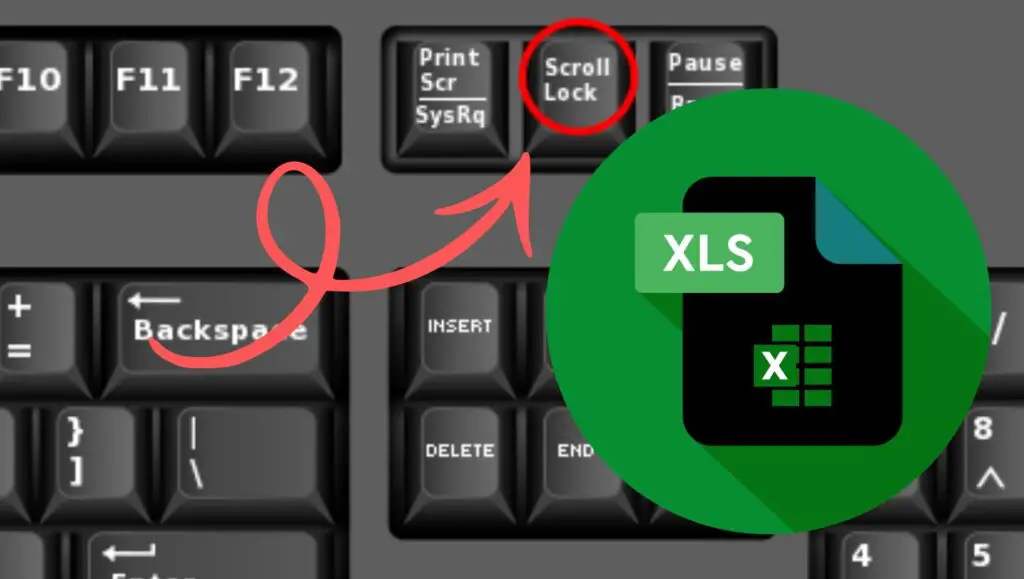
To turn off Scroll Lock in Excel, press the Scroll Lock key on your keyboard. If your keyboard does not have a Scroll Lock key, open the On-Screen Keyboard in Windows, click the ScrLk key to disable it, and return to Excel. Once disabled, your arrow keys will move between cells normally.
Let’s learn all the methods one by one!
1. Turn Off Scroll Lock Using the Keyboard Key
The easiest way to turn off Scroll Lock is by pressing the dedicated Scroll Lock key on your keyboard. This method works for most desktop keyboards and some external laptop keyboards.
Locate the Scroll Lock key on your keyboard. It is usually labeled as Scroll Lock, ScrLk, or Scroll. On many keyboards, it is placed near the Pause or Print Screen keys in the top right corner.
Press the Scroll Lock key once. After pressing it, return to Excel and check the status bar. The Scroll Lock indicator should disappear. Now press the arrow keys to confirm that they move between cells instead of scrolling the worksheet.
Some keyboards require using the Function key along with the Scroll Lock. In that case, press Fn and Scroll Lock together. This combination disables Scroll Lock on certain laptop keyboards.
If this method works, you can continue using Excel normally without any scrolling issues.
2. Use the On-Screen Keyboard in Windows
If your keyboard does not have a Scroll Lock key, you can use the On-Screen Keyboard provided by Windows. This virtual keyboard includes all keys, including Scroll Lock.
Press the Windows key and type On-Screen Keyboard in the search bar. Click on the On-Screen Keyboard option from the results to open it. A virtual keyboard will appear on your screen.
Look for the ScrLk key on the virtual keyboard. If Scroll Lock is enabled, the key will appear highlighted. Click on the ScrLk key once to turn it off. The highlighted status will disappear, indicating that Scroll Lock is disabled.
Return to Excel and test the arrow keys. They should now move between cells normally. This method is especially useful for laptop users who do not have a physical Scroll Lock key.
The On-Screen Keyboard is a reliable solution and works on both Windows 10 and Windows 11 systems.
3. Turn Off Scroll Lock Using the Settings Menu
In some cases, you may need to access Windows settings to open the On-Screen Keyboard or manage keyboard functions. This method helps users who cannot find the keyboard shortcut.
Click the Start menu and open Settings. Go to the Ease of Access section or Accessibility settings, depending on your Windows version. Look for the Keyboard option in the sidebar.
Enable the On-Screen Keyboard toggle. Once the virtual keyboard appears, locate the ScrLk key and click it to turn off Scroll Lock. After disabling it, you can close the virtual keyboard and return to Excel.
This method is helpful if you prefer navigating through system settings instead of using search shortcuts.
4. Use Keyboard Shortcuts for Laptop Users
Some laptop manufacturers assign Scroll Lock functionality to a combination of keys instead of providing a dedicated key. You can try common key combinations to disable Scroll Lock.
Look for a key labeled ScrLk on your keyboard. It might be printed on another key, such as the Function keys. Press the Fn key together with that key to toggle Scroll Lock.
Common combinations include Fn and C, Fn and K, Fn and S, or Fn and F12, depending on the laptop brand. After pressing the combination, check Excel to see if Scroll Lock has been turned off.
Laptop manuals or manufacturer websites often provide specific instructions for keyboard shortcuts. Checking these resources can help you find the correct combination quickly.
5. Disable Scroll Lock in Excel Using Remote Desktop
If you are using Excel through Remote Desktop or virtual machines, Scroll Lock might be enabled on the host system. This can affect your Excel navigation.
Press Ctrl and Scroll Lock together on the remote keyboard if available. If the key is not present, open the On-Screen Keyboard on the remote system and click the ScrLk key to disable it.
Once Scroll Lock is turned off on the remote system, Excel will respond normally on your local device. This method is useful for users working on remote servers or virtual environments.
Restart Excel or Your Computer If Needed
Sometimes Excel may continue behaving as if Scroll Lock is enabled even after turning it off. Restarting the application can help resolve this issue.
Close Excel completely and reopen it. Check if the Scroll Lock indicator is gone and test the arrow keys. If the problem persists, restart your computer to refresh system settings and keyboard functions.
Restarting ensures that all keyboard inputs are reset and Excel recognizes the correct settings.
Faqs
Why are my arrow keys scrolling instead of moving cells in Excel
This happens when Scroll Lock is enabled. When active, the arrow keys scroll the worksheet rather than moving between cells. Turning off Scroll Lock resolves the issue.
How do I know if Scroll Lock is on in Excel?
Check the status bar at the bottom of the Excel window. If Scroll Lock is enabled, you will see a Scroll Lock indicator displayed there.
What if my keyboard does not have a Scroll Lock key
You can use the Windows On-Screen Keyboard to disable Scroll Lock. Open it from the search menu and click the ScrLk key to turn it off.
Can the Scroll Lock affect other applications?
Scroll Lock mainly affects spreadsheet applications like Excel. However, some programs may respond differently when it is enabled, especially those that use arrow key navigation.
How do I prevent Scroll Lock from turning on accidentally
Avoid pressing unknown key combinations and check your keyboard shortcuts. If your keyboard has a dedicated Scroll Lock key, be mindful of its location to prevent accidental activation.