
Fix “Windows 11 Error Code 0xc000000f” With the Right Steps
Windows 11 error code 0xc000000f is a critical error that usually prevents Windows 11 from booting properly. This error code can appear with a variety of symptoms, including a blue screen or an automatic restart loop. Fortunately, fixing it is possible with the right steps.
In this guide, we will walk you through how to fix Windows 11 error code 0xc000000f and get your system back to normal.
How to Fix Windows 11 Error Code 0xc000000f?
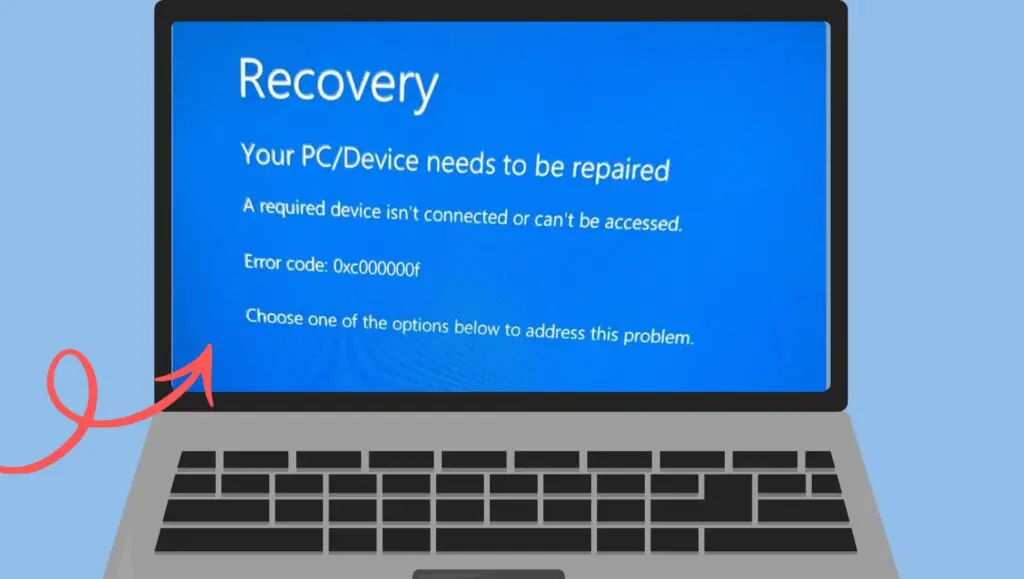
The 0xc000000f error generally indicates that Windows is unable to find the required system files to boot the operating system. It can be caused by a corrupted boot configuration or missing boot files. This problem can also stem from a malfunctioning hard drive, faulty system updates, or even certain malware infections.
To fix Windows 11 error code 0xc000000f, you can start by performing a system repair using the Windows Recovery Environment (WinRE). The issue is often caused by corrupted boot files, which can be repaired using built-in tools like Startup Repair or Command Prompt. In some cases, restoring a previous system backup or reinstalling Windows 11 may be necessary.
Follow the steps below to fix Windows 11 Error Code 0xc000000f:
Step 1: Boot Your PC into Windows Recovery Environment (WinRE)
The first step to resolve error 0xc000000f is to access the Windows Recovery Environment (WinRE). To do this, you must restart your PC. If the error occurs during startup, Windows will automatically attempt to enter recovery mode. If it doesn’t, follow these steps:
- Start by turning on your PC.
- As soon as the Windows logo appears, press and hold the power button for 10 seconds to force a shutdown.
- Repeat this process two more times until you see the “Preparing Automatic Repair” screen.
- Once the repair process starts, select Advanced Options from the available options.
Now, you’re in the WinRE.
Step 2: Run Startup Repair
Once you are in the Windows Recovery Environment, you can try the Startup Repair tool to fix the error automatically. This tool scans your system for boot-related issues and tries to fix them. Here’s how to use it:
- From the Advanced Options menu, select Troubleshoot.
- Click on Advanced Options.
- Select Startup Repair.
- Windows will now attempt to repair the boot files automatically. Wait for the process to complete.
After the repair is done, restart your PC to check if the issue is resolved.
Step 3: Use the Command Prompt to Fix Boot Files
If Startup Repair doesn’t work, the next option is to manually fix the boot files using Command Prompt in the WinRE environment. Follow these steps:
- From the Advanced Options menu, select Troubleshoot.
- Click on Advanced Options.
- Choose Command Prompt.
- Once the Command Prompt window appears, type the following commands one by one and press Enter after each:
bootrec /scanos
bootrec /rebuildbcd
bootrec /fixmbr
bootrec /fixboot
- After executing these commands, restart your PC.
These commands will fix issues with the Master Boot Record (MBR), the Boot Configuration Data (BCD), and other essential boot files, which may be causing the error.
Step 4: Check and Repair Hard Drive for Errors
Sometimes, a damaged hard drive or SSD can cause the 0xc000000f error. To check your drive for errors, you can use the chkdsk command.
- Open Command Prompt from the Advanced Options in WinRE.
Type the following command and press Enter:
chkdsk C: /f /r
- (Replace C: with the drive letter where your Windows 11 is installed, if necessary.)
- Wait for the chkdsk process to complete, then restart your PC.
Step 5: Perform System Restore
If the above steps do not fix the problem, you can try restoring your system to a previous point in time before the error occurred. This will undo any recent changes that may have caused the issue, such as updates or software installations.
- Boot into Windows Recovery Environment as previously explained.
- From the Advanced Options menu, select System Restore.
- Choose a restore point from before the error appeared.
- Follow the on-screen instructions to restore your system.
Step 6: Reinstall Windows 11
If none of the above methods work, reinstalling Windows 11 might be necessary. This will replace any damaged system files that are causing the error, although it will not affect your personal files. If you decide to reinstall Windows 11, you can do so by using a bootable USB drive with the installation media.
- Create a bootable USB drive with the Windows 11 installation media.
- Insert the USB drive into your PC and restart it.
- Press the required key to boot from the USB drive.
- Select Install Windows and follow the prompts.
This method should be used as a last resort if other options do not work.
FAQs
Q1: Why does Windows 11 error code 0xc000000f happen?
Windows 11 error code 0xc000000f typically occurs when boot files or system configurations are damaged, corrupted, or missing. This can be caused by failed system updates, malware, or hardware issues.
Q2: Is there a way to fix error code 0xc000000f without reinstalling Windows?
Yes, you can fix this error without reinstalling Windows by using tools such as Startup Repair, Command Prompt, or System Restore. Reinstalling Windows is only necessary when all other solutions fail.
Q3: Can I lose my files while fixing error 0xc000000f?
Generally, the methods listed above should not result in data loss. However, always back up your files regularly to prevent any loss in case a more drastic solution like a system reinstall becomes necessary.
Q4: How long will it take to fix error code 0xc000000f?
The time it takes to fix the 0xc000000f error varies depending on the method used. Startup Repair and Command Prompt fixes can take a few minutes, while System Restore or reinstalling Windows may take longer.