
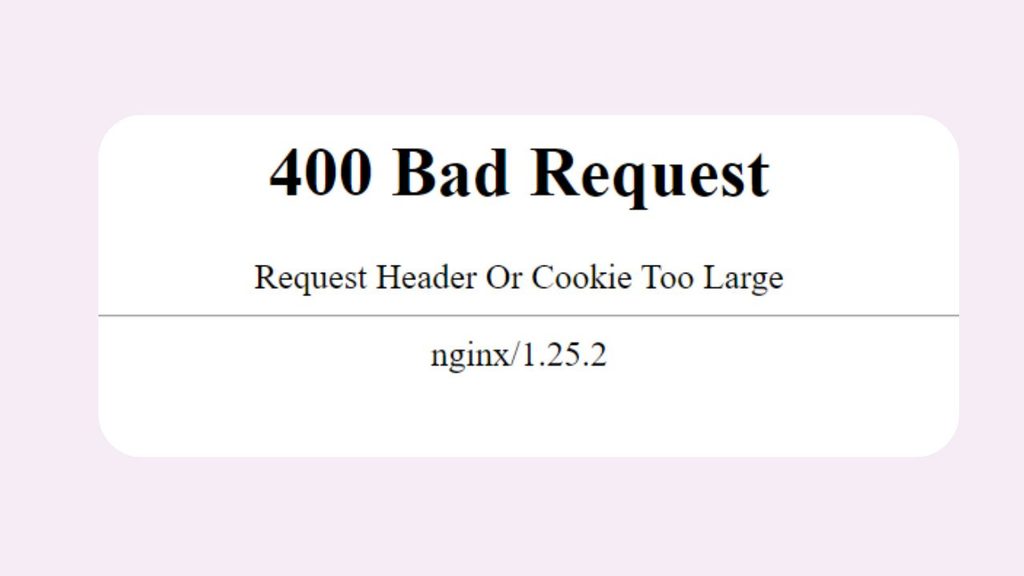
400 Bad Request: Request Header or Cookie Too Large [Fix]
Seeing the “400 Bad Request: Request Header or Cookie Too Large” error can be frustrating, especially when you’re trying to access an important website. Instead of loading the webpage, your browser displays an error message and refuses to continue.
This issue is common in browsers like Google Chrome, Microsoft Edge, Mozilla Firefox, and Safari, and it usually has nothing to do with your internet connection.
In most cases, the problem occurs because your browser has stored too many cookies or the website is receiving request headers that exceed the server’s allowed size.
Since web browsers automatically send cookies whenever you visit a website, oversized or corrupted cookies can prevent the server from processing your request.
Whether the problem is caused by browser cookies, cached files, browser extensions, or a website configuration issue, you can resolve it with a few simple troubleshooting steps.
In this guide, I have explained what the error means, why it happens, and how to fix it step by step, even if you have never dealt with browser errors before.
400 Bad Request: Request Header or Cookie Too Large: Meaning & Causes
The “400 Bad Request Request Header or Cookie Too Large” error is a type of HTTP 400 error. It means that the web server received your browser’s request but rejected it because the request headers or cookies were larger than the server allows.
Whenever you visit a website, your browser sends information called request headers. These headers contain details such as browser information, language settings, authentication tokens, and cookies that help websites remember your login sessions and preferences.
If these cookies become too large, corrupted, or duplicated over time, the server may reject the request entirely.
Common causes include:
- Too many cookies are stored for a specific website.
- Corrupted browser cookies after updates or website changes.
- Large authentication tokens are created by login systems.
- Browser extensions that modify request headers.
- Corrupted browser cache.
- Outdated browser versions.
- Incorrect server configuration, especially on websites that recently changed their settings.
- Reverse proxy or web server limits, such as Nginx or Apache header size restrictions.
Fortunately, you can usually resolve the issue from your own computer without advanced technical knowledge.
Fix “400 Bad Request: Request Header or Cookie Too Large” Issue
1. Clear Cookies for the Affected Website
The most effective solution is to remove the cookies stored for the website that displays the error. Since oversized cookies are the most common cause, deleting them forces the website to create fresh ones.
Open your browser and visit the website where the error appears. If you can access the browser settings, open the Privacy or Privacy and Security section and locate the option for Cookies and Site Data.
Search for the affected website using the built-in search box. When the website appears, remove only its stored cookies instead of deleting cookies for every website.
Close every browser window after removing the cookies. Reopen the browser and visit the website again. In many cases, the error disappears immediately because the browser creates new, clean cookies during your next visit.
If you are signed in to the website, you may need to log in again after deleting the cookies.
2. Clear Your Browser Cache
Sometimes the browser cache stores outdated website files that conflict with newly created cookies. Clearing the cache helps your browser download fresh copies of the website.
Open your browser settings and navigate to the Clear Browsing Data section.
Choose the option to remove Cached Images and Files. You can also remove cookies if you did not complete the previous step.
Select a time range, such as All Time, if the problem has existed for a while. Confirm the deletion and wait for the browser to finish cleaning the stored files.
Afterward, completely close the browser and launch it again before visiting the website.
Although clearing the cache may make websites load slightly slower the first time afterward, this is normal because your browser is downloading updated content.
3. Open the Website in Incognito or Private Mode
Using Incognito Mode or Private Browsing helps determine whether your stored browser data is causing the problem.
Open a new private browsing window in your browser.
Enter the website address and check whether it loads correctly.
If the website works in private mode, the problem almost certainly involves your browser’s stored cookies, cache, or extensions rather than the website itself.
You can then focus on clearing browser data or disabling extensions instead of troubleshooting your internet connection.
4. Disable Browser Extensions
Some browser extensions modify request headers, inject additional cookies, or interfere with website authentication. Privacy tools, ad blockers, VPN extensions, and security software are common examples.
Open your browser’s extension management page.
Temporarily disable every extension rather than uninstalling them.
Restart your browser and try opening the website again.
If the error disappears, enable the extensions one at a time until the issue returns. This method helps identify the extension responsible for the oversized request.
Once you find the problematic extension, update it or leave it disabled when using that website.
5. Update Your Web Browser
Older browser versions occasionally create compatibility issues with modern websites.
Open your browser settings and look for the About section.
The browser automatically checks for available updates.
Install any pending updates and allow the browser to restart.
Using the latest browser version improves compatibility, fixes known bugs, and ensures cookies are handled correctly according to current web standards.
6. Flush Browser Cookies by Signing Out and Signing Back In
If the website partially loads but shows the error after signing in, your login session may be corrupted.
If possible, sign out of the website.
Close every browser window.
Reopen the browser and sign in again.
If you cannot reach the sign-out option because of the error, clear only the website’s cookies as described earlier. This removes the corrupted session and allows the website to create a new authentication token.
7. Try Another Browser
Testing another browser helps determine whether the problem is browser-specific.
If you normally use Google Chrome, try Microsoft Edge or Mozilla Firefox.
Visit the same website without importing your existing browser settings.
If the website works correctly, the original browser likely contains corrupted cookies, cache, or configuration data.
You can continue using the second browser while troubleshooting the first one.
8. Restart Your Computer and Network Equipment
Although this error usually relates to browser data, restarting your computer and router can eliminate temporary networking issues that interfere with secure website communication.
Save your work and restart your computer.
Turn off your modem and router.
Wait approximately one minute.
Turn both devices back on and allow the internet connection to stabilize.
After reconnecting, open your browser and test the website again.
Restarting network equipment refreshes your connection and clears temporary network sessions.
9. Check the Website on Another Device
If multiple browsers on your computer display the same error, test the website using another device connected to the same internet connection.
Use another computer, smartphone, or tablet.
Open the same webpage.
If the website works on another device, the issue is almost certainly limited to your original browser or computer.
If every device shows the same error, the website itself may be experiencing a server-side problem.
10. Contact the Website Administrator
Sometimes the problem is not on your end.
Website administrators may configure their servers with request header size limits that are too small. After website updates or authentication changes, these limits may reject legitimate browser requests.
If you have already cleared cookies, removed cache, disabled extensions, updated your browser, and tested another device, contact the website’s support team.
Describe the exact error message, mention your browser name and version, and explain the troubleshooting steps you have already completed. This information helps the support team diagnose server configuration issues much faster.
FAQs
Why does the “400 Bad Request: Request Header or Cookie Too Large” error happen?
It usually occurs because your browser sends cookies or request headers that exceed the maximum size accepted by the website’s server.
Will clearing cookies delete my accounts?
No. Clearing cookies only removes locally stored website data from your browser. However, you will need to sign in to affected websites again.
Is this error caused by a virus?
Usually not. The error is almost always related to browser cookies, cached data, or website configuration rather than malware.
Can browser extensions cause this problem?
Yes. Some extensions add extra request headers or modify website traffic, which can increase header size and trigger the error.
Does clearing the browser cache fix the issue?
It often helps, especially when outdated cached files conflict with newly created cookies. Combining cache clearing with cookie removal provides the highest chance of success.
Can website owners fix this error?
Yes. If the problem originates from server configuration, the website owner can increase request header size limits or correct authentication settings.
Summary
The “400 Bad Request: Request Header or Cookie Too Large” error usually appears when your browser sends oversized or corrupted cookies that the website’s server refuses to process. Fortunately, the issue is often resolved by clearing cookies, removing cached files, using a private browsing window, disabling browser extensions, updating your browser, or testing another browser or device.
If none of these solutions work, the issue may be caused by the website’s server configuration, in which case contacting the website administrator is the best course of action.