
8BitDo Controller Driver for PC (Windows 11/10): Download & Install
Are you trying to connect your 8BitDo controller to your Windows PC, but the controller isn’t working properly? Maybe Windows doesn’t recognize it, your favorite game doesn’t respond to button presses, or you’re having trouble connecting it through Bluetooth. The good news is that you can usually get things working by checking the connection, selecting the correct controller mode, and updating the necessary software.
8BitDo controllers generally use Windows’ built-in game controller drivers, so you don’t always need to download a separate driver. However, 8BitDo provides official tools for updating controller firmware and configuring supported models.
These tools can help resolve compatibility problems and give you more control over button mapping and other settings.
In this guide, you’ll learn how to connect an 8BitDo controller to a Windows 11 or Windows 10 PC, download the correct software, and install firmware updates.
8BitDo Controller Driver for PC (Windows 11/10): Download & Install
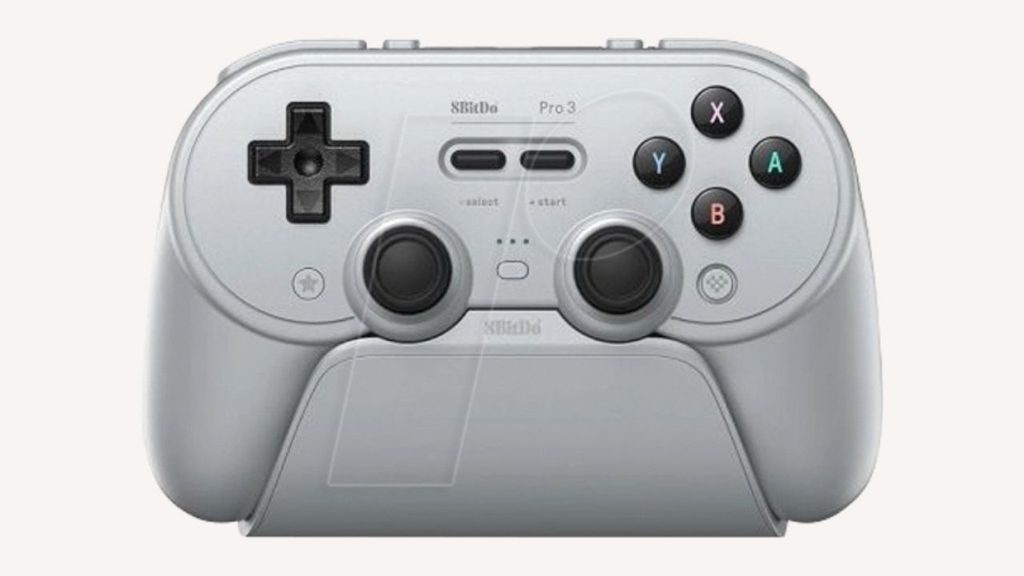
If you want to download an 8BitDo controller driver for Windows 11 or Windows 10, start with the official 8BitDo Support website. Search for your exact controller model and check its compatibility instructions.
For supported devices, you can use the official 8BitDo Firmware Updater to update firmware. If you want to customize buttons, macros, or other supported features, check 8BitDo Ultimate Software.
Choose the software version that matches your controller.
To install an 8BitDo controller on Windows 11 or Windows 10, connect it using a compatible USB cable or pair it through Bluetooth. Put the controller in a Windows-compatible mode, allow Windows to install the appropriate device driver, and test it in Windows.
If necessary, download the official 8BitDo firmware updater or supported configuration software from the manufacturer’s website.
1: Identify Your 8BitDo Controller Model
Before downloading anything, identify the exact 8BitDo controller you own. The company makes several models, including the Ultimate series, Pro 2, SN30 Pro, Lite series, and arcade controllers. Their connection methods and software compatibility can differ.
Check the front, back, or bottom of your controller for its model name. You can also look at the original packaging or purchase documentation.
Next, visit the official 8BitDo Support website. Search for your model and open its support page. Review the available manuals, firmware downloads, compatibility notes, and software recommendations.
This step matters because not every 8BitDo controller works with every 8BitDo software version. Installing software intended for a different model may not help, even if the application opens successfully.
2: Connect the Controller to Your PC
You can usually connect a compatible 8BitDo controller through USB, Bluetooth, or a supported 2.4 GHz wireless receiver. The available methods depend on your particular model.
For a wired connection, turn on your PC and connect the controller using a compatible USB data cable. Some USB cables only provide power, so try another cable if Windows charges the controller but doesn’t detect it.
For Bluetooth, press Windows + I to open Settings. In Windows 11, go to Bluetooth & devices. In Windows 10, open Devices > Bluetooth & other devices.
Turn on Bluetooth and put your controller into pairing mode using the instructions for your model. Select Add device, choose Bluetooth, and select the controller when it appears.
If you’re using a wireless receiver, plug it into a USB port and follow the controller’s pairing instructions. Don’t assume every model supports all three connection methods.
3: Select the Correct Windows-Compatible Controller Mode
Some 8BitDo controllers support multiple operating modes. Choosing the wrong mode can cause Windows or a game to recognize the controller incorrectly.
Many models support XInput, a controller input standard commonly used by Windows games. Other modes may be intended for Nintendo Switch, Android, or other platforms.
Check your controller’s official manual for the correct startup button combination. For some models, a specific button must be held while powering on the controller. The combination varies by product, so don’t use instructions intended for a different model.
If your controller supports XInput mode, select it when recommended for your Windows game. Reconnect the controller after switching modes and check whether Windows recognizes it correctly.
Keep in mind that not every 8BitDo controller uses the same mode-switching procedure, and some models may not offer XInput at all.
4: Let Windows Install the Controller Driver
Once your controller is connected, Windows will usually detect it and install the appropriate driver automatically. You typically don’t need to search for a separate 8BitDo driver installer.
To check whether Windows recognizes your controller, press Windows + X and select Device Manager. Look under Human Interface Devices, Bluetooth, or other relevant device categories. The exact location depends on the controller and how it’s connected.
You can also press Windows + R, type joy.cpl, and press Enter. This opens the Game Controllers window, where compatible controllers may appear.
If your controller is listed, select it and open Properties, if available, to test its buttons and controls. If the controller doesn’t appear, try another USB port, check the cable, or remove and pair the Bluetooth device again.
5: Download the Official 8BitDo Firmware Updater
If your controller isn’t working correctly or you want to update its firmware, use the official 8BitDo updater.
Open the 8BitDo Firmware Updater page. Select the Windows download option and save the installer to your PC. The official page lists Windows 10 and later for its current updater download.
After the download finishes, open the downloaded file and follow the on-screen installation instructions. If Windows displays a User Account Control prompt, verify that you’re installing the software you downloaded from the official source before approving it.
Launch the updater and connect your controller as instructed. The application can recognize supported devices and check for firmware updates when connected to the internet.
Remember, firmware is different from a Windows device driver. Firmware runs inside the controller itself, while a driver helps Windows communicate with the connected hardware.
6: Update Your Controller Firmware
Outdated firmware can sometimes cause connection problems, input issues, or compatibility trouble. If the official updater recognizes your controller and offers an update, read the instructions before proceeding.
Connect the controller using the recommended USB cable. Keep the connection stable and make sure your PC has enough battery or power to finish the process without interruption.
Follow the updater’s instructions to install the available firmware. Some older controllers require a specific button combination or a model-specific manual update procedure. If the application doesn’t recognize your controller, check the instructions on its individual support page rather than forcing an update.
Don’t disconnect the controller or close the updater while firmware is being installed. Wait until the process finishes, then restart the controller if requested.
Afterward, reconnect it to Windows and test the controls. If the controller was working properly before the update, you should also check whether your game recognizes it correctly.
7: Install 8BitDo Ultimate Software if You Need Customization
If you want to remap buttons, configure macros, or manage other supported controller features, download the appropriate version of 8BitDo Ultimate Software.
Visit the official 8BitDo software page. The manufacturer offers multiple versions, including Ultimate Software V2 and legacy software for supported older devices. Ultimate Software V2 supports Windows 10 and later, while compatibility depends on the controller model.
Download the version recommended for your controller and install it. Open the application, connect your controller, and check whether the software recognizes it.
If supported, you can customize button assignments, configure macros, or adjust other available settings. Save your changes and test them in a game.
You don’t need Ultimate Software simply to use every 8BitDo controller. If your controller already works properly and you don’t need extra features, you can skip this step.
8. Test the Controller in Windows and Your Games
After completing the installation and updates, verify that the controller works before launching a game.
Press Windows + R, type joy.cpl, and press Enter. If your controller appears in the list, select it and open Properties to test the available buttons and sticks.
Move the analog sticks and press the buttons to see whether Windows registers your input. If the controller works here but not in a particular game, the issue may involve the game’s controller settings or supported input mode.
For Steam games, open Steam’s controller settings and check the available support options for your controller. You may need to enable the appropriate controller configuration or adjust the game’s input settings.
If the controls are reversed, unresponsive, or mapped incorrectly, check the controller mode and the game’s button configuration.
Once everything works as expected, you’re ready to play.
FAQs
1. Do I need a separate 8BitDo controller driver for Windows 11 or Windows 10?
Usually, no. Windows generally installs the required driver automatically for compatible controllers. You may need the official 8BitDo firmware updater or configuration software for additional features or troubleshooting.
2. Where can I download the official 8BitDo driver?
Start with the official 8BitDo Support website. Search for your controller model to find the appropriate manuals, firmware, and software. Avoid unofficial driver download websites.
3. Why isn’t my 8BitDo controller showing up on my PC?
The controller may be in the wrong mode, the USB cable may support charging only, or Bluetooth pairing may have failed. Try another cable or USB port, check your model’s instructions, and pair the controller again.
4. Is the 8BitDo Firmware Updater the same as a controller driver?
No. A driver allows Windows to communicate with hardware, while firmware controls the controller’s internal operation. The updater helps install firmware on supported 8BitDo devices.
5. Can I use an 8BitDo controller on Windows 11 without Bluetooth?
Yes, if your controller supports wired USB connections or a compatible wireless receiver. Use the connection method recommended for your particular model.
Summary
Installing an 8BitDo controller on Windows 11 or Windows 10 is usually straightforward. Connect the controller through USB or Bluetooth, select the correct operating mode, and let Windows install the necessary driver automatically.
If you need additional features or have compatibility problems, download the official 8BitDo Firmware Updater or the appropriate Ultimate Software version. Always check your exact controller model before installing firmware or configuration software.
Finally, test the controller in Windows and your favorite games.