
Fix: Alienware Command Center Error 0x803f8001
If you are trying to launch Alienware Command Center on your Windows PC (Whether it is Dell, Lenovo, HP, or other brands) and encounter the error code 0x803f8001, it usually means the app is having trouble verifying its license or connecting properly with the Microsoft Store services.
The 0x803f8001 error is commonly associated with Microsoft Store app licensing issues. Since Alienware Command Center relies on Microsoft Store infrastructure for updates and validation, any disruption in Store services can trigger this error.
Some common causes include:
- Corrupted app files that prevent the program from launching properly
- Microsoft Store cache issues that interfere with app validation
- Outdated Windows version causing compatibility problems
- An incorrect or unsigned Microsoft account
- System file corruption affecting app behavior
This error may appear suddenly after a Windows update or when launching the app for the first time after installation.
Fix: Alienware Command Center Error 0x803f8001
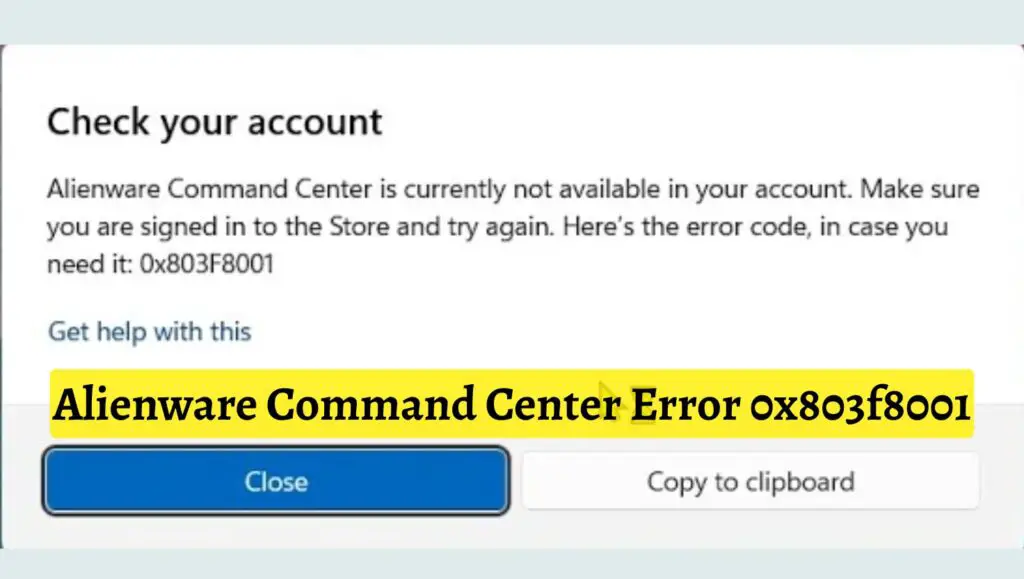
To fix Alienware Command Center Error 0x803f8001, reset the Microsoft Store cache, reinstall the app, ensure your Windows is updated, and verify your Microsoft account. If the issue persists, repair system files using built-in tools like SFC and DISM.
The following detailed steps will help you resolve the issue systematically.
Step 1: Restart Your Computer
Before diving into technical fixes, start with a simple restart. This might sound basic, but it can resolve temporary glitches affecting the app or Microsoft Store services.
When you restart your system, Windows refreshes background services, clears temporary memory, and resolves minor conflicts that may be causing the error.
To restart your PC, click on the Start menu, select the Power icon, and choose Restart. After your system boots up again, try opening Alienware Command Center to check if the error is gone.
Step 2: Sign Out and Back Into Your Microsoft Account
Since this error is often linked to licensing verification, your Microsoft account plays a key role.
Open the Microsoft Store and click on your profile icon in the top right corner. Sign out of your account completely. After that, restart your computer and sign back in using the same Microsoft account linked to your Windows device.
Make sure you are using the correct account that originally installed the app. If there is a mismatch, the app may fail to validate and trigger the error.
Once signed in, try launching the app again.
Step 3: Reset Microsoft Store Cache
A corrupted Microsoft Store cache is one of the most common causes of this issue. Resetting it can fix hidden errors.
Press Windows + R on your keyboard to open the Run dialog box. Type wsreset.exe and press Enter. A blank Command Prompt window will appear, and the Microsoft Store will automatically open once the reset is complete.
This process clears cached data without deleting your installed apps. After it finishes, open Alienware Command Center again and check if the problem is resolved.
Step 4: Repair or Reset Alienware Command Center
If the app itself is corrupted, repairing or resetting it can fix the issue.
Open Settings and go to Apps, then Installed Apps. Find Alienware Command Center in the list and click on it. Select Advanced Options.
First, click on Repair. This will attempt to fix the app without removing your data.
If the error still appears, go back and click Reset. This will reinstall the app’s core files and restore it to default settings.
After resetting, launch the app again to see if it works properly.
Step 5: Reinstall Alienware Command Center
If repairing and resetting do not work, a clean reinstall is the next step.
Open Settings, go to Apps, and uninstall Alienware Command Center completely. Make sure all related components are removed.
After uninstalling, restart your computer. Then open the Microsoft Store, search for Alienware Command Center, and reinstall it.
A fresh installation ensures that any corrupted files or misconfigurations are removed completely.
Step 6: Update Windows to the Latest Version
Running an outdated version of Windows can cause compatibility issues with modern apps.
Open Settings and go to Windows Update. Click Check for Updates and install any available updates.
Updates often include bug fixes, security patches, and improvements for Microsoft Store apps.
After updating, restart your system and try launching Alienware Command Center again.
Step 7: Run ‘Windows Store Apps Troubleshooter’
Windows includes a built-in troubleshooter designed to fix issues with Store apps.
Open Settings and go to System, then Troubleshoot, and select Other troubleshooters. Find Windows Store Apps and click Run.
The troubleshooter will scan your system for problems and attempt to fix them automatically.
Follow the on-screen instructions and apply any recommended fixes. Once done, restart your computer and check the app again.
Step 8: Check Date and Time Settings
Incorrect system time can interfere with app licensing and cause validation errors.
Open Settings and go to Time and Language. Make sure Set time automatically and Set time zone automatically are enabled.
If needed, click Sync now to update your system clock.
After adjusting the settings, restart your PC and try launching the app again.
Step 9: Run SFC and DISM Scans
If system files are corrupted, they can cause issues with Microsoft Store apps.
Open Command Prompt as an administrator. Type the command sfc /scannow and press Enter. This scan will check and repair corrupted system files.
Once the scan is complete, run the following commands one by one:
DISM /Online /Cleanup-Image /RestoreHealth
These tools will repair deeper system issues that SFC may not fix.
After completing both scans, restart your computer and check if the error is resolved.
Step 10: Re-register Microsoft Store
Re-registering the Microsoft Store can fix deeper issues related to app licensing.
Open PowerShell as an administrator and run the following command:
Get-AppxPackage -allusers Microsoft.WindowsStore | Foreach {Add-AppxPackage -DisableDevelopmentMode -Register “$($_.InstallLocation)\AppXManifest.xml”}
Wait for the process to complete. Once done, restart your computer and try launching Alienware Command Center again.
FAQs
What does error 0x803f8001 mean in Alienware Command Center?
This error typically indicates a licensing or validation issue with the Microsoft Store, preventing the app from launching.
Is this error related to Windows updates?
Yes, sometimes a Windows update can disrupt app functionality or Store services, leading to this error.
Will reinstalling the app fix the problem?
In many cases, yes. A clean reinstall removes corrupted files and resets the app environment.
Do I need an internet connection to fix this issue?
Yes, since the app relies on Microsoft Store services, an active internet connection is required for validation and updates.
Can system file corruption cause this error?
Yes, damaged system files can interfere with app functionality. Running SFC and DISM scans can help fix this.