
Alt + Tab Not Working on Windows [Complete Guide to Fix It]
The Alt + Tab keyboard shortcut is one of the fastest ways to switch between open apps in Windows 11 and Windows 10. Whether you are working on a document, browsing the web, attending an online meeting, or editing photos, this shortcut helps you move from one window to another without reaching for your mouse.
However, many users occasionally discover that Alt + Tab stops working. Instead of displaying the list of open windows, nothing happens, or the shortcut works only once before becoming unresponsive. Sometimes it opens the task switcher but immediately closes, while in other cases it switches only between two windows instead of all running applications.
Let’s troubleshoot this!
Alt + Tab Not Working on Windows [Complete Guide to Fix It]
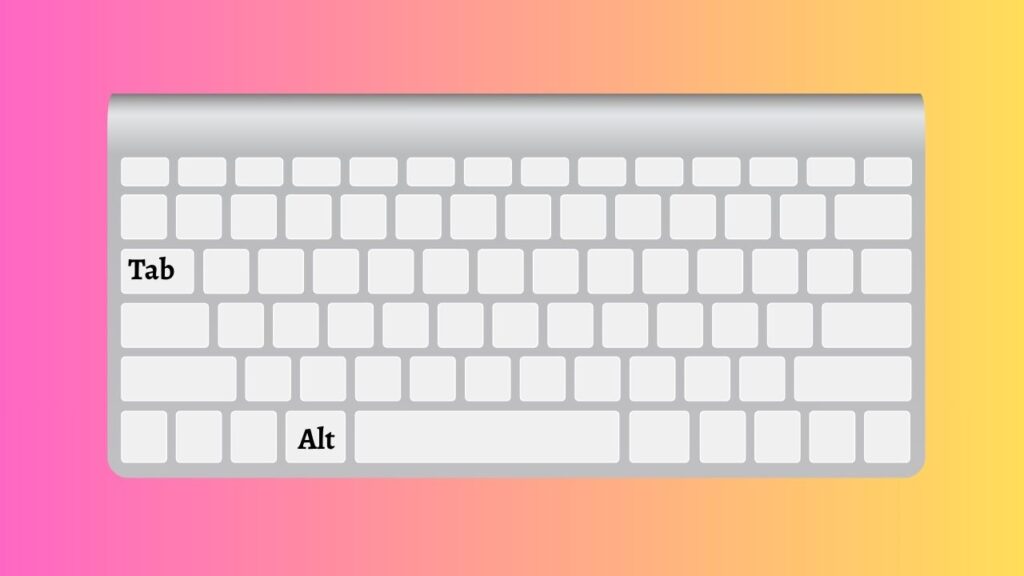
When Alt + Tab fails to work, it does not always mean your keyboard is damaged. Windows relies on several background services, keyboard drivers, display settings, and system processes to recognize shortcut keys correctly. If one of these components stops responding, the shortcut may stop functioning.
The issue can appear after installing a Windows update, changing keyboard settings, connecting an external keyboard, installing third-party software, or updating graphics drivers. Some gaming applications and remote desktop programs can also interfere with keyboard shortcuts.
Instead of trying random fixes, it is better to work through the solutions one at a time. Begin with the simplest methods before moving on to more advanced troubleshooting.
Step 1: Make Sure the Keyboard Is Working Properly
Before changing Windows settings, confirm that your keyboard is functioning correctly.
Press the Alt key by itself and check whether Windows responds in any way. Then press the Tab key separately while moving between fields in an application such as File Explorer or your web browser. If both keys work individually, try pressing Alt + Tab again.
If you are using a wireless keyboard, replace its batteries or recharge it. A weak battery can sometimes cause keys to stop responding consistently.
If you are using a desktop computer, unplug the keyboard and reconnect it to another USB port. Wait a few seconds for Windows to recognize the device before testing the shortcut again.
You should also test another keyboard if one is available. This helps determine whether the issue is related to Windows or the keyboard hardware itself.
Step 2: Restart Windows Explorer
The Windows Explorer process controls many parts of the Windows interface, including the taskbar, desktop, and several keyboard shortcuts.
- Press Ctrl + Shift + Esc to open Task Manager.
- If Task Manager opens in its simplified view, select More details.
- Locate Windows Explorer in the list of running processes.
- Click it once, then select Restart.
Your taskbar and desktop may briefly disappear before reloading automatically. This is completely normal.
After Windows Explorer restarts, press Alt + Tab again to see if the shortcut has started working.
Step 3: Restart Your Computer
Many temporary software problems disappear after a normal restart.
Save your work and close all open applications.
Open the Start menu, select the Power button, and choose Restart.
Avoid using Shut Down if Fast Startup is enabled because Windows may not completely refresh system processes. A restart performs a cleaner refresh and reloads important Windows services.
Once Windows starts again, test the shortcut before opening numerous applications.
Step 4: Check the Alt + Tab Settings
Windows allows you to customize how Alt + Tab behaves.
- Open Settings by pressing Windows + I.
- Select System, then choose Multitasking.
- Locate the Alt + Tab section.
Verify that Windows is configured to show your open windows instead of limiting the shortcut or changing its behavior.
If you recently changed multitasking settings, restore the default option and close Settings.
Test the shortcut again after making the change.
Step 5: Disable Sticky Keys and Filter Keys
Accessibility features can occasionally interfere with keyboard shortcuts.
Open Settings and select Accessibility.
Choose Keyboard.
Check whether Sticky Keys, Filter Keys, or similar keyboard assistance features are turned on.
If you do not use these features, turn them off.
Close Settings and test Alt + Tab once more.
If you rely on these accessibility features daily, temporarily disable them only for testing. You can enable them again later if they are not causing the problem.
Step 6: Update the Keyboard Driver
Outdated or corrupted keyboard drivers may prevent Windows from recognizing shortcut combinations correctly.
Right-click the Start button and open Device Manager.
Expand the Keyboards category.
Right-click your keyboard and select Update driver.
Choose the option that allows Windows to search automatically for updated drivers.
If Windows installs a newer driver, restart your computer after the installation finishes.
Then test the shortcut again.
Step 7: Reinstall the Keyboard Driver
If updating does not solve the issue, reinstalling the driver often helps.
- Open Device Manager again.
- Expand the Keyboards section.
- Right-click your keyboard and choose Uninstall device.
- Confirm the removal when prompted.
- Restart your computer.
Windows automatically detects the keyboard during startup and reinstalls the required driver.
After Windows finishes loading, check whether Alt + Tab works normally.
Step 8: Update the Graphics Driver
The Alt + Tab interface relies partly on your graphics driver. Display-related issues can affect the window switching experience.
- Open Device Manager.
- Expand Display adapters.
- Right-click your graphics adapter and select Update driver.
- Allow Windows to search automatically for updates.
- Restart the computer after the update completes.
If you recently installed a new graphics driver and the problem started afterward, consider rolling back the driver using the Driver tab in the device properties.
Step 9: Scan Windows for Corrupted System Files
Damaged Windows system files can cause shortcuts to stop working correctly.
Open the Start menu. Type Command Prompt. Right-click it and choose Run as administrator. Type the following command and press Enter.
sfc /scannow
Wait patiently while Windows scans and repairs system files. The process may take several minutes.
Restart your computer after the scan finishes and test the shortcut again.
Step 10: Install the Latest Windows Updates
Microsoft regularly releases updates that fix keyboard, driver, and system-related problems.
- Open Settings.
- Select Windows Update.
- Click Check for updates.
- Download and install all available updates.
- Restart your computer when prompted.
After Windows finishes updating, verify whether Alt + Tab is functioning correctly.
Step 11: Perform a Clean Boot
Some third-party applications can prevent keyboard shortcuts from working properly.
- Press Windows + R, type msconfig, and press Enter.
- Open the Services tab.
- Enable the option to hide Microsoft services.
- Select Disable all.
- Open the Startup tab and launch Task Manager.
- Disable unnecessary startup applications.
- Restart your computer.
- After Windows starts, test Alt + Tab.
If it works during a clean boot, another installed application is likely causing the conflict. You can then enable services one at a time until you identify the problematic software.
Step 12: Check If Keyboard Key Output Is Set to a Different Key
If the Alt or Tab key has been remapped to perform another action, the Alt + Tab shortcut may stop working correctly. Key remapping can happen through keyboard customization software, gaming utilities, accessibility applications, or third-party keyboard management tools. If either key has been assigned a different function, Windows will no longer recognize the normal shortcut.
Start by thinking about whether you recently installed any keyboard customization software or changed keyboard settings. Applications that allow you to create custom shortcuts can sometimes modify key behavior without you realizing it.
Open the keyboard management application if you have one installed and look for any key remapping or keyboard layout settings. Verify that the Alt and Tab keys are assigned to their original functions. If either key has been changed, restore it to the default setting and save your changes.
If you use a gaming keyboard, open its companion software and check whether a gaming profile is currently active. Some gaming profiles can disable or reassign certain keys to improve gameplay. Switching back to the default keyboard profile often restores the normal behavior of the Alt and Tab keys.
After restoring the default key assignments, restart your computer and test the Alt + Tab shortcut again. If the shortcut works normally, the issue was caused by the modified keyboard mapping.
Note: If you have never installed keyboard customization software or intentionally changed your keyboard layout, you can move on to the next troubleshooting step.
FAQs
Why is Alt + Tab not responding?
The shortcut may stop working because of temporary Windows glitches, keyboard driver problems, outdated graphics drivers, incorrect multitasking settings, software conflicts, or corrupted system files.
Can a damaged keyboard cause this issue?
Yes. If either the Alt key or the Tab key is physically damaged, Windows cannot recognize the shortcut correctly. Testing another keyboard is one of the quickest ways to rule out hardware problems.
Does restarting Windows Explorer fix Alt + Tab?
Yes. Restarting Windows Explorer refreshes the desktop environment and often restores keyboard shortcuts that suddenly stop working.
Why does Alt + Tab switch only between two windows?
This usually happens because of Windows multitasking settings or application-specific behavior. Checking the Alt + Tab settings in the Settings app often resolves this issue.
Should I reinstall Windows to fix the problem?
In most situations, no. The issue is usually resolved by updating drivers, restarting Windows Explorer, repairing system files, or adjusting Windows settings. Reinstalling Windows should only be considered as a last resort.
Summary
When Alt + Tab stops working, it can interrupt your workflow and make switching between applications frustrating. Fortunately, the problem is usually easy to resolve with the right troubleshooting steps.
Start by checking that your keyboard is working correctly, then restart Windows Explorer, restart your PC, verify your Alt + Tab settings, and disable accessibility features that may interfere with shortcuts.
If the issue persists, update or reinstall your keyboard and graphics drivers, repair Windows system files, install the latest Windows updates, and perform a clean boot to identify software conflicts.