
AMD Driver Timeout Error [Complete Fix]
Before moving toward the solutions, it’s important to understand why this error happens.
An AMD driver timeout occurs when the graphics processing unit (GPU) or its driver fails to respond within the time Windows expects. Windows uses a feature called Timeout Detection and Recovery (TDR) to detect graphics driver problems and attempt to recover the system.
If the recovery process works, your display may return to normal. However, the application or game you’re using might still crash.
Some common reasons behind this issue include:
Outdated AMD drivers: Older graphics drivers may contain bugs or compatibility problems with newer games and Windows updates.
Corrupted driver installation: Missing or damaged driver files can prevent your AMD GPU from working correctly.
GPU overheating: Excessive temperatures can cause your graphics card to become unstable.
Overclocking: Running your GPU beyond its recommended settings can cause driver crashes.
Software conflicts: Background applications, overlays, and recording tools can interfere with graphics processing.
Windows compatibility issues: Certain Windows updates or system configurations may create problems with your AMD graphics driver.
Let’s go through the solutions one by one.
AMD Driver Timeout Error [Complete Fix]
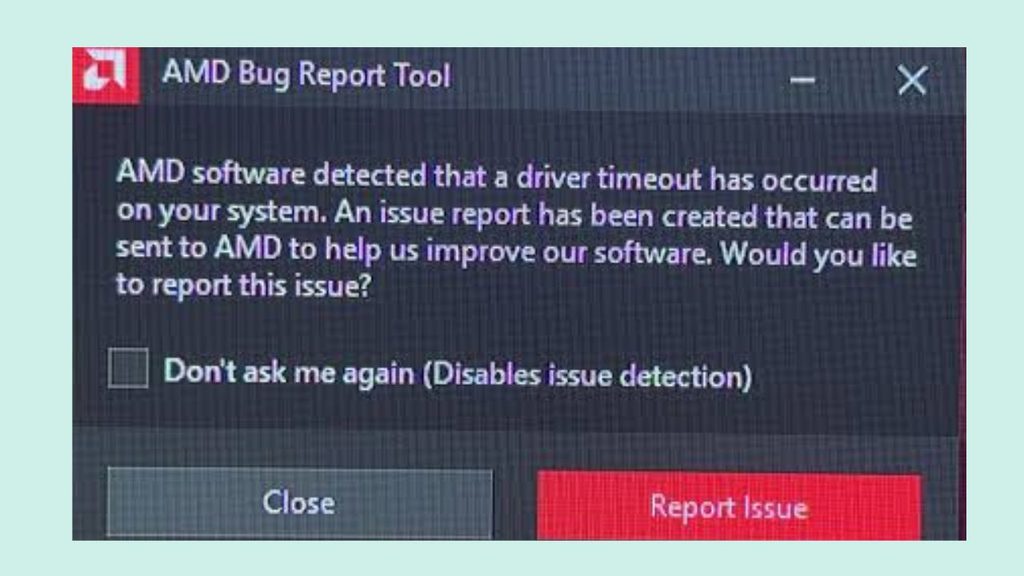
To fix the AMD Driver Timeout Error, restart your computer, update or reinstall your AMD graphics driver, disable GPU overclocking, check your graphics card temperature, and install pending Windows updates. You can also disable conflicting overlays, repair corrupted Windows system files, and check whether your GPU is receiving sufficient power.
Restart your computer after applying the changes and test the application that previously caused the error.
Step 1: Restart Your Computer
Before trying advanced troubleshooting methods, restart your Windows computer.
Sometimes, the AMD Driver Timeout Error occurs because of a temporary software glitch, an application conflict, or a graphics driver that isn’t responding correctly.
A restart closes unnecessary background processes and reloads the graphics driver.
Open the Start Menu and click the Power icon. Select Restart and wait for Windows to boot again.
Once your desktop appears, open the game or application that previously triggered the error.
If the problem disappears, it may have been a temporary issue. However, if the error returns, continue with the next method.
Step 2: Update Your AMD Graphics Driver
An outdated graphics driver is one of the most common reasons behind AMD driver crashes.
AMD regularly releases driver updates to improve GPU performance, fix known problems, and provide compatibility with newer games.
To update your AMD graphics driver, visit the official AMD Drivers and Support page.
Select your graphics card model and operating system to find the appropriate driver.
Download the recommended driver package and open the downloaded installer. Follow the on-screen instructions to complete the installation.
Once the installation finishes, restart your computer.
You can also use AMD Software: Adrenalin Edition to check for available driver updates.
After updating, test your GPU by running the application that previously caused the timeout.
Step 3: Reinstall the AMD Graphics Driver
If updating the driver doesn’t solve the problem, your existing installation might contain corrupted or missing files.
In this situation, reinstalling the graphics driver can help restore the required files and settings.
Press Windows + X and select Device Manager.
Expand the Display adapters section and locate your AMD graphics card.
Right-click your AMD GPU and select Uninstall device. Follow the available instructions.
Be careful not to select an option that removes driver packages unless you have already downloaded the correct replacement driver.
After uninstalling, restart your computer and install the latest compatible AMD graphics driver downloaded from the official website.
For stubborn driver problems, you can also use AMD’s official AMD Cleanup Utility to remove existing AMD graphics and audio driver components before installing a fresh driver. Follow its instructions carefully.
Step 4: Disable GPU Overclocking
Have you increased your graphics card’s clock speed to get better gaming performance?
If yes, your overclock settings might be responsible for the timeout error.
An unstable overclock can cause your GPU to stop responding, especially when running demanding games or applications.
Open AMD Software: Adrenalin Edition.
Navigate to the Performance section and select Tuning.
If you’ve manually changed GPU frequency, voltage, or power settings, restore the default configuration. Look for the option to reset or restore factory defaults.
Apply the changes and restart your computer if required.
Now, run your game again and check whether the AMD driver timeout still occurs.
Important: If you use third-party overclocking software, such as MSI Afterburner, temporarily disable its custom GPU settings as well.
Step 5: Check Your GPU Temperature
Overheating is another possible reason for AMD graphics driver timeouts.
When your GPU temperature becomes too high, the graphics card may reduce its performance or become unstable to protect itself.
To check the temperature, open AMD Software: Adrenalin Edition and navigate to the Performance or Metrics section.
Here, you can monitor your GPU temperature while running a game or other demanding application.
If the temperature rises unusually high, check whether your graphics card fans are spinning properly.
Make sure your computer case has adequate airflow and that dust isn’t blocking the cooling fans or heatsinks.
You can also clean your PC carefully using appropriate compressed air.
Avoid running demanding games until the overheating problem is resolved.
Step 6: Disable Hardware Acceleration in Applications
Some applications use hardware acceleration to improve performance by using your GPU.
However, compatibility problems between an application and your AMD graphics driver can sometimes trigger crashes.
You can temporarily disable hardware acceleration to check whether it’s responsible.
For example, in Google Chrome, open Settings and select System.
Find the option named Use graphics acceleration when available and turn it off.
Click Relaunch to restart the browser.
If you experience the timeout while using another application, check its settings for a similar hardware acceleration option.
Keep in mind that disabling this feature may reduce graphics performance in certain applications.
Step 7: Install Pending Windows Updates
Your AMD graphics driver may experience compatibility issues if Windows is missing important updates.
To check for updates, press Windows + I to open Settings.
Select Windows Update from the left panel.
Click Check for updates and allow Windows to search for available updates.
If updates are available, download and install them.
Restart your computer after the installation finishes.
You should also check the optional driver updates section. However, avoid installing an older or incompatible graphics driver over a newer AMD driver that is working correctly.
Step 8: Disable Conflicting Overlays and Recording Tools
Applications that display overlays or record your screen can sometimes interfere with GPU processing.
Examples include gaming overlays, performance monitoring tools, screen recorders, and third-party FPS counters.
Temporarily disable these applications and test your graphics card again.
If you use the AMD overlay, open AMD Software: Adrenalin Edition and check its settings for the in-game overlay option.
You can also temporarily disable overlays from applications such as Steam and Discord.
Close unnecessary background applications before launching your game.
If the timeout error disappears, enable these applications one at a time to identify which one is causing the conflict.
Step 9: Repair Corrupted Windows System Files
Damaged Windows system files can sometimes contribute to driver-related problems.
Fortunately, Windows includes two useful command-line tools: SFC and DISM.
Press the Start button and search for Command Prompt.
Right-click it and select Run as administrator.
First, enter the following command:
DISM /Online /Cleanup-Image /RestoreHealth
Press Enter and wait for the process to finish.
Next, run this command:
sfc /scannow
Allow Windows to scan and repair corrupted system files.
Once both processes are complete, restart your computer and check whether the issue has been resolved.
Step 10: Check Your Power Supply and GPU Connections
If none of the previous methods work, check your graphics card’s power supply and physical connections.
A graphics card that isn’t receiving stable power may become unstable during demanding tasks.
Shut down your computer, turn off the power supply, and unplug the power cable before inspecting any internal components.
Check whether the GPU is properly seated in its PCIe slot and whether its power connectors are securely attached.
If your graphics card requires multiple power connectors, make sure all of them are connected according to the manufacturer’s instructions.
Also, verify that your power supply meets the graphics card manufacturer’s recommended wattage.
If you’re unfamiliar with computer hardware, ask a qualified technician to inspect these connections.
Step 11: Roll Back to a Previous AMD Driver
Sometimes, the latest AMD graphics driver may contain bugs that affect certain graphics cards or games.
If the timeout error started immediately after a driver update, try installing an earlier stable version.
Press Windows + X and open Device Manager.
Expand Display adapters, right-click your AMD graphics card, and select Properties.
Open the Driver tab and check whether the Roll Back Driver option is available.
If available, click it and follow the instructions.
If the option is unavailable, visit the official AMD support website and download an earlier compatible driver from the previous driver versions section.
Install it and restart your computer.
Test your graphics card again to see whether the previous driver resolves the problem.
Step 12: Disable Hardware-Accelerated GPU Scheduling
Hardware-Accelerated GPU Scheduling (HAGS) is a Windows feature that allows the GPU to manage certain scheduling tasks.
Although it can improve performance in some situations, it may cause compatibility problems with particular graphics drivers and hardware configurations.
To check whether HAGS is responsible, press Windows + I and open Settings.
Navigate to System > Display > Graphics.
Select Change default graphics settings.
If the Hardware-accelerated GPU scheduling option is available, turn it off temporarily.
Restart your computer and test the application again.
If you don’t see this option, your Windows version or graphics hardware may not support it.
Step 13: Check for BIOS and Chipset Driver Updates
Your motherboard BIOS and chipset drivers help Windows communicate properly with your computer hardware.
Outdated chipset drivers or firmware issues can sometimes contribute to system instability.
Visit your motherboard or computer manufacturer’s official website.
Find your exact motherboard or computer model and open its support or downloads section.
Check for available BIOS updates and chipset drivers.
Install the recommended chipset driver first.
Only update the BIOS if the manufacturer provides a relevant update and you understand the instructions. A BIOS update interrupted by a power failure can make your computer unusable.
Restart your PC and check whether the AMD timeout problem continues.
Step 14: Check Whether the Graphics Card Has a Hardware Problem
If you’ve tried all the software solutions and the AMD Driver Timeout Error still appears, the problem might be related to your graphics card or another hardware component.
A failing GPU, unstable power supply, damaged PCIe connection, or faulty memory can cause graphics-related crashes.
Try running a trusted GPU stress test while monitoring temperatures and system stability.
If the computer crashes repeatedly, stop the test rather than continuing to stress the hardware.
You can also ask a technician to test the graphics card and power supply separately.
If the same GPU fails in another compatible computer, it may indicate a hardware fault.
FAQ
1. What causes AMD Driver Timeout Error?
The error can occur because of outdated or corrupted graphics drivers, GPU overheating, unstable overclocking, insufficient power, software conflicts, or hardware problems.
2. How do I fix AMD Driver Timeout Error in Windows 11?
Start by restarting your computer and updating your AMD graphics driver. If the problem continues, reinstall the driver, disable overclocking, check GPU temperatures, and install pending Windows updates.
3. Can an outdated AMD driver cause screen flickering?
Yes. An outdated or corrupted AMD graphics driver can cause display flickering, black screens, temporary freezes, and application crashes.
4. Does AMD Driver Timeout Error damage my graphics card?
A driver timeout doesn’t automatically mean your graphics card is damaged. It usually indicates that Windows detected an unresponsive graphics operation and attempted to recover the driver. However, repeated crashes caused by overheating or unstable hardware should not be ignored.
5. Should I use AMD Cleanup Utility to fix the timeout error?
Yes, it can help when corrupted or conflicting AMD driver files are responsible. It removes previously installed AMD graphics and audio driver components so you can perform a clean installation. AMD recommends using it in Safe Mode for the best results.
6. Why does my AMD driver keep crashing while playing games?
Demanding games can put additional pressure on your GPU. High temperatures, unstable clock speeds, incompatible drivers, and overlay conflicts can trigger repeated driver timeouts.
7. Should I increase the TDR delay in Windows Registry?
Changing the Windows TDR delay is sometimes suggested online, but it isn’t a recommended first-line solution. It can mask the symptoms without fixing the underlying GPU, driver, or hardware problem. Start with driver and hardware troubleshooting instead.
Summary
The AMD Driver Timeout Error can interrupt gaming, video playback, and everyday computer activities. Fortunately, you can often resolve it without replacing your graphics card.
Start with simple solutions, such as restarting your computer, updating your AMD graphics driver, and disabling unstable overclock settings. If those methods don’t work, try reinstalling the driver using AMD Cleanup Utility, checking GPU temperatures, disabling conflicting overlays, and repairing Windows system files.
If the error continues even after trying these solutions, investigate your power supply, GPU connections, and graphics card condition.
My recommendation
Try updating your AMD graphics driver first. If that doesn’t help, perform a clean driver installation using AMD Cleanup Utility. These are sensible starting points before moving toward advanced troubleshooting.