
AMD Radeon Graphics Code 31: How to Fix Windows Cannot Load the Drivers for This Device
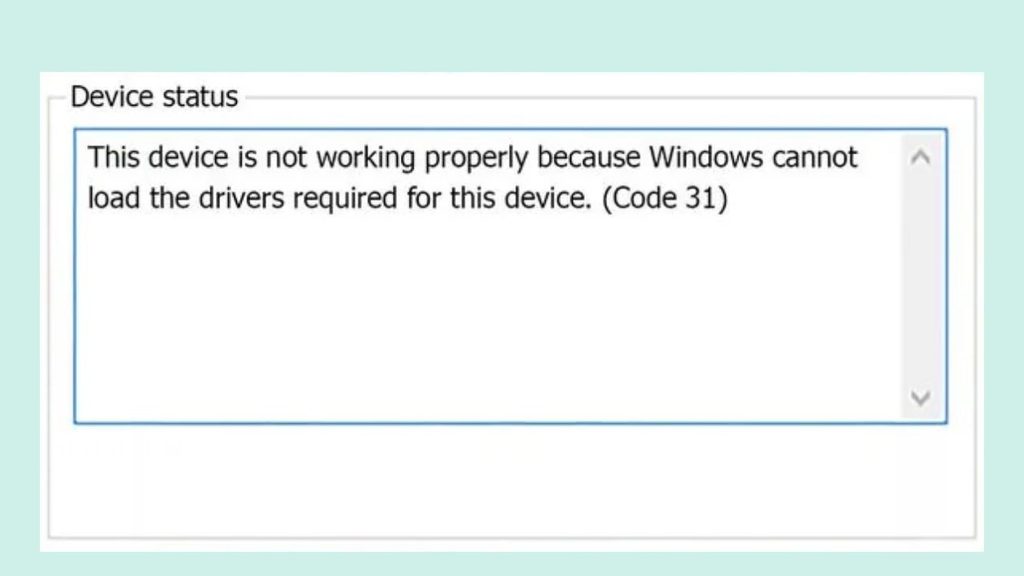
Are you seeing the error message “This device is not working properly because Windows cannot load the drivers required for this device (Code 31)” when checking your AMD Radeon Graphics adapter in Device Manager? If so, you are not alone. This is a common Windows driver-related problem that can prevent your graphics card from working correctly.
The AMD Radeon Graphics Code 31 error usually appears when Windows cannot load the required driver for your graphics hardware. As a result, you may experience display problems, reduced graphics performance, screen flickering, low resolution, or difficulties running games and graphics-intensive applications.
This issue can occur on both Windows 10 and Windows 11 computers. It may appear after installing a Windows update, updating your AMD graphics driver, installing an incompatible driver, or changing certain system configurations.
Fortunately, you do not necessarily need to replace your graphics card or reinstall Windows to fix this problem. In most cases, troubleshooting the graphics driver and checking Windows device settings can help restore normal functionality.
In this guide, we will explain what AMD Radeon Graphics Code 31 means, why it occurs, and how to fix it using several methods.
Before trying the fixes, it is helpful to understand what causes this error.
What Does AMD Radeon Graphics Code 31 Mean?
Device Manager Code 31 indicates that Windows cannot load the driver required to operate your graphics device. Microsoft identifies this error as a driver-loading problem and recommends updating or reinstalling the device driver.
When this happens, Windows may display a yellow warning symbol next to AMD Radeon Graphics under the Display adapters section in Device Manager.
Some common reasons behind this problem include an outdated AMD graphics driver, corrupted driver installation files, an incompatible driver update, conflicts between Windows Update and the AMD driver, or damaged Windows system files.
Let’s go through the methods to resolve this issue.
AMD Radeon Graphics: It Says This Device Is Not Working Properly Because Windows Cannot Load the Drivers for This Device (Code 31)
Now, let’s go for the fixes!
1: Restart Your Windows Computer
Sometimes, Windows cannot load a graphics driver correctly because of a temporary system or driver initialization problem.
Restarting your computer gives Windows another opportunity to initialize the AMD Radeon Graphics driver.
Step 1: Open the Windows Start menu.
Step 2: Click the Power icon.
Step 3: Select Restart.
Step 4: Wait for Windows to load completely.
Step 5: Open Device Manager and check whether the AMD Radeon Graphics warning has disappeared.
If Code 31 still appears, move to the next method.
2: Update the AMD Radeon Graphics Driver
An outdated or incompatible driver can prevent Windows from loading your graphics hardware correctly. Installing a compatible driver is one of the first troubleshooting methods you should try.
Step 1: Press Windows + X and select Device Manager.
Step 2: Expand the Display adapters section.
Step 3: Right-click AMD Radeon Graphics.
Step 4: Select Update driver.
Step 5: Choose Search automatically for drivers.
Step 6: Allow Windows to check for an available driver.
If Windows finds a compatible update, follow the instructions to install it.
Restart your computer after installation and check the device status again.
If Windows reports that the best driver is already installed, it does not necessarily mean you have the latest driver available from AMD.
3: Download and Install the Correct AMD Graphics Driver
If updating through Device Manager does not resolve the problem, download the appropriate driver directly from AMD.
This is particularly useful when the existing driver is outdated, incomplete, or incompatible with your current Windows installation.
Step 1: Open the official AMD website at https://www.amd.com/en/support/download/drivers.html.
Step 2: Identify your AMD Radeon graphics product. You can use AMD’s driver detection tool or manually select your graphics hardware.
Step 3: Choose the appropriate Windows version.
Step 4: Download the recommended compatible driver package.
Step 5: Open the downloaded installation file.
Step 6: Follow the on-screen instructions to complete the installation.
Step 7: Restart your computer.
Make sure you download the driver for your exact graphics model. If you use a laptop or a branded desktop, check the computer manufacturer’s support page first because some systems require customized graphics drivers.
AMD also provides installation guidance for Radeon Software through its official support documentation.
4: Uninstall and Reinstall AMD Radeon Graphics
If updating the driver does not work, the existing installation may be corrupted. In this situation, uninstalling the problematic device and installing its driver again can help.
Step 1: Open Device Manager.
Step 2: Expand Display adapters.
Step 3: Right-click AMD Radeon Graphics.
Step 4: Select Uninstall device.
Step 5: If Windows displays an option to remove the driver software, select it only if you have already downloaded the correct replacement driver and are prepared to reinstall it.
Step 6: Confirm the uninstallation.
Step 7: Restart your computer.
After restarting, Windows may detect the graphics hardware and attempt to install an available driver. If the problem remains, install the compatible AMD driver manually.
5: Use AMD Cleanup Utility
If ordinary driver reinstallation does not help, try the official AMD Cleanup Utility.
This tool removes previously installed AMD graphics and audio drivers and prepares your computer for a fresh graphics software installation. It does not remove AMD chipset drivers.
Step 1: Visit the official AMD support page for AMD Cleanup Utility.
Step 2: Download the utility from AMD’s website.
Step 3: Save the downloaded file to your computer.
Step 4: Close your running applications and launch the utility.
Step 5: Follow the instructions to restart into Safe Mode if prompted. AMD recommends using Safe Mode for the cleanup process.
Step 6: Allow the utility to remove the existing AMD graphics software.
Step 7: Restart your computer when the cleanup process finishes.
Step 8: Install the compatible AMD Radeon graphics driver again.
Your screen may flicker or temporarily go blank while the utility works. This can be normal during driver removal.
Avoid interrupting the process.
6: Roll Back the AMD Graphics Driver
Did the Code 31 error appear immediately after updating your AMD graphics driver? If yes, the recently installed version might be incompatible with your computer.
In that case, try rolling back to the previous driver.
Step 1: Open Device Manager.
Step 2: Expand Display adapters.
Step 3: Right-click AMD Radeon Graphics and select Properties.
Step 4: Open the Driver tab.
Step 5: Select Roll Back Driver, if the option is available.
Step 6: Follow the instructions and restart your computer.
After restarting, check whether the graphics device works properly.
Remember that the Roll Back Driver option may be unavailable if Windows does not have a previous driver version stored.
7: Install Available Windows Updates
Sometimes, the problem occurs because Windows is missing important updates or compatible driver components.
Checking for available Windows updates is another useful troubleshooting method.
Step 1: Press Windows + I to open Settings.
Step 2: Select Windows Update.
Step 3: Click Check for updates.
Step 4: Allow Windows to search for available updates.
Step 5: Install the appropriate updates and restart your computer.
You can also check Advanced options > Optional updates for available driver updates. However, if you have already downloaded a specific compatible AMD driver, avoid installing a different graphics driver that could introduce another conflict.
8: Repair Windows System Files
If the AMD driver is installed correctly but Windows still cannot load it, damaged system files could be contributing to the issue.
You can use the System File Checker and Deployment Image Servicing and Management tools to check and repair Windows components.
Step 1: Open the Start menu.
Step 2: Search for Command Prompt.
Step 3: Select Run as administrator.
Step 4: Enter the following command and press Enter:
sfc /scannow
Step 5: Wait for the scan to finish.
Step 6: If Windows reports that it cannot repair some files, run the following command:
DISM /Online /Cleanup-Image /RestoreHealth
Step 7: Allow the DISM operation to complete.
Step 8: Run sfc /scannow again and restart your computer.
Open Device Manager afterward to see whether the AMD Radeon Graphics Code 31 error has been resolved.
9: Perform a System Restore
If none of the previous methods works and the problem started recently, consider using System Restore.
This feature allows you to return Windows system files, drivers, and settings to an earlier restore point.
Step 1: Open the Start menu.
Step 2: Search for Create a restore point.
Step 3: Open the System Protection tab.
Step 4: Select System Restore.
Step 5: Choose a restore point created before the AMD graphics problem appeared.
Step 6: Follow the instructions to complete the restoration.
Step 7: Restart your computer if required.
Keep in mind that System Restore can remove applications, drivers, and updates installed after the selected restore point. Review the affected programs before proceeding.
If the problem continues even after a restore, contact your computer manufacturer or AMD support to investigate possible hardware or firmware-related issues.
FAQs
1. Why does AMD Radeon Graphics show Code 31?
This error appears when Windows cannot load the driver required for your AMD graphics device. Common causes include corrupted drivers, incompatible updates, incomplete installations, and driver conflicts.
2. Can I fix AMD Radeon Graphics Code 31 without reinstalling Windows?
Yes. You can usually troubleshoot this issue by updating the AMD driver, reinstalling the graphics software, using AMD Cleanup Utility, or rolling back a problematic driver.
3. Does AMD Radeon Graphics Code 31 mean my graphics card is damaged?
No. Code 31 primarily indicates a driver-loading problem. It does not automatically mean your graphics card is physically damaged.
4. Why did AMD Radeon Graphics Code 31 appear after a Windows update?
A Windows update may introduce a driver compatibility issue or replace an existing graphics driver with another version. Installing a compatible driver from AMD or your computer manufacturer may resolve the problem.
5. Should I use AMD Cleanup Utility to fix Code 31?
You can use AMD Cleanup Utility when normal driver updates or reinstallation do not work. It removes existing AMD graphics software so you can perform a clean installation.
6. How do I check whether my AMD graphics driver is working?
Open Device Manager, expand Display adapters, and double-click AMD Radeon Graphics. Under the General tab, check Device status. If Windows displays This device is working properly, the Code 31 problem has been resolved.
7. Can an outdated BIOS cause AMD Radeon Graphics Code 31?
Firmware or BIOS compatibility problems can sometimes affect hardware initialization. However, Code 31 is primarily a driver-loading error. Check your computer manufacturer’s documentation before considering a BIOS update.
Summary
The AMD Radeon Graphics Code 31 error occurs when Windows cannot load the required graphics driver. It can affect Windows 10 and Windows 11 computers and may result in display problems or reduced graphics performance.
The best approach is to start with simple troubleshooting methods, such as restarting your computer and updating the graphics driver. If that does not work, reinstall the AMD driver, use AMD Cleanup Utility, or roll back a recently installed driver.
You can also check Windows updates, repair system files, and use System Restore if necessary.