
Calibrate the Screen for Pen and Touch Input
If your touchscreen or digital pen is not responding accurately, it may be time to calibrate the screen for pen and touch input. Calibration helps Windows understand exactly where you are touching the display or using the pen. When the screen is properly calibrated, taps, gestures, and pen strokes become much more accurate.
Over time, a touchscreen may become slightly misaligned due to system updates, display changes, driver issues, or hardware adjustments. This can cause your pen cursor to appear away from the actual pen tip or make touch input feel inaccurate.
Fortunately, Windows includes a built-in calibration tool that allows you to improve the accuracy of both touch and pen input.
The process is simple and usually takes only a few minutes.
Calibrate the Screen for Pen and Touch Input [Complete Guide]
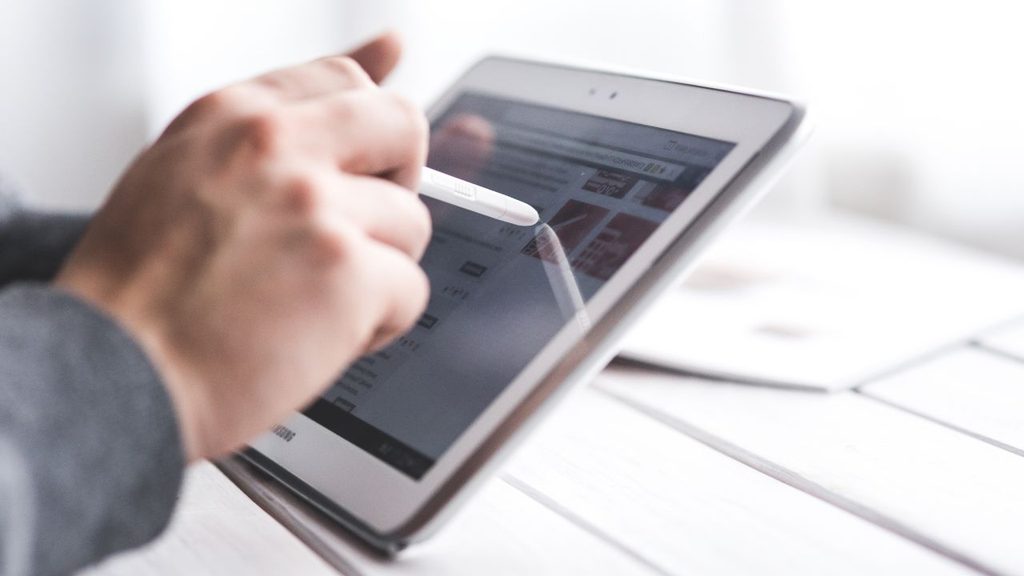
Before you begin, make sure your touchscreen is clean and your device is fully powered on. If you use a stylus, ensure it has sufficient battery power and is properly paired with your computer.
1: Open the Screen Calibration Settings
The first step is accessing the Windows calibration tool.
Click the Start button and type Calibrate the screen for pen or touch input into the search box. When the matching result appears, click it to open the calibration settings.
You can also open Control Panel, switch the view to Large icons or Small icons, and then select Tablet PC Settings. This opens the same window.
Once the Tablet PC Settings window appears, you will notice separate options for Display and Other settings. Under the Display tab, you can manage touchscreen and pen calibration.
Take a moment to verify that the correct display is selected if your computer has multiple monitors. Calibrating the wrong display will not improve touchscreen accuracy.
2: Choose Whether to Calibrate Pen or Touch Input
Windows allows you to calibrate either Pen input or Touch input.
Click the Calibrate button.
A dialog box appears asking whether you want to calibrate Pen input or Touch input.
If you mainly use a digital pen for drawing, handwriting, or note-taking, choose Pen input.
If your finger taps do not register correctly or the touchscreen feels inaccurate, select Touch input.
Some devices support both options. If both your pen and touchscreen feel inaccurate, you can complete the calibration process twice, once for each input method.
Selecting the correct option ensures Windows records the proper calibration data for your preferred input device.
3: Complete the Calibration Targets
After selecting the input type, Windows displays a series of crosshair targets on the screen.
Carefully tap each target using your finger or stylus, depending on the calibration you selected.
Try to touch the exact center of every crosshair. Accuracy during this process directly affects the final calibration results.
The crosshair moves to different positions around the display. Continue following the prompts until every target has been completed.
Do not rush through this process. Taking an extra second to accurately hit each target usually produces much better results.
If you accidentally miss a target, continue through the process. You can always repeat the calibration later if needed.
Once every target has been selected, Windows asks whether you want to save the calibration data.
4: Save the Calibration Data
After completing all calibration points, Windows displays a confirmation message.
Click Yes to save the new calibration.
The operating system stores the updated touchscreen or pen alignment information immediately.
If you click No, the calibration will be discarded, and your previous settings will remain active.
Once saved, close the Tablet PC Settings window.
In many cases, you will notice improved accuracy immediately without restarting your computer.
However, if the touchscreen still behaves unexpectedly, restarting Windows ensures the new settings are fully applied.
5: Test the Screen Accuracy
Now that calibration is complete, test the display carefully.
Open the Start menu and tap different icons across the screen.
If you use a stylus, open Microsoft Paint, OneNote, or another drawing application and draw straight lines, circles, and small details.
Watch whether the pen tip aligns correctly with the cursor.
Also test the corners of the display because touchscreen problems often appear near the edges.
If everything responds accurately, the calibration was successful.
If you still notice incorrect touches or pen alignment, repeat the calibration process while taking extra care to tap the exact center of each calibration target.
6: Reset the Calibration if Necessary
Sometimes calibration may produce worse results due to inaccurate target selection.
Fortunately, Windows allows you to restore the original settings.
Open Tablet PC Settings again.
Select the Reset button.
Windows asks whether you want to remove the existing calibration data.
Confirm the reset.
The system restores the factory calibration values.
After resetting, test your touchscreen again. If needed, perform a fresh calibration from the beginning.
Resetting is especially useful if multiple people have attempted calibration or incorrect data was accidentally saved.
7: Update Your Touchscreen and Pen Drivers
Calibration cannot fix problems caused by outdated or damaged drivers.
Press Windows + X and open Device Manager.
Expand Human Interface Devices.
Locate your touchscreen or pen related devices.
Right click each relevant device and select Update driver.
Allow Windows to search automatically for updated drivers.
If newer drivers are available, install them and restart your computer.
Updated drivers often improve touch responsiveness, pen accuracy, palm rejection, and compatibility with newer Windows updates.
8: Check Your Display Resolution and Scaling
Incorrect display settings may affect how touchscreen input behaves.
- Open Settings.
- Select System.
- Open Display.
- Verify that your monitor is using its Recommended display resolution.
- Also ensure the Display scaling is set appropriately for your device.
Using unsupported resolutions or unusual scaling values can occasionally affect touch accuracy on certain hardware.
If you recently connected an external monitor, disconnect it temporarily and verify that your primary touchscreen display remains correctly configured.
9: Run Windows Troubleshooting Steps
If calibration still does not solve the problem, additional troubleshooting may be necessary.
Restart your computer to eliminate temporary software issues.
Install any pending Windows Updates.
Clean the touchscreen with a soft microfiber cloth since dirt, fingerprints, and moisture can interfere with touch detection.
Remove any damaged or thick screen protector that may affect touch sensitivity.
If you use a rechargeable stylus, make sure its battery is sufficiently charged.
Testing your touchscreen after each troubleshooting step makes it easier to identify the actual cause of the issue.
10: Determine Whether the Problem Is Hardware Related
If repeated calibration produces no improvement, the issue may involve the touchscreen hardware itself.
Signs of hardware problems include dead areas that never respond, random ghost touches, cracked displays, or a stylus that works only in certain sections of the screen.
You can test this by restarting your computer and entering the device’s firmware or recovery environment. If touch problems continue outside Windows, the hardware is likely responsible.
In such cases, professional repair or manufacturer support may be required.
Remember that calibration improves software alignment but cannot repair damaged touchscreen components.
FAQs
Why should I calibrate the screen for pen and touch input?
Calibration improves the accuracy of your touchscreen and digital pen by aligning your physical input with the display. It is especially helpful if taps or pen strokes appear in the wrong location.
How often should I calibrate my touchscreen?
Most users rarely need to recalibrate. However, performing calibration after major Windows updates, display changes, driver updates, or if you notice inaccurate touch input can improve performance.
Can calibration fix ghost touches?
Not always. Ghost touches are often caused by hardware problems, damaged screens, faulty drivers, or electrical interference. Calibration mainly corrects alignment issues.
Does calibration improve stylus accuracy?
Yes. Proper pen calibration can significantly improve handwriting, drawing precision, and note taking by aligning the pen tip more accurately with the cursor.
Will calibration affect other monitors?
No. Windows stores calibration settings separately for each supported touchscreen display. Always make sure you select the correct display before starting the calibration process.
Summary
Calibrating the screen for pen and touch input is an important skill for anyone using a Windows touchscreen device. A properly calibrated display improves tapping accuracy, handwriting, drawing, and overall usability. By opening the Tablet PC Settings, choosing the appropriate input type, completing the calibration targets carefully, saving the results, and testing the screen afterward, you can resolve many common touch accuracy problems.
If calibration does not solve the issue, updating drivers, checking display settings, resetting calibration, and troubleshooting hardware can help identify the underlying cause.
With the correct approach, most users can restore smooth and accurate pen and touch input in just a few minutes.