
Check for Updates Button Greyed Out in Windows
Windows Update is an important part of keeping your computer secure, stable, and compatible with newer software and hardware. Normally, you can open Settings > Windows Update and select the Check for updates button to search for available updates.
However, you may sometimes find that the Check for updates button is greyed out, unavailable, or cannot be selected. In some cases, Windows may display a message indicating that certain settings are managed by an organization.
The problem can also occur because of a temporary Windows Update service issue, incorrect system settings, corrupted update components, or policies that prevent users from manually checking for updates.
In many cases, you can restore the button by restarting the related services, checking Windows Update policies, repairing system files, or resetting Windows Update components.
Check for Updates Button Greyed Out in Windows
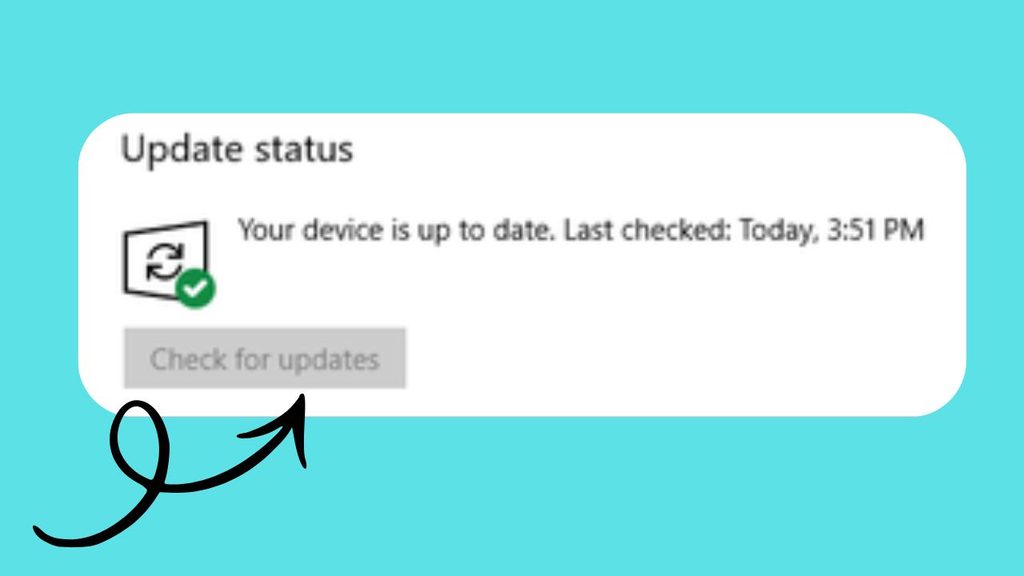
If the Check for updates button is greyed out in Windows, first restart your computer and check whether Windows Update services are running. Then run the Windows Update troubleshooter, check Windows Update policy settings, repair corrupted system files with SFC and DISM, and reset Windows Update components if necessary. You should also check whether the PC is managed by an organization or whether a third-party utility has disabled Windows Update.
Let’s explore the steps in detail!
Step 1: Restart Your Windows PC [Most Important Step]
Before changing any Windows settings, restart your computer.
A temporary Windows Update problem can sometimes cause the Check for updates button to become unavailable. Restarting Windows closes background processes, reloads system services, and clears certain temporary problems.
Select Start, select the Power option, and then select Restart.
After Windows starts again, open Settings and select Windows Update.
In Windows 11, you can open Settings by pressing Windows + I and then selecting Windows Update from the left side.
Check whether the Check for updates button is available again.
If it is still greyed out, continue to the next step.
Step 2: Check Whether Windows Update Is Paused
Windows provides an option to temporarily pause updates. Depending on your Windows configuration, update-related controls can become unavailable while certain update conditions are active.
Open Settings by pressing Windows + I.
Select Windows Update.
Look for information indicating that updates are paused or that Windows is waiting before updates can continue.
If you see an option to Resume updates, select it.
After Windows resumes updates, check whether the Check for updates button becomes available.
If you cannot find a pause option or the button remains greyed out, continue with the next step.
Step 3: Check the Windows Update Service
Windows Update depends on background services to communicate with Microsoft’s update servers and manage downloaded updates.
If the required service is stopped or disabled, Windows Update may not function correctly.
Press Windows + R to open the Run dialog box.
Type services.msc and press Enter.
The Services window will open. Scroll through the list and find Windows Update.
Double-click Windows Update.
Look at the Startup type setting. If the service is disabled, change the setting to an appropriate automatic or manual configuration supported by your Windows version.
If the service is stopped, select Start.
Then select Apply and OK.
Restart your computer and open Windows Update again.
Do not randomly disable Windows services while troubleshooting. Changing unrelated services can create additional Windows problems.
Step 4: Check Related Windows Update Services
Windows Update does not operate completely on its own. Other Windows components help download and install update files.
Return to the Services application and check services such as Background Intelligent Transfer Service (BITS) and Cryptographic Services.
Open each relevant service and check whether it is running.
If an essential service is stopped, select Start when available.
BITS is particularly important because it helps Windows transfer files in the background. Cryptographic Services also plays an important role in verifying certain Windows components and updates.
After checking these services, restart your computer and test Windows Update again.
Step 5: Run the Windows Update Troubleshooter
Windows includes troubleshooting tools that can automatically detect and repair certain Windows Update problems.
Open Settings and go to System > Troubleshoot > Other troubleshooters.
Look for Windows Update.
Select Run.
Windows will examine common update-related problems and may automatically apply recommended repairs.
Follow any instructions displayed on the screen.
When troubleshooting is complete, restart the computer and return to Windows Update.
Check whether the button is available.
The troubleshooter may not fix every cause of a greyed-out button, but it is a useful and relatively safe step for a new user.
Step 6: Check for an Organization Management Message
Sometimes the Check for updates button is unavailable because Windows is being managed by an organization.
Look at the Windows Update page for messages such as Some settings are managed by your organization.
This message does not always mean that your computer belongs to a company. A policy configured by software, an administrator account, or previous system configuration can also produce management-related messages.
If this is a work or school computer, do not change organizational policies without permission. The administrator may intentionally control Windows Update.
If this is your personal computer, continue with the next troubleshooting steps.
Step 7: Check Windows Update Policy Settings
Windows can use policy settings to control how updates work.
Press Windows + R.
Type gpedit.msc and press Enter.
If the Local Group Policy Editor is available on your edition of Windows, navigate through the Windows Update policy sections and look for policies that restrict access to Windows Update or prevent users from checking for updates.
A policy that disables access to Windows Update can cause update controls to become unavailable.
If you are using a computer provided by an employer or school, do not modify these policies without authorization.
If you are using a personal computer and find a policy that you previously configured to restrict Windows Update, return it to its default or Not Configured state when appropriate.
Windows editions differ in which policy-management tools they provide, so you may not have access to Group Policy Editor.
Step 8: Repair Windows System Files
Damaged Windows system files can cause unexpected problems with Settings and Windows Update.
Windows includes the System File Checker, commonly called SFC, to scan protected system files and repair problems when possible.
Open Command Prompt as administrator.
You can do this by opening Start and searching for Command Prompt. Right-click the result and select Run as administrator.
Type the following command and press Enter:
sfc /scannow
Allow the scan to finish.
Do not close the Command Prompt window while the scan is running.
When the scan completes, restart your computer and check Windows Update again.
SFC can take some time, so do not assume the process is stuck simply because the percentage does not change immediately.
Step 9: Run the DISM Repair Command
If SFC does not solve the problem, you can use DISM, which stands for Deployment Image Servicing and Management.
Open Command Prompt as administrator again.
Enter:
DISM /Online /Cleanup-Image /RestoreHealth
Press Enter.
Windows will inspect the component store and attempt to repair detected problems.
This process can take several minutes or longer depending on your system.
When DISM finishes, restart your PC.
It is also a good idea to run SFC /scannow again after DISM completes, particularly if Windows reported that it repaired component-store problems.
Then open Windows Update and check whether the button is working.
Step 10: Reset Windows Update Components
If the button is still greyed out, Windows Update’s local components may be damaged or stuck.
Resetting Windows Update components involves stopping update-related services, clearing certain cached update files, and starting the services again.
This is a more advanced step, so beginners should proceed carefully.
Open Command Prompt as administrator.
You can stop the relevant services and rename the update cache folders so Windows can create fresh ones. The exact commands should be entered carefully because incorrect commands can affect Windows services.
After resetting the components, restart your computer.
Windows will rebuild the necessary update cache when the update process starts again.
This method can resolve problems caused by corrupted update downloads or damaged update caches.
Step 11: Check Your Date and Time
Incorrect date, time, or time-zone settings can interfere with secure connections to online services, including Windows Update.
Open Settings and select Time & language.
Select Date & time.
Turn on Set time automatically and make sure your time zone is correct.
You can also select the option to synchronize the clock when available.
After correcting the time, restart Windows and check Windows Update again.
This is a simple step, but it can solve problems that appear unrelated to the system clock.
Step 12: Check Third-Party Windows Tweaking Tools
Some Windows customization, privacy, debloating, or system-management utilities can change Windows Update policies or services.
If you previously used a tool to disable Windows updates, improve privacy, remove Windows components, or change system policies, that software may be responsible for the greyed-out button.
Open the utility you used and look for settings related to Windows Update.
If you are unsure what a particular setting does, avoid changing it randomly.
You can also temporarily investigate whether the software has an option to restore Windows Update settings to their defaults.
After restoring the relevant settings, restart Windows and check the Update page again.
Step 13: Install Pending Updates Through Available Options
In some situations, Windows may already have an update operation in progress.
Look carefully at the Windows Update page for messages indicating that an update is downloading, installing, waiting for a restart, or requiring action.
If Windows asks you to restart, restart the computer.
After the restart, wait a few minutes and check the Windows Update page again.
A pending update operation can sometimes temporarily affect the availability of update controls.
FAQs
Why is my Check for updates button greyed out?
The button can become unavailable because of Windows Update service problems, policy restrictions, corrupted update components, pending update operations, system-file corruption, or management settings configured by an administrator.
How do I enable the Check for updates button?
Start by restarting Windows and checking the Windows Update services. Then run the Windows Update troubleshooter, check for management policies, and repair Windows system files using SFC and DISM.
Can a Windows update policy disable the Check for updates button?
Yes. Certain administrative policies can control access to Windows Update and restrict users from manually checking for updates.
Should I change Windows Update policies on a work computer?
No. If the computer is managed by an employer or school, the restrictions may be intentional. Contact your administrator instead of changing the policy yourself.
Does restarting Windows fix a greyed-out Update button?
Sometimes. If the problem is caused by a temporary Windows Update service or system issue, restarting can restore normal functionality. If the button remains unavailable, additional troubleshooting is required.
Is it safe to reset Windows Update components?
Yes, when performed correctly, resetting Windows Update components is a standard troubleshooting method. However, it is more advanced than simply restarting a service or running the troubleshooter, so beginners should follow the instructions carefully.
Can incorrect Windows time cause Windows Update problems?
Yes. Incorrect date, time, or time-zone settings can interfere with secure connections to online services and may contribute to update problems.