
Colored Dots (Green, Orange, or Blue) on Android Status Bar
Have you ever noticed a small green, orange, or blue dot appearing on your Android phone’s status bar and wondered what it means? Maybe the dot suddenly appears while you’re browsing the internet, making a phone call, using an app, or simply checking your notifications.
You’re not alone. Many Android users notice these colored dots but aren’t sure why they’re there or whether they indicate a problem with their phones.
Some tell you when an app is using your camera or microphone, while others can indicate notifications or specific app activities. However, their meaning can vary depending on your Android version and phone manufacturer, such as Samsung, Google Pixel, Motorola, or OnePlus.
In this guide, I’ll explain what the different colored dots on the Android status bar mean, why they appear, and how you can remove them or stop unnecessary indicators from showing up.
Colored Dots on Android Status Bar: What Do They Mean?
Before trying to remove a colored dot, it’s important to understand what it represents. Not every colored dot has the same meaning, and the steps to manage it depend on your phone.
Here are some common meanings:
Green Dot: On most modern Android phones, a green indicator means an app is currently using your camera or microphone.
Orange Dot: Some Android manufacturers use an orange indicator to show microphone activity. On certain phones, the indicator may look different depending on the interface.
Blue Dot: On some Samsung phones, a blue dot next to an app icon indicates an unread notification. It isn’t necessarily a privacy warning.
Other Colored Dots: Some Android interfaces use colored notification indicators, app badges, or customization features.
How do I remove colored dots from my Android status bar?
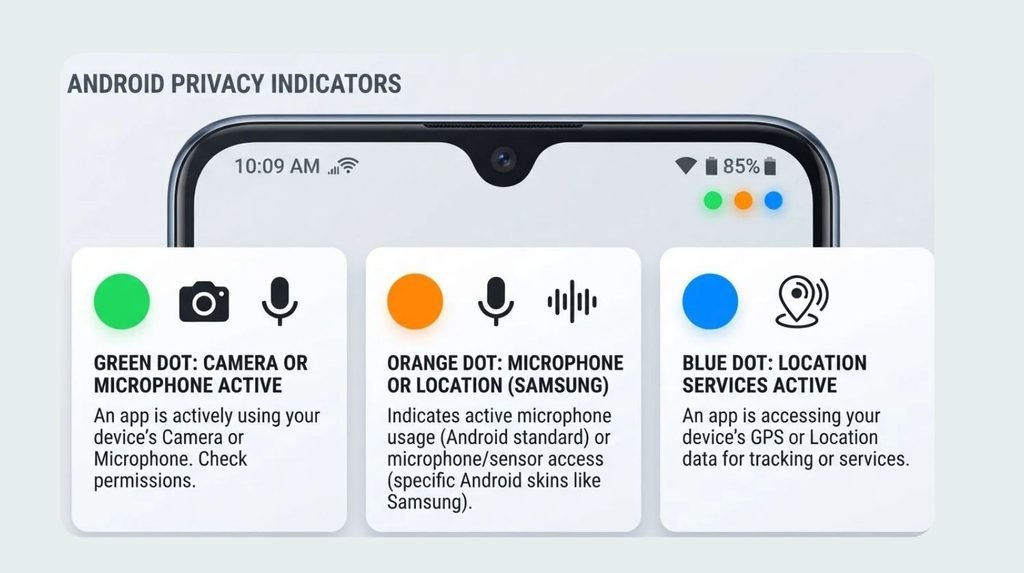
To remove unwanted colored dots on Android, first check whether an app is using your camera or microphone. Swipe down from the top of your screen, tap the privacy indicator if available, and identify the app. Open Settings > Privacy > Permission Manager, select Camera or Microphone, and change the permission for apps that don’t need access. For notification dots, open Settings > Notifications and turn off notification dots or app icon badges if your phone supports that option.
Let’s go through the process step by step.
1: Identify Which Colored Dot Is Appearing
The first thing you should do is identify the color and location of the dot. This helps you understand whether it’s related to privacy, notifications, or an app running in the background.
Look at the upper-right corner of your Android screen, near the battery and network icons.
If you see a green dot, an application may be accessing your camera or microphone. For example, this can happen when you’re recording a video, making a video call, or using Google Assistant.
If you see an orange dot, don’t immediately assume something is wrong. Android manufacturers can customize their indicators, and the color doesn’t have one universal meaning across all Android phones. Check your phone’s privacy settings to identify the activity.
If you see a blue dot next to an application icon, it may be an unread notification indicator on certain Android interfaces, including Samsung’s One UI.
Understanding the difference is important because changing camera permissions won’t remove a notification badge, and clearing notifications won’t stop an app from using your microphone.
2: Check Which App Is Using Your Camera or Microphone
If the green dot appears unexpectedly, check which application is accessing your phone’s camera or microphone.
Fortunately, Android provides a simple way to identify the application.
1. Swipe Down From the Top: Place your finger at the top edge of your screen and swipe downward. This opens the notification panel or Quick Settings panel.
2. Look for the Privacy Indicator: Find the green dot or camera and microphone indicator near the top of the screen.
3. Tap the Indicator: On supported Android phones, tapping the indicator displays the application currently accessing your camera or microphone.
4. Check the App Name: Android will show which application is using the sensitive feature. For example, you might see Camera, WhatsApp, Instagram, or another application.
5. Close the Application: If you aren’t actively using that app, close it and check whether the green dot disappears.
This is particularly useful when you don’t remember opening an application that requires camera or microphone access.
3: Remove Unnecessary Camera and Microphone Permissions
Sometimes, an application continues requesting access to your camera or microphone even when you don’t need those features.
You can prevent unnecessary access by changing its permissions.
Follow these steps:
1. Open Settings: Unlock your Android phone and tap the Settings app.
2. Find Privacy Settings: Scroll down and select Privacy or Security and Privacy, depending on your phone.
3. Open Permission Manager: Look for Permission Manager and tap it.
4. Select Camera: You’ll see a list of applications that have requested camera access. Open the app you don’t want accessing your camera.
5. Change Its Permission: Select Don’t allow to prevent that application from accessing your camera.
6. Repeat for Microphone: Return to Permission Manager, select Microphone, and review the applications with access.
7. Disable Unnecessary Access: Choose Don’t allow for applications that don’t need microphone access.
That’s it! You’ve restricted unnecessary camera and microphone access.
Important: Don’t disable permissions for applications you regularly use for video calls, voice messages, or recording unless you’re comfortable losing those features.
4: Temporarily Turn Off Camera and Microphone Access
If you want to stop all applications from accessing your camera or microphone temporarily, Android offers another convenient option on supported devices.
You don’t have to change individual application permissions.
1. Swipe Down Twice: Swipe down from the top of your phone’s screen twice to expand the Quick Settings panel.
2. Find Camera Access: Look for the Camera access tile.
3. Turn It Off: Tap the tile to disable camera access.
4. Find Microphone Access: Look for the Microphone access tile.
5. Disable It: Tap the tile to prevent apps from accessing your microphone.
If you don’t see these options, tap the pencil or Edit button in Quick Settings and check whether you can add them.
Keep in mind that disabling camera or microphone access can affect video calls, voice recordings, and other applications that depend on these features.
5: Turn Off Notification Dots on Android
What if the colored dot appears next to an app icon instead of the privacy indicator?
In that situation, you’re probably dealing with a notification dot or app badge.
These indicators help you identify applications with unread notifications. For example, you might see a dot on WhatsApp, Gmail, or another messaging application.
You can turn off notification dots by following these steps.
1. Open Settings: Go to your phone’s Settings app.
2. Select Notifications: Find and tap the Notifications option.
3. Find Notification Dots: Look for Notification Dots on App Icon, App Icon Badges, or a similarly named setting.
4. Disable the Feature: Turn off the notification dot option.
5. Check Your Home Screen: Return to your home screen and check whether the app notification dots have disappeared.
On Samsung phones, you may find this option under Settings > Notifications > Advanced Settings > App Icon Badges. The exact menu can vary with the One UI version.
Remember that disabling notification dots doesn’t stop notifications themselves. It only hides the visual indicators.
6: Close Background Apps and Restart Your Phone
Sometimes, an application may continue running in the background after you’ve finished using it. This can make the privacy indicator appear again.
A simple restart can help resolve temporary software glitches.
1. Open Recent Apps: Tap the Recent Apps button or swipe up and hold, depending on your navigation settings.
2. Close Unnecessary Apps: Swipe away applications that you aren’t currently using.
3. Restart Your Phone: Press and hold the power button and select Restart.
4. Wait for the Phone to Reboot: Allow your Android device to start normally.
5. Check the Status Bar: Look at the top of your screen and see whether the unwanted indicator has disappeared.
If the dot returns immediately, check which application is accessing your phone’s sensitive features again.
7: Update Android and Your Applications
If the colored dot keeps appearing even after you’ve checked permissions and closed unnecessary apps, an outdated application or temporary software issue could be responsible.
Updating your phone and applications is worth trying.
To check for Android updates:
- Open Settings.
- Scroll down and select System or Software Update.
- Tap System Update or Download and Install.
- Check whether an update is available.
- If one is available, download and install it.
To update your applications:
- Open the Google Play Store.
- Tap your profile picture.
- Select Manage Apps and Device.
- Tap Update All if updates are available.
After updating, restart your phone and check whether the indicator behaves normally.
Can You Permanently Remove the Green Privacy Dot?
Here’s something important to understand: the green privacy indicator is a security feature, not an ordinary notification.
Android displays it to let you know when an application accesses your camera or microphone. On supported Android versions, the indicator is controlled by the operating system.
Therefore, you generally cannot permanently disable the system privacy indicator through normal Android settings.
Instead, you can stop the indicator from appearing unnecessarily by closing the application or restricting its camera and microphone permissions.
I recommend keeping this privacy feature enabled because it helps you notice unexpected access to sensitive phone features.
FAQs
1. Why is there a green dot on my Android status bar?
A green dot usually indicates that an application is currently using your phone’s camera or microphone. Android displays this privacy indicator to help you monitor which applications are accessing sensitive features.
2. Does the green dot mean someone is spying on my phone?
No, not necessarily. The green dot is a privacy warning, not proof that someone is spying on you. Apps such as WhatsApp, Instagram, Camera, and Google Meet may trigger it when you use their camera or microphone features.
However, if it appears unexpectedly, check which application is accessing your camera or microphone and review its permissions.
3. Why does the green dot stay on even after closing an app?
An application might still be running in the background or accessing your microphone or camera. Check the privacy indicator to identify the app, close it completely, and review its permissions if necessary.
4. Can I turn off the green dot without disabling my camera?
Generally, no. Android uses the green dot as a system-level privacy indicator. You can restrict camera access for individual applications, but hiding the indicator itself isn’t normally supported through standard settings.
5. What does an orange dot mean on Android?
There isn’t one universal orange-dot meaning across Android devices. Some manufacturers customize privacy indicators, while orange is commonly associated with microphone activity on other mobile operating systems.
Check your device’s privacy dashboard or permission settings to understand what the indicator represents on your phone.
6. Why is there a blue dot next to my Android app icon?
A blue dot next to an app icon can indicate an unread notification on certain Android interfaces. For example, some Samsung devices use app icon badges to highlight applications with pending notifications.
You can manage this feature through your phone’s notification settings.
7. Are colored dots on Android status bars dangerous?
No. Most colored indicators are normal system notifications or privacy alerts. However, you should investigate unexpected camera or microphone activity, especially when you’re not actively using an application that requires those permissions.
Summary
Colored dots on the Android status bar aren’t necessarily a problem. In most cases, they help you understand what’s happening on your phone.
A green dot generally indicates camera or microphone activity, while other colored dots can represent manufacturer-specific privacy indicators or unread notifications.
If you want to remove unwanted indicators, start by identifying their purpose. Check application permissions, disable unnecessary camera and microphone access, manage notification dots, and restart your phone if needed.