
Control Your iPhone From Your Apple Watch [Guide]
Have you ever wanted to control your iPhone without picking it up? Maybe your iPhone is across the room, your hands are busy, or you want to take a photo without touching the phone. If you own an Apple Watch, you can use several handy features to control parts of your iPhone right from your wrist.
Apple Watch offers more than notifications and fitness tracking. Depending on your watch model and software version, you can use features such as Camera Remote, Ping iPhone, and AssistiveTouch to interact with your iPhone in different ways. You can also use Siri for supported tasks.
Let’s control your iPhone from your Apple Watch.
Control Your iPhone From Your Apple Watch
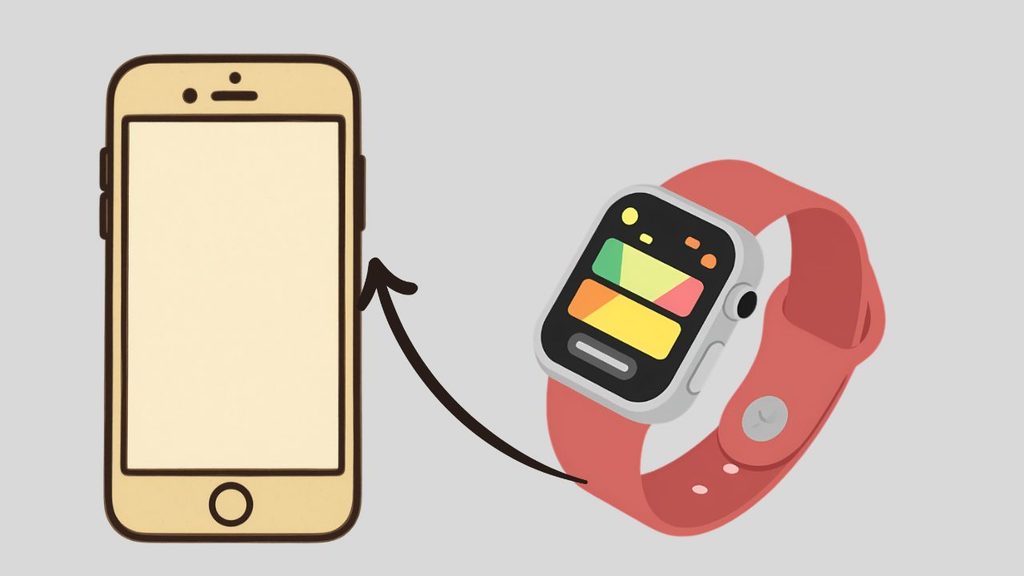
You can control certain iPhone features from your Apple Watch using Camera Remote, Ping iPhone, Siri, and AssistiveTouch. Make sure your devices are paired and connected, then open the relevant watch app or setting.
The available controls depend on your devices, watchOS version, and iOS version.
Note: An Apple Watch doesn’t let you fully control every iPhone app or mirror your entire iPhone screen. Instead, it provides specific controls for compatible features.
1: Make Sure Your Apple Watch Is Paired With Your iPhone
Before using your Apple Watch to control your iPhone, make sure both devices are set up correctly. Most Apple Watch features rely on a paired iPhone, although some functions can work independently under certain conditions.
First, turn on your iPhone and Apple Watch. Keep the devices close to each other and make sure Bluetooth and Wi-Fi are enabled when needed.
On your Apple Watch, press the Digital Crown, which is the round button on the side of the watch. Open Settings and check the connection status if you’re having trouble.
On your iPhone, open the Watch app and check whether your watch appears as paired. If you haven’t paired the devices yet, follow the on-screen instructions in the Watch app to complete setup.
If your watch is already paired and working, you don’t need to pair it again. Simply check that both devices have enough battery power and that Airplane Mode isn’t preventing the connection.
2: Use Camera Remote to Control Your iPhone Camera
One of the most useful ways to control your iPhone from your Apple Watch is through Camera Remote. This feature lets you preview your iPhone camera view on your watch and take photos remotely.
To get started, keep your iPhone nearby and open the Camera Remote app on your Apple Watch. You can find it by pressing the Digital Crown and looking for the camera icon.
Your iPhone’s Camera app should open automatically. After the preview appears on your watch, position your iPhone where you want it. You can then check the framing directly from your wrist.
Tap the Shutter button on the watch to take a photo. Depending on the available controls, you may also be able to set a timer or adjust certain camera options.
This feature is especially useful for group photos, selfies, tripod photography, and situations where you want to avoid moving the iPhone after positioning it.
Keep in mind that Camera Remote is designed to control the camera, not every function on your iPhone. Your available options may vary depending on the iPhone model and software version.
3: Find Your iPhone Using Ping iPhone
Have you misplaced your iPhone somewhere at home? Your Apple Watch can help you find it using the Ping iPhone feature.
On your Apple Watch, open the Control Center. Depending on your watchOS version, you can usually do this by pressing the side button. Look for the Ping iPhone button, represented by an iPhone symbol.
Tap the button. If your iPhone is reachable, it should play a sound to help you locate it.
On supported Apple Watch models, you may also be able to touch and hold the Ping iPhone control to make the iPhone flash its camera light while playing the sound. Availability can vary by model and software version.
This feature is useful when your iPhone is under a cushion, inside a bag, or in another nearby room. It generally works best when your watch and iPhone are connected and within range.
If your iPhone is switched off, out of battery, or unreachable, the ping may not work. In that situation, use the Find My app on an available Apple device or visit iCloud’s Find Devices service to check the options available for your account.
4: Use Siri on Your Apple Watch to Perform iPhone-Related Tasks
You can also use Siri on your Apple Watch to perform supported tasks without touching your iPhone. Siri can help you set reminders, send messages, make calls, start timers, and control compatible smart-home accessories.
Raise your wrist and speak if your watch settings support that method, or press and hold the Digital Crown to activate Siri. You can also use the Siri interface shown on your watch.
For example, say, “Send a message to Alex,” or “Set a timer for ten minutes.” Follow any confirmation prompts displayed on the watch.
Some requests are handled directly by the Apple Watch, while others may rely on your iPhone, an internet connection, or supported apps. You can’t use Siri to remotely open and operate every iPhone app.
If Siri doesn’t respond, open Settings on your Apple Watch and check the Siri options. On your iPhone, you can also check Settings > Siri or the corresponding Apple Intelligence and Siri settings, depending on your iOS version.
5: Explore AssistiveTouch for Hand Gestures
AssistiveTouch on Apple Watch can help you interact with the watch using hand gestures rather than touching its display. It’s primarily an accessibility feature for controlling the Apple Watch itself, not a universal remote for your iPhone.
To check whether it’s available, open the Watch app on your iPhone. Select Accessibility, then look for AssistiveTouch. You can also explore the Accessibility settings directly on your Apple Watch.
If your watch supports the feature, turn it on and follow the setup instructions. Depending on your model and settings, gestures such as pinching or clenching your hand can help you navigate watch controls and select items.
This can be useful when your other hand is occupied or you have difficulty touching the small watch display.
Remember that AssistiveTouch doesn’t automatically give you full control of your iPhone screen. Its main purpose is to make Apple Watch navigation easier. For specific iPhone controls, use features such as Camera Remote or Siri instead.
6: Check Notifications and Respond From Your Wrist
Your Apple Watch can also help you handle certain iPhone notifications without reaching for your phone. When your watch is unlocked and being worn, notifications from supported apps may appear on your wrist.
Raise your wrist when a notification arrives, then tap it to read the available details. Depending on the app and notification type, you may be able to reply to a message, dismiss an alert, or choose a quick response.
For messages, you may see options such as suggested replies, dictation, or emoji. The available methods depend on the app, language, settings, and watchOS version.
To adjust notification behavior, open the Watch app on your iPhone and select Notifications. Choose the relevant app and review its available options.
Not every iPhone notification can be fully handled from the watch. Some alerts require you to open the corresponding app on your iPhone to complete the task.
FAQs
1. Can I fully control my iPhone from my Apple Watch?
No. Apple Watch can control specific features, such as the iPhone camera, and help you locate your phone. It doesn’t provide complete remote access to every iPhone screen or app.
2. Can I unlock my iPhone using my Apple Watch?
Apple Watch can help unlock a compatible iPhone in supported circumstances, such as when Face ID can’t recognize a face because of a mask, if the feature is enabled and the requirements are met. This is different from using the watch as a full remote control.
3. Can I control my iPhone camera from my Apple Watch?
Yes. Open the Camera Remote app on your watch while your iPhone is nearby. You can view a camera preview and take a photo using the controls available on your devices.
4. Can I find a lost iPhone with my Apple Watch?
You can use Ping iPhone to make a reachable iPhone play a sound. If the phone is offline or too far away, use Find My from another compatible device or an available web service.
5. Why isn’t my Apple Watch controlling my iPhone?
Check that the devices are paired, connected, and running compatible software. Some features require Bluetooth, Wi-Fi, an internet connection, or a supported device model. Restarting the devices may also help.
Summary
Controlling your iPhone from your Apple Watch can make everyday tasks easier, especially when your phone isn’t in your hand. You can use Camera Remote to take photos, Ping iPhone to locate your phone, Siri to perform supported tasks, and notifications to handle certain messages and alerts.
Start by confirming that your devices are paired and connected. Then open the feature that matches what you want to do. Remember that Apple Watch offers specific controls rather than complete access to your iPhone, and some options depend on your device models and software versions.
With the right features set up, your Apple Watch can become a handy way to manage common iPhone tasks right from your wrist.