
Customize RGB Lighting Keyboard and Mouse Settings on iBuyPower PC
RGB lighting is one of the most popular features on an iBuyPower PC, allowing you to personalize your gaming setup with different colors, lighting effects, and brightness levels. Whether you prefer a static color for a clean workspace or dynamic rainbow effects for gaming, customizing your RGB keyboard and mouse can make your desktop stand out.
The exact customization process depends on the brand of keyboard and mouse included with your iBuyPower computer. Some systems include iBuyPower-branded peripherals, while others ship with devices from manufacturers such as ADATA XPG, Redragon, SteelSeries, Corsair, Logitech, HyperX, or Cooler Master. Fortunately, most RGB devices are easy to customize once you know which software or controls to use.
This guide walks you through every step, even if you have never changed RGB settings before.
Customize RGB Lighting Keyboard and Mouse Settings on iBuyPower PC
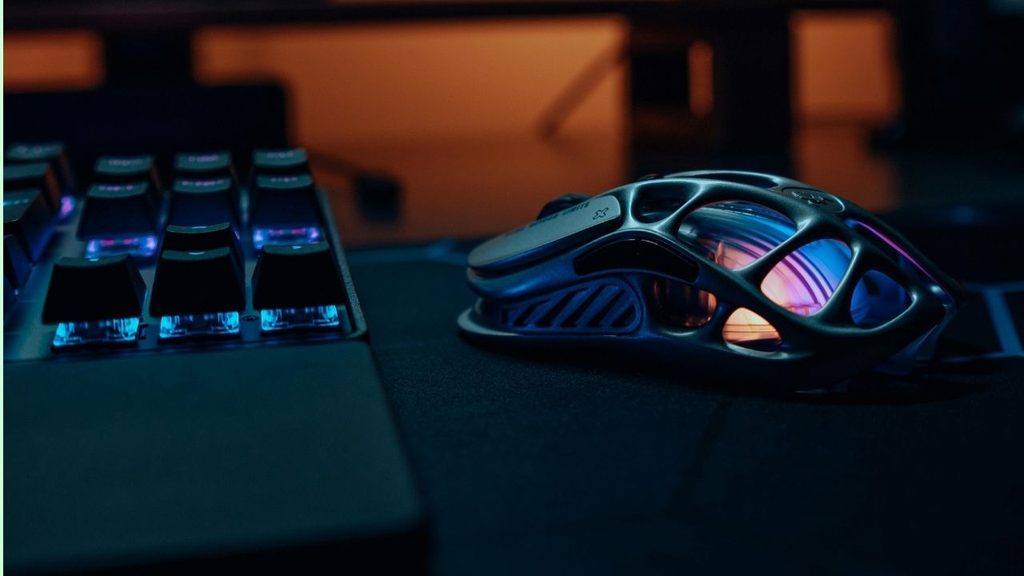
Before changing any lighting settings, make sure your keyboard and mouse are properly connected to your computer. If you use wired peripherals, confirm they are plugged into working USB ports. If you use wireless devices, verify they are connected and have sufficient battery power.
Once everything is connected, follow the steps below.
1: Identify Your Keyboard and Mouse Model
The first thing you need to do is determine the exact keyboard and mouse model included with your iBuyPower PC. Different manufacturers use different software for RGB customization.
Look at the front or bottom of your keyboard and mouse for the manufacturer’s name or model number. You may also find this information on the original product box or your purchase invoice.
If you cannot locate the model number, open Device Manager in Windows by pressing Windows + X and selecting Device Manager. Expand the Keyboards and Mice and other pointing devices categories. While Windows may display generic names, manufacturer software installed on your PC can usually identify the connected hardware.
Knowing the correct model ensures you download the right RGB customization software instead of wasting time with incompatible applications.
2: Check Whether RGB Software Is Already Installed
Many iBuyPower systems come with RGB management software already installed.
Click the Start menu and search for software names such as Corsair iCUE, SteelSeries GG, Logitech G HUB, HyperX NGENUITY, Cooler Master MasterPlus+, Redragon Software, or XPG Prime.
Open the software if you find it installed. Most RGB applications automatically detect compatible keyboards and mice connected to your PC.
If the software launches successfully and displays your devices, you are ready to customize the lighting without installing anything else.
If no RGB application appears, continue to the next step.
3: Download the Correct RGB Software
Visit the official website of your keyboard or mouse manufacturer and download the latest RGB management software.
Install the application using the default settings. During installation, Windows may ask for administrator permission. Select Yes and continue.
Once the installation finishes, restart your computer if prompted.
After restarting Windows, launch the RGB software again. It should automatically detect your connected keyboard and mouse.
Using the official software provides access to the latest lighting effects, firmware updates, and compatibility improvements.
4: Customize Your Keyboard Lighting
Open the RGB software and select your keyboard from the list of connected devices.
Most applications provide several lighting modes, including Static, Breathing, Rainbow Wave, Color Cycle, Reactive, Ripple, and Audio Visualizer.
Start by selecting a simple Static lighting effect. Choose your favorite color from the color wheel or enter an RGB value if the software supports it.
You can usually adjust the brightness, animation speed, and direction of lighting effects.
Spend a few minutes experimenting with different presets until you find one that matches your gaming setup or workspace.
Most software shows a live preview, allowing you to see changes immediately before saving them.
5: Customize Your Mouse Lighting
Next, choose your RGB mouse within the software.
Many gaming mice include lighting zones on the logo, scroll wheel, side strips, or rear panel. Higher-end models often allow each lighting zone to be customized independently.
Assign different colors to different lighting zones or apply the same color across the entire mouse.
You can also synchronize the mouse lighting with your keyboard for a consistent appearance.
If your mouse supports profiles, create separate lighting configurations for gaming, work, and nighttime use.
Saving multiple profiles makes it easy to switch between lighting styles without creating them again.
6: Synchronize RGB Lighting Across Devices
Many RGB applications allow multiple devices to work together.
Look for options such as Lighting Sync, Device Sync, Murals, Lighting Link, or Global Lighting, depending on the software.
Enable synchronization so your keyboard and mouse display identical lighting effects.
Matching colors and animations creates a cleaner desktop appearance and provides a more immersive gaming environment.
If your PC case, fans, RAM, or motherboard also support RGB synchronization, you can include them in the same lighting profile for a unified setup.
7: Create Custom Lighting Profiles
Instead of using only the default lighting effects, create personalized profiles.
Most RGB software allows you to save several configurations.
For example, you might create a bright rainbow profile for gaming sessions, a soft white profile for work, and a low-brightness blue profile for late-night use.
Profiles can often be switched manually or automatically when specific games or applications launch.
This feature saves time because you do not have to reconfigure lighting every time you use your computer.
8: Adjust Brightness and Power Settings
Bright RGB lighting looks impressive but may not always be necessary.
Reduce the brightness level during the evening to make your setup more comfortable on your eyes.
Some RGB software also allows lighting to turn off automatically when the monitor sleeps or when Windows locks.
Enabling these power-saving options reduces unnecessary power consumption and extends the lifespan of LED components.
If you leave your PC running overnight, these settings can also prevent excessive room lighting.
9: Update Device Firmware
Manufacturers regularly release firmware updates to improve RGB performance, stability, and compatibility.
Open the RGB software and check for available updates.
If an update is available, begin the installation and avoid disconnecting the keyboard or mouse until the process finishes.
Firmware updates can resolve lighting glitches, improve synchronization, and add new RGB effects.
Restart your computer after updating to ensure all changes are properly applied.
Troubleshoot RGB Lighting Problems
If the RGB lighting does not work correctly, there are several simple fixes.
Close and reopen the RGB software.
Reconnect the keyboard and mouse to different USB ports.
Restart your computer.
Update the RGB software to the latest version.
Install any available Windows updates.
Check whether another RGB application is controlling the same devices. Running multiple RGB programs simultaneously can create software conflicts.
If your lighting still does not work, reset the keyboard or mouse using the manufacturer’s instructions and reconnect it to the software.
Most RGB issues are caused by outdated software, USB communication problems, or conflicting lighting applications rather than hardware failure.
FAQs
Can I customize my RGB keyboard without software?
Some RGB keyboards allow lighting changes using keyboard shortcuts. However, advanced customization usually requires the manufacturer’s software.
Why is my keyboard not showing in the RGB software?
Ensure you installed the correct software for your keyboard model. Also check that the keyboard is directly connected to the PC rather than through an unsupported USB hub.
Can I synchronize my keyboard, mouse, and PC case lighting?
Yes. Many RGB ecosystems support synchronization across compatible peripherals, fans, memory modules, and other RGB hardware.
Does RGB lighting reduce PC performance?
No. RGB lighting uses very little system resources and has almost no impact on gaming or everyday performance.
Why do my RGB settings reset after restarting Windows?
This usually happens if the RGB software is not configured to start automatically with Windows or if the lighting profile was not saved correctly.
Can I turn off RGB lighting completely?
Yes. Nearly all RGB software includes an option to disable lighting entirely or reduce brightness to zero.