
Delete System32 Folder in Windows 11/10: Should You Do This?
If you have searched online for how to delete the System32 folder in Windows 11/10, you have probably seen jokes, misleading videos, or dangerous tutorials suggesting that removing this folder can improve computer performance. In reality, System32 is one of the most important folders in Windows. Deleting it will almost always make your operating system unstable or completely unusable.
The System32 folder contains essential system files, drivers, libraries, configuration files, and tools that Windows needs to start, run programs, manage hardware, and perform everyday tasks. Without these files, Windows cannot function correctly.
For most users, there is no legitimate reason to delete the System32 folder. If you are trying to free up storage space, remove malware, or fix Windows errors, there are much safer and more effective solutions.
This guide explains what the System32 folder is, where it is located, when it should or should not be deleted, and the safe alternatives you should use instead.
System32 Folder Location
The System32 folder is stored inside the Windows directory on the drive where Windows is installed. On most computers, the location is:
C:\Windows\System32
If Windows is installed on another drive, the path may look similar to:
D:\Windows\System32
You can open the folder by pressing Windows + E to launch File Explorer, opening your Windows drive, selecting the Windows folder, and then opening System32.
Inside this folder, you will notice thousands of files and folders. These include DLL files, EXE files, device drivers, fonts, management tools, command line utilities, PowerShell components, and numerous files required for Windows to operate normally.
When Should You Delete the System32 Folder?
The simple answer is never.
There is no normal maintenance task that requires deleting the entire System32 folder. Windows actively protects this folder because removing it would destroy essential operating system files.
If your computer has problems, deleting System32 is never the correct solution. Instead, identify the actual issue and repair it safely.
For example, if Windows is corrupted, use System File Checker, DISM, Startup Repair, or Reset this PC. If storage space is low, use Storage Sense or Disk Cleanup. If malware is suspected, perform a complete antivirus scan.
The only situation where the System32 folder disappears is when you intentionally erase the entire Windows installation during a clean operating system installation. Even then, the folder is removed together with the Windows partition rather than being deleted separately.
Don’t Delete the System32 Folder in Windows 11/10: Try These Steps Instead to Fix System Issues
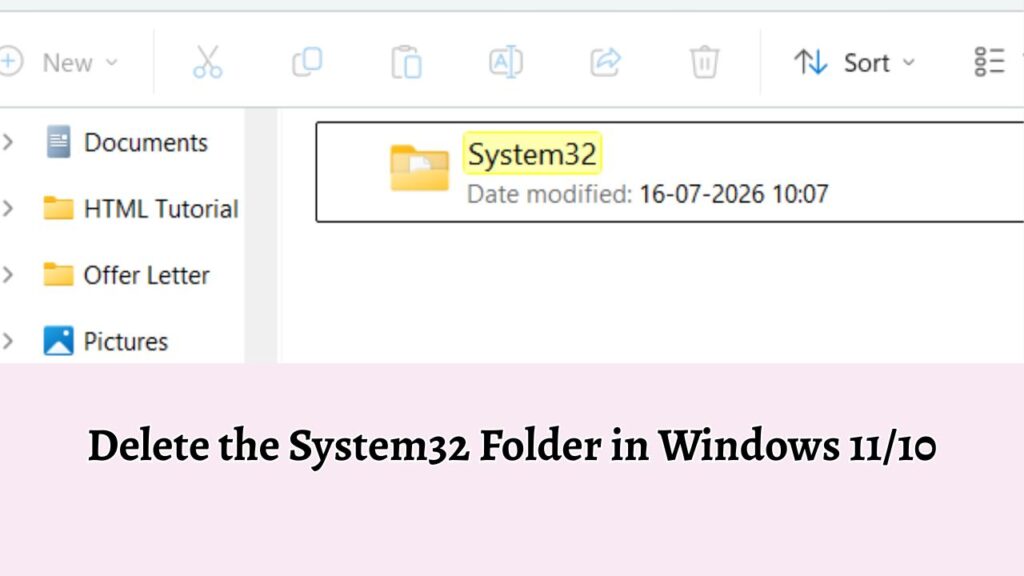
Since deleting the entire System32 folder would permanently damage Windows, there is no safe method to do so on a running installation.
Instead, if your objective is to solve a problem involving the System32 folder, use the safe methods below.
These methods address the most common reasons people think they need to delete System32 while keeping Windows fully functional.
Step 1: Determine Why You Want to Delete the System32 Folder
Before making any changes, identify the real reason behind your goal. Many users believe deleting System32 will speed up Windows, remove viruses, or clear storage space. Unfortunately, none of these assumptions is correct.
If your PC feels slow, the issue is usually caused by startup programs, outdated drivers, insufficient memory, or a nearly full storage drive. If Windows reports corrupted files, only those damaged files need repair instead of deleting the entire folder.
Understanding the actual problem helps you choose the correct solution and prevents accidental damage to Windows.
Step 2: Run the System File Checker Instead of Deleting Files
If you suspect the System32 folder contains corrupted files, use System File Checker, commonly called SFC.
Open Command Prompt as an administrator. Type the following command:
sfc /scannow
Press Enter and allow Windows to complete the scan.
The utility compares protected Windows files with their original versions and automatically replaces damaged files whenever possible. Depending on your computer, this process may take several minutes.
After the scan finishes, restart your computer and check whether the original issue has been resolved.
Step 3: Repair Windows Image Files Using DISM
Sometimes SFC cannot repair damaged files because the Windows image itself is corrupted. In that situation, use the Deployment Image Servicing and Management tool, commonly known as DISM.
Open Command Prompt with administrator privileges and enter:
DISM /Online /Cleanup-Image /RestoreHealth
Press Enter and wait patiently while Windows downloads replacement files if necessary.
This process can take some time, especially on slower internet connections. Once completed, restart your computer and run sfc /scannow again.
Using DISM and SFC together repairs most operating system file corruption without deleting critical folders.
Step 4: Remove Malware That Targets System Files
If you believe malware has infected files inside System32, do not attempt to delete the folder.
Instead, open Windows Security from the Settings app and choose Virus & threat protection. Start a Full Scan or Microsoft Defender Offline Scan.
The antivirus checks your computer for malicious software and removes infected files while protecting legitimate Windows components.
After the scan finishes, restart your computer and verify that the problem has disappeared.
Step 5: Free Storage Space Safely
Many users search for ways to delete System32 because they need additional storage space.
A much safer option is to use Storage Sense.
Open Settings, select System, then choose Storage.
Allow Windows to identify temporary files, update leftovers, recycle bin contents, and cached data that can be safely removed.
You can also run Disk Cleanup to delete unnecessary system files without affecting important Windows components.
These tools recover storage space safely while keeping Windows stable.
Step 6: Reset Windows Instead of Deleting System Files
If Windows has become unstable and repairs do not solve the issue, resetting Windows is a much safer option than attempting to delete System32.
Open Settings, select System, then Recovery, and choose Reset this PC.
You can select Keep my files if you want Windows to reinstall itself while preserving your personal documents.
Alternatively, choose the complete reset option if you want a fresh installation.
This process rebuilds the operating system using fresh Windows files without requiring you to manually remove protected folders.
Step 7: Perform a Clean Installation When Necessary
If Windows is beyond repair, performing a clean installation is the recommended solution.
Create Windows installation media using Microsoft’s official tools, boot your computer from the installation drive, and reinstall Windows.
During installation, you can format the Windows partition. This removes the previous Windows installation, including the old System32 folder, before creating a completely new one.
This is the only practical scenario in which the existing System32 folder is removed, and it happens as part of reinstalling Windows rather than manually deleting the folder.
Additional Tips
Always create a recent backup before making major changes to Windows.
Avoid downloading utilities that claim they can safely delete System32 because they often contain malware or misleading instructions.
Keep Windows Update enabled so damaged system files receive the latest fixes and security improvements.
Regularly scan your computer using Microsoft Defender or another trusted antivirus solution.
Do not change file permissions or ownership of the System32 folder unless specifically instructed by Microsoft support or an experienced system administrator.
If Windows reports missing files inside System32, repair them using SFC, DISM, or a Windows reset instead of manually copying files from another computer.
FAQs
Is it safe to delete the System32 folder?
No. Deleting the System32 folder will almost certainly prevent Windows from functioning properly and may stop the operating system from booting.
Can deleting System32 make my PC faster?
No. Removing System32 does not improve performance. Instead, it damages Windows and can make your computer unusable.
Why does Windows prevent me from deleting System32?
Windows protects critical operating system files through permissions and security features to prevent accidental or malicious damage.
What should I do if System32 files become corrupted?
Run System File Checker, followed by DISM, and restart your computer. If necessary, reset or reinstall Windows.
Can viruses hide inside the System32 folder?
Yes. Some malware attempts to disguise itself by using names similar to legitimate system files. Use trusted antivirus software to remove malware instead of deleting the folder.
Can I delete individual files from System32?
Only if you are absolutely certain they are unnecessary and are following official Microsoft guidance or instructions from a trusted software vendor. Deleting the wrong file can cause Windows or installed applications to stop working.
What happens if I accidentally delete System32 files?
Windows may fail to start, applications may crash, hardware may stop functioning correctly, or you may encounter frequent system errors. Running repair tools or reinstalling Windows is usually required.
Summary
The System32 folder is one of the most critical parts of Windows 11 and Windows 10. It stores thousands of files that the operating system depends on every day. Because of its importance, deleting the folder is neither necessary nor recommended under normal circumstances.
If your computer is experiencing errors, poor performance, malware infections, or file corruption, use trusted recovery methods such as System File Checker, DISM, Windows Security, Storage Sense, Reset this PC, or a clean Windows installation. These approaches solve the underlying problem while keeping your operating system stable and secure.
Rather than searching for ways to delete the System32 folder, focus on repairing or reinstalling Windows when needed. Doing so protects your data, preserves system stability, and ensures your computer continues to operate reliably.