
How to Download Entire Country Maps on Google Maps? [Easy Steps in 2026]
If you are planning a long road trip, traveling through an area with unreliable internet, or simply want to save mobile data, Google Maps offline maps can be extremely useful. Google Maps lets you download map areas to your phone so you can continue navigating when your internet connection is weak or unavailable.
However, there is an important limitation. You generally cannot download an entire country with one tap in Google Maps. Whether you can save a whole country depends on its size, the available map area, and Google Maps’ download-area restrictions. For larger countries, you may need to download multiple offline map sections.
In this guide, you will learn how to download an entire country, where possible, using Google Maps on Android and iPhone.
You will also learn how to divide a large country into several offline areas when Google Maps does not allow the whole country to fit into one download.
Let’s explore the guide!
How to Download Entire Country Maps on Google Maps? [Easy Steps]
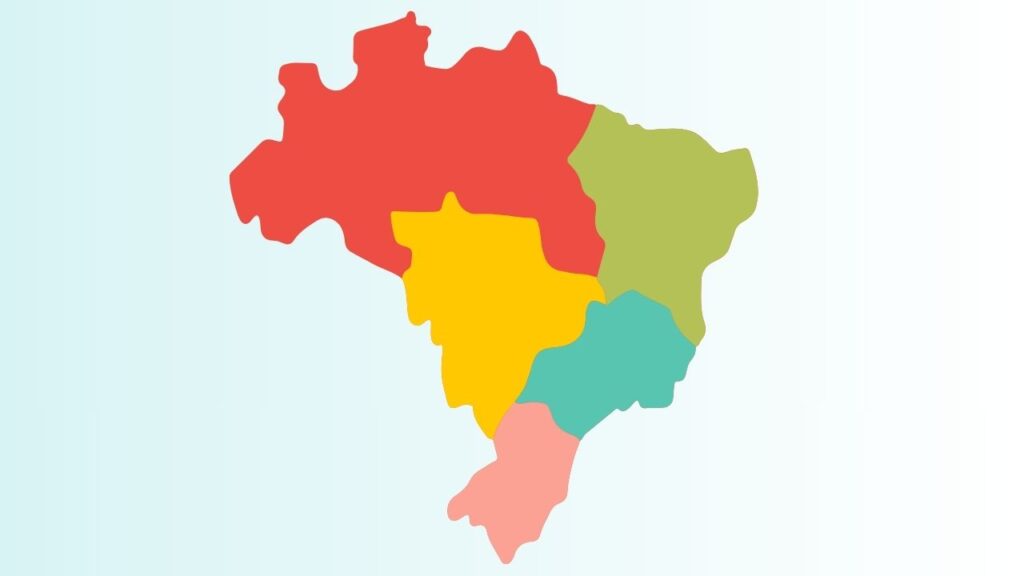
Google Maps does not provide a dedicated Download Entire Country button. Instead, you select a geographic area and save it for offline use. If the country fits within the maximum downloadable area, you can select most or all of it. If it does not, you can create several overlapping offline map downloads.
The exact process is similar on Android and iPhone, although some menu names and screen layouts can vary slightly depending on your Google Maps version.
Step 1: Open Google Maps and Sign In
Start by opening the Google Maps app on your Android phone or iPhone. Make sure you are signed in to your Google Account because offline maps are associated with your Maps experience.
If you do not already have Google Maps installed, install it from your device’s official app store. Once the application opens, allow it a few moments to load your normal map view.
Before downloading a large country map, make sure your phone has enough free storage space. Offline maps can take a significant amount of storage, particularly when you select a large geographic area.
It is also a good idea to connect your phone to Wi-Fi before starting the download. A country-sized map can consume a considerable amount of data if downloaded over a cellular connection.
Step 2: Search for the Country You Want to Download
Tap the search bar at the top of Google Maps and enter the name of the country you want to save.
For example, you could search for France, Spain, Japan, or another country. Google Maps will move the map to that location and display information about the country.
At this point, do not immediately tap the Download button if one appears for a specific location. You want to make sure you are selecting a sufficiently large area that covers the country you need.
Zoom out on the map using the usual pinch gesture. On a touchscreen, place two fingers on the screen and move them closer together to zoom out. Continue zooming until you can see most or all of the country.
Step 3: Open the Offline Maps Menu
There are several ways to reach the offline maps section.
Tap your Google Account profile picture in the upper-right corner of Google Maps. Look for Offline maps in the menu and select it.
On some versions of Google Maps, you may instead see an option related to downloading the current map area. The wording can change as Google updates the application, but the feature you need is the Offline maps section.
Once you open it, Google Maps will show maps that you have already downloaded and provide an option to select a new map.
Tap Select your own map if that option is available.
Step 4: Select the Country on the Map
Google Maps will now display a rectangular selection box over the map. This box represents the area that will be downloaded for offline use.
Move the map underneath the selection area until the country is positioned correctly. You can also zoom in or out to adjust how much territory is included.
Your goal is to make the selection cover the entire country.
This is where you may discover that Google Maps does not allow the entire country to fit inside a single offline download. If you can see the country’s borders while keeping the complete country inside the selectable area, you may be able to download it as one offline map.
If Google Maps prevents you from zooming out far enough, do not worry. This does not mean offline maps will not work. You can download the country in several smaller sections instead.
Step 5: Check the Download Size
Before downloading the map, look at the storage information displayed on the screen. Google Maps normally indicates approximately how much storage the selected area will require.
This information is important because downloading a very large area can consume hundreds of megabytes or more, depending on the selected map details and geographic coverage.
Check your phone’s available storage before continuing. If you are running low on space, remove unnecessary videos, applications, downloads, or other large files first.
You should also remember that downloading a map does not mean every Google Maps feature will work offline. Offline maps are primarily designed to provide offline navigation and map information, while features requiring live internet data may not be available.
Step 6: Download the Selected Map
Once the country or desired section is inside the selection box, tap Download.
Google Maps will begin downloading the selected offline map. Keep the application open if necessary and maintain a stable Wi-Fi connection until the download finishes.
Do not switch off your phone during the download. If the download is interrupted, Google Maps may pause it and allow you to continue later.
When the download is complete, the selected map should appear under Offline maps.
If you selected the whole country successfully, you now have an offline map covering that area.
Step 7: Download Additional Sections for a Large Country
If Google Maps does not allow the entire country to fit inside one selection, you need to divide the country into several areas.
For example, imagine that you want to download a very large country. Instead of trying to force the entire country into one selection, download the western region first. Then return to the offline map download screen and select the central region. Finally, download the eastern region.
You can create as many separate offline map downloads as necessary, subject to Google Maps and your phone’s storage limitations.
It is smart to make the sections overlap slightly. This can help ensure that important roads near the boundaries of two downloaded areas are covered by both maps.
For a long road trip, consider downloading not only the areas where you will stay but also the roads connecting them.
Step 8: Rename Your Offline Maps
After downloading several areas, managing them can become confusing. Google Maps may give each offline map an automatically generated name based on its geographic location.
If your version of Google Maps provides an option to rename an offline map, use descriptive names such as Western France, Northern Italy, Spain, or Japan Trip.
Clear names make it easier to identify the correct map later, particularly when you have several offline downloads stored on your phone.
Step 9: Test the Offline Map Before Traveling
Do not wait until you are already traveling to find out whether your offline maps work correctly.
Before leaving, temporarily turn off your phone’s mobile data and Wi-Fi. Open Google Maps and search for a location inside the downloaded area.
Try creating a driving route between two locations that are covered by your offline map.
If the map loads and navigation works, your offline download is ready.
Testing it beforehand is especially important for international travel or remote areas where getting an internet connection may be difficult.
Step 10: Update Your Offline Maps Regularly
Offline maps are not permanent snapshots that remain current forever. Roads can change, businesses can close, and new roads can open.
Google Maps provides options for updating downloaded maps. Open Google Maps > Profile picture > Offline maps and check your saved maps.
When an update is available, connect to Wi-Fi and update the map.
You should do this before an important trip rather than downloading an old map and assuming it contains the latest road information.
FAQs
Can I download an entire country on Google Maps?
Sometimes. Google Maps lets you select geographic areas for offline use, but there is no universal one-tap option for downloading an entire country. Smaller countries may fit within one downloadable area, while larger countries may require several downloads.
Can I download a large country in multiple parts?
Yes. You can select and download multiple offline map areas. This is the most practical approach when the entire country cannot fit inside one selection.
Does Google Maps work without internet after downloading a map?
Yes, certain features work offline when the required area has been downloaded. You can generally use offline maps for navigation within the downloaded area. However, features that depend on live internet information may not work.
Can I download offline maps on an iPhone?
Yes. Google Maps on iPhone supports offline maps. The exact interface may differ slightly from Android, but you can use the Offline Maps feature to select and download an area.
Can I download a whole continent?
Google Maps does not normally provide a dedicated option to download an entire continent. The practical approach is to download smaller geographic areas, provided they fall within Google’s offline map limits.
Why can’t I select the entire country?
The selected area may exceed Google Maps’ maximum offline download area. When this happens, zooming out further may not be possible. Downloading the country in multiple sections is the easiest solution.
How much storage do offline maps use?
The size depends on the geographic area and map data included in the download. A small city can require relatively little storage, while a large country or several regional maps can consume much more space.
Do offline maps include live traffic?
No. Live traffic information requires current data from Google’s servers, so you should not expect real-time traffic conditions to work normally when you are completely offline.
Can I use offline maps for walking?
Offline map functionality can support certain navigation needs, but available features can differ from those available when you are online. For important walking routes, download the relevant area and test it before traveling.
Summary
Downloading an entire country through Google Maps is possible only when the selected geographic area fits within Google’s offline map limits. There is no universal button that downloads every country in one step.
The easiest approach is to open Google Maps, search for your destination country, open Offline Maps, select your own map, and adjust the selection area until the country is covered. If the country is too large, divide it into multiple sections and download each section separately.
For the best experience, use Wi-Fi, check your available storage, download the maps before traveling, create overlapping sections for large countries, and test your offline navigation before leaving.