
Enable Edge Flags (edge://flags) in Microsoft Edge [Complete Guide]
Microsoft Edge offers plenty of features to make browsing faster, easier, and more convenient. However, some experimental features are not available through the browser’s regular settings. That’s where Edge flags come in.
Edge flags let you test experimental browser features before they become part of the standard Microsoft Edge experience. You can use them to explore new browsing options, test performance-related changes, or try features that Microsoft is still developing.
In this guide, you’ll learn what Edge flags are, how to enable them, how to disable them, and what to do if a flag doesn’t work as expected.
Edge Flags (edge://flags)
Edge flags are experimental settings in Microsoft Edge that let you enable or test features that aren’t available through the browser’s regular settings. You can access them by entering edge://flags in the address bar.
These flags can affect browser behavior, appearance, performance, and other functions. However, they’re experimental, which means some may be unstable, change without notice, or disappear in future browser updates.
You should also know that enabling a flag doesn’t guarantee that a feature will work perfectly.
Some flags depend on your Edge version, operating system, hardware, or other browser settings.
Enable Edge Flags (edge://flags) in Microsoft Edge
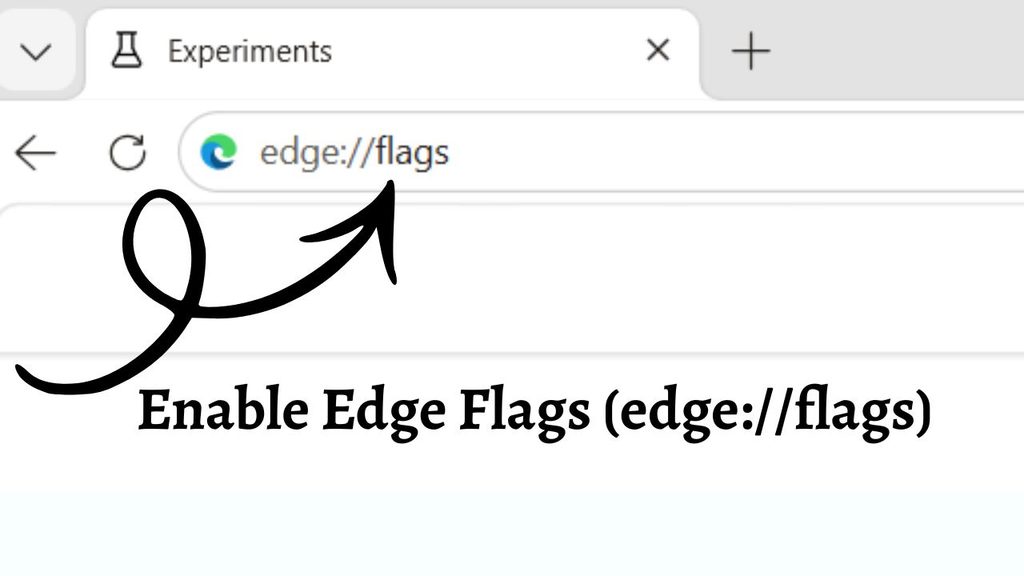
To enable Edge flags, open Microsoft Edge, type edge://flags in the address bar, and press Enter. Find the experimental feature you want to try, change its setting from Default to Enabled, and select Restart to relaunch the browser.
Before enabling a flag, read its description and change only one setting at a time.
This makes it easier to identify the cause if Edge starts behaving unexpectedly.
Step 1: Open Microsoft Edge
First, launch Microsoft Edge on your Windows computer.
Click the Edge icon on your taskbar or find Microsoft Edge through the Start menu. Wait for the browser window to open completely.
If Edge is already running, you don’t need to close it. You can access the flags page directly from an existing tab.
Make sure you’re using Microsoft Edge rather than another browser, such as Google Chrome. Although both browsers support experimental flags, their available settings and internal options can differ.
If you’re using an older version of Edge, consider updating it before testing experimental features. Newer versions may include changes to the flags page or remove flags that are no longer supported.
Step 2: Enter the Edge Flags Address
Once Microsoft Edge is open, click the address bar at the top of the browser window. This is the same place where you normally type a website address or search for something online.
Enter the following address:
edge://flags
Press Enter on your keyboard.
Microsoft Edge will open its experimental features page. You should see a heading related to experiments, a search box, and a list of available flags.
You don’t need to type https:// before the address. The edge:// format is a special internal address that opens a browser settings page rather than a regular website.
If the page doesn’t open, double-check that you typed the address correctly and that you’re using Microsoft Edge.
Step 3: Understand the Edge Flags Page
Before changing anything, take a moment to understand how the flags page works.
At the top, you’ll find a search box that helps you locate a specific experimental feature. Below it, Edge displays the flags available in your current browser version.
Each flag generally includes a name, a short description, and a dropdown menu. The dropdown usually contains options such as Default, Enabled, and Disabled.
The Default option allows Edge to use the browser’s predefined behavior for that flag. Depending on the feature, this may mean the experiment is inactive or controlled by the browser’s current configuration.
The Enabled option turns on the experimental behavior when the feature is supported and the required conditions are met.
The Disabled option turns off that experimental behavior, even if it would otherwise be enabled by default.
Keep in mind that the available options can vary between flags. Some features may require a browser restart, while others may depend on additional settings or hardware support.
Step 4: Search for the Flag You Want to Enable
The Edge flags page can contain many experimental settings, so scrolling through the entire list isn’t the easiest way to find a particular feature.
Instead, use the Search flags box near the top of the page.
Click the search box and type the name of the feature you want to test. You can also enter a relevant keyword if you don’t remember the complete flag name.
For example, if you’re looking for an experimental feature related to graphics, search for a relevant term such as graphics or GPU. Edge will filter the list to show matching results, if any are available in your version.
Read the flag’s description carefully before changing its setting. Make sure it relates to the feature you want to test.
If your search returns no results, the flag may have been removed, renamed, or made unavailable in your version of Edge. Avoid relying on outdated tutorials that refer to flags you can’t find.
Step 5: Enable the Selected Edge Flag
After locating the flag you want to try, look for the dropdown menu next to its name.
Click the dropdown and select Enabled.
The change may take effect only after you restart Microsoft Edge. Some flags also have additional options, so review the available choices carefully before selecting one.
Avoid enabling several unrelated flags at once. If you change multiple experimental settings together, it becomes harder to determine which one caused a problem.
Also, don’t enable a flag simply because its name sounds useful. Read its description and consider whether the feature is relevant to your needs.
If you don’t understand what a particular flag does, leave it set to Default until you have more information.
Step 6: Restart Microsoft Edge to Apply the Changes
After enabling a flag, look for the Restart button that appears on the flags page, usually near the bottom or in a notification area.
Click Restart to relaunch Microsoft Edge and apply the pending changes.
Save any unfinished work in browser-based applications before restarting. Although Edge may restore your open tabs, it’s better not to risk losing unsaved information.
Once the browser reopens, return to the feature you wanted to test and check whether it works as expected.
For example, if you enabled a supported experimental interface feature, look for the related interface change. If you enabled a performance-related flag, use the browser normally and observe whether anything changes.
Remember that an enabled flag doesn’t guarantee a visible improvement. Some experiments require specific hardware, operating system support, or additional configuration.
Step 7: Verify That the Edge Flag Is Enabled
After restarting Edge, open a new tab and enter edge://flags again.
Search for the flag you changed. Check whether its dropdown still displays Enabled.
If it does, the setting has been saved in the browser’s current configuration. However, this doesn’t necessarily mean the feature is functioning correctly or that every part of the experiment is available on your computer.
If the flag has returned to Default or is no longer listed, Edge may have changed its configuration, removed the experiment, or applied a browser update.
Some managed computers also have organizational policies that control browser settings. If you’re using a work or school computer and can’t change a flag, contact your IT administrator rather than attempting to bypass those restrictions.
Disable an Edge Flag if Something Goes Wrong
Experimental features can occasionally cause problems, such as browser instability, unexpected interface changes, or website compatibility issues.
If you notice problems after enabling a flag, open edge://flags and search for the setting you changed.
Click its dropdown and select Default to return the setting to Edge’s normal configuration. If the description recommends disabling the feature and you want to ensure the experiment is off, select Disabled instead.
Click Restart to relaunch the browser and apply the change.
If you enabled several flags and aren’t sure which one caused the issue, you can restore all flags to their default settings using the Reset all option on the flags page. Be aware that this resets your experimental flag settings, not every Edge browser setting.
If Edge won’t open normally, try launching it again after restarting Windows. If the problem persists, use Microsoft’s supported browser troubleshooting or recovery options.
Keep Microsoft Edge Updated to Get Latest Flags
Microsoft regularly updates Edge, and experimental flags can change between releases. A flag that exists today might be renamed, modified, or removed in a future version.
To check for updates, open Microsoft Edge and select Settings and more, represented by the three-dot menu in the upper-right corner.
Navigate to Help and feedback > About Microsoft Edge.
Edge will check for available updates and install them when appropriate. Restart the browser if prompted.
After updating, revisit edge://flags to see whether the experiment you use is still available and supported.
For everyday browsing, leave experimental settings at their defaults unless you have a specific reason to change them. This helps reduce the chance of browser problems and makes troubleshooting easier.
FAQs
1. Is it safe to enable Edge flags?
Generally, accessing the flags page is safe, but enabling experimental features can cause instability, unexpected behavior, or compatibility problems. Change only flags you understand, and reset them if issues occur.
2. How do I open edge://flags in Microsoft Edge?
Open Microsoft Edge, enter edge://flags in the address bar, and press Enter. The experimental features page will appear.
3. Why can’t I find a specific Edge flag?
Microsoft may have removed, renamed, or restricted the flag in your current browser version. Some flags are available only on particular operating systems or under certain conditions.
4. Do Edge flags improve browsing speed?
Some experimental flags may affect performance, but results vary by computer and browser version. Enabling a performance-related flag doesn’t guarantee faster browsing and can sometimes make Edge less stable.
5. How do I reset all Edge flags?
Open edge://flags and select Reset all. Then click Restart if prompted. This restores experimental flags to their default settings without resetting every browser setting.
6. Do I need administrator permission to enable Edge flags?
On a personal computer, you can generally change available flags without administrator permission. However, work or school devices may restrict experimental settings through organizational policies.
Summary
Edge flags (edge://flags) provide access to experimental features that aren’t necessarily available through Microsoft Edge’s regular settings.
To enable a flag, open Edge, enter edge://flags, search for the feature, select Enabled, and restart the browser. After restarting, check whether the feature works as expected.
Because these settings are experimental, avoid changing options unnecessarily.
If a flag causes problems, return it to Default or use Reset all to restore the experimental settings.