
Facebook Lock Profile Is Not Showing
Facebook’s Lock Profile feature is designed to give users more control over what people who are not their Facebook friends can see on their profile. When the feature is available, you can usually find Lock Profile in your profile’s menu and use it to apply additional privacy restrictions.
However, you may sometimes open your Facebook profile and discover that Lock Profile is not showing. This does not necessarily mean that your Facebook account is broken. The option can depend on where you live, the type of account you use, Facebook’s current feature availability, app version, and other account-related factors.
Facebook also changes its interface regularly, so the location or appearance of privacy controls can change over time. In addition, Facebook may temporarily restrict access to certain features if it detects unusual activity.
This guide explains why Facebook Lock Profile is not showing and walks you through several steps to try.
Why Is Facebook Lock Profile Not Showing?
There are several possible reasons why the Lock Profile option may be missing. The feature is not universally available to every Facebook account, so one of the first things to check is whether the feature is supported for your account and location.
Another possibility is that you are using an outdated Facebook app. Facebook frequently updates its menus and privacy settings, and an older application may not display the latest interface correctly.
The problem can also be caused by a temporary Facebook app glitch, corrupted app cache, an account restriction, or a temporary limitation affecting your account.
If Facebook has temporarily blocked certain features, you may see a message saying that you have been temporarily blocked or that you were using a feature too quickly. Facebook currently displays such messages on some account and login pages.
Facebook Lock Profile Is Not Showing
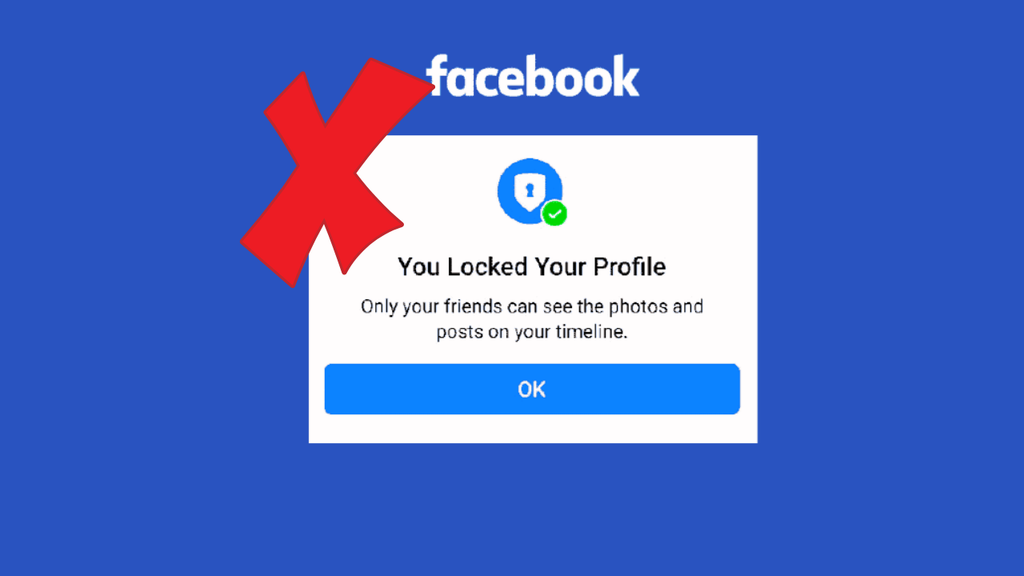
If Facebook Lock Profile is not showing, first check whether the feature is available for your account and location. Then update the Facebook app, restart it, clear its cache, check the privacy settings, and try accessing your profile from Facebook’s website. If the option still does not appear, the feature may not currently be available for your account.
Let’s explore the steps in detail!
Step 1: Check Your Facebook Profile Menu
The first thing you should do is make sure you are looking in the correct place. Facebook’s interface can be confusing, especially if you are using the application for the first time.
Open the Facebook app on your Android phone or iPhone. Make sure you are logged into the account for which you want to enable profile locking.
Tap your profile picture to open your profile. Once your profile appears, look for the three-dot button near the profile editing options. This button opens additional profile settings.
Tap the three dots and carefully look through the available options. Depending on your account and Facebook’s current interface, you may see options related to Profile Settings, Privacy, or Lock Profile.
If you see Lock Profile, tap it and follow the confirmation instructions.
If you do not see it, do not assume that you have missed the option. Continue with the following steps because Facebook does not make this feature available to every account in every situation.
Step 2: Check Whether Lock Profile Is Available for Your Account
The next step is to determine whether the missing option is actually an availability issue.
Lock Profile is not a universal Facebook setting that every user can necessarily activate. Facebook has historically made the feature available in selected locations and for eligible profiles.
This means that changing a setting on your phone cannot necessarily make the option appear if Facebook has not enabled the feature for your account.
You should therefore avoid downloading unofficial applications or using websites that claim they can force-enable Facebook Lock Profile. These services can put your Facebook account and login information at risk.
If another Facebook account on the same phone has the Lock Profile option while yours does not, that can be a useful indication that the difference is account-specific rather than a problem with your phone.
Step 3: Update the Facebook App
An outdated Facebook application can sometimes display an older version of Facebook’s menus.
Open the Google Play Store if you use Android, or the App Store if you use an iPhone. Search for Facebook and open its official app page.
If you see an Update button, tap it and allow the application to finish updating.
After the update has completed, open Facebook again and visit your profile. Tap the three-dot menu and check whether Lock Profile is now available.
Keeping Facebook updated is particularly useful when you notice that your menus look different from those shown in current Facebook instructions.
Step 4: Restart the Facebook App
Sometimes the application simply fails to load a particular menu correctly.
Close Facebook completely rather than simply returning to your phone’s home screen. On Android, open the recent apps screen and swipe Facebook away. On an iPhone, open the app switcher and swipe the Facebook app away.
Wait a few seconds and then open Facebook again.
Go back to your profile, tap the three-dot menu, and check for the Lock Profile option.
This simple step can refresh the application’s current session and may resolve a temporary interface problem.
Step 5: Clear Facebook’s Cache on Android
If you use an Android phone, clearing Facebook’s cache is another useful troubleshooting step.
Open your phone’s Settings application. The exact menu names can differ slightly depending on your Android phone manufacturer.
Look for Apps, Applications, or App Management. Open it and find Facebook.
Tap Facebook, select Storage or Storage & cache, and then choose Clear cache.
Do not select Clear data unless you understand what it does. Clearing the cache removes temporary files, while clearing application data can reset locally stored application information and may require you to sign in again.
After clearing the cache, reopen Facebook and check your profile menu again.
Step 6: Check Facebook From a Web Browser
The Facebook mobile application is not the only way to access your account. You can also check Facebook using a web browser.
Open a browser such as Chrome, Edge, Safari, or Firefox and visit Facebook’s website. Sign in to the same account.
Open your profile and look for the three-dot menu or other profile options.
If Lock Profile appears on the website but not in the mobile application, the issue may be related to the application’s interface rather than your account.
If the option is missing in both places, continue troubleshooting because the feature may simply not be available for your account.
Step 7: Check Your Privacy Settings
If Lock Profile is unavailable, you can still improve your Facebook privacy manually.
Open Settings & privacy from Facebook’s menu and select Settings. Look through the privacy-related options for controls governing who can see your posts, profile information, friend list, and other account details.
Pay particular attention to Who can see your future posts? and similar audience settings.
You can change the audience of future posts to Friends rather than Public. You can also review older posts and other profile information.
These settings do not necessarily provide exactly the same behavior as Lock Profile, but they can help you limit the amount of information visible to people who are not your friends.
Step 8: Check Whether Facebook Has Temporarily Restricted Your Account
If you recently performed many actions quickly, Facebook may temporarily restrict some features.
For example, Facebook currently displays temporary-block messages indicating that a feature may be unavailable because it was being used too quickly.
If you see a temporary restriction message, avoid repeatedly attempting the same action. Repeated attempts may not make the feature return immediately.
Instead, wait for the restriction to expire and then try again.
Also review Facebook’s notifications for any message explaining an account restriction or security issue.
Step 9: Log Out and Sign In Again
A temporary account-session problem can sometimes cause Facebook menus to behave unexpectedly.
Open Facebook’s menu and choose Log out. Confirm that you want to sign out.
After logging out, close the application completely. Open it again and sign back into your Facebook account.
Return to your profile and open the three-dot menu.
If the Lock Profile option was missing because of a temporary session problem, it may appear after signing in again. If it is still absent, continue to the final checks.
Step 10: Reinstall Facebook
If none of the previous steps work, reinstalling Facebook can eliminate problems caused by damaged application files.
On your phone, uninstall the Facebook application. Then open the Google Play Store or App Store and install Facebook again.
Sign in with your account after installation.
Visit your profile and check the menu again.
Remember that reinstalling the application cannot enable a feature that Facebook has not made available to your account. It is primarily a troubleshooting step for application-related problems.
Step 11: Use Facebook’s Privacy Controls Instead
If Lock Profile still does not appear after trying the previous steps, the most important thing is to understand that you may not be dealing with a technical problem.
Facebook controls feature availability from its own service. If the feature is unavailable for your account or location, changing your phone settings will not necessarily make it appear.
In that situation, use Facebook’s available privacy and audience controls to restrict your profile information and posts.
You should also periodically review your privacy settings because Facebook can change how its menus and controls are organized.
FAQs
Why can’t I see Lock Profile on Facebook?
The feature may not currently be available for your account or location. It can also be missing because of changes to Facebook’s interface, an outdated app, or a temporary account or application issue.
Can I force Facebook to show Lock Profile?
No reliable setting can force Facebook to enable a feature that is unavailable for your account. Avoid third-party websites or applications that claim they can activate Lock Profile for you.
Is Facebook Lock Profile available on every account?
No. Feature availability can vary, so the absence of the option does not automatically mean that your Facebook application is malfunctioning.
Why does another Facebook account have Lock Profile but mine does not?
Facebook features can be available differently between accounts. If another account has the option on the same phone while yours does not, this suggests that the difference may be related to account or feature availability rather than the device.
Will reinstalling Facebook enable Lock Profile?
Reinstalling Facebook can fix application problems, but it cannot guarantee that Lock Profile will appear. If Facebook has not enabled the feature for your account, reinstalling the application will not change that.
Can I make my Facebook profile private without Lock Profile?
Yes. You can manually adjust Facebook’s privacy and audience settings to control who can see your posts and other profile information. The available controls may differ from the complete Lock Profile experience.
Summary
When Facebook Lock Profile is not showing, the problem is not always caused by your phone or Facebook application. The feature’s availability can depend on your account, location, Facebook’s current interface, and other service-side factors.
Start by checking your profile’s three-dot menu, then update Facebook and restart the application. Android users can also clear Facebook’s cache. Next, check Facebook through a web browser, review your privacy settings, and look for any temporary account restrictions.
If the option remains missing after these steps, it may simply mean that Lock Profile is not currently available for your account.
In that case, Facebook’s regular privacy and audience controls provide an alternative way to limit who can see information and posts on your profile.