
What Is Fakepath in File Uploads? Meaning and Explanation
While uploading a file to a website, have you noticed something unusual in the file path? Instead of showing the actual location of your file, such as C:\Users\YourName\Downloads\document.pdf, the website displays something like C:\fakepath\document.pdf.
At first, this might look suspicious. You might wonder whether your computer has a virus, whether the website is hiding something, or whether your file is being uploaded from an unknown location.
Don’t worry. In most cases, C:\fakepath\ is a normal security feature used by modern web browsers. It helps protect your privacy by preventing websites from directly learning the full local path of a file selected through an HTML file upload field.
For example, if you select a photo from your Windows 11 computer and upload it to a website, the browser may display C:\fakepath\photo.jpg instead of revealing the actual folder where the photo is stored.
The important thing to understand is that Fakepath does not mean your file is fake, corrupted, or infected. It is simply a placeholder used in the file input field’s displayed value.
In this guide, we’ll explain what Fakepath means, why browsers use it, whether it affects file uploads, and what you should do if you encounter it while uploading files.
Fakepath (C:\fakepath) in File Uploads
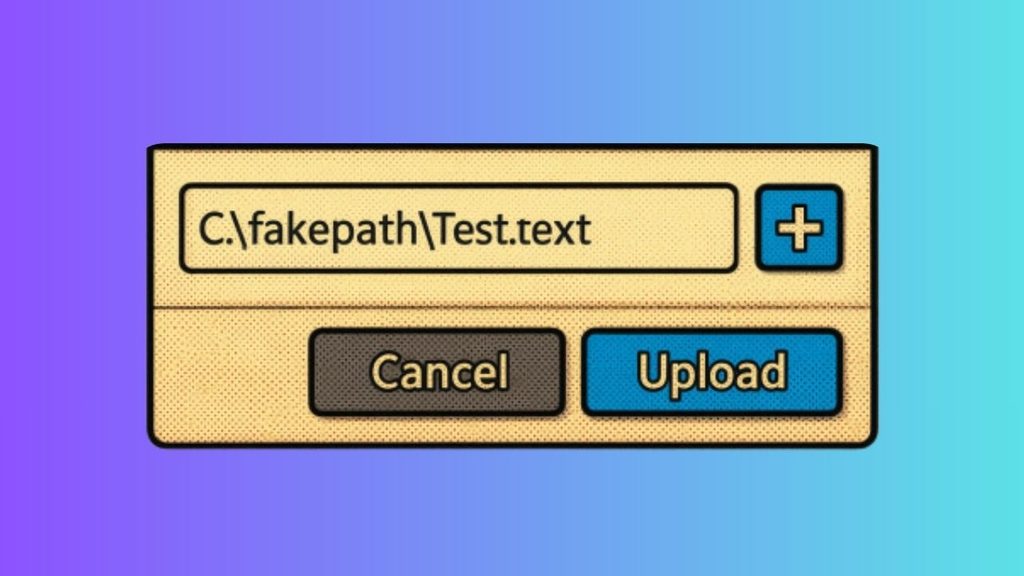
Fakepath is a placeholder path that browsers use to hide the real local file path when a user selects a file through an HTML file upload control. It commonly appears as C:\fakepath\filename.ext on Windows systems.
For example, imagine that you have a PDF file saved in this location:
C:\Users\Liam\Documents\Reports\invoice.pdf
When you select that file on a website, the file input field might display the following path:
C:\fakepath\invoice.pdf
Notice the difference. The filename remains visible, but the actual folder structure and user profile information are hidden.
This behavior is intentional. Browsers restrict access to local file paths because revealing them could expose private information about your computer, user account, or folder organization.
Understand Why C:\fakepath Appears
The C:\fakepath\ prefix usually appears when you select a file using an HTML file input element on a website.
For example, a website might display a form with a button labeled Choose File, Browse, or Upload Document.
When you click that button, your browser opens a file selection dialog. You choose a file from your computer, and the browser displays the selected filename in the form.
For security reasons, the browser generally does not expose the actual local path through the file input’s displayed value. Instead, it uses the C:\fakepath\ prefix for compatibility with older web applications that expect a path-like string.
This is especially common in Chromium-based browsers, including Google Chrome and Microsoft Edge, although the exact appearance can vary depending on the browser and operating system.
For example, suppose you select resume.docx from your Downloads folder. The displayed value may look like this:
C:\fakepath\resume.docx
This does not mean that your resume has moved to a folder named Fakepath. It simply means the browser is hiding the original location.
Understand How Fakepath Protects Your Privacy
Your computer may contain personal information in folder names and directory structures.
For example, a real file path could reveal your Windows account name, the names of private folders, or details about how you organize your documents.
Consider this example:
C:\Users\JohnSmith\Documents\JobApplications\resume.pdf
If a website could freely read the complete local path of every selected file, it might learn more about your computer than necessary.
By displaying a placeholder such as C:\fakepath\resume.pdf, the browser helps prevent the website from accessing that information through the file input’s value.
The main purpose of Fakepath is to protect local path information, not to hide the file’s contents after you upload it.
Once you upload a file, the website’s server may receive the file itself and any information included in the upload request. Therefore, Fakepath should not be considered a complete privacy or security solution.
You should still upload files only to websites you trust.
Know Whether Fakepath Means Your File Has Been Uploaded
One of the most common misunderstandings is that seeing C:\fakepath\ means the file has already been uploaded.
That is not necessarily true.
The Fakepath value usually appears immediately after you select a file, even before you submit the form or start the upload process.
For example, suppose you visit a website that allows you to upload a profile picture.
First, you click Choose File and select profile.jpg. The file input may then display C:\fakepath\profile.jpg.
At this point, you have selected the file, but the website may not have received it yet.
Next, you click Upload, Submit, or another button that starts the upload process. The browser then sends the file to the website according to the form’s configuration.
Finally, the website processes the upload and may display a success message.
Therefore, selecting a file and uploading a file are two different actions. Fakepath generally indicates the selected filename in the file input field, not the upload’s completion status.
Understand How Websites Access the Selected File
You might wonder how a website can upload your file if the browser hides its real path.
The answer is that the browser provides controlled access to the selected file through web APIs.
When you choose a file, JavaScript running on the page can generally access the selected file through the file input element’s files property. This provides a File object containing information such as the filename, file size, MIME type when available, and the file’s contents through permitted APIs.
For example, a developer can use JavaScript to read the selected filename:
const input = document.querySelector(‘input[type=”file”]’);
if (input.files.length > 0) {
console.log(input.files[0].name);
}
If you select report.pdf, this code can return report.pdf without needing the full local path.
The website can then upload the selected file using a form submission or an API request.
The distinction is important: the browser restricts access to the real local path while still allowing websites to process files that you explicitly select.
Websites do not need the complete Windows directory path to upload your documents, images, or other supported files.
Know Whether You Should Remove C:\fakepath\ Manually
In most situations, you do not need to remove or change the Fakepath value.
If you are simply uploading a document through a website, leave the field as it is and continue with the upload process.
However, if you are developing a website and your code is attempting to use the displayed file input value as the actual file location, you should change the approach.
For example, this code reads the displayed value:
const input = document.querySelector(‘input[type=”file”]’);
console.log(input.value);
The result may contain C:\fakepath\report.pdf. That value is not a reliable way to obtain the actual local file location.
Instead, use the selected file object:
const input = document.querySelector(‘input[type=”file”]’);
if (input.files.length > 0) {
const file = input.files[0];
console.log(file.name);
console.log(file.size);
console.log(file.type);
}
This approach lets the website access the selected file’s permitted metadata without depending on the placeholder path.
Do not attempt to remove Fakepath to discover the user’s real local directory. Modern browsers intentionally restrict that information, and ordinary file upload functionality does not require it.
Fix File Upload Problems If Fakepath Appears
Although Fakepath itself is normal, you may occasionally experience an upload problem at the same time.
For example, a website might display C:\fakepath\document.pdf, but clicking the upload button does nothing.
In that situation, troubleshoot the upload process rather than treating Fakepath as the cause.
First, check the file selection. Click the file selection button again and choose the correct document. Make sure the filename appears in the field.
Second, check the website’s file requirements. Some websites accept only specific formats, such as PDF, JPG, PNG, or DOCX. Others impose maximum file sizes.
Third, check your internet connection. A weak or interrupted connection can prevent a file from reaching the server.
Fourth, refresh the website if appropriate. If the upload form has become unresponsive, refreshing the page may help. However, you may lose any unsaved form information, so save your work first when possible.
Fifth, try another browser. If the upload fails repeatedly in Chrome, you can test the same website in Microsoft Edge or another supported browser.
Finally, check for a website-side error. If the file meets all the requirements and uploads fail across multiple browsers, the website’s server or upload service may be experiencing a problem.
Remember that the appearance of C:\fakepath\ is expected behavior. You should investigate the actual error message or upload failure instead.
FAQs
1. What does C:\fakepath\ mean?
C:\fakepath\ is a placeholder commonly displayed by browsers when you select a file through a website’s file upload field. It hides the actual local directory path while preserving the selected filename.
2. Is C:\fakepath\ a virus or malware?
No. The path itself is not evidence of a virus or malware infection. It is a normal browser security feature. However, you should still use trusted websites and scan suspicious files when appropriate.
3. Why does Chrome show C:\fakepath?
Chrome uses this placeholder when displaying the value of a file input field. It prevents the actual local path from being exposed through that value.
4. Does Fakepath mean my file has been uploaded?
No. Fakepath generally appears when you select a file. The upload may not begin until you submit the form or click the website’s upload button.
5. Can I change C:\fakepath\ to my actual file path?
You generally cannot use the file input’s displayed value to retrieve the actual local path. This restriction is intentional. Websites should use the selected file object to process the file instead.
6. Does Fakepath affect the quality or contents of my file?
No. The placeholder does not modify the file or reduce its quality. The file is handled separately by the browser’s file selection and upload mechanisms.
7. Can a website access my files through Fakepath?
Selecting a file allows a website to access that selected file through permitted browser APIs. However, the Fakepath value does not grant the website access to every file on your computer or reveal the complete local directory path.
8. Why does C:\fakepath\ appear even when I am not using Windows?
The exact placeholder and path display depend on the browser and operating system. The familiar C:\fakepath\ format is especially associated with Windows-style file input behavior. Other environments may display the filename differently.
Summary
Fakepath in file uploads is a normal browser security feature, not a suspicious folder or a sign of malware. When you select a file on a website, your browser may display a placeholder such as C:\fakepath\document.pdf instead of revealing the file’s actual location.
This helps protect information about your computer’s directory structure while still allowing the website to process the file you selected.
You do not need to remove Fakepath, change it manually, or search for a corresponding folder on your computer. If an upload fails, check the website’s file requirements, your internet connection, and the upload process itself.
For website developers, the correct approach is to access selected files through the file input’s files property rather than relying on the displayed path.
In short, Fakepath hides the local file path, not the selected file itself. You can safely ignore it during normal file uploads and continue using the website as intended.