
Find If RAM Is Running in Single-Channel or Dual-Channel in Windows 11/10
Have you ever wondered whether your computer’s RAM is running in single-channel or dual-channel mode? If you’re planning to upgrade your memory, improve gaming performance, or get more out of your PC, checking your RAM configuration is a smart place to start.
Your computer’s RAM does more than determine how many applications you can run at once. The way your memory is installed and configured can also affect how quickly your processor accesses data. For example, two compatible RAM sticks running in dual-channel mode can provide more memory bandwidth than a single stick running in single-channel mode.
The tricky part is that Windows doesn’t clearly display your RAM’s channel configuration in its standard Settings app or Task Manager. You’ll usually need a system information utility, such as CPU-Z, to check it.
In this guide, you’ll learn how to find out whether your RAM is running in single-channel or dual-channel mode in Windows 11 and Windows 10.
Understand Single-Channel and Dual-Channel RAM
Single-channel memory uses one memory channel for communication between the memory controller and RAM. A single RAM stick in a compatible system often runs in single-channel mode, although the exact behavior depends on the platform.
Dual-channel memory allows the memory controller to access memory across two channels, increasing available memory bandwidth compared with a comparable single-channel configuration.
For example, two compatible 8 GB modules installed in the correct slots on a supported motherboard can provide 16 GB of dual-channel memory. A single 16 GB module on the same system will typically operate in single-channel mode.
Dual-channel operation can improve performance in some workloads, especially tasks that depend heavily on memory bandwidth. Integrated graphics can also benefit because they often use system RAM.
However, the performance difference varies by application, processor, graphics hardware, and memory speed. Dual-channel RAM won’t automatically make every program twice as fast.
How to Find If RAM Is Single-Channel or Dual-Channel
The easiest way to check whether your RAM is running in single-channel or dual-channel mode is to use CPU-Z. Download and open CPU-Z, select the Memory tab, and look for the Channel # field. If it displays Single, your memory is operating in single-channel mode. If it displays Dual, your memory is operating in dual-channel mode.
You can also use HWiNFO to inspect your memory configuration and Task Manager to check your installed RAM capacity and usage. Keep in mind that having two RAM sticks doesn’t automatically guarantee dual-channel operation.
The motherboard, memory slots, and hardware configuration all matter.
1: Check Your Installed RAM in Task Manager
Before using a third-party tool, check how much RAM your computer has installed. This won’t reliably tell you whether the memory is running in single-channel or dual-channel mode, but it gives you useful information for the next steps.
Press Ctrl + Shift + Esc to open Task Manager. If you see a simplified window, click More details.
In Windows 11, select Performance and then Memory. In Windows 10, open the Performance tab and select Memory.
You’ll see your total installed RAM, current memory usage, speed, and other details. Depending on your system, Task Manager may also show the number of memory slots in use.
For example, if you have 16 GB of RAM and Task Manager reports that two of four slots are being used, your computer may have two memory modules installed.
However, this information doesn’t confirm dual-channel mode. Some motherboards have specific slot arrangements, and the way the modules are installed determines whether the memory operates in the expected configuration.
Use Task Manager as a starting point, then move on to CPU-Z for a more direct check.
2: Download and Install CPU-Z
CPU-Z is a free system information utility that displays details about your processor, motherboard, memory, and other hardware components. It’s one of the simplest ways to identify your RAM’s channel mode.
Open your web browser and visit the official CPU-Z website. Download the Windows version that matches your needs. You can choose the installer or a ZIP package if one is available.
If you download the installer, open the downloaded file and follow the setup instructions. If you choose the ZIP version, extract the files and run the appropriate CPU-Z executable.
You may see a User Account Control prompt asking whether you want to allow the app to make changes. Review the prompt and continue if you’re comfortable running the program.
Once CPU-Z opens, you’ll see several tabs across the top, including CPU, Mainboard, Memory, and SPD.
You don’t need to change any settings. The information you need is available directly in the application’s interface.
3: Find the RAM Channel Mode in CPU-Z
Now comes the important part. CPU-Z can show whether your system memory is currently operating in single-channel or dual-channel mode.
Open CPU-Z and select the Memory tab.
Look for the section containing general memory information. Depending on the CPU-Z version and your platform, the field may be labeled Channel # or use slightly different wording.
Check the value displayed beside it.
If the field shows Single, your RAM is operating in single-channel mode. If it shows Dual, your system is using dual-channel memory operation.
Some newer platforms may display additional channel information, such as multiple active memory subchannels. The exact wording can vary depending on the processor and memory technology, so don’t assume every system will display the same label.
You may also see your memory type, DRAM frequency, and timings on this tab. These details can help you understand your memory configuration, but the channel field is the main item to check for this task.
If CPU-Z shows Dual, your system is using a dual-channel configuration. If it shows Single, continue to the next steps to investigate whether your motherboard supports dual-channel memory and whether your modules are installed correctly.
4: Check Your RAM Modules in the SPD Tab
CPU-Z’s SPD tab provides information about the individual memory modules installed in your computer. This can help you understand how many modules are detected and whether they have matching specifications.
Open CPU-Z and select SPD.
Look for the Memory Slot Selection dropdown menu. Depending on your motherboard and CPU-Z version, it may list slots such as Slot #1, Slot #2, Slot #3, and Slot #4.
Select each available slot and review the information displayed. If a slot contains a detected RAM module, CPU-Z may show its module size, manufacturer, part number, and supported memory profiles.
For example, you might find an 8 GB module in one slot and another 8 GB module in a different slot. That suggests you have 16 GB of physical RAM across two modules.
However, the SPD tab doesn’t directly prove that the modules are running in dual-channel mode. For that, return to the Memory tab and check the channel field.
Also, a slot listed in the dropdown doesn’t necessarily mean it contains a module. Some slots may be empty, and some laptops or systems expose limited information through SPD.
5: Use HWiNFO to Check Your Memory Configuration
If you prefer another hardware information tool, HWiNFO is a useful alternative. It provides detailed information about your computer’s processor, motherboard, memory modules, and supported hardware features.
Visit the official HWiNFO website and download the appropriate Windows version. Install or extract the application according to the package you selected.
Launch HWiNFO and review the system summary or the detailed hardware tree. Look for the memory section and any available information about memory mode, channels, or the installed modules.
The exact labels depend on your processor, motherboard, and version of HWiNFO. Some systems may show the channel configuration directly, while others provide module and controller information that requires additional interpretation.
If the utility clearly reports dual-channel operation, your memory controller is using that mode. If it reports single-channel operation, investigate your module arrangement and motherboard specifications.
Don’t confuse the number of detected RAM sticks with the number of active memory channels. A computer can have multiple modules installed without using the expected channel configuration.
6: Check Your Motherboard’s RAM Slot Arrangement
If your RAM is running in single-channel mode even though you have two memory sticks, check your motherboard’s memory slot arrangement.
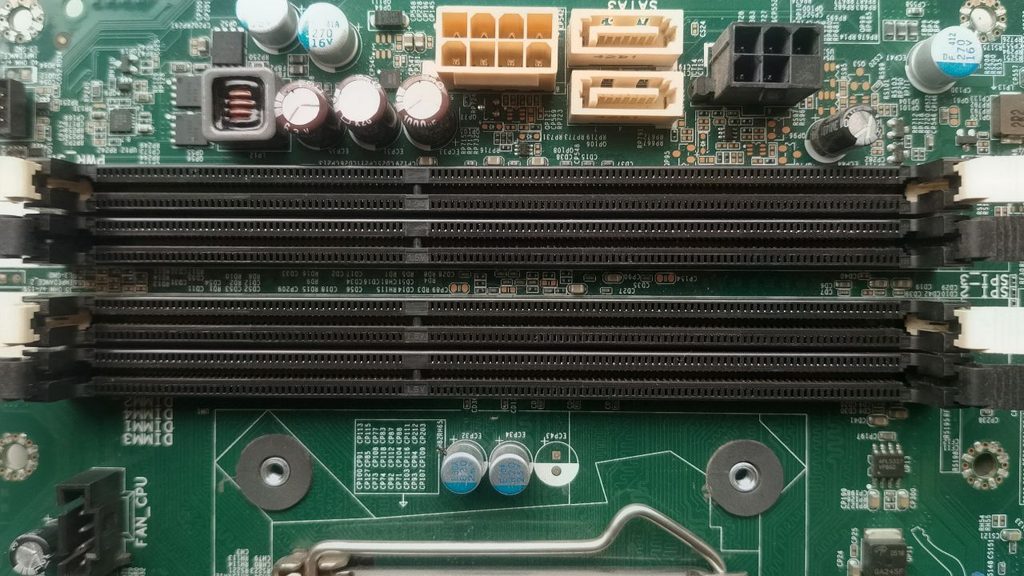
Desktop motherboards often have four RAM slots, commonly labeled A1, A2, B1, and B2. These labels represent different memory channels and slot positions. The recommended slots for two modules are often A2 and B2, but this isn’t universal.
Shut down your computer completely and unplug the power cable before opening the case. If you’re using a laptop, check the manufacturer’s upgrade instructions before attempting to access its memory.
Consult your motherboard manual to find the recommended slots for a two-module configuration. If the manual specifies A2 and B2, for example, make sure the modules are installed in those positions.
Never move RAM modules while the computer is powered on. If you’re unfamiliar with computer hardware, ask a qualified technician to help.
After reinstalling the modules according to the manual, turn on your computer and open CPU-Z again. Check the Memory tab to see whether the channel mode has changed.
Fix Single-Channel RAM if You Expected Dual-Channel Mode
If CPU-Z reports Single but you expected Dual, start by checking whether your computer supports dual-channel memory. Consult the motherboard or laptop manufacturer’s specifications.
Next, verify the number of installed modules and their placement. If your system has two compatible RAM sticks, confirm that they’re installed in the recommended slots.
Check whether the modules are compatible with your motherboard and processor. Mixing different capacities or memory specifications may work on some systems, but the resulting configuration can vary. Certain platforms support flexible memory operation, where part of the memory runs in dual-channel mode, and the remaining capacity operates differently.
If the modules are installed correctly and the problem continues, check for a BIOS or firmware update from your computer or motherboard manufacturer. Follow the manufacturer’s instructions carefully and avoid interrupting a firmware update.
After making changes, restart Windows and check CPU-Z again. If the system still reports Single, consult the motherboard documentation or a qualified technician to investigate possible hardware or compatibility limitations.
FAQs
1. How do I know if my RAM is single-channel or dual-channel?
Open CPU-Z, select the Memory tab, and check the Channel # field. It typically displays Single or Dual, depending on your system’s configuration.
2. Does having two RAM sticks mean dual-channel is enabled?
Not necessarily. The motherboard must support dual-channel memory, and the modules must be installed in a compatible arrangement. Check CPU-Z to confirm the active mode.
3. Can I check RAM channels without opening my PC?
Yes. CPU-Z and HWiNFO can report memory channel information without requiring you to open your computer. Task Manager alone generally doesn’t provide a definitive channel-mode reading.
4. Is dual-channel RAM faster than single-channel RAM?
Dual-channel memory provides greater potential memory bandwidth. It can improve performance in certain applications and games, but the actual benefit depends on your hardware and workload.
5. Can I use different RAM sizes in dual-channel mode?
Some systems support mixed memory capacities and can operate in dual-channel mode across part of the memory. The remaining capacity may operate in a different mode. Check your motherboard or laptop documentation for supported configurations.
Summary
Finding out whether your RAM is running in single-channel or dual-channel mode is straightforward with the right tool. Start by checking your installed memory in Task Manager, then open CPU-Z and look at the Memory tab for the channel information.
If you discover that your RAM is running in single-channel mode unexpectedly, check your motherboard’s specifications, verify the module arrangement, and confirm that your memory is compatible.
For most users, CPU-Z is the easiest starting point because it provides a direct reading of the current memory channel configuration without requiring you to open your computer.