
Find Jack Information for Sound Devices in Windows 11/10
Have you ever plugged headphones, speakers, or a microphone into your computer and wondered which audio jack you’re supposed to use? Maybe your headphones aren’t working, your microphone isn’t detected, or you’re trying to figure out whether a particular port supports audio input or output.
Windows 11 and Windows 10 offer several ways to check your audio devices and their available connections. Depending on your computer and sound driver, you may also be able to view detailed audio jack information, including connected devices, supported ports, and audio connection settings.
In this guide, you’ll learn how to find jack information for sound devices in Windows 11/10, use the Sound settings and Device Manager, check your audio driver software, and troubleshoot common audio jack problems.
Let’s start!
Find Jack Information for Sound Devices in Windows 11/10
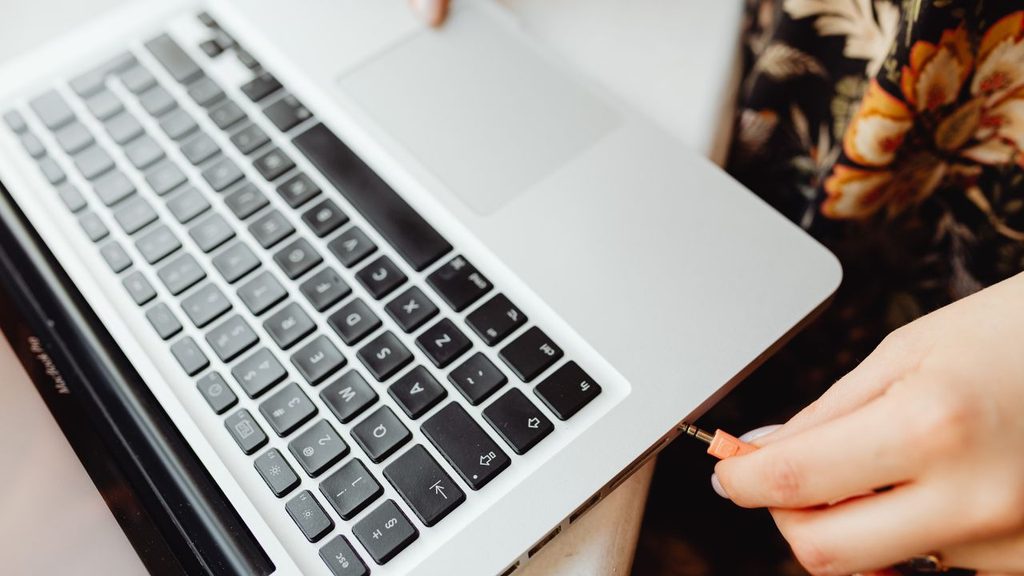
To find jack information for sound devices in Windows 11/10, open Settings and check your audio devices, inspect the Sound control panel, and look for additional connection details in your sound card manufacturer’s software. If you need driver-level information, Device Manager can help you identify the audio hardware and its driver.
Keep in mind that Windows doesn’t show a complete list of physical audio jack details on every computer.
The available information depends on your sound card, audio driver, motherboard, and manufacturer software.
Step 1: Check Your Available Audio Devices in Windows Settings
The easiest place to start is the Windows Sound settings page. It shows the audio devices Windows recognizes and helps you determine whether your headphones, speakers, or microphone are available.
Press Windows + I to open Settings.
In Windows 11, select System > Sound. Under the Output section, check the available playback devices. These may include speakers, headphones, a monitor with built-in speakers, or a USB audio device.
Scroll to the Input section to check the microphones Windows can use. If you have connected a headset with a microphone, look for a corresponding input device.
In Windows 10, navigate to System > Sound. Check the Choose your output device and Choose your input device menus.
If your device appears, select it and check whether it works. If it doesn’t appear, make sure the cable is connected properly and continue with the next methods.
Remember that this page identifies audio devices, not necessarily every physical jack on your computer.
Step 2: Open the Classic Sound Control Panel
The classic Sound control panel provides additional information about playback and recording devices. It’s especially useful when you want to check whether Windows recognizes your headphones or microphone.
Press Windows + R to open the Run dialog box. Type mmsys.cpl and press Enter.
The Sound window will open. Select the Playback tab to see your output devices, such as speakers and headphones.
Next, select the Recording tab to check your microphones and other recording devices.
If a connected device appears but is disabled, right-click it and select Enable, if that option is available. You can also right-click an empty area of the device list and enable Show Disabled Devices or Show Disconnected Devices to reveal additional entries.
Double-click a device to open its properties. Depending on the device, you may find settings related to levels, supported audio formats, enhancements, or other playback and recording options.
This window won’t always identify the physical jack used by a device, but it can help you confirm whether Windows detects the audio connection.
Step 3: Check Your Audio Jack Information in Realtek Audio Console
Many Windows computers use Realtek audio hardware. If your computer has a compatible Realtek driver, Realtek Audio Console may provide information about the available audio ports and connected devices.
Open the Start menu and search for Realtek Audio Console. If the application is installed, launch it.
Look for a section labeled Device advanced settings, Connector settings, or something similar. The exact wording depends on your version of the application and your computer manufacturer.
On supported systems, you may see options related to front and rear audio connectors, headphone detection, microphone connections, or the behavior of individual jacks.
For example, some desktop computers have separate ports for headphones or speakers, a microphone, and line input. The software may help you identify the function of each supported connector.
If the application lets you select the device connected to a jack, choose the correct option and save the setting if required.
If Realtek Audio Console isn’t installed, don’t download it from an unfamiliar website. Check your PC or motherboard manufacturer’s official support page for the appropriate audio driver and companion software.
Also, keep in mind that not every Realtek system exposes detailed jack information through this application.
Step 4: Identify Your Sound Hardware Using Device Manager
Device Manager helps you identify the audio hardware installed on your computer. This can be useful when you need to find the correct driver or determine which manufacturer provides your sound software.
Press Windows + X and select Device Manager.
Find and expand Sound, video and game controllers. You may see entries such as Realtek Audio, Intel Smart Sound Technology, or another audio device.
Right-click your audio device and select Properties. Open the General tab to check its status. If Windows reports that the device is working properly, the driver is at least being recognized by the operating system.
Select the Driver tab to view information such as the driver provider, date, and version.
You can also check Details and use the Property dropdown to inspect available hardware identifiers or other device information.
Device Manager generally doesn’t display the complete physical jack layout. However, identifying the sound hardware can help you find the manufacturer’s documentation or audio utility that provides more detailed connector information.
Step 5: Check the Front and Rear Audio Ports on Your Computer
Desktop computers often have several audio connectors. Knowing what each port does can help you connect the right device without changing unnecessary Windows settings.
Look at the front or top panel of your computer case. You may find a headphone symbol, a microphone symbol, or separate headphone and microphone jacks.
Next, check the rear panel of your computer, where the motherboard’s audio connectors are usually located.
On many desktop systems, a green connector is used for line-level speaker output or front speakers, while a pink connector is commonly used for a microphone. A blue connector may be used for line input. However, color coding and port functions can vary by device, so don’t rely on color alone.
Check your computer or motherboard manual to confirm the purpose of each port.
If your headset has a single four-pole 3.5 mm plug but your desktop has separate headphone and microphone jacks, you may need a compatible headset splitter. A splitter designed for this purpose separates the headset’s audio output and microphone input.
After connecting the device, return to Windows Sound settings and check whether the correct playback or recording device appears.
Step 6: Check Advanced Audio Properties
Windows provides additional properties for some sound devices. These settings can help you troubleshoot connection problems, although they don’t always show physical jack details.
Open the classic Sound window by pressing Windows + R, entering mmsys.cpl, and pressing Enter.
Under the Playback tab, select your speakers or headphones and click Properties.
Check the Advanced tab, if available. You may see the default audio format and options related to exclusive-mode applications. These settings affect how Windows handles audio playback rather than identifying the physical connector itself.
For microphones, open the Recording tab, select the appropriate device, and click Properties. Depending on your hardware and driver, you may find options for microphone levels, enhancements, or other recording settings.
Avoid changing multiple advanced settings at once. If you change a setting and the audio stops working properly, return it to its previous value.
Step 7: Update or Reinstall Your Audio Driver
If Windows doesn’t recognize a connected audio device, the audio driver may be missing, outdated, or incompatible.
Open Device Manager and expand Sound, video and game controllers.
Right-click your audio device and select Update driver. Choose Search automatically for drivers and follow the instructions.
If Windows doesn’t find a suitable driver, visit your computer manufacturer’s official support website. Search using your PC model and download the audio driver designed for your Windows version.
Install the driver and restart your computer if requested. Then reconnect your headphones or microphone and check the Sound settings again.
If the problem started after a driver update, open the device’s Properties window and check whether Roll Back Driver is available. Use it only when an earlier driver is appropriate for your hardware.
Avoid uninstalling every audio-related device indiscriminately, especially if you aren’t sure which component controls your sound hardware.
Troubleshoot a Headphone or Microphone Jack That Isn’t Working
If you know which jack to use but your device still doesn’t work, check the connection before changing more advanced settings.
Disconnect the headphones or microphone and reconnect them firmly. If you’re using a desktop, try the corresponding rear port instead of the front-panel connector, or vice versa.
Test the headphones or microphone on another compatible device to check whether the accessory itself works. If you’re using a headset with a combined plug, confirm that your computer supports its connection type.
Next, open Settings > System > Sound and select the correct output or input device. For a microphone, check its input volume and make sure the app you’re using has permission to access the microphone.
If the device remains undetected, inspect the manufacturer’s audio software for jack-detection settings. Some systems let you change how a connector is identified, while others manage detection automatically.
If none of these checks work, the jack, cable, or audio hardware may need further inspection.
FAQs
1. Where can I find audio jack information in Windows 11?
Start with Settings > System > Sound to check recognized audio devices. For more detailed connector information, check your sound card manufacturer’s software, such as Realtek Audio Console, if supported.
2. Can Windows show which physical audio jack I’m using?
Not always. Windows can show recognized playback and recording devices, but identifying the exact physical port often depends on the audio driver or manufacturer utility.
3. Why isn’t my headphone jack showing up?
Your headphones may be connected to an unsupported port, the audio driver may be missing, or the hardware may not detect the connection correctly. Check Sound settings, reconnect the headphones, and verify the driver.
4. How do I identify the microphone jack on a desktop PC?
Look for a microphone symbol and check your computer or motherboard manual. Many desktops use a pink connector for microphone input, but port colors and layouts aren’t universal.
5. Do I need Realtek Audio Console to view jack information?
No. It’s only useful on compatible systems that use supported Realtek audio hardware and drivers. Other computers may provide jack information through a different manufacturer’s utility or documentation.
Summary
Finding jack information for sound devices in Windows 11/10 starts with checking Settings > System > Sound and the classic Sound control panel. These tools help you identify the playback and recording devices Windows recognizes.
For more specific connector details, check Realtek Audio Console or your computer manufacturer’s audio utility. Device Manager can help identify your sound hardware and its driver, while your PC or motherboard manual can confirm the purpose of each physical port.
If a headphone or microphone jack isn’t working, verify the connection, select the correct audio device, and check the driver.
These steps should help you understand your computer’s audio connections and troubleshoot common sound problems.