
Fix a “Printer in Error State” on Windows 11 [Guide]
Have you just opened Windows Settings, checked your printer, and seen a frustrating message: “Printer in Error State”? No matter how many times you click Print, nothing happens.
This problem is pretty common among Windows 11 users. It can occur with USB printers, wireless printers, and network printers. Sometimes, the issue comes from something simple, like a paper jam or a disconnected cable.
In other cases, a corrupted print queue, outdated printer driver, or malfunctioning Print Spooler service may be responsible.
In this guide, I’ll walk you through the best ways to fix the Printer in Error State problem in Windows 11.
Fix a “Printer in Error State” on Windows 11
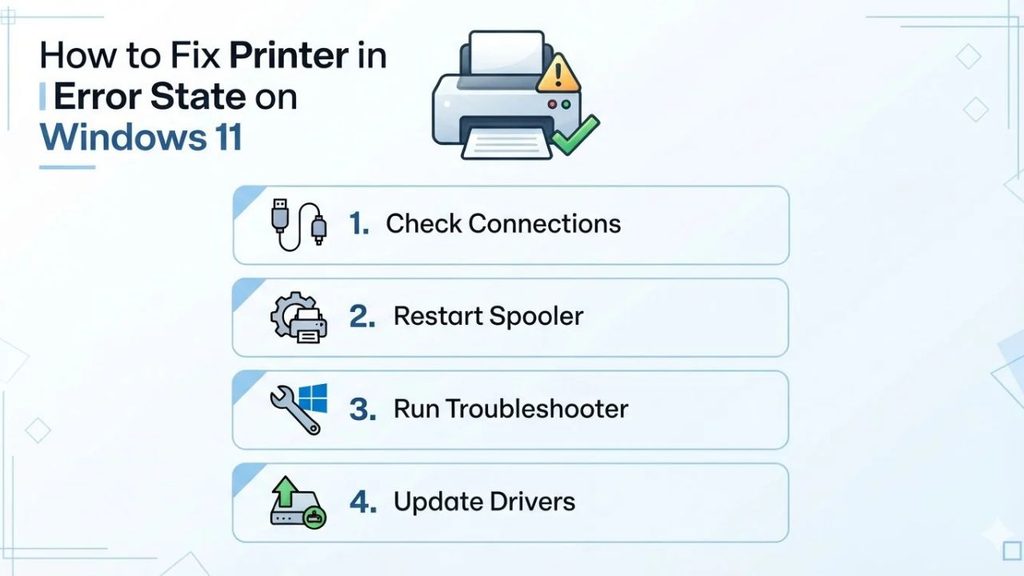
The “Printer in Error State” message in Windows 11 usually means your computer cannot communicate properly with the printer or the printer has encountered a hardware or software problem. You can often fix it by checking the printer’s physical condition, restarting the Print Spooler service, clearing stuck print jobs, updating the printer driver, or reinstalling the device.
Before trying advanced solutions, check whether your printer has paper, enough ink or toner, and a working connection.
If everything looks fine, follow the troubleshooting methods below in order.
1: Check Your Printer for Physical Problems
Before changing Windows settings, make sure your printer is ready to print. Sometimes, the error has nothing to do with Windows.
Start by checking the printer’s display panel. If you see an error message, such as Paper Jam, Low Ink, or No Paper, address that issue first.
Open the paper tray and make sure the paper is loaded correctly. Remove any crumpled sheets and adjust the paper guides so they fit the paper size. If your printer has a paper jam, carefully remove the stuck paper according to the manufacturer’s instructions.
Next, check the ink or toner cartridges. Make sure they’re installed correctly and haven’t run out of ink or toner.
Also, check whether the printer’s cover is completely closed. Some printers won’t operate if a cartridge door or paper tray isn’t properly secured.
Once you’ve checked everything, restart the printer and try printing a test page.
2: Restart Your Printer and Computer
A simple restart can resolve temporary communication problems between Windows and your printer.
First, turn off your printer using its power button. Unplug the power cable from the electrical outlet and wait approximately 30 seconds.
Reconnect the power cable and turn the printer back on. Allow it to complete its startup process.
Now, restart your Windows 11 computer. Click Start > Power > Restart and wait for Windows to load.
If you’re using a USB printer, check that the cable is securely connected to both the printer and your computer. If possible, try another USB port.
For a wireless printer, make sure your computer and printer are connected to the same Wi-Fi network. If your printer uses a separate network connection, check its wireless settings.
After restarting both devices, open a document and try printing again. If the error remains, continue to the next method.
3: Run the Windows Printer Troubleshooter
Windows 11 includes automated troubleshooting tools that can identify and fix common printer problems.
Press Windows + I to open Settings. Navigate to System > Troubleshoot > Other troubleshooters.
Look for the printer troubleshooting option. Depending on your Windows 11 version, you may be directed to use the Get Help app.
Open the printer troubleshooter and follow the instructions on your screen. It may check the printer connection, identify a problem with the printing service, or suggest a solution.
Allow the troubleshooter to complete its checks. If it recommends a fix, apply it and restart your computer if requested.
Once the process finishes, try printing a test page.
If Windows cannot identify the problem, don’t worry. You can continue with the manual troubleshooting methods below.
4: Clear the Stuck Print Queue
A stuck document in the print queue can prevent other documents from printing. Windows may continue displaying the error even when the printer itself is working correctly.
To clear the queue, open Settings > Bluetooth & devices > Printers & scanners.
Select your printer and click Open print queue. A new window will display the documents waiting to be printed.
If you see a document that is stuck, right-click it and select Cancel. Repeat this process for any other pending documents.
Wait a few moments for the queue to clear. If the documents refuse to disappear, you may need to restart the Print Spooler service.
After clearing the queue, try printing a new document.
5: Restart the Print Spooler Service
The Print Spooler is a Windows service that manages print jobs. It sends documents to your printer and keeps track of the printing process.
If this service stops working, your printer may display an error state.
Press Windows + R to open the Run dialog box. Type services.msc and press Enter.
The Services window will appear. Scroll down and locate Print Spooler.
Right-click the service and select Restart. If the Restart option is unavailable, select Start if the service is stopped.
You can also double-click Print Spooler to open its properties. Check that the service is running and that its startup type is set appropriately. Windows normally uses an automatic startup configuration for this service.
Click Apply if you changed a setting, then select OK.
Close the Services window and try printing again.
If the service keeps stopping, an outdated or conflicting printer driver may be responsible. Continue with the next steps.
6: Clear the Print Spooler Files Manually
If restarting the Print Spooler doesn’t fix the problem, corrupted temporary print files may be causing the error.
This method requires you to remove files from the Windows print queue folder. Make sure you follow the instructions carefully.
Press Windows + R, type services.msc, and press Enter.
Find Print Spooler, right-click it, and select Stop.
Now open File Explorer by pressing Windows + E. Click the address bar and enter:
C:\Windows\System32\spool\PRINTERS
Press Enter to open the folder.
You may see temporary files related to pending print jobs. Select the files inside this folder and delete them. Do not delete the PRINTERS folder itself or files from other Windows system folders.
If Windows asks for administrator permission, approve the request.
Return to the Services window, right-click Print Spooler, and select Start.
Restart your printer and try printing again. Clearing these temporary files removes stuck jobs, so you may need to resend documents that were waiting in the queue.
7: Update the Printer Driver
An outdated, corrupted, or incompatible printer driver can prevent Windows 11 from communicating correctly with your printer.
Press Windows + X and select Device Manager.
Expand the Print queues section. Depending on your printer, you may also find it under Printers.
Right-click your printer and select Update driver. Choose Search automatically for drivers and follow the instructions.
If Windows cannot find a suitable driver, visit the printer manufacturer’s official website. Search for your exact printer model and download the driver designed for Windows 11.
For example, if you’re using an HP, Canon, Epson, or Brother printer, use the official support page for that manufacturer.
Install the downloaded driver and restart your computer.
Avoid downloading printer drivers from unfamiliar websites. Installing the wrong driver can create additional problems or prevent your printer from working correctly.
After the restart, check whether the printer is still showing an error state.
8: Remove and Reinstall the Printer
If the printer still isn’t working, removing and reinstalling it can refresh its connection with Windows.
Open Settings > Bluetooth & devices > Printers & scanners.
Select your printer and click Remove. Confirm the removal when Windows asks.
Now make sure the printer is turned on and connected to your computer or Wi-Fi network.
Return to Printers & scanners and select Add device. Windows will search for available printers.
When your printer appears, select it and follow the on-screen instructions to install it.
If Windows cannot find the printer, check the USB connection or wireless network. You can also use the manufacturer’s installation instructions if necessary.
Once the printer has been added, open its settings and print a test page.
If the test page prints successfully, the error state should be resolved.
9: Set Your Printer as the Default Printer
If Windows is sending documents to the wrong printer, you may experience printing errors.
Open Settings > Bluetooth & devices > Printers & scanners.
Find the printer you want to use and select it. If the Set as default option is available, click it.
If you don’t see this option, look for Let Windows manage my default printer near the bottom of the Printers & scanners page.
Turn this setting off if you want to choose your default printer manually. Then return to your printer and select Set as default.
Open a document and press Ctrl + P to open the Print dialog box. Check that the correct printer is selected.
Print a test page to confirm that the printer is working.
10: Check for Windows Updates
Windows updates can include improvements to printer compatibility, device drivers, and system components.
Open Settings > Windows Update and select Check for updates.
If Windows finds available updates, download and install them. Restart your computer if requested.
You can also check Advanced options > Optional updates for available driver updates. Review the listed updates carefully and install a printer driver only if it matches your device.
Once Windows has finished updating, reconnect your printer if necessary and try printing again.
If the error continues, check the printer manufacturer’s support website for a driver or firmware update specifically intended for your model.
FAQs
1. Why does my printer keep showing an error state in Windows 11?
The error can occur because of a paper jam, low ink, a disconnected cable, a wireless connection problem, a stuck print queue, or an issue with the Print Spooler service. An outdated or corrupted printer driver can also cause the problem.
2. How do I get my printer out of an error state?
Start by checking the printer’s physical condition and connection. Restart the printer and computer, clear the print queue, and restart the Print Spooler service. If the error remains, update or reinstall the printer driver.
3. Will clearing the print queue delete my documents?
Clearing the print queue removes pending print jobs from the printer. It does not delete the original documents from your computer. You can open those documents again and send them to the printer when it’s working.
4. Why does my printer show an error state even though it’s connected?
A connected printer can still have a problem with its driver, print queue, hardware, or communication service. Check the printer’s display for an error message and make sure it has paper, ink, and no paper jams.
5. Should I reinstall Windows to fix the printer error?
No. Reinstalling Windows is rarely necessary for this issue. Most printer error states can be resolved by checking the connection, clearing the queue, restarting the Print Spooler, or reinstalling the printer driver.
Summary
The “Printer in Error State” message in Windows 11 can be frustrating, especially when you need to print something quickly. Fortunately, the problem is often caused by a simple connection issue, stuck print job, or printer driver problem.
Start by checking your printer for paper jams, low ink, and connection problems. Then restart the printer and computer, run the printer troubleshooter, and clear any stuck print jobs.
If the error persists, restart the Print Spooler service, clear its temporary files, update the printer driver, or reinstall the printer.
By following these steps in order, you can troubleshoot the problem without reinstalling Windows or replacing your printer.
Once the printer works again, print a test page to make sure everything is running smoothly.