
Fix ERR_NETWORK_CHANGED in Chrome and Edge Browsers
The ERR_NETWORK_CHANGED error in Chrome and Edge usually occurs when Windows detects a change in the network connection while a webpage is loading. Start by refreshing the page, restarting your browser, and checking your router and internet connection.
If the problem persists, temporarily disable a VPN or unnecessary proxy, clear browser data, flush the DNS cache, and reset Winsock and TCP/IP settings. You can also refresh your network adapter, update its driver, or reset Windows network settings.
In this guide, you’ll learn how to troubleshoot ERR_NETWORK_CHANGED in Chrome and Edge.
Fix ERR_NETWORK_CHANGED in Chrome and Edge Browsers
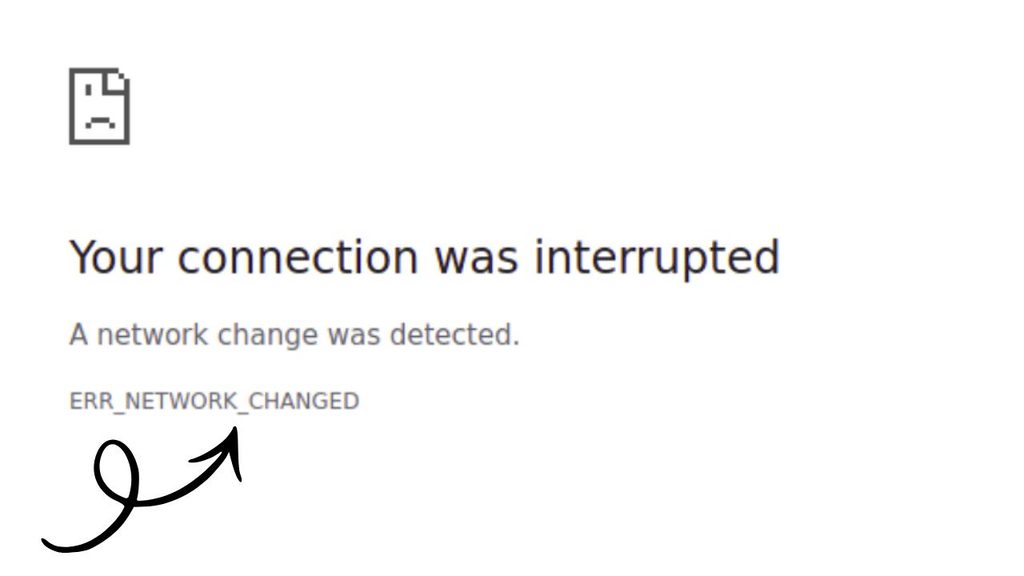
The ERR_NETWORK_CHANGED error in Chrome and Edge usually occurs when your internet connection or network configuration changes while a webpage is loading. You can often fix it by refreshing the page, restarting your router and computer, disabling conflicting VPN or proxy settings, clearing browser data, or resetting Windows network settings.
Let’s work with detailed steps!
Step 1: Refresh the Webpage and Restart Your Browser
Before changing any settings, try refreshing the webpage. A brief interruption in your internet connection may be enough to trigger this error.
Open the affected website in Chrome or Edge and press Ctrl + R to reload the page. You can also select the Refresh button next to the address bar.
If the error appears again, close the browser completely. Make sure all browser windows are closed, then reopen Chrome or Edge and visit the website again.
If that doesn’t work, restart your computer. Click Start > Power > Restart and wait for Windows to load.
Open your browser and try visiting a few different websites. If only one website fails, the problem may be related to that site rather than your entire internet connection.
Step 2: Restart Your Router and Check Your Internet Connection
A router that temporarily loses its connection can cause your computer to switch networks or reconnect unexpectedly. This can trigger the ERR_NETWORK_CHANGED error.
First, check whether other devices connected to the same Wi-Fi network can access websites. If those devices also have connection problems, your router or internet service may be responsible.
To restart your router, turn it off using its power button or unplug its power cable. Wait about 30 seconds, reconnect it, and allow a few minutes for the connection to return.
Next, check your computer’s network connection. If you’re using Wi-Fi, select the network icon on the Windows taskbar and confirm that you’re connected to the correct network.
If possible, test your computer using an Ethernet cable. If websites work correctly over Ethernet but fail over Wi-Fi, the issue may involve your wireless connection, router settings, or Wi-Fi adapter.
Once your connection is stable, reopen Chrome or Edge and test the affected website.
Step 3: Disable Your VPN Temporarily
A Virtual Private Network (VPN) changes how your computer connects to the internet. If the VPN server disconnects or switches locations, your browser may detect a network change.
If you’re using a VPN, open its application and disconnect temporarily. Then return to Chrome or Edge and reload the affected webpage.
If the website loads normally, reconnect your VPN and test the connection again. You may need to select a more stable VPN server or update the VPN application.
If you use a VPN for work or school, check with your network administrator before changing its settings.
Keep in mind that some websites or workplace resources require a VPN. In those cases, don’t leave it disabled as a permanent workaround. The goal is to determine whether the VPN is causing the interruption.
Step 4: Turn Off the Proxy Server if You Don’t Need It
A proxy server acts as an intermediary between your computer and the internet. An incorrect proxy configuration can interfere with website connections and may contribute to network errors.
Press Windows + I to open Settings. In Windows 11, select Network & internet > Proxy. In Windows 10, open Settings > Network & Internet > Proxy.
Review the available proxy settings. If you don’t intentionally use a proxy and the Use a proxy server option is enabled, turn it off. Leave automatic detection enabled if your network requires it.
If your computer belongs to an organization, or you know your connection requires a proxy, don’t disable the settings without checking first.
After making the appropriate change, close Settings and restart your browser. Open the affected website to see whether the error has disappeared.
Step 5: Clear the Browser Cache and Cookies
Chrome and Edge store temporary website files and cookies to make browsing faster. Although these files are usually helpful, corrupted or outdated browser data can sometimes interfere with website loading.
In Google Chrome, open the browser and press Ctrl + Shift + Delete. The Clear browsing data window will appear.
In Microsoft Edge, press the same keyboard shortcut to open its browsing data settings.
Select an appropriate time range, such as All time, if you want to remove the stored data for the entire period. Select Cached images and files. You can also select Cookies and other site data, but remember that clearing cookies may sign you out of websites.
Click Delete data or Clear now, depending on your browser.
Once the process finishes, close and reopen the browser. Visit the affected website and check whether the error is fixed.
Step 6: Flush the DNS Cache
Windows maintains a DNS cache that stores information used to find website addresses. If the cached information becomes outdated or your network connection changes, flushing the cache may help resolve certain browsing problems.
Open the Start menu and type Command Prompt in the search box. Right-click the result and select Run as administrator.
If Windows asks for permission, select Yes.
Type the following command and press Enter:
ipconfig /flushdns
Windows should display a message confirming that the DNS Resolver Cache was successfully flushed.
Close Command Prompt and reopen Chrome or Edge. Try visiting the affected website again.
Flushing the DNS cache does not erase your personal files or browser history. However, it won’t fix every ERR_NETWORK_CHANGED error because the problem may be caused by a router, network adapter, or unstable connection.
Step 7: Reset Winsock and TCP/IP Settings
If the error continues, Windows network configuration may be contributing to the problem. Resetting Winsock and refreshing TCP/IP settings can help repair certain network-related issues.
Open Command Prompt as administrator, as explained in the previous step.
Run the following command first:
netsh winsock reset
Press Enter and wait for Windows to confirm that the reset is complete.
Next, run:
netsh int ip reset
Wait for the command to finish. These commands reset network components and TCP/IP settings that applications use to communicate over a network.
Restart your computer to apply the changes. After Windows starts again, reconnect to your Wi-Fi network if necessary and open Chrome or Edge.
Test the affected website. If your computer uses a manually configured IP address, DNS server, or work network configuration, you may need to restore those settings afterward.
Step 8: Disable and Re-enable Your Network Adapter
Your network adapter allows your computer to connect to Wi-Fi or Ethernet. If the adapter temporarily stops working correctly, refreshing its connection may help.
Press Windows + R, type ncpa.cpl, and press Enter.
The Network Connections window will open. Find the adapter you’re currently using. It may be named Wi-Fi or Ethernet.
Right-click the active adapter and select Disable. Wait about 10 seconds, then right-click it again and select Enable.
Your internet connection will temporarily disconnect while the adapter is disabled. If you’re using a remote connection to control your computer, avoid this step because it may disconnect your session.
Wait for the network adapter to reconnect. Open Chrome or Edge and visit the website again.
If the error returns frequently, check whether a newer compatible network driver is available.
Step 9: Update Your Network Adapter Driver
An outdated, corrupted, or incompatible network driver can cause connection interruptions. Updating the driver may help if the error started after a Windows update or driver change.
Right-click the Start button and select Device Manager.
Expand Network adapters to view the available network devices. Find the adapter you’re using, right-click it, and select Update driver.
Choose Search automatically for drivers. Windows will check for an available compatible driver.
If Windows reports that the best driver is already installed, check your computer manufacturer’s official website or the network adapter manufacturer’s website for a newer compatible version.
Download only a driver intended for your exact computer or adapter model. Avoid unfamiliar driver-download websites.
After installing a driver, restart your computer and test Chrome or Edge again.
Step 10: Reset Windows Network Settings
If none of the previous methods works, resetting Windows network settings may help resolve persistent configuration problems.
In Windows 11, open Settings > Network & internet > Advanced network settings > Network reset.
In Windows 10, navigate to Settings > Network & Internet > Status > Network reset.
Select Reset now if the option is available, then confirm your choice. Windows will reset network adapters and restore relevant network settings to their default state. Your computer will restart as part of the process or prompt you to restart.
Before proceeding, make sure you know your Wi-Fi password. You may need to reconnect to your wireless network afterward. VPN software, virtual network adapters, and manually configured network settings may also require reconfiguration.
Once Windows starts again, connect to the internet and open your browser.
Visit the affected website to confirm whether ERR_NETWORK_CHANGED has been resolved.
FAQs
1. What does ERR_NETWORK_CHANGED mean in Chrome and Edge?
It means the browser detected a change in your computer’s network connection while loading a webpage. This can happen because of a Wi-Fi interruption, router reconnection, VPN change, or network configuration issue.
2. Why does ERR_NETWORK_CHANGED keep appearing?
The error may keep returning if your internet connection is unstable, your network adapter is malfunctioning, or a VPN or proxy repeatedly changes your connection. If it happens often, investigate the network connection instead of repeatedly refreshing the page.
3. Can I fix ERR_NETWORK_CHANGED without restarting my computer?
Yes. Try refreshing the page, restarting your browser, disconnecting a problematic VPN, or flushing the DNS cache. Some fixes, such as resetting Winsock or network settings, require a restart.
4. Does clearing browser data delete my saved passwords?
Clearing cached images and files does not normally remove saved passwords. However, selecting cookies and other site data may sign you out of websites. Avoid selecting saved passwords or other categories you don’t want to delete.
5. What if the error appears in both Chrome and Edge?
If both browsers show the same error, the problem is more likely related to Windows networking, your router, or your internet connection than to one specific browser. Start by checking your connection, restarting your router, and flushing the DNS cache.