
Fix “0x80070005” Access Denied Error During Windows Update
If you’ve ever tried updating your Windows PC and suddenly ran into the 0x80070005 Access Denied error, you’re not alone. This is one of the most frustrating Windows Update issues because it usually appears without a clear explanation and prevents important system updates from installing.
The problem often comes down to permissions, corrupted system files, or interference from security settings.
In this guide, you’ll learn exactly what this error means, why it happens, and how to fix it using simple methods.
What is Error Code 0x80070005?
The 0x80070005 error code in Windows generally means “Access Denied.” When this happens during Windows Update, it indicates that your system does not have the required permissions to install updates or modify certain files.
This issue can occur due to several reasons. One common cause is incorrect user account permissions, where Windows cannot access system folders needed for updates. Another reason can be corrupted update components or damaged system files. Sometimes, third-party antivirus software may block updates, mistakenly treating them as a threat.
In simple terms, your system is trying to perform an update but is being blocked from doing so.
Fix Error Code “0x80070005” Access Denied During Windows Update?
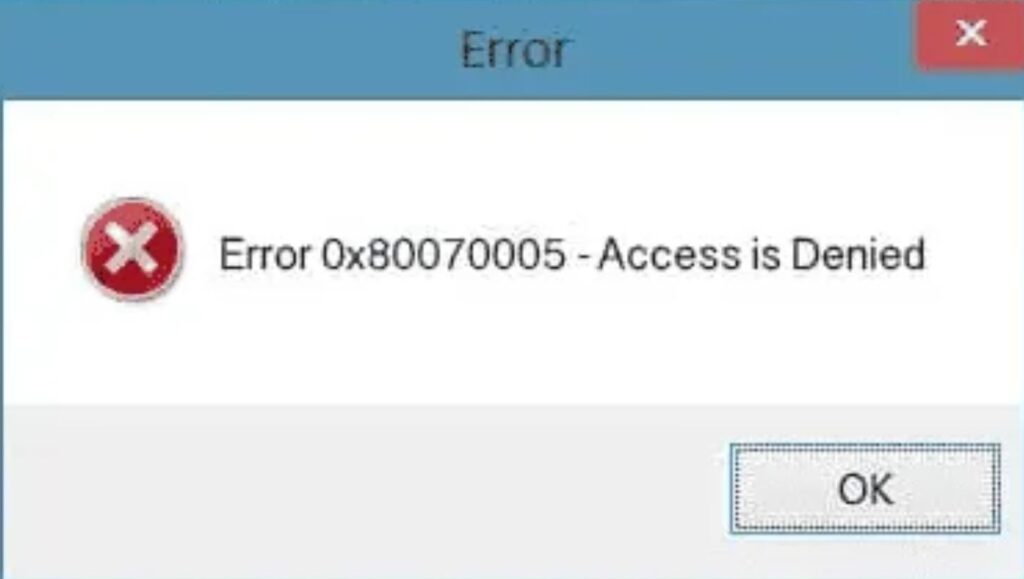
To fix the 0x80070005 Access Denied error during Windows Update, restart Windows Update services, clear the SoftwareDistribution folder, run the Windows Update troubleshooter, check user permissions, and repair system files using SFC and DISM tools. These steps help restore proper access and resolve update failures.
Follow each step carefully until the issue is resolved.
Step 1: Run Windows Update Troubleshooter
The easiest way to start is by using the built-in Windows Update Troubleshooter. This tool automatically scans for common update issues and attempts to fix them.
Open the Settings app by pressing Windows + I. Navigate to System, then click on Troubleshoot, and select Other troubleshooters. Locate the Windows Update option and click Run.
Once the troubleshooter starts, it will check for problems such as misconfigured settings or broken services. If any issues are found, it will either fix them automatically or suggest steps to resolve them.
After the process finishes, restart your computer and try updating again. Many users find that this simple step resolves the error immediately.
Step 2: Restart Windows Update Services
Sometimes the update services get stuck or stop working properly. Restarting them can restore normal functionality.
Press Windows + R, type services.msc, and press Enter. In the Services window, locate Windows Update, Background Intelligent Transfer Service, and Cryptographic Services.
Right-click each of these services one by one and select Restart. If a service is not running, click Start instead.
Restarting these services ensures that Windows has the proper environment to download and install updates without permission conflicts.
Step 3: Clear the SoftwareDistribution Folder
The SoftwareDistribution folder stores temporary update files. If these files become corrupted, Windows Update may fail with the 0x80070005 error.
To fix this, stop the Windows Update service first. Open Command Prompt as administrator and type the command to stop the service. Then navigate to the C drive, open the Windows folder, and locate the SoftwareDistribution folder.
Delete all the files inside this folder, but do not delete the folder itself. Once done, go back to the Command Prompt and restart the Windows Update service.
This step forces Windows to download fresh update files, eliminating corruption issues.
Step 4: Check User Account Permissions
Incorrect permissions can prevent Windows from accessing system files required for updates.
Make sure you are using an administrator account. Go to Settings, open Accounts, and check your account type. If it is not set to Administrator, switch to an admin account.
You can also adjust permissions manually by accessing system folders and ensuring that your account has full control. This ensures Windows can perform update operations without restrictions.
Step 5: Temporarily Disable Antivirus Software
Third-party antivirus programs can sometimes block Windows updates by mistake.
Temporarily disable your antivirus software and then try running Windows Update again. If the update installs successfully, your antivirus software was likely interfering with the process.
After the update is complete, make sure to re-enable your antivirus protection.
Step 6: Run System File Checker (SFC)
Corrupted system files can also cause the 0x80070005 error. The System File Checker tool helps repair these files.
Open Command Prompt as administrator and type the SFC command. Press Enter and wait for the scan to complete. This process may take some time.
If corrupted files are found, Windows will automatically repair them. Restart your computer afterward and try updating again.
Step 7: Use DISM Tool to Repair Windows Image
If SFC does not fix the issue, the DISM tool can repair deeper system problems.
Open Command Prompt as administrator and run the DISM command to restore system health. This tool connects to Windows Update servers to replace damaged files.
Once the process is complete, restart your system and run Windows Update again.
Step 8: Reset Windows Update Components
If none of the previous steps work, resetting Windows Update components can resolve persistent issues.
This involves stopping update services, renaming system folders like SoftwareDistribution and Catroot2, and restarting services. These steps reset the entire update system to a clean state.
Although this process is more advanced, it is highly effective for fixing stubborn update errors.
Step 9: Perform a Clean Boot
A clean boot starts Windows with minimal drivers and startup programs. This helps identify if background applications are causing the issue.
Open System Configuration by typing msconfig in the Run dialog. Disable all non-Microsoft services and restart your computer.
After the clean boot, try running Windows Update again. If it works, a background program was likely interfering with the update process.
FAQs
What causes the 0x80070005 error in Windows Update?
The error is usually caused by permission issues, corrupted system files, or interference from antivirus software.
Is the 0x80070005 error serious?
It is not dangerous, but it can prevent important updates from installing, which may leave your system vulnerable or outdated.
Can I fix this error without technical knowledge?
Yes, most fixes in this guide are beginner-friendly and can be done without advanced skills.
Does resetting Windows Update delete my files?
No, resetting update components only affects update-related files and does not delete personal data.
How long does it take to fix this error?
Depending on the method, it can take anywhere from a few minutes to about an hour.