
Fix: Failed to load xgameruntime.dll Code 126
The “Failed to load xgameruntime.dll” error with code 126 may be related to the Xbox gaming components in Windows, a missing or damaged system dependency, corrupted game files, or an issue with the installation. It can occur when a game or application tries to load a required DLL file, but Windows cannot load it successfully.
In this guide, I have explained what error code 126 means and how to fix it in Windows 10 and Windows 11.
Meaning of “Failed to Load xgameruntime.dll Code 126”
The xgameruntime.dll file is associated with Microsoft’s Xbox gaming services and gaming runtime components. Games that depend on these components may need them to launch or communicate with supported Windows gaming features.
Error code 126 generally means that Windows could not find or load a required module. Even if the error mentions xgameruntime.dll, the underlying problem might involve that file, a related dependency, a damaged installation, or a component that Windows cannot locate.
This error does not automatically mean the DLL itself is missing. It also doesn’t prove that your computer has a virus. The exact cause depends on which game or application displays the message and what changed before the problem started.
Avoid downloading individual DLL files from random websites.
The safer approach is to repair the relevant Windows gaming components, update the system, and verify the game installation.
Fix Failed to Load xgameruntime.dll Code 126
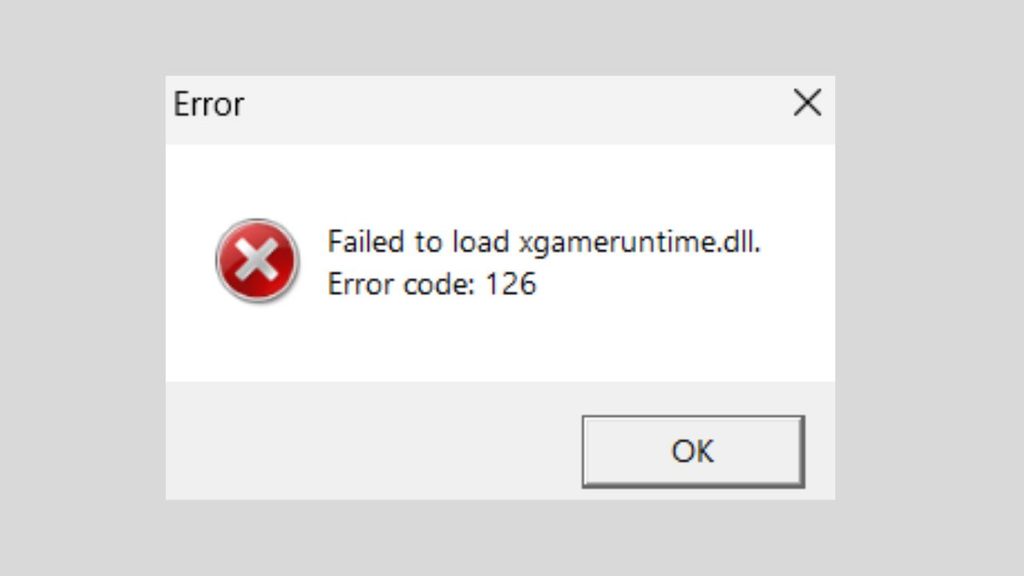
To fix the “Failed to load xgameruntime.dll code 126” error, restart your PC, install available Windows updates, update or repair Xbox gaming components, and repair the affected game. If the error continues, reset or reinstall the relevant Xbox app or Gaming Services package, check system files with DISM and SFC, and reinstall the game only after trying simpler fixes.
Follow the detailed steps below in order.
Step 1: Restart Your Computer and Check the Game
Before changing advanced settings, restart your computer. A temporary Windows issue or incomplete update may prevent a game from loading its required components correctly.
Save any open documents, click the Start button, select Power, and choose Restart. Wait for Windows to load completely.
Next, open the game using the same launcher you normally use, such as the Xbox app, Microsoft Store, or Steam. Check whether the error appears again.
If you recently installed a game update or Windows update, give the launcher a moment to finish any pending updates before opening the game.
If the error affects only one game, the problem may be related to that game’s files. If several Xbox or Microsoft Store games display the same message, Gaming Services may need attention.
Step 2: Repair Gaming Services
Repairing Gaming Services is a good next step because the component supports games that rely on Microsoft’s Gaming Runtime.
Press Windows + I to open Settings. In Windows 11, select Apps > Installed apps. In Windows 10, open Apps > Apps & features.
Find Gaming Services in the list. If you see it, select the three-dot menu beside it in Windows 11, or select the app in Windows 10 and look for Advanced options.
If the option is available, click Repair and allow Windows to complete the process. This attempts to fix the app without immediately removing it.
Restart your computer and launch the affected game again.
If you cannot find Gaming Services, or repairing it doesn’t help, continue to the next step. The available options can differ between Windows versions.
Step 3: Update Windows and Microsoft Store Apps
Outdated or partially updated gaming components can cause compatibility problems. Installing available updates may help Windows and Gaming Services work together correctly.
Open Settings > Windows Update in Windows 11. In Windows 10, select Settings > Update & Security > Windows Update.
Click Check for updates and install applicable updates. Restart your computer if Windows requests it.
Next, open the Microsoft Store from the Start menu. Go to Library and select Get updates, or use the equivalent update option shown in your Store version.
Allow available updates for the Xbox app and related gaming components to finish installing. Then launch the Xbox app and check whether Gaming Services requires an update or installation.
Try your game again. If error code 126 remains, move on to reinstalling Gaming Services.
Step 4: Reinstall Gaming Services
If repairing Gaming Services didn’t resolve the issue, reinstalling the component may restore a damaged installation. Use this method carefully because it involves PowerShell.
First, save your work and close the Xbox app and any running games. Open the Start menu, search for PowerShell, right-click Windows PowerShell or Terminal, and choose Run as administrator.
If the administrator window opens, enter the following command and press Enter:
get-appxpackage Microsoft.GamingServices | remove-AppxPackage -allusers
This command attempts to remove the Gaming Services package for all users. If Windows reports an error or the package isn’t found, don’t repeatedly run unrelated removal commands. Move to the Microsoft Store installation method or seek further support.
After the command completes, restart your computer. Open the Xbox app and check whether it prompts you to install Gaming Services. If prompted, select Install and follow the instructions.
If the Xbox app doesn’t show an installation prompt, open the Microsoft Store, search for Gaming Services, and use the official installation page if it is available for your system.
Restart Windows once installation is complete, then test the game.
Important: Avoid manually deleting registry keys or running scripts from unknown websites. If Gaming Services cannot be reinstalled, use Microsoft’s support guidance for your Windows version rather than removing additional system components.
Step 5: Repair or Verify the Affected Game
If Gaming Services is working but only one game displays the error, its installation files may be damaged or incomplete.
For a game installed through the Xbox app or Microsoft Store, open Settings > Apps > Installed apps in Windows 11. In Windows 10, go to Settings > Apps > Apps & features.
Find the affected game, open its menu, and select Advanced options if available. Choose Repair and wait for Windows to finish. This option may not appear for every game.
Test the game before using Reset, because resetting an app can remove local app data or settings. Check how the game stores saved progress before choosing that option.
If you installed the game through Steam or another launcher, open that launcher and look for its Verify, Repair, or equivalent file-checking feature. For example, Steam provides a way to verify the integrity of installed game files through the game’s Properties menu.
Let the launcher check and replace damaged files, then restart the game.
If verification fails repeatedly, consider reinstalling the game from its official source. Before uninstalling, check whether your saved games are backed up or synchronized with the cloud.
Step 6: Run System File Checker and DISM
Windows includes repair tools that can check for corrupted system files. They won’t necessarily reinstall Gaming Services, but they can help if damaged Windows components are contributing to the problem.
Click Start, type Command Prompt, right-click the result, and choose Run as administrator.
Enter the following command and press Enter:
sfc /scannow
Wait for the scan to finish. It may take several minutes. Keep the window open until Windows displays its results.
If the error continues, run this command in the same administrator window:
DISM /Online /Cleanup-Image /RestoreHealth
DISM checks and repairs the Windows component store. It may need an internet connection to obtain repair files, and the process can take some time.
After DISM finishes, run sfc /scannow again. Restart your computer and test the game.
If either tool reports that it could not repair files, record the message before trying more advanced recovery options.
Step 7: Check Your Antivirus and Security History
Security software can sometimes quarantine a game file or block a component it considers suspicious. Before changing any security settings, check whether anything related to the affected game or Gaming Services was detected.
Open Windows Security from the Start menu. Select Virus & threat protection, then open Protection history.
Review recent detections and check whether a legitimate game or Microsoft component was quarantined. Don’t restore a file simply because its name matches the missing DLL. First confirm that it came from a trusted installation and that the detection is a false positive.
If you use a third-party antivirus program, review its quarantine or security history as well.
Avoid permanently disabling antivirus protection or creating broad exclusions for your entire games folder. If you believe a legitimate file was incorrectly detected, follow the security software provider’s guidance and reinstall the affected component from its official source.
Step 8: Update Your Graphics Driver
Although this error is more directly associated with the Gaming Runtime, outdated graphics drivers can cause other game-launch problems. Updating your driver is worth trying if the issue started after a driver change or affects several games.
Press Windows + X and select Device Manager. Expand Display adapters to identify your graphics hardware.
Right-click your graphics adapter and choose Update driver, then select Search automatically for drivers.
For newer drivers, check the official support website for your computer or graphics card manufacturer. Download only a driver that matches your hardware and Windows version.
Install the driver and restart the computer if requested. Then launch the affected game.
If the error began immediately after a graphics driver update, check whether a compatible previous driver is available from the manufacturer.
Step 9: Reinstall the Game if Nothing Else Works
If you’ve repaired Gaming Services, updated Windows, checked system files, and verified the game’s installation, reinstalling the affected game may be the next reasonable option.
Before proceeding, confirm that the game is installed through an official source and check whether your saved progress is synchronized or backed up.
Uninstall the game through its launcher or Windows Installed apps settings. Restart your computer, open the official launcher, and download the game again.
Wait for the installation and all required updates to finish before launching it.
If the same error appears immediately after reinstalling, avoid repeating the process several times. The cause may be a Gaming Services problem, a Windows configuration issue, or a compatibility problem that needs further investigation.
FAQs
1. What does xgameruntime.dll error code 126 mean?
It generally means Windows couldn’t find or load a required module. The DLL itself may be missing, or another component it depends on may not be available.
2. Is xgameruntime.dll a Windows gaming file?
Yes. It belongs to Microsoft’s Gaming Runtime, which supports gaming features used by compatible Windows games and related services. <Cite refs={[“turn855541search4”]}/>
3. Is it safe to download xgameruntime.dll from a DLL website?
No. Avoid downloading individual DLL files from unofficial websites. The file may be unsafe, incompatible, or the wrong version. Repair or reinstall Gaming Services through official Microsoft channels instead.
4. Why does the error appear in only one game?
The game may have damaged installation files or a missing dependency. Verify its files through the official launcher and repair the game before reinstalling it.
5. Will reinstalling Windows fix error code 126?
Reinstalling Windows is usually an unnecessarily drastic first step. Try repairing Gaming Services, updating Windows, verifying game files, and running system repair tools first. Consider Windows recovery only after less disruptive solutions fail.