
How to fix ‘He’s Dead, Jim!’ Error in Chrome?
If you’ve ever been browsing and suddenly see the message “He’s Dead, Jim!” in Google Chrome, it can feel confusing and frustrating. This unusual error message is actually Chrome’s way of telling you that something went wrong with a webpage or tab, causing it to crash unexpectedly.
While the message might look quirky, the problem behind it is very real. It usually points to issues like insufficient memory, corrupted cache files, or problematic browser extensions.
In this guide, I will walk you through everything you need to know, from understanding what the error means to applying practical solutions that work.
Let’s start!
What is ‘He’s Dead, Jim!’ Error in Chrome?
The “He’s Dead, Jim!” error in Google Chrome appears when a webpage or browser tab crashes and can no longer function properly. Instead of loading content, Chrome displays this message as a signal that the tab has stopped working.
This error is typically caused by one or more of the following issues.
First, low system memory (RAM) can prevent Chrome from running multiple tabs efficiently. When your system runs out of memory, Chrome may shut down a tab to avoid freezing the entire browser.
Second, corrupted browser cache or cookies can interfere with how webpages load, leading to crashes.
Third, faulty or incompatible extensions can disrupt normal browser operations. Some extensions consume too many resources or conflict with certain websites.
Fourth, outdated browser versions can also cause instability. Older versions of Chrome may not be optimized for newer websites or security standards.
Lastly, malware or unwanted software can interfere with Chrome’s performance and cause unexpected crashes.
How to fix ‘He’s Dead, Jim!’ Error in Chrome?
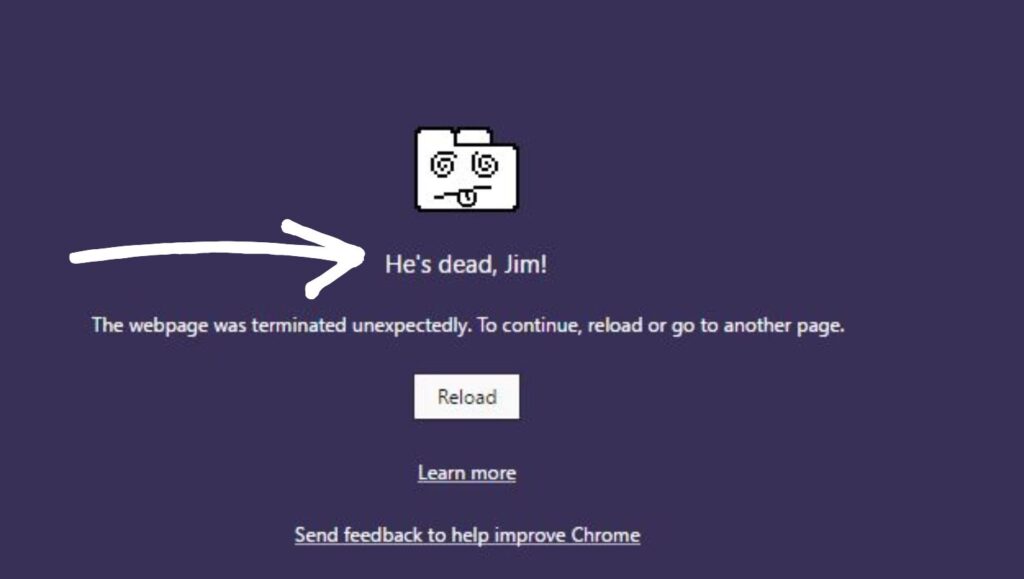
To fix the “He’s Dead, Jim!” error in Google Chrome, restart the browser, clear cache and cookies, disable problematic extensions, update Chrome to the latest version, and check your system memory usage. If the issue persists, reset Chrome settings or scan your system for malware.
Step 1: Restart Google Chrome and Your Computer
The first and simplest fix is to restart your browser and your computer.
When Chrome runs for a long time, it may accumulate temporary glitches or memory issues. Restarting clears these temporary problems and gives Chrome a fresh start.
Close all Chrome windows completely. Make sure it is not running in the background. You can check this by opening Task Manager and ending any Chrome processes if necessary.
After closing Chrome, restart your computer. This helps clear system memory and stops any background processes that might be causing the issue.
Once your system restarts, open Chrome again and try accessing the webpage. In many cases, this alone resolves the problem.
Step 2: Clear Cache and Cookies
Over time, Chrome stores cached files and cookies to speed up browsing. However, these files can become corrupted and cause errors like “He’s Dead, Jim!”.
Open Chrome and go to Settings. Navigate to Privacy and Security, then click on Clear browsing data.
Select Cached images and files, Cookies, and other site data. Choose a time range, such as All time, for a thorough cleanup.
Click Clear data and wait for the process to complete.
After clearing the cache, restart Chrome and try loading the page again. This step often resolves issues related to broken or outdated website data.
Step 3: Disable Problematic Extensions
Extensions can enhance your browsing experience, but they can also cause crashes if they are poorly designed or incompatible.
Open Chrome and type chrome://extensions in the address bar. This will show all installed extensions.
Disable all extensions by toggling them off. Then restart Chrome and check if the error still appears.
If the issue is resolved, enable extensions one by one to identify which one is causing the problem. Once identified, remove or replace the faulty extension.
This step is important because extensions are a common cause of browser crashes.
Step 4: Update Google Chrome to the Latest Version
Using an outdated version of Chrome can lead to compatibility issues and errors.
Open Chrome and click on the three-dot menu in the top right corner. Go to Help and then About Google Chrome.
Chrome will automatically check for updates. If an update is available, it will download and install it.
After the update is complete, restart the browser.
Keeping Chrome updated ensures you have the latest bug fixes, security patches, and performance improvements.
Step 5: Check System Memory Usage
The “He’s Dead, Jim!” error is often linked to insufficient memory.
Open Task Manager by pressing Ctrl + Shift + Esc. Look at the Memory section to see how much RAM is being used.
If your memory usage is high, close unnecessary applications and browser tabs.
You can also use Chrome’s built-in Task Manager by pressing Shift + Esc while Chrome is open. This allows you to see which tabs or extensions are consuming the most resources.
Reducing memory usage can prevent Chrome from crashing tabs.
Step 6: Reset Chrome Settings
If the problem persists, resetting Chrome can help restore it to its default state.
Go to Settings, then navigate to Reset and Clean up. Click Restore settings to their original defaults.
Confirm the reset when prompted.
This will disable extensions, clear temporary data, and reset settings without deleting your bookmarks or saved passwords.
After resetting, restart Chrome and check if the issue is resolved.
Step 7: Scan for Malware and Harmful Software
Malware can interfere with Chrome’s performance and cause unexpected errors.
Use Chrome’s built-in cleanup tool by going to Settings, then Reset and Clean up, and selecting Clean up computer.
Alternatively, run a full system scan using a trusted antivirus program.
Remove any detected threats and restart your computer.
Ensuring your system is free from malware is essential for stable browser performance.
Step 8: Reinstall Google Chrome
If none of the previous steps work, reinstalling Chrome can fix deeper issues.
Uninstall Chrome from your computer through the Control Panel or Settings.
Download the latest version of Chrome from the official website and install it again.
Reinstalling ensures that any corrupted files are replaced with fresh ones.
After installation, sign in to your account and restore your bookmarks if needed.
FAQs
Why does Chrome say “He’s Dead, Jim!”?
This error appears when a browser tab crashes due to memory issues, corrupted data, or faulty extensions.
Is this error harmful to my computer?
No, the error itself is not harmful. It simply indicates that a tab has crashed. However, the underlying cause should be fixed to prevent repeated issues.
Can low RAM cause this error?
Yes, insufficient RAM is one of the most common reasons for this error, especially when multiple tabs are open.
Will resetting Chrome delete my data?
No, resetting Chrome will not delete bookmarks or saved passwords, but it will remove extensions and reset settings.
How do I prevent this error in the future?
Keep Chrome updated, avoid installing unnecessary extensions, clear cache regularly, and ensure your system has enough memory.