
Fix MSCOMCTL.OCX Error in Windows 10 & 11
Have you tried opening an older Windows application and received an error mentioning MSCOMCTL.OCX? You might see messages such as “Component MSCOMCTL.OCX or one of its dependencies not correctly registered,” “MSCOMCTL.OCX missing,” or “Failed to load MSCOMCTL.OCX.” This can be frustrating, especially when you need that application for work or everyday tasks.
The MSCOMCTL.OCX error in Windows 10 and Windows 11 usually occurs when an older program cannot find, load, or correctly register a component it needs to run. This file belongs to the Microsoft Visual Basic 6.0 common controls package and is used by some legacy applications to display interface elements such as list views, tree views, and tab controls.
The good news is that you may be able to fix the problem without reinstalling Windows. In this guide, you’ll learn how to check the application, repair or install the required component safely, register the file when appropriate, and troubleshoot related Windows issues.
Fix MSCOMCTL.OCX Error in Windows 10, 11
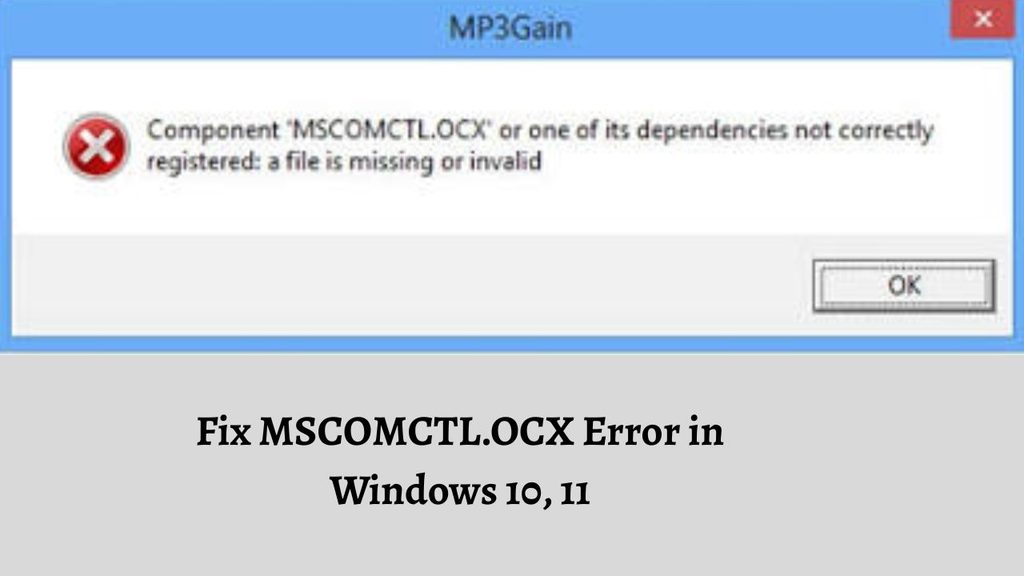
To fix the MSCOMCTL.OCX error in Windows 10 or Windows 11, check whether the affected application requires the Microsoft Visual Basic 6.0 common controls component, repair or install it from a trusted Microsoft source, and register the correct file using an elevated Command Prompt if necessary. Make sure you use the correct 32-bit or 64-bit file location for the application. Avoid downloading individual OCX files from unfamiliar websites.
Let’s follow the following methods in order.
1: Restart Your Computer and Reopen the Application
Start with a quick restart. A temporary Windows or application issue can sometimes prevent an older program from loading one of its required components.
Save any open work, close your applications, and open the Start menu. Select the Power icon and click Restart. Wait for Windows to start again, then open the program that displayed the MSCOMCTL.OCX error.
If the error appears again, write down the complete message and the name of the affected application. Check whether the error appears as soon as you launch the program or only after you select a particular feature.
This information can help you determine whether the problem affects one application or several older programs.
If restarting doesn’t help, continue to the next step.
2: Check Whether the Application Needs an Update or Repair
Sometimes, the problem is related to the application itself rather than a missing Windows component. An incomplete installation, damaged program files, or an outdated installer may prevent the application from loading MSCOMCTL.OCX correctly.
Open Settings by pressing Windows + I. In Windows 11, select Apps > Installed apps. In Windows 10, open Apps > Apps & features.
Find the application showing the error. If it offers a Modify, Repair, or similar option, select it and follow the instructions. Not every application provides a repair option.
If no repair option is available, visit the application’s official website and check whether a compatible update or newer installer is available. Before reinstalling, make sure you know where the application stores its files and settings. Back up important data if necessary.
Restart the application after the repair or update. If the MSCOMCTL.OCX message remains, move on to checking the required component.
3: Check Whether MSCOMCTL.OCX Exists on Your PC
Before trying to register the file, check whether it is already present on your computer. Registering a file that doesn’t exist won’t solve the problem.
Open File Explorer by pressing Windows + E. Select This PC, open your Windows drive, usually C:, and navigate to the Windows system folders.
On 64-bit Windows, check these locations:
C:\Windows\SysWOW64
C:\Windows\System32
On 32-bit Windows, check:
C:\Windows\System32
The file may be present in one of these folders, depending on your Windows installation and the component’s architecture. You can also use File Explorer’s search feature to look for MSCOMCTL.OCX within the Windows folder.
If you find the file, don’t move or delete it. Its presence alone doesn’t guarantee that it is the correct version or that it has been registered properly.
If the file is missing, continue to Step 5 to check the appropriate installation source. If it exists, the next step explains how to register it correctly.
4: Register MSCOMCTL.OCX Using Command Prompt
If the required file exists but Windows reports that it is not registered, registering it may resolve the issue. Use the command that matches the file’s location and the application’s requirements. On 64-bit Windows, a 32-bit application generally needs the 32-bit version of the component.
First, open the Start menu and type Command Prompt. Right-click Command Prompt and select Run as administrator. If Windows displays a User Account Control prompt, confirm that you want to continue.
For a 32-bit MSCOMCTL.OCX file located in C:\Windows\SysWOW64, enter:
C:\Windows\SysWOW64\regsvr32.exe C:\Windows\SysWOW64\MSCOMCTL.OCX
Press Enter and wait for the result.
For a 64-bit file in C:\Windows\System32, the corresponding command is:
C:\Windows\System32\regsvr32.exe C:\Windows\System32\MSCOMCTL.OCX
Use the second command only if you have confirmed that the file is a suitable 64-bit component. MSCOMCTL.OCX is commonly needed by older 32-bit programs, so the first command is often the relevant one on 64-bit Windows.
If registration succeeds, Windows should display a confirmation message. Close Command Prompt and reopen the affected application.
If you receive an error stating that the module failed to load, double-check the file path and whether the file exists. The message can indicate that the file is missing, incompatible, or dependent on another unavailable component. Continue with the next step if necessary.
5: Install the Required Component from a Trusted Source
If MSCOMCTL.OCX is missing, don’t download a random copy from a DLL or OCX download website. These files may be outdated, modified, or incompatible with your application.
Instead, check the documentation or support page for the software that displays the error. The developer may provide an updated installer or instructions for installing the legacy Visual Basic common controls component.
You can also consult Microsoft’s official documentation for Visual Basic 6.0 runtime files and supported legacy components. Choose a package that is appropriate for your application and Windows architecture. Some older applications include the necessary component in their original installer.
Run a trusted installer using the instructions provided by its publisher. Restart Windows if the installer requests it, then try opening the affected application again.
Keep in mind that installing a general Visual Basic runtime package does not necessarily install every optional component an older application might require. If the application has its own supported installer, that is often the best place to start.
6: Reinstall the Application Properly
If the component is still missing or the registration process fails, reinstalling the affected application may restore the files it needs.
Before uninstalling, back up any documents, saved projects, databases, or settings associated with the program. Some older applications store their data inside their installation folder, so don’t assume uninstalling will preserve everything.
Open Settings > Apps, find the application, and select Uninstall. Follow the on-screen instructions.
Restart your computer, then download a fresh installer from the application’s official website or use trusted installation media supplied by the software’s publisher.
Right-click the installer and select Run as administrator if the publisher’s instructions recommend it. Complete the setup, launch the program, and check whether the error has disappeared.
If the application is very old, contact its developer or check its support documentation for Windows 10 and Windows 11 compatibility guidance.
7: Repair Windows System Files
If several applications are showing errors involving Windows components, check whether Windows itself has damaged system files. The System File Checker and Deployment Image Servicing and Management tools can help repair supported Windows system files, although they won’t automatically replace every third-party OCX component.
Right-click the Start button and select Terminal (Admin) on Windows 11 or Windows PowerShell (Admin) if that option is available. On Windows 10, open Command Prompt as administrator or an administrator terminal.
Run this command first:
DISM.exe /Online /Cleanup-Image /RestoreHealth
Press Enter and wait for the operation to finish. It may take several minutes. Keep your computer powered on while the scan runs.
Next, run:
sfc /scannow
Press Enter and allow the scan to reach 100 percent. Don’t close the window while the checks are running.
Restart your computer after the commands finish, then open the application again. If the error remains, remember that these tools repair Windows components, not necessarily the separate MSCOMCTL.OCX file required by a legacy application.
8: Check Whether You Are Using the Correct 32-bit or 64-bit Component
Windows 10 and Windows 11 can run many older 32-bit applications on 64-bit systems. However, those applications may need a 32-bit version of a component, even when Windows itself is 64-bit.
To check your system, press Windows + I, open System > About, and look under System type.
If your system is 64-bit and the affected application is 32-bit, don’t assume that registering a file from C:\Windows\System32 will fix the issue. On 64-bit Windows, System32 contains native 64-bit system components, while SysWOW64 contains many 32-bit system components.
Use the correct registration utility and file path for the component’s architecture. If you’re unsure which version the application requires, consult its developer rather than copying files between folders or renaming them.
Once you’ve confirmed the correct component, try launching the application again.
FAQs
1. What is MSCOMCTL.OCX?
MSCOMCTL.OCX is a component associated with Microsoft Visual Basic 6.0 common controls. Some older Windows applications rely on it to display interface elements such as list views, tree views, and tab controls.
2. Why does MSCOMCTL.OCX go missing?
The file may be missing because an application was installed incorrectly, an uninstall process removed a shared component, or an older program was moved to another computer without all its required files. A registration problem or incompatible component can also trigger the error.
3. Can I download MSCOMCTL.OCX separately?
Avoid downloading the file from unfamiliar third-party websites. Use the affected application’s official installer or a trusted component package recommended by its developer or Microsoft documentation.
4. Does registering MSCOMCTL.OCX fix every error?
No. Registration may help when the correct file exists but isn’t registered properly. It won’t fix a missing file, an incompatible version, a broken application installation, or a missing dependency.
5. Does this error occur only in Windows 10?
No. It can also occur in Windows 11 because both operating systems may run older applications that depend on legacy components. The exact fix depends on the application and the component it requires.
Summary
The MSCOMCTL.OCX error in Windows 10 and Windows 11 usually means that an older application cannot find or load a required Visual Basic common controls component.
Start by restarting your computer and repairing or updating the affected application. Check whether the file exists before attempting to register it. If registration is necessary, use an administrator Command Prompt and the correct file path for the component’s architecture.
If the file is missing, use a trusted installer from the application developer or an appropriate Microsoft-supported package. You can also run Windows system repair commands if other system files appear to be damaged.
Avoid downloading unknown OCX files or copying them randomly between Windows folders.