
Fix Notepad Tabs Not Saving or Disappearing (Windows 11)
Have you ever opened Notepad in Windows 11, worked on several text files, and then noticed that your tabs disappeared after restarting your computer? Or maybe you closed Notepad expecting your open tabs to return the next time you launched it, but everything was gone.
That’s frustrating, especially when you’re working on notes, troubleshooting commands, website content, or other important text files.
Windows 11’s Notepad includes a tabbed interface and session-restoration feature that can reopen previously open tabs. However, incorrect app settings, outdated Notepad versions, corrupted app data, or unexpected app crashes can prevent this feature from working properly.
In this guide, you’ll learn several practical ways to fix Notepad tabs not saving or disappearing in Windows 11.
Fix Notepad Tabs Not Saving or Disappearing (Windows 11)
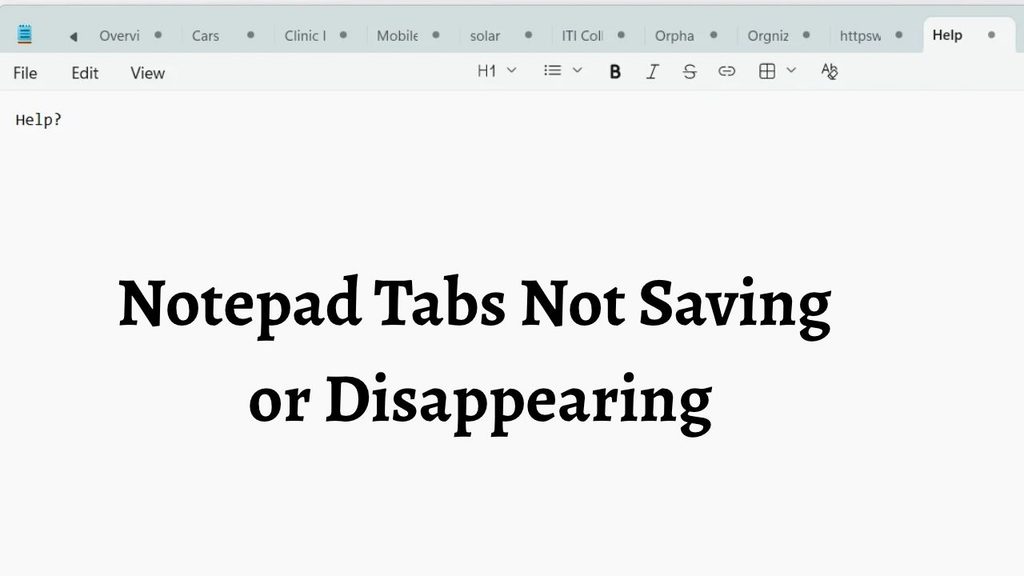
The quickest way to fix Notepad tabs not saving or disappearing in Windows 11 is to enable the Continue previous session option in Notepad Settings. If that doesn’t work, update Notepad through the Microsoft Store, recover your previous session files, repair the app, or reset its settings after backing up your session data.
Follow these troubleshooting methods in order.
Step 1: Enable the Continue Previous Session Option
The first thing you should check is Notepad’s startup behavior. Windows 11 Notepad has a setting that controls whether it opens your previous tabs or starts with a completely new session.
If this setting is configured incorrectly, your previous tabs and unsaved content may not appear when you reopen the app.
Open Notepad from the Start menu. Once the app opens, look for the Settings (gear) icon in the upper-right corner and click it.
Find the When Notepad starts section. Depending on your Notepad version, you may see options such as Continue previous session and Start new session and discard unsaved changes.
Select Continue previous session.
Close Notepad normally and open it again. Check whether your previously opened tabs return.
If the tabs still disappear, move to the next method.
Step 2: Update Notepad Through Microsoft Store
An outdated Notepad version can have bugs that affect session restoration, tab management, and app performance. Updating the app is an easy way to address problems that have already been fixed in newer releases.
Press the Windows key and search for Microsoft Store. Open the application from the search results.
Click Library in the lower-left corner. Depending on your Store version, you may see a Get updates option.
Click Get updates and allow Microsoft Store to check for available app updates.
If an update for Windows Notepad appears, let it download and install completely.
Once the update finishes, restart your computer. Open Notepad and check whether your previous tabs are restored.
It’s also a good idea to keep Windows updated because system updates can include compatibility improvements for Microsoft apps.
Step 3: Close Notepad Properly and Reopen It
Sometimes Notepad doesn’t finish writing its session information because the app is interrupted during shutdown or closed unexpectedly.
To test whether this is causing the problem, open Notepad and create two or three temporary tabs by pressing Ctrl + N.
Type a short test sentence in each tab. You don’t need to save these test documents.
Now close Notepad using its normal Close (X) button. Wait a few seconds before launching it again.
If the session-restoration setting is enabled, Notepad should reopen your previous working session.
If the test works, the issue may have been caused by an interrupted shutdown or app closure.
However, remember that session restoration is not the same as saving a document permanently. Always use Ctrl + S to save important text files to a folder on your computer.
Step 4: Recover Missing Notepad Tabs From the TabState Folder
If your Notepad tabs have already disappeared, you may still be able to recover some of their contents.
Windows 11 Notepad stores session information in a folder called TabState. It contains internal files associated with your open tabs, including unsaved session content.
Before making any changes, create a backup of this folder.
Press Windows + R to open the Run dialog box. Copy and paste the following location:
%LocalAppData%\Packages\Microsoft.WindowsNotepad_8wekyb3d8bbwe\LocalState\TabState
Press Enter.
File Explorer should open the TabState folder. If you find files with the .bin extension, they may contain information from your previous Notepad session.
Select the files and copy them to a separate folder on your desktop. This backup is important because the next troubleshooting methods may change or remove Notepad’s existing app data.
After creating the backup, open Notepad and check whether your previous session returns.
Some Notepad versions may also provide a Recover Unsaved Tabs option in the app’s menu. If you see it, use it to check whether your missing content can be restored.
Keep in mind that these internal files aren’t ordinary text documents. Don’t rename them to .txt and assume the contents will become readable.
If the original session data was deleted or overwritten, recovery may not be possible.
Step 5: Turn Session Restoration Off and Back On
If the session-restoration setting is already enabled but doesn’t work, try toggling it.
This can help Notepad refresh its startup preference and rebuild the session configuration.
Open Notepad and click the Settings gear icon.
Under When Notepad starts, temporarily select Start new session or the equivalent option that opens a fresh workspace.
Close Notepad completely and reopen it.
Now return to the same Settings page and select Continue previous session again.
Close the application normally and launch it one more time.
Create a small test tab, close Notepad, and reopen it to check whether the session is restored.
If the problem continues, proceed to the next method.
Step 6: Repair the Notepad App
Windows 11 includes an app-repair option that can fix common problems without removing the application’s data.
However, because you’re troubleshooting missing tabs, make sure you’ve backed up the TabState folder before continuing.
Press Windows + I to open Settings.
Navigate to Apps > Installed apps. Find Notepad in the application list.
Click the three-dot menu next to Notepad and select Advanced options.
Scroll down until you find the Terminate, Repair, and Reset options.
First, select Terminate if the app is still running. This completely closes its background processes.
Next, click Repair and wait for Windows to finish.
The Repair option attempts to fix the application without deleting its stored data. Once the process finishes, open Notepad and test the session-restoration feature.
If the tabs still disappear, continue to the next step.
Step 7: Reset Notepad Without Losing Your Important Files
If repairing the app doesn’t work, resetting Notepad may help resolve corrupted application settings.
However, be careful. Unlike Repair, Reset can delete Notepad’s local app data, including session information and unsaved content.
Before proceeding, verify that you’ve copied your TabState folder and saved any important text files.
Open Settings > Apps > Installed apps and find Notepad.
Click the three-dot menu, select Advanced options, and scroll down to the Reset section.
Click Reset and confirm the action if Windows asks for permission.
Wait for the process to finish. Then launch Notepad and configure its startup behavior again by selecting Continue previous session.
Create a test document and check whether Notepad now remembers your open tabs.
Do not use this method before backing up your session files. Resetting the app is intended to clear its stored data, not recover missing content.
Step 8: Check Whether Storage Cleaner Apps Are Deleting Notepad Data
Another possible reason for disappearing Notepad tabs is automatic cleanup.
Some third-party cleaning utilities remove temporary files and application data to free up disk space. Depending on their settings, they may remove information that Notepad needs to restore previous sessions.
If you use a PC cleanup application, open its settings and review the automatic cleaning options.
Look for categories related to Windows Store apps, application caches, or temporary app data.
If the cleaner provides an exclusion option, exclude the Notepad session-data folder:
%LocalAppData%\Packages\Microsoft.WindowsNotepad_8wekyb3d8bbwe\LocalState
Also review Windows Storage Sense settings under Settings > System > Storage.
Don’t disable every cleanup feature just because you’re troubleshooting Notepad. Instead, make sure the cleanup tool isn’t deleting application session data.
Restart Notepad and test whether the tabs remain available after closing and reopening the app.
Step 9: Reinstall Notepad From Microsoft Store
If none of the previous methods works, reinstalling Notepad may resolve a damaged application installation.
Before uninstalling, save your important documents and back up the Notepad session folder. Uninstalling or reinstalling the app can affect its local session data.
Open Settings > Apps > Installed apps.
Find Notepad, click its three-dot menu, and select Uninstall, if the option is available.
Confirm the removal and wait for Windows to finish.
Next, open Microsoft Store and search for Windows Notepad.
Select the official Microsoft application and click Install or Get.
Once the installation finishes, launch Notepad and open its Settings page. Set When Notepad starts to Continue previous session.
Test the application with a few temporary tabs.
If everything works, you can start using Notepad normally again. Remember to save important documents separately rather than depending entirely on session restoration.
FAQs
1. Why do my Notepad tabs disappear after restarting Windows 11?
This can happen when the previous-session setting is disabled, Notepad doesn’t properly save its session information, or application data becomes corrupted. Check the startup setting first.
2. Does Windows 11 Notepad automatically save unsaved tabs?
Modern Windows 11 Notepad can preserve open tabs and unsaved content through its session-restoration feature. However, this doesn’t mean your text is permanently saved as a regular document. Use Ctrl + S to save important files.
3. Where does Windows 11 Notepad store unsaved tabs?
Notepad session information is generally stored in the following location:
%LocalAppData%\Packages\Microsoft.WindowsNotepad_8wekyb3d8bbwe\LocalState\TabState
The folder can contain internal session files associated with your previous tabs.
4. Can I recover Notepad tabs after accidentally closing the app?
Possibly. First, reopen Notepad and check whether it restores your previous session. You can also check the TabState folder for existing session files. Recovery isn’t guaranteed if the data has already been deleted or discarded.
5. Will resetting Notepad delete my saved text files?
Resetting Notepad can delete its local app data and unsaved session information. Regular text files saved separately in Documents, Desktop, or other folders are generally unaffected. Back up important data before resetting.
Summary
Notepad tabs disappearing in Windows 11 can be frustrating, especially when you’re working with multiple unsaved documents. Fortunately, the problem is often related to session-restoration settings, outdated app versions, or corrupted application data.
Start by enabling Continue previous session, updating Notepad through Microsoft Store, and checking the TabState folder for recoverable session information.
If the issue continues, try toggling the startup setting, repairing the application, reviewing cleanup settings, and reinstalling Notepad as a last resort.
Most importantly, remember that session restoration isn’t a replacement for saving your files. Use Ctrl + S regularly to protect important notes, commands, and other text.