
Fix “Reinstall Your Current Version of Windows” Message
Seeing the “Reinstall your current version of Windows” message can be confusing, especially if your computer was working fine before. This message usually appears when something in the system becomes corrupted, incomplete, or inconsistent. It does not always mean your PC is broken, but it does signal that Windows is having trouble maintaining stability.
This guide walks you through what the message means and how to resolve it step by step.
What is the “Reinstall your current version of Windows” message?
The “Reinstall your current version of Windows” message is a system prompt that appears when Windows detects serious issues with its installation. These issues may involve corrupted system files, incomplete updates, damaged recovery components, or problems with system configuration.
When this message shows up, Windows is essentially telling you that it cannot guarantee proper functioning unless the current installation is repaired or reinstalled. This does not always require a full reinstall. In many cases, the issue can be fixed using built-in tools such as system repair utilities, reset options, or update troubleshooting.
This message may appear in situations such as after a failed Windows update, during startup repair attempts, or when accessing recovery options.
Fix “Reinstall Your Current Version of Windows” Message
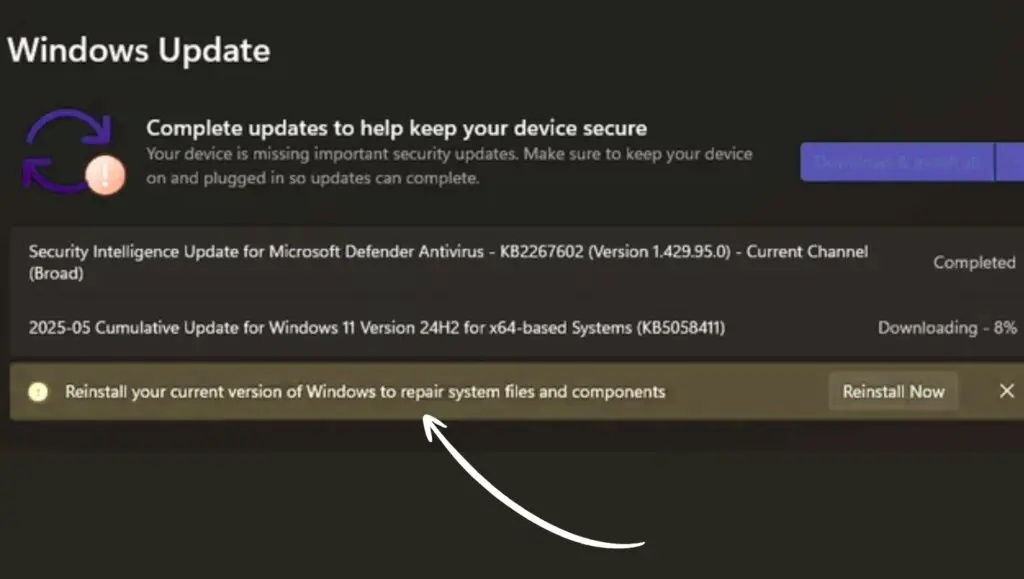
To fix the “Reinstall your current version of Windows” message, you can use the following methods:
- Run System File Checker and DISM tools
- Use Windows Startup Repair
- Reset your PC while keeping files
- Perform an in-place upgrade using Windows installation media
- Check for and install pending updates
- Use System Restore to revert to a previous state
Start with simple fixes such as scanning and repairing system files. If that does not work, move to more advanced options like resetting your PC or performing an in-place upgrade.
Below is a step-by-step breakdown of each method.
1: Run System File Checker and DISM Scan
The first thing you should do is repair corrupted system files using built-in tools. These tools scan your system and automatically fix problems.
Open the Start menu and type Command Prompt. Right-click it and choose Run as administrator. Once the Command Prompt window opens, type the following command and press Enter:
sfc /scannow
This command scans your system for damaged or missing files and repairs them. The process may take several minutes, so let it complete without interruption.
After the scan finishes, run the following commands one by one:
DISM /Online /Cleanup-Image /RestoreHealth
This command repairs the Windows image itself, which is often the root cause of system errors.
Once both scans are complete, restart your computer and check if the issue is resolved.
2: Use Windows Startup Repair
If the problem occurs during boot or recovery mode, Startup Repair can help fix it automatically.
Restart your computer and force it into recovery mode by interrupting the boot process three times. You can do this by turning your PC off while it is starting up.
Once you enter the Windows Recovery Environment, select Troubleshoot, then choose Advanced options, and click on Startup Repair.
Windows will analyze your system and attempt to fix startup-related problems. This process is automatic and does not require technical knowledge.
After it completes, restart your system and check if the message disappears.
3: Reset Your PC While Keeping Files
If system repair tools do not work, resetting your PC is the next step. This reinstalls Windows while keeping your personal files intact.
Go to Settings, then select System, and click on Recovery. Under the Reset this PC section, click Reset PC.
Choose the option Keep my files. This ensures your documents, photos, and other personal data remain safe.
Follow the on-screen instructions to complete the reset process. Windows will reinstall itself and fix any major issues causing the message.
This method is effective and beginner-friendly, but you may need to reinstall apps afterward.
4: Perform an In-Place Upgrade
An in-place upgrade is one of the most reliable ways to fix this error without losing data. It reinstalls Windows over your existing system.
First, download the official Windows installation tool from Microsoft’s website. Run the tool and choose Upgrade this PC now.
Follow the instructions and make sure to select the option to keep personal files and apps.
The process will reinstall Windows while preserving your data and settings. It may take some time, but it often resolves persistent system errors.
After completion, your system should be stable, and the message should no longer appear.
5: Check for Pending Updates
Sometimes the issue is caused by incomplete or failed updates. Installing pending updates can resolve the problem.
Open Settings, go to Windows Update, and click Check for updates.
If updates are available, download and install them. Restart your computer once the installation is complete.
Keeping your system updated ensures that bugs and compatibility issues are fixed automatically.
6: Use System Restore
If the error started recently, you can use System Restore to revert your PC to an earlier working state.
Open the Start menu and type Create a restore point. Click on it and then select System Restore.
Choose a restore point from a date before the issue began. Follow the instructions to restore your system.
This process will not affect your personal files but will undo recent system changes that may have caused the problem.
7: Check Disk for Errors
Disk errors can also trigger this message. Running a disk check can help identify and fix these issues.
Open Command Prompt as an administrator and type:
chkdsk /f /r
Press Enter and confirm the scan when prompted. Restart your computer so the scan can run.
This process checks for bad sectors and repairs disk-related problems.
FAQs
Is this message a virus or malware?
No, this message is not caused by a virus. It is a system-level warning generated by Windows when it detects issues with its installation.
Will I lose my data if I reinstall Windows?
Not necessarily. Options like Reset this PC with Keep my files or an in-place upgrade allow you to keep your personal data.
Why does this message appear repeatedly?
It usually means the underlying issue has not been fixed. Corrupted system files, failed updates, or disk errors are common causes.
Can I ignore this message?
Ignoring it is not recommended. It indicates a problem that could lead to system instability or future crashes.
Which method is safest for beginners?
Running System File Checker, using Startup Repair, and performing a Reset with Keep my files are the safest and easiest methods.
Summary
The “Reinstall your current version of Windows” message is a clear sign that your system needs attention. While it may seem serious, it can often be fixed without losing your data.
Start with simple solutions like repairing system files and using Startup Repair. If needed, move on to resetting your PC or performing an in-place upgrade. These methods are designed to be user-friendly and effective.