
Fix SecurityHealthSystray.exe Bad Image
Have you recently started your Windows 11 PC and noticed a SecurityHealthSystray.exe Bad Image error (0xc000012f)? This error can be frustrating, especially when it appears every time you turn on your computer or sign in to Windows.
SecurityHealthSystray.exe is a Windows component associated with the Windows Security notification icon in the system tray. It helps Windows display security-related notifications and alerts. When something goes wrong with this component or one of its required system files, Windows may display a Bad Image error.
The error commonly appears because of corrupted system files, damaged Windows Security components, incomplete Windows updates, or problematic system libraries. In some cases, third-party software or an interrupted update can also contribute to the problem.
In this guide, I’ll explain the methods to resolve this issue easily!
Fix SecurityHealthSystray.exe Bad Image Error (0xc000012f) on Windows 11
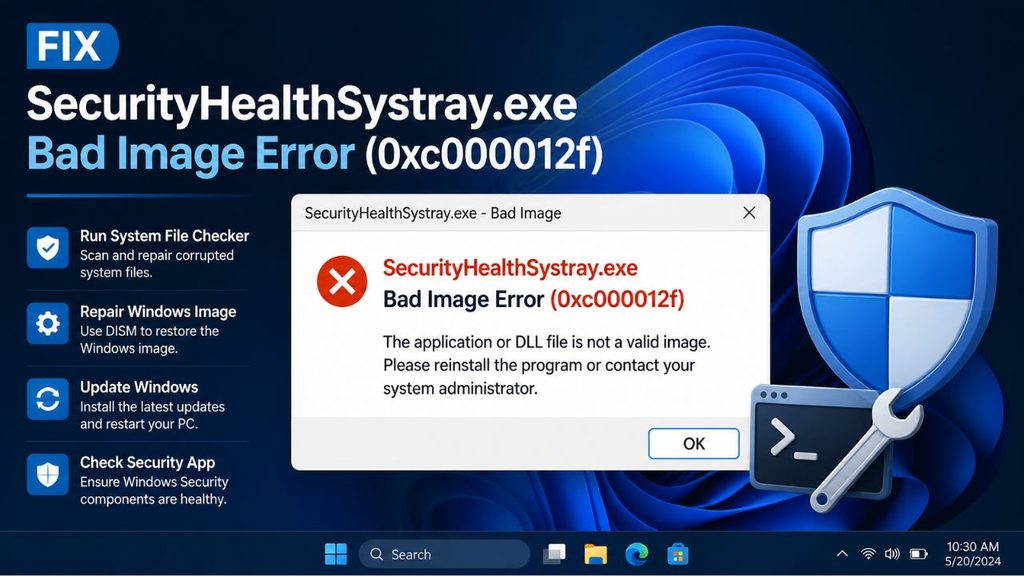
To fix the SecurityHealthSystray.exe Bad Image error (0xc000012f) on Windows 11, restart your computer, install pending Windows updates, run the System File Checker (SFC) and DISM commands, repair Windows Security, check recently installed software, and perform a clean boot. If the problem continues, consider restoring Windows system files or performing an in-place repair installation.
Let’s go through each solution in detail.
1: Restart Your Windows 11 Computer
Before trying advanced troubleshooting methods, restart your computer. Sometimes, Windows experiences temporary problems while loading security components, especially after installing updates or making system changes.
A proper restart can refresh Windows services and reload the Windows Security notification component.
Step 1: Press the Windows + X keys together.
Step 2: Select Shut down or sign out, then click Restart.
Step 3: Wait for Windows to restart completely.
Step 4: Sign in to your account and check whether the SecurityHealthSystray.exe error appears again.
If the error is still there, move to the next solution.
2: Install Pending Windows Updates
An outdated Windows installation or an incomplete security platform update can cause problems with Windows Security files.
Microsoft regularly releases updates to improve Windows stability, fix bugs, and update security components. Installing the available updates may replace damaged or incompatible files.
Here’s how to check for updates.
Step 1: Press Windows + I to open Settings.
Step 2: Select Windows Update from the left sidebar.
Step 3: Click Check for updates.
Step 4: If updates are available, select Download & install.
Step 5: Wait until Windows finishes installing the updates. Restart your computer if prompted.
After restarting, check whether the Bad Image error has disappeared.
3: Run DISM and System File Checker (SFC)
If Windows updates don’t resolve the problem, try repairing your Windows system files.
Windows 11 includes two useful command-line tools called DISM (Deployment Image Servicing and Management) and SFC (System File Checker).
DISM repairs the Windows component store, while SFC scans protected system files and attempts to replace damaged versions.
Running these tools in the correct order can help resolve errors caused by corrupted Windows components.
Step 1: Click the Windows Search button and type Command Prompt.
Step 2: Right-click Command Prompt and select Run as administrator.
Step 3: Click Yes when the User Account Control prompt appears.
Step 4: Copy and enter the following command:
DISM.exe /Online /Cleanup-Image /RestoreHealth
Step 5: Press Enter and allow the process to finish. It may take several minutes, so don’t close the Command Prompt window.
Step 6: Once DISM completes successfully, enter this command:
sfc /scannow
Step 7: Press Enter and wait until the verification reaches 100%.
Step 8: Restart your computer.
Check whether Windows still displays the 0xc000012f error.
If SFC reports that it repaired corrupted files, restarting is particularly important. You can find Microsoft’s instructions for these tools in its System File Checker repair guide.
4: Repair or Reset the Windows Security App
Sometimes, the problem is related to damaged Windows Security application components rather than general Windows system files.
Windows 11 provides repair and reset options that can help resolve application-related issues.
Step 1: Open Windows Settings by pressing Windows + I.
Step 2: Select Apps and then click Installed apps.
Step 3: Search for Windows Security in the application list.
Step 4: Click the three-dot menu next to the application, if available, and select Advanced options.
Step 5: Look for the Repair option and click it.
Step 6: Wait for Windows to complete the repair process.
Step 7: Restart your computer and check the error.
If repairing doesn’t help, return to the same page and select Reset, if that option is available.
Remember that resetting an app can restore its settings to their defaults. You may need to review your Windows Security preferences afterward.
5: Reset Windows Security Using PowerShell
If the previous method doesn’t work, try resetting the Windows Security application package through PowerShell.
This method is useful when the application has registration or configuration problems.
Step 1: Open Windows Search and type PowerShell.
Step 2: Right-click Windows PowerShell or Terminal and select Run as administrator.
Step 3: Click Yes if Windows asks for permission.
Step 4: Enter the following command:
Get-AppxPackage Microsoft.SecHealthUI -AllUsers | Reset-AppxPackage
Step 5: Press Enter and wait for the command to finish.
Step 6: Close PowerShell and restart Windows.
Check whether Windows Security opens normally and whether the startup error has disappeared.
If PowerShell reports that the command is unavailable or the package cannot be found, don’t keep repeating it. Move to the next solution.
6: Check the Windows Security Platform Version Folder
This is a more advanced solution specifically worth considering when the error message identifies SecurityHealthSSO.dll.
In some cases, a damaged Windows Security platform version folder causes the Bad Image error. The folder is usually located inside:
C:\Windows\System32\SecurityHealth
The error message may display a version-specific folder name, such as 10.0.xxxxx.xxxx-0. The actual number will vary between Windows installations.
Step 1: Read the complete error message and note the version folder mentioned in the DLL path.
Step 2: Open File Explorer and navigate to:
C:\Windows\System32\SecurityHealth
Step 3: Check whether the version folder mentioned in the error exists.
Step 4: Do not randomly delete folders or replace DLL files. These are protected Windows security components.
Step 5: First, install pending Windows updates and restart your computer to allow Windows to service the security platform.
Important: Never download SecurityHealthSSO.dll from an unknown DLL website or copy it from another computer. A mismatched file can create additional Windows security problems.
7: Run a Microsoft Defender Full Scan
Although the 0xc000012f error doesn’t automatically mean your computer is infected, it’s worth checking for unwanted software or unauthorized changes.
Malware can sometimes damage, replace, or interfere with Windows components.
Step 1: Open the Start menu and search for Windows Security.
Step 2: Select Virus & threat protection.
Step 3: Click Scan options.
Step 4: Select Full scan.
Step 5: Click Scan now and wait for Windows Defender to examine your files.
If Windows Security refuses to open, use Microsoft Defender Offline scanning if available through Windows recovery or security settings.
Remove or quarantine any detected threats and restart your computer.
8: Perform a Clean Boot
If the error continues, a third-party application or startup service might be interfering with Windows.
A Clean Boot starts Windows with essential Microsoft services while disabling most third-party startup services. This helps identify whether another program is causing the problem.
Step 1: Press Windows + R, type msconfig, and press Enter.
Step 2: Open the Services tab.
Step 3: Check the Hide all Microsoft services option.
Step 4: Click Disable all.
Step 5: Open the Startup tab and select Open Task Manager.
Step 6: Disable the enabled third-party startup applications.
Step 7: Close Task Manager, click Apply, and select OK in System Configuration.
Step 8: Restart your computer.
If the error disappears, one of the disabled services or startup applications may be responsible. Re-enable them gradually to identify the problematic program.
Once testing is complete, restore your normal startup configuration.
9: Perform an In-Place Windows 11 Repair
If none of the previous solutions works, consider performing an in-place repair installation.
This process reinstalls Windows 11 while giving you the option to keep your personal files and installed applications.
Download the official Windows 11 installation media from Microsoft’s website and start the setup from within your existing Windows installation.
During setup, select Keep personal files and apps when that option is available.
Follow the on-screen instructions and allow Windows to complete the installation.
Before starting, back up important files and make sure you have enough free storage space. Also, check that the installation media matches your Windows edition and language.
This is a more time-consuming solution, so use it after trying the simpler repairs.
FAQs
1. What does SecurityHealthSystray.exe Bad Image error 0xc000012f mean?
This error means Windows cannot properly load a required program file or supporting DLL associated with the Windows Security notification component. A corrupted or incompatible SecurityHealthSSO.dll file is one possible cause.
2. Is SecurityHealthSystray.exe a virus?
No. The legitimate SecurityHealthSystray.exe is a Windows component responsible for displaying Windows Security notifications. However, malware can disguise itself using similar filenames. Check its file location and digital signature if you suspect something unusual.
3. Can I disable SecurityHealthSystray.exe?
You can manage certain startup applications, but disabling this component isn’t a recommended permanent solution. It may prevent security notifications from appearing correctly. It’s better to repair the underlying problem.
4. Will running SFC and DISM delete my personal files?
No. DISM and SFC are Windows repair tools designed to fix damaged system components and protected files. They aren’t intended to delete your personal documents, photos, or videos.
5. Why does the Bad Image error appear every time Windows starts?
The error may appear repeatedly because Windows attempts to load the same damaged security component during startup. Until the affected file or its underlying problem is repaired, the notification can continue appearing.